How to Automatically Convert Product Prices to Local Currency in WooCommerce


Running an online store means catering to customers from all over the world. While WooCommerce is one of the most popular platforms for building eCommerce websites, it doesn’t automatically let you convert product prices to local currency. This often creates unnecessary friction—international shoppers prefer to see prices in their own currency without having to do mental math or use external converters.
Research shows that more than 90% of online shoppers are more likely to finalize a purchase if they can view prices in their local currency. That means automatic conversion isn’t just a nice-to-have—it’s a feature that can directly impact sales, trust, and overall customer satisfaction.
Thankfully, the solution is simple. With the FOX – Currency Switcher Professional for WooCommerce (WOOCS) plugin, you can automatically display prices based on your customers’ location. So, someone browsing from the US will instantly see prices in USD, while a shopper in Germany will view them in EUR—no extra steps required.
Why Convert Product Prices to Local Currency?

Imagine walking into a store and seeing all the price tags in a foreign currency. Chances are you’d feel uncertain or even abandon your shopping altogether. That’s exactly how international customers feel when prices aren’t localized.
Converting product prices to local currency improves the shopping experience, helps customers feel at ease, and removes the hassle of manual exchange rate calculations. It also builds trust by showing transparent, upfront pricing without hidden surprises at checkout. On top of that, it opens the doors to international growth, giving your store a competitive edge in the global marketplace.
With FOX – Currency Switcher Professional, WooCommerce store owners can achieve all of this smoothly and effortlessly.
How Currency Conversion Impacts Checkout Abandonment
Cart abandonment is a major challenge for online stores, with studies showing that nearly 70% of shoppers leave before completing their purchase. One key reason? Unexpected costs at checkout. If customers see one currency on product pages but a different one at checkout, they often hesitate.
By enabling automatic currency conversion, you ensure transparency and consistency throughout the buying journey. When a shopper sees the same currency displayed from browsing to checkout, they feel confident to proceed with payment.
Real-Life Example: How Local Currency Builds Trust
Picture this: a shopper from Canada visits your store and instantly sees all prices in CAD. They don’t need to worry about calculating exchange rates or wondering what they’ll actually be charged at checkout. This small detail reassures them that your store understands their needs and values their shopping experience. In many cases, it’s this kind of user-friendly touch that turns casual browsers into loyal customers.
Getting Started with Installation
Before you dive into the plugin’s features, the first step is to install and activate it. This simple step lays the foundation for enabling automatic currency switching in your store.
Step 1: Install and Activate FOX
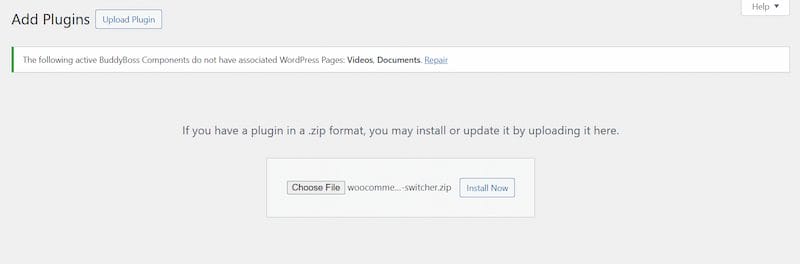
- Log in to your WordPress Dashboard.
- Head to Plugins → Add New → Upload Plugin.
- Upload the plugin zip file for FOX.
- Click Install Now, then hit Activate.
Once it’s activated, the plugin integrates seamlessly with WooCommerce, and you’re ready to configure your currency conversion settings.
Step 2: Configure Basic Currency Settings
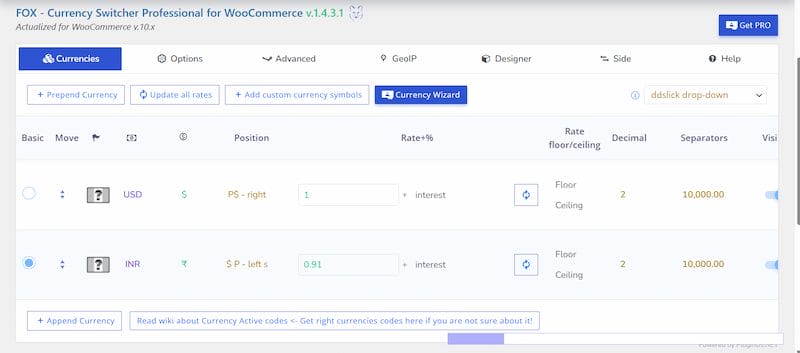
- Navigate to WooCommerce → Currency Switcher in your admin dashboard.
- Add the currencies you’d like to support, such as USD, EUR, GBP, or INR.
- Either define exchange rates manually or switch on automatic exchange rate updates.
- Decide how currencies should display—whether with symbols, codes, or custom formatting.
Pro tip: For accuracy and time-saving, enable automatic updates using the built-in exchange rate aggregators.
Step 3: Enable Automatic Currency Conversion by GeoIP

Here’s where the plugin really shines. With its GeoIP-based detection, FOX can automatically identify a visitor’s location and display prices in their local currency.
- Go to Currency Switcher Settings → GeoIP Rules.
- Switch on Use GeoIP Rules.
- Assign currencies to specific countries.
For instance:
- Visitors from the United States will see prices in USD.
- Customers from Germany will view prices in EUR.
- Shoppers from India will automatically see INR.
From the moment someone lands on your store, they’ll feel right at home with localized pricing.
Step 4: Test Your Currency Conversion
- Open your site in an incognito browser.
- Use a VPN or a GeoIP testing tool to simulate different countries.
- Confirm that prices switch to the correct currency.
- Add items to your cart and check if conversion works at checkout.
Pro tip: Always test across devices and locations to make sure customers everywhere enjoy a smooth experience.
SEO Benefits of Localized Currency
Displaying prices in local currencies can also positively impact your store’s SEO. Here’s how:
- Higher engagement rates: Shoppers are more likely to stay longer on your site when prices feel relevant.
- Lower bounce rates: Customers don’t immediately leave because they don’t understand the currency.
- Better keyword targeting: Some search queries include currency terms like “Buy shoes in USD” or “Laptop in INR.”
- Improved international rankings: By catering to global visitors, your store builds authority across multiple regions.
Best Practices for Using FOX
- Turn on auto-updates for exchange rates to keep prices accurate.
- Map your major customer countries with their preferred currencies.
- Keep checkout simple by allowing payment in the customer’s chosen currency.
- Track performance with Google Analytics to understand conversion rates by country.
Payment Gateway Compatibility
One of the most common concerns store owners have is whether their payment gateway will support multiple currencies. With FOX, this worry is addressed by allowing customers to pay directly in their selected currency, mapping specific currencies to chosen payment gateways for seamless checkout, and preventing mismatches that could otherwise cause errors.
These features ensure that transactions remain smooth and reliable, no matter where in the world your customers are shopping from.
Also Read: How to Limit Shipping and Payment Methods in WooCommerce
Benefits of Using FOX
- Reach global customers more effectively.
- Increase trust and reduce hesitation at checkout.
- Integrate easily with shortcodes, widgets, and functions.
- Give developers advanced customization options.
- Create a professional, seamless shopping experience for every customer.
Customer Experience and Brand Loyalty
A seamless, localized experience shows customers that you value their needs. Something as simple as displaying prices in their home currency can:
- Reduce purchase hesitation.
- Increase repeat purchases.
- Strengthen your brand reputation globally.
It’s a small adjustment that creates a big impact on customer satisfaction.
Common Issues and Troubleshooting
Even with a powerful plugin, issues can occasionally pop up. For instance, exchange rates may not update if the aggregator connection fails, or some customers might see the wrong currency if GeoIP rules aren’t mapped correctly.
If that happens, start by double-checking your aggregator settings, clearing your site cache, and ensuring GeoIP is enabled and configured. Also, make sure your theme and third-party plugins are up to date. These small fixes usually resolve most problems quickly and keep your store running smoothly.
Why Local Currency Matters
If you run an international WooCommerce store, supporting local currencies isn’t just about convenience—it’s about building trust and improving sales. With FOX, you can automatically convert product prices to local currency, reduce abandoned carts, and give your customers a shopping experience they’ll appreciate.
Whether you’re just starting your store or already running a global brand, this plugin offers everything you need—from simple shortcodes to advanced developer functions.
Ready to take your WooCommerce store global? Start using FOX – Currency Switcher Professional today.
👉 Need expert help setting up or customizing your WooCommerce store? Check out our services here: Custom WooCommerce Development by Wbcom Designs
Interesting Reads
How to Set Up Color, Image & Label Swatches in WooCommerce

Shashank is a seasoned digital marketing and WordPress expert who specializes in SEO, software tools reviews, and cutting-edge strategies for boosting online presence. With a passion for simplifying complex topics, Goutham crafts engaging blog posts that help readers optimize their websites, improve search engine rankings, and stay ahead in the ever-evolving digital landscape.