
Every WordPress site has a login page, but WordPress doesn’t make it especially obvious where to find it, particularly for anyone new to managing a site or taking over an existing one from someone else. This post covers five reliable ways to locate your WordPress login URL, plus why it’s worth knowing beyond just the obvious reason of needing to log in.
This trips up more people than you’d expect, not just first-time site owners, but developers inheriting an old client project, new hires at an agency taking over site maintenance mid-contract, and anyone who’s simply forgotten a URL they haven’t needed to type in months. The methods below cover the situation from every angle, whether you built the site yourself, inherited it, or are troubleshooting access for someone else.
Why Finding Your WordPress Login URL Matters
1. Access to the Admin Dashboard: The WordPress login URL is the gateway to the admin dashboard, where you manage everything about your site, content, plugins, themes, and settings. Without knowing the login URL, you can’t reach any of it.
2. Security Planning: Knowing where your login page lives is the first step toward deciding whether to protect it further. Many sites move or rename the default login URL specifically to reduce automated brute-force login attempts, and you can’t make that decision if you don’t already know where the default page sits.
3. Efficient Website Management: Quick access to the dashboard means faster content updates, plugin management, and theme changes. A bookmarked, easy-to-reach login page removes friction from routine maintenance tasks that would otherwise require hunting for the URL each time, and that small bit of friction adds up meaningfully over a year of routine site upkeep.
4. Collaboration and Teamwork: If multiple people manage the same site, editors, developers, a client’s in-house marketing team, everyone needs a reliable way to reach the login page without relying on a single person to share it each time. A team that has to Slack-message one specific developer every time someone needs to log in has a process problem worth fixing, and it usually starts with simply documenting the login URL somewhere the whole team can find it.
Five Ways to Find Your WordPress Login URL
1. Try the Standard URL Patterns
If you know your site’s domain, the fastest method is simply testing the standard WordPress login paths directly in your browser’s address bar.


Start by adding /login/ or /admin/ to the end of your domain. If neither works, the most reliable default fallback is /wp-login.php, which WordPress uses internally regardless of what a theme or plugin might display elsewhere.

You can also try adding “/wp-admin” directly to your website’s URL, yourdomain.com/wp-admin. This works because /wp-admin is the default path WordPress uses for the dashboard, and it automatically redirects to the login page if you’re not already authenticated.

If WordPress is installed in a subdirectory rather than at your domain’s root, include that subdirectory name before /admin/ or /login/ in the URL. A site installed at yourdomain.com/blog, for example, would use yourdomain.com/blog/wp-admin rather than the root-level path.
One related detail worth knowing: the “Remember Me” checkbox on the login form keeps you signed in for roughly two weeks without needing to re-enter your username and password, which is useful if you manage the same site regularly from the same device. Plugins like Remember Me Controls let you adjust that default duration if two weeks is shorter or longer than you’d prefer.
2. Bookmark the Dashboard URL in Your Browser
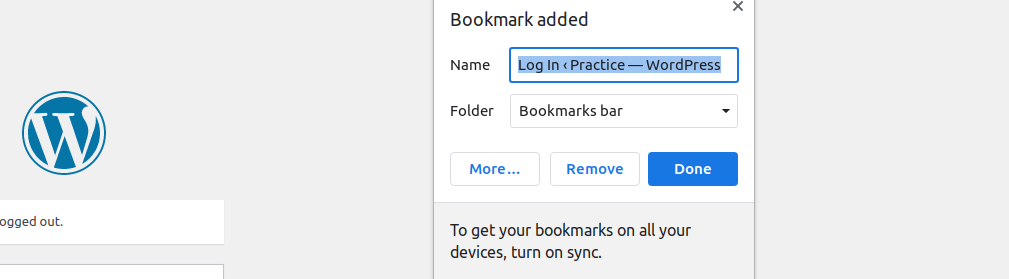
Once you’ve found the correct login URL, bookmarking it is the simplest way to avoid repeating this search every time. In Chrome, Firefox, and most other browsers, the keyboard shortcut Ctrl+D (Cmd+D on Mac) bookmarks the current page instantly.
3. Add a Login Link to Your Navigation Menu
For sites where multiple people log in regularly, adding a direct login link to the main menu removes the guesswork entirely for every future visit.
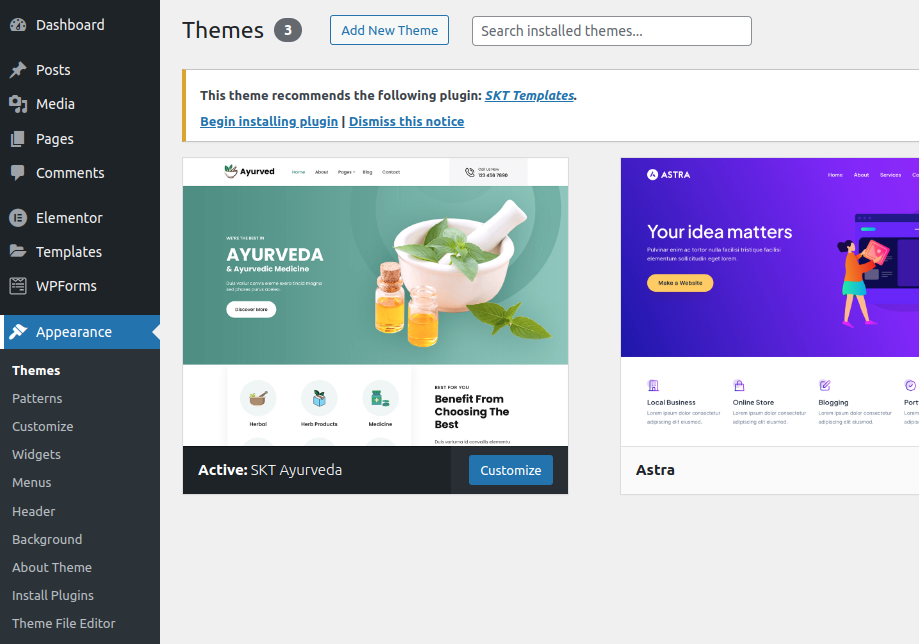
From your dashboard, go to Appearance, then Menus. Open the Custom Links panel, enter your site’s login URL along with the link text you want displayed (something like “Member Login” or “Staff Access”), then click Add to Menu and save.
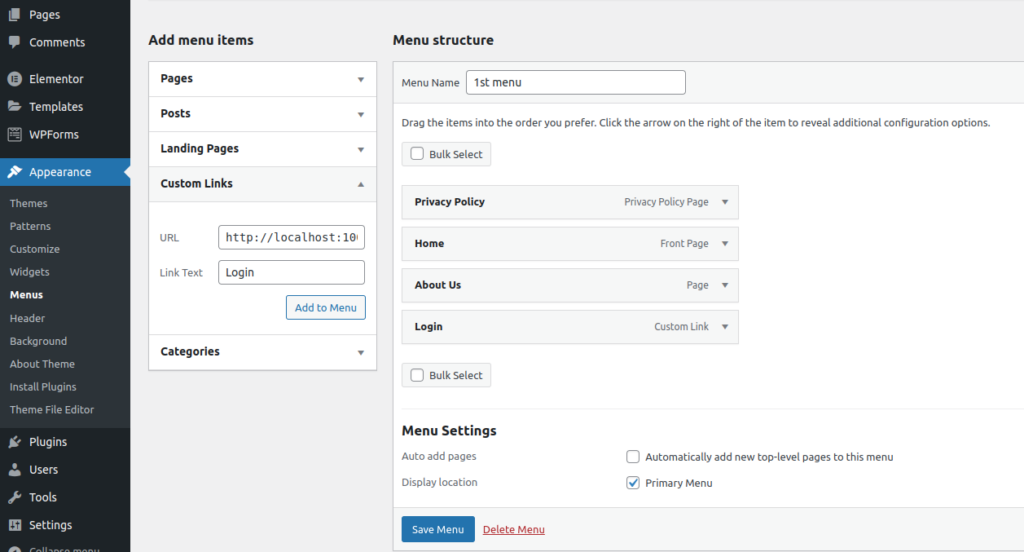
Once saved, anyone visiting the site can click straight through to the login page from the main navigation, no need to remember or type a URL at all.
4. Add a Login Form Directly to the Site
Rather than linking out to the dedicated login page, some site owners prefer embedding an actual login form in the header, footer, or sidebar. A plugin like WPForms supports this through its form builder and a dedicated user registration and login addon. After installing WPForms, enable the addon from the Addons panel, create a login-form page, and link it wherever you want the form to appear.
5. Check with Your Web Host
If none of the above works, or you’ve inherited a site and genuinely don’t know its structure, your hosting provider’s control panel almost always includes a direct link to the WordPress dashboard. Log in to your hosting account, whether that’s Bluehost, WP Engine, SiteGround, or another provider, and look for a link labeled something like “WP Admin,” “Edit Site,” or “Manage WordPress” next to the site listing.
Setting Up Access Properly When Handing Off a Site
Agencies and freelancers who build sites for clients run into this problem from the opposite direction: making sure the client can actually find and use the login page after the project wraps. A brief handoff document, even a single page, listing the login URL, the admin username, and a note on where the password is stored, saves a predictable support request weeks or months later when the client has forgotten the details and can’t locate the original project files.
It’s worth creating a dedicated client account rather than sharing a developer’s own login credentials, both for basic security hygiene and because it gives the client full ownership of their site’s access from day one, rather than a lingering dependency on the person who originally built it.
Include a short note about two-factor authentication status and backup codes in that same handoff document if 2FA is enabled on the account. A client who loses their phone six months after a project wraps and has no record of backup codes, and no memory of ever seeing them, is a far more painful support call than a five-minute addition to a handoff checklist would have prevented.
Deciding Whether to Change Your Default Login URL
Knowing where the default login page sits is also the first step toward deciding whether to protect it. The default /wp-login.php and /wp-admin paths are publicly known and constantly targeted by automated bots running brute-force login attempts against thousands of sites at once. Moving the login page to a custom, non-default URL, a common feature in security plugins, removes the site from that automated scanning entirely, since bots generally target the well-known default paths rather than guessing at custom ones.
This isn’t a substitute for strong passwords or two-factor authentication, but it does meaningfully cut down on login-page noise in your server logs and reduces one class of automated attack almost entirely. If you manage a site for a client or a team, deciding this upfront and documenting the actual login URL somewhere secure, a password manager, a shared team document, avoids the confusion of someone forgetting where a customized login page moved to.
Weigh this against the practical downside too. A customized login URL means anyone who genuinely needs access, a new hire, a contractor brought on for a one-off task, has to be told the exact custom path rather than being able to guess the standard one. For a small, tightly controlled team this tradeoff is easily worth it; for a site with frequent turnover in who needs admin access, the added friction is worth weighing against the security benefit before committing to the change.
What to Do If You’re Still Locked Out
Finding the login URL solves half the problem; the other half is what happens if you find the page but can’t actually log in. A “Lost your password?” link on the login form triggers a reset email to the address associated with your account, provided your site’s outgoing email is configured correctly. If that email never arrives, check your spam folder first, and if it’s still missing, the issue is usually a hosting-level email delivery problem rather than anything wrong with WordPress itself, worth raising directly with your hosting provider’s support team.
For site owners with direct server access, a password reset can also be done manually through phpMyAdmin by updating the user’s password hash in the database, or through WP-CLI with a single command, both faster routes than waiting on email delivery if you have that level of access.
If two-factor authentication is enabled and you’ve lost access to the authenticator device or backup codes, recovery gets more involved. Most 2FA plugins provide a set of one-time backup codes generated at setup, worth storing somewhere separate from the device itself, precisely for this scenario. Without those backup codes, regaining access typically requires direct database access to disable the 2FA requirement temporarily, which is a good reason to store backup codes securely rather than skipping that step during initial setup.
A Note on Local Development Environments
The methods above assume a live, publicly accessible WordPress site. Local development tools like Local, DevKinsta, or a Docker-based setup work slightly differently, since the site typically runs on a local domain that only resolves on the developer’s own machine, something like mysite.local rather than a real, publicly reachable domain. The standard /wp-admin path still applies once you’re on the correct local domain, but finding that domain in the first place usually means checking the local development tool’s own site list rather than guessing at a URL.
This distinction matters for anyone moving between a local staging environment and a live production site during development, since the login URL, and sometimes the credentials themselves, will differ between the two even though the underlying WordPress install is otherwise identical. Keep a clear note of which environment is which before making changes, since applying a fix meant for staging directly to a live production login setup, or the reverse, is a mistake that’s easy to make when both environments look nearly identical at a glance.
Common Reasons the Login Page Doesn’t Show Up Where Expected
A handful of situations trip people up beyond the basic path variations covered above. If a security plugin has already renamed the login URL, none of the standard paths will work at all, and you’ll need to check that plugin’s settings, or ask whoever set up the site, for the custom path it’s using. Multisite WordPress networks add another wrinkle: each subsite typically shares the same network login, so a login attempt on a subsite might redirect to the main network site’s login page rather than staying on the subsite’s own domain.
Caching plugins occasionally cause a different kind of confusion, serving a cached, logged-out version of a page even after you’ve successfully logged in elsewhere. If the dashboard seems to load but the front end of the site still shows a logged-out state, clearing the site’s cache, or your browser’s cache, usually resolves it.
Custom-built themes sometimes remove the default WordPress login link from anywhere in the visible site navigation as a deliberate security choice, on the assumption that only people who already know the URL should be using it. If a client site has no visible login link anywhere and the standard paths return a 404, this is worth checking before assuming something is broken.
A firewall or security plugin configured to block admin access from unfamiliar IP addresses can also produce what looks like a broken login page when it’s actually working correctly and simply refusing the connection based on a rule you may not remember setting. Checking the security plugin’s activity log before assuming the login system itself is malfunctioning saves a fair amount of unnecessary troubleshooting.
Mobile Access to Your WordPress Dashboard
The standard login page works fine in a mobile browser, but for site owners who manage WordPress frequently from a phone, the official WordPress mobile app offers a more streamlined experience for common tasks, publishing a quick post, moderating comments, checking site stats, without navigating the full desktop-oriented dashboard on a small screen. The app connects using the same login credentials as the web dashboard, so it doesn’t require a separate account or a different login URL, just the site’s address and your existing username and password entered once during setup.
For anything beyond routine content and comment management, plugin configuration, theme customization, complex settings changes, the full desktop dashboard remains the more practical choice, since a phone screen simply isn’t well suited to some of that work regardless of how well an app is designed.
Password Managers Solve This Problem Permanently
For anyone managing more than one or two WordPress sites, a password manager is worth the setup time beyond just storing passwords. Most password managers also store the associated login URL alongside each set of credentials, and many will auto-navigate to the correct page when you select a saved entry. This sidesteps the entire question of remembering or bookmarking individual login URLs, since the password manager becomes the single source of truth for both the URL and the credentials needed to use it.
This matters even more for agencies or freelancers managing client sites, where dozens of distinct login URLs, usernames, and passwords can otherwise become an unmanageable spreadsheet or, worse, a collection of sticky notes and half-remembered patterns. Look for a password manager with team-sharing features specifically if more than one person needs access to the same set of client credentials, rather than passing individual passwords around over email or chat, both of which leave a far less secure trail than a purpose-built shared vault.
Finding Your WordPress Login URL, in Short
Locating your WordPress login page is the first practical step toward managing your site, whether that’s publishing content, installing plugins, or handing off access to a new team member. Between the standard URL patterns, a browser bookmark, a menu link, an embedded form, or your host’s dashboard, one of these five methods will get you there on nearly any WordPress install. Once you’ve found it, take the extra few minutes to decide whether it’s worth customizing or protecting further, since that’s a far easier decision to make once, upfront, than to revisit later after a wave of automated login attempts shows up in your server logs.
Whichever method you end up relying on day to day, write it down somewhere you’ll actually find again, a password manager entry, a pinned browser tab, a documented handoff note. The five minutes spent doing that now is considerably cheaper than the ten minutes spent hunting for a forgotten URL every time you need to make a quick update.
None of this needs to be complicated, and it’s not a problem worth losing much time over once you know where to look. The methods here cover essentially every situation a WordPress site owner or manager is likely to run into, from a brand-new install on day one to an inherited site with years of undocumented history behind it.
Interesting Reads:
How to Easily Change Your WordPress Username