
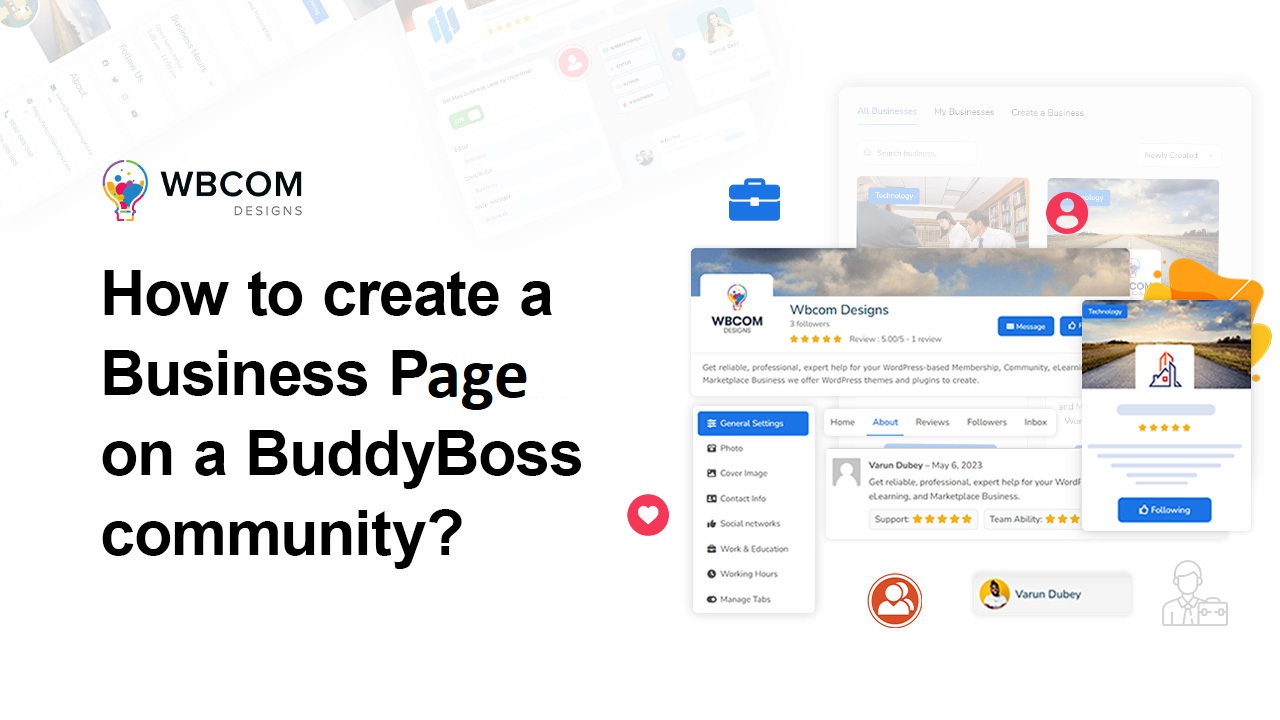
A dedicated business page gives your BuddyBoss community a real storefront presence, separate from any single member’s profile, with its own activity feed, contact channel, and, depending on what’s being sold, event and job listings attached. This walks through the admin side of setting one up, the settings panel, the taxonomy, the configuration choices a site owner makes once for the whole community, rather than what an individual member sees when creating their own page.
What BuddyPress Business Profile Does
BuddyPress Business Profile from Wbcom Designs provides this. Members showcase products, services, portfolio pieces, and reviews on their own page, and can post updates, events, and job listings directly from it.
Current version (v2.1.0):
- Customizable profile fields, logo, cover image, contact info, social links.
- A business activity feed with comments and likes.
- Private messaging through a per-page inbox.
- Role management, admins, editors, moderators, with control over who can create, edit, or delete pages.
- Public, private, or hidden visibility per page.
- Reviews and star ratings, a searchable directory with map view, and LocalBusiness SEO schema.
Requirements
An existing BuddyPress or BuddyBoss community, PHP 7.2+, WordPress 5.0+. Works on Chrome, Firefox, and Safari, and is responsive across desktop, tablet, and mobile, worth confirming directly on a phone once configuration is done since most directory visitors will browse from one.
Business Page vs. Business Profile: Same Plugin, Different Emphasis
If you’ve looked at other setup guides for this plugin, you’ve probably seen both “page” and “profile” used for what’s technically the same underlying object. There’s no structural difference, both refer to a Business Profile entry, category is what separates one business from another. The distinction is purely how a given community talks about the feature.
Where it matters practically is what a site owner configures up front. Setting this up as a “page” for the community tends to mean thinking about it from the admin’s chair first, categories, taxonomy, default settings, before individual members start creating their own. That’s the angle this guide takes, the configuration work a site owner does once rather than the setup flow an individual business owner clicks through.
Getting Into the Settings Panel
Install and activate the plugin. A Business Pages (or similarly labeled) menu item appears in the dashboard, alongside a WB Plugins > BuddyPress Business Profile > General Settings panel where most of the site-wide configuration lives.
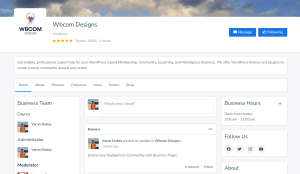
Before members start creating their own pages, it’s worth going through this settings panel deliberately rather than leaving every default in place, a handful of choices made here shape how the whole business-page section of the community works from day one.
Setting Up Categories Before Members Start Creating Pages
Category is the main way visitors browse and filter the business directory, so getting the taxonomy right before pages start piling up saves a lot of cleanup later. A handful of well-chosen, non-overlapping categories that match what your community actually needs, retail, services, local restaurants, whatever’s relevant, works better than either a single generic “Business” bucket or dozens of narrow categories nobody uses consistently.
If members are allowed to suggest new categories, review requests periodically rather than letting the list grow unchecked. A taxonomy that’s ballooned to forty overlapping categories is nearly as unusable for browsing as having none at all, each new category should earn its place by covering something the existing list genuinely doesn’t.
Configuring the Business Directory Page
The plugin needs a WordPress page assigned as the business listing/directory page, configured under general settings. Decide where this sits in your site’s navigation before launch, buried three menus deep, it won’t get discovered organically, prominent in primary navigation, it becomes a real part of how members explore the community.
Consider what the directory’s default sort order and filters should be, most recently added, alphabetical, highest-rated, depending on what best serves your specific community’s browsing habits. This is a small setting with an outsized effect on which businesses actually get seen by new visitors, since most people never bother changing a sort order away from whatever they land on first.
Setting Up Google Maps Integration
If your community includes local, in-person businesses, the map view is worth the extra setup step. It requires a Google Maps API key, entered under General Settings > Google Maps API Key. See how to create the API key if you don’t already have one.
Skip this if your community is mostly online-first businesses with no physical location relevant to members, the map adds real value for a local directory and essentially none for a community of remote service providers, so weigh the setup time against what your specific membership actually needs. A mixed community, some local, some remote, can still enable the map and simply leave the address field optional, letting each business owner decide whether a location pin is relevant to them.
Renaming the Page Type Label
The plugin calls these “Business” pages by default, which reads fine for a literal business directory but awkwardly for a community using this feature for organizations, public figures, or fan pages instead. Change the label and URL slug under general settings if the default terminology doesn’t fit how your community actually uses the feature.
This is easy to overlook but worth doing early, changing a label after members have already bookmarked or shared URLs using the old terminology creates unnecessary confusion. Decide on the terminology once, during initial setup, rather than renaming after the feature’s already in active use.
Setting a Default Cover Image
Admins can configure a fallback cover image for any page whose owner hasn’t uploaded their own. This matters more than it might seem, a page with the platform’s raw default placeholder image looks unfinished and generic, while a modest branded fallback, even something simple with your community’s colors or logo, looks intentional rather than neglected while the actual business owner gets around to uploading something custom.
This is a small, one-time setting that quietly improves the baseline quality of every page created before its owner personalizes it, worth doing during initial configuration rather than after noticing a string of bare-default pages in the directory. The same logic applies to a default profile photo or logo placeholder, if the plugin supports one, a branded placeholder beats a generic broken-image icon every time a new page goes live before its owner gets around to a real upload.
Deciding Which Fields Are Required vs. Optional
Beyond the built-in field set, think through what actually needs to be filled in before a page can go live versus what’s genuinely optional. Requiring too much upfront, forcing a new business owner to fill in ten fields before publishing anything, discourages page creation and leads to abandoned setups. Requiring too little results in a directory full of bare-minimum pages that don’t do much for visitors browsing them.
A reasonable middle ground: require the essentials that make a page minimally useful, name, category, a short description, contact method, while leaving richer content, portfolio entries, hours, extended bio, genuinely optional and encouraged rather than mandatory. This gets pages live faster while still setting a baseline quality floor for what’s actually required.
Planning for SEO Before Pages Start Accumulating
The LocalBusiness schema markup the plugin generates automatically is a real advantage over a plain directory listing, but it only helps as much as the underlying content supports it. A page with a thin, generic description doesn’t benefit much from structured markup around it, search engines still need genuine, specific content to rank well, the schema just helps present what’s already there more effectively.
Set expectations with business owners early that a filled-out, specific page performs better in search than a bare-minimum one, this is worth mentioning explicitly during onboarding rather than assuming people will intuit the connection between profile completeness and discoverability. A directory of well-built pages also reflects better on the whole community’s search presence than a directory full of sparse, near-identical entries.
Deciding Who Can Create a Business Page
Role and permission settings control whether any registered member can spin up a page, or whether it’s restricted to specific member types, verified businesses, paid tiers, or admin-approved requests. An open community where anyone can create a page grows the directory faster but risks low-effort or spam entries. A gated approach keeps quality higher but adds friction and requires someone actively reviewing requests.
There’s no universally right answer here, it depends on the size and nature of your community. A small, curated community of vetted local businesses benefits from gating; a large open platform benefits more from low friction paired with active moderation after the fact rather than upfront approval that becomes a bottleneck as volume grows. Whichever approach you pick, document the reasoning somewhere accessible to future admins, a permission setting with no recorded rationale is easy to accidentally loosen or tighten later without understanding why it was configured that way in the first place.
Setting Visibility Defaults
The plugin supports public, private, and hidden visibility per page, but it’s worth deciding what the sensible default should be for newly created pages on your community rather than leaving that entirely to whatever the plugin ships with. For a directory whose whole value proposition is discoverability, defaulting new pages to public makes sense, an owner who genuinely wants something more restricted can change it, but most won’t think to if the default happens to be more closed.
Communicate this default clearly during onboarding so business owners understand what they’re opting into. A page that’s accidentally left on a restrictive visibility setting because the owner didn’t realize it needed changing defeats the purpose of building out a public-facing page in the first place, and that’s a support question worth heading off with clear documentation rather than fielding individually as it comes up.
Handling the Transition From an Older Directory Setup
If your community previously ran business listings through a different plugin or a manual system, spreadsheet-based, a custom post type, plan the migration path before switching over rather than launching this plugin alongside an orphaned legacy system nobody maintains. Decide explicitly whether existing businesses get manually recreated, imported through whatever tooling is available, or asked to set up their own new page from scratch.
A clean cutover with clear communication to existing business owners about what changed and what they need to do beats a slow, confusing overlap period where two systems technically both exist and neither is fully trusted. If a full migration isn’t feasible immediately, at minimum redirect from old listing URLs to the new page structure so existing links and bookmarks don’t just break.
Extending the Rest of Your Community
Wbcom Designs’ broader lineup:
- BuddyPress Member Type (free), custom member classifications.
- BuddyPress Member Blog / Member Blog Pro (free / from $49), frontend blogging from a member profile.
- BuddyPress Check-ins / Check-ins Pro (free / from $49), location tagging, maps on Pro.
- BuddyPress Statistics (from $49), registration, post, and engagement tracking.
Communicating the Feature to Existing Members
A new business-page feature doesn’t get much use if members don’t know it exists or don’t understand why they’d want one. Announce it clearly through whatever channels the community already uses, a newsletter, a pinned activity post, an email to relevant member types, rather than quietly enabling it and hoping people discover it organically.
Frame the announcement around what the business owner actually gets out of it, a real presence separate from a personal profile, reviews and social proof, a direct inbox from customers, rather than a generic “new feature available” note. Members respond better to a clear explanation of the benefit than to a technical feature announcement, and a short example of what a well-built page looks like helps set expectations for what “good” looks like on this feature.
Moderating the Directory After Launch
Once pages start accumulating, plan for ongoing moderation rather than treating setup as a one-time task. Inactive pages, businesses that shut down, categories that no longer make sense, all accumulate over time on any active directory. A periodic review, quarterly is usually enough for most communities, catches this before the directory becomes cluttered with dead listings that undermine trust in the whole feature.
Give admins and trusted moderators clear guidelines for what warrants removing or flagging a page, spam, inactive for an extended period, policy violations, rather than leaving that judgment ad hoc. Consistent enforcement matters more here than strict rules, business owners notice when moderation feels arbitrary versus when it’s applied evenly, and a written guideline document also protects moderators from accusations of favoritism when a removal decision gets questioned.
Reviewing the Setup Before Announcing It Widely
Before pointing the whole community at the new feature, create a handful of test pages yourself, or work with a couple of trusted early business owners, to catch configuration issues while the audience is small. Check that categories display correctly in the directory, that the map view works if you’ve set it up, that the default cover image looks right, and that a newly created page actually appears where a visitor browsing the directory would expect to find it.
This kind of soft launch catches the kind of small configuration mistakes, a category that doesn’t filter correctly, a broken directory page URL, that are minor annoyances with two test pages and a much bigger cleanup job once fifty members have already created pages against a flawed setup. A day or two of careful testing before the wider announcement is worth the delay.
Frequently Asked Questions
Can the business listing page’s URL and slug be customized? Yes, the directory page is a standard WordPress page assigned in settings, so its URL follows whatever permalink structure and page slug you configure for it like any other page on the site.
Does changing a category after pages already exist reorganize them automatically? Existing pages keep whatever category they were assigned at creation. Renaming or restructuring categories doesn’t retroactively reassign pages, so a taxonomy cleanup usually needs manual review of affected pages afterward.
Is the Google Maps API key a paid Google service? Google’s Maps Platform includes a free usage tier before billing kicks in, sufficient for most community-scale directories, but it’s worth checking current Google Cloud pricing directly since usage-based billing terms change independently of this plugin.
Can different categories have different required fields? The core field set applies uniformly across categories rather than varying per category. Communities needing category-specific fields typically handle that through naming conventions in the description rather than a structural per-category field difference.
What happens to a page if its owner’s account is deleted? The page’s fate depends on how ownership and orphaned content are handled at the site level, worth deciding this policy, archive, reassign to an admin, or remove, before it comes up rather than improvising when a member’s account actually gets deleted.
Can the directory be limited to a specific member type only? Combined with a member-type plugin, page creation permissions can be scoped so only certain member types, verified businesses, a paid tier, see the option to create a page at all, rather than exposing it to every registered member by default.
Does the plugin track how many views a page gets? Not natively as a built-in analytics feature. For view tracking or more detailed engagement metrics, pairing the plugin with a dedicated statistics add-on or a general analytics tool gives a fuller picture than what’s available out of the box.
BuddyPress Business Profile pricing: $59/year (1 site), $129/year (5 sites), $299/year (unlimited), plus lifetime options. Browse the full Wbcom Designs catalog for the rest.
Interesting Reads:
How to Create a Business Profile on a BuddyBoss Community?
Can Users Respond to Reviews or Engage in Discussions about Specific Groups
How Can We Create a Job Listings Section on a BuddyPress Website?