
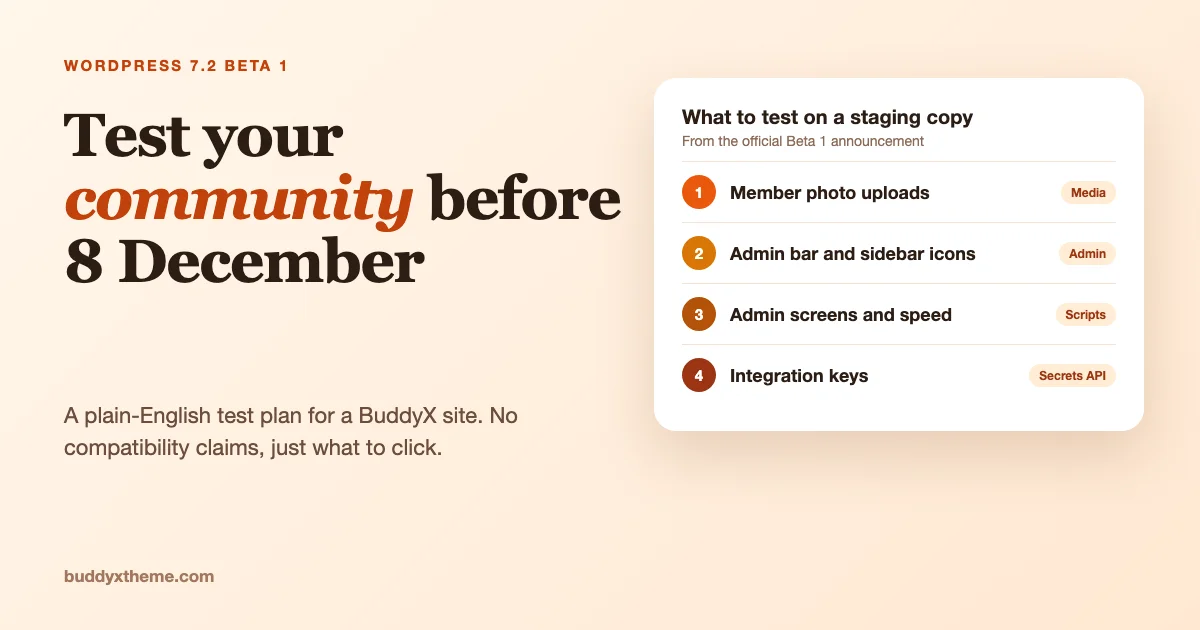
WordPress 7.2 is scheduled for 8 December 2026, and Beta 1 is out now for testing. If you run a community on BuddyX, you have about six weeks to find out whether anything on your site behaves differently, on a copy of your site, not on the live one. This guide gives you a practical test plan, written for the person who runs the community rather than the person who writes the code.
One rule before we start. We are not telling you that BuddyX or any plugin works or fails on 7.2. We have not run your site, and a beta changes from week to week. What we can do is take the changes that the official WordPress 7.2 Beta 1 announcement lists, pick the ones that touch a community site, and tell you what to click. Every fact about WordPress 7.2 below comes from that announcement. Anything else is marked as our advice.
Why test a beta at all?
A community site is not a brochure. Members upload photos, edit profiles, post in groups and get notifications. Staff moderate. Those are the pages that break first when WordPress changes underneath them, and the ones your members notice at once.
If you test now, a problem found in November is a calm afternoon of work. A problem found on 8 December, after your host or your auto-updates moved the site, is a support queue. There is a second benefit: the people who build WordPress read bug reports during the beta. A clear report can change what ships.
The announcement itself says the beta is for testing and development only, and not for production or mission-critical sites. Take that literally. Use a test copy.
How do I set up a safe test copy?
You need a copy of your community site that nobody else uses. There are three common ways.
- A staging site from your host. Many hosts offer a one-click copy. This is the best option because it includes your real theme, plugins and content.
- A local copy on your computer. Tools such as Local do this. You need a way to copy files and the database.
- WordPress Playground. The announcement mentions a 7.2 Beta 1 Playground that runs in your browser with no setup. It is good for looking at new WordPress features. It will not contain your community data, so it will not answer “does my site work”.
Take a full backup of the live site before you copy anything. Then, on the copy, switch to the beta. The announcement lists four ways to do that:
- Install the WordPress Beta Tester plugin, choose the “Bleeding edge” channel and the “Beta/RC Only” stream.
- Download the Beta 1 zip and install it.
- Use WP-CLI with the command
wp core update --version=7.2-beta1. - Use the Playground instance in your browser.
Two practical warnings from our side. First, make sure the copy cannot send real emails to your members. Use a plugin that blocks outgoing mail, or set the staging site to discourage it, so that testing a notification does not email 2,000 people. Second, make sure payment gateways on the copy are in test mode.
The test plan, in order of risk
The list below follows the announcement. Each section says what changed according to WordPress, why a community owner might care, and what to do on the copy.
1. Member uploads: client-side media processing
What WordPress says. WordPress 7.2 expands client-side media processing to the Media Library, so images can be resized, compressed and converted in the browser before they are uploaded. The announcement says this can improve upload performance, reduce server load and give better support for modern image formats, especially on hosting with limited image-processing capability.
Why it matters for a community. Members upload profile photos, cover images, group avatars and photos in posts. Those uploads are the busiest part of many communities. A change in where the resizing happens is exactly the kind of thing that can improve things or surprise you.
What to test. The announcement describes the Media Library. We do not know from it whether the same path applies to uploads that members make through community plugin forms on the front end, so test both.
- In the WordPress admin, upload a large photo (4 MB or more) to the Media Library. Check that it appears, looks right and that the sizes are sensible.
- Log in as a normal member, not an admin. Upload a profile photo and a cover image. Check that the crop screen works and that the result displays.
- Upload a photo from a phone, which is the common case for members. If you can, use an iPhone photo (HEIC) and an Android photo.
- Try an animated GIF and a PNG with transparency, then a file type you allow for members, such as a PDF.
- Try a deliberately wrong upload: a file that is too large for your limit. Look at the error message a member would see.
- Check the page where the image shows: a profile, a group header, an activity post, a member directory card. Look for blur, wrong crops or missing images.
Write down what you see, with the name of the file, what you did and what happened. That is the form a bug report needs.
2. The admin: replaced Dashicons in the admin bar and sidebar
What WordPress says. WordPress 7.2 replaces legacy Dashicons in the admin bar and sidebar with icons from the WordPress icon library, for more visual consistency with the newer editing screens.
Why it matters. The admin bar is what staff and members see at the top of the screen when they are logged in. The sidebar is how your moderators find the community menus. A community plugin or a custom snippet that adds its own menu items may depend on how icons are set up.
What to test.
- Log in as an administrator and look at the left sidebar. Is any menu item missing an icon, or showing an odd one?
- Look at the admin bar at the top, in the admin and on the front end. Check the notification and profile items.
- Log in as a moderator or another non-admin role. Check what they see.
- If you or a developer added custom CSS for the admin bar, look at how it renders now.
- Take a screenshot of each of the above. This is useful both for a bug report and for your own records.
We do not know from the announcement how third-party menu icons behave in Beta 1, and we have not tested them. A mismatch here is cosmetic in most cases, but a missing icon on a button can confuse a moderator.
3. Admin speed: how scripts and styles load
What WordPress says. WordPress 7.2 loads admin scripts and stylesheets individually instead of combining them into large files, for better browser caching. A new prefetching mechanism anticipates which admin screen a user is likely to visit next, and loads its resources ahead of time to make moving between the dashboard, post lists and editor faster.
Why it matters. Community admin screens are heavy: member lists, group lists, moderation queues, plus the screens of every extra plugin you run. A change in how assets load can make those faster. It can also expose a plugin that depends on the old way scripts were combined.
What to test.
- Open your busiest admin screens: the Users list, the members and groups screens of your community plugin, the moderation or reports queue, and the settings pages of your main plugins.
- On each, look for anything that does not work: buttons that do nothing, tabs that will not switch, dropdowns that do not open, bulk actions that fail.
- Open your browser’s developer tools (press F12) and look at the Console tab. Red error lines are worth noting down. You do not need to understand them. Copy them into your notes with the name of the page.
- Feel the speed. Move between the dashboard, posts and the editor. Is it faster, the same or slower than on your live site?
If a screen fails, deactivate plugins one at a time on the test copy to find out which one is responsible. That detail is the single most useful thing you can give a plugin author.
4. Integration keys: the new Secrets API
What WordPress says. WordPress 7.2 introduces a Secrets API, a standardized and secure way for developers to store sensitive credentials such as API keys and authentication tokens. The announcement says it supports encryption at rest, credential rotation and customizable storage providers, and links to Trac ticket #66187.
Why a community owner cares. Communities collect keys. A payment gateway, an email service, a video or meeting integration, a spam filter, an AI moderation tool: each needs a key, and each key sits somewhere in your database or config file. The Secrets API gives plugin authors one proper place to keep them.
This is mostly for developers. You will not see a new screen for it in 7.2. What you can do is ask. Make a list of the plugins on your community that hold a key for a third-party service, and ask each vendor whether they plan to use the Secrets API and what happens to existing keys. A migration should be followed by rotating the key at the service, since old copies live on in old backups. We explain the API in detail for developers in our sister site’s article, WordPress 7.2 Secrets API: a standard place for API keys and tokens.
What to test. Nothing breaks by default, since the API is new and plugins must opt in. On the copy, confirm that each integration still works: send a test email, run a test payment in test mode, trigger the meeting or video link. If a key suddenly stops working after a plugin update during the beta period, report it to the plugin author.
Changes that are not a risk, but you should know about them
The announcement lists more than the four items above. These do not target communities, and they are worth a short look, since your staff will see them.
- Notes get better. Emoji reactions on notes, a new toolbar icon, notes in the editor canvas margin, and a minimized notes mode. If your team reviews drafts together in the editor, this is a nicer way to leave feedback.
- An “On This Day” dashboard widget. It shows content published on the same date in earlier years. For a community with years of posts, it is a gentle prompt to revisit and reshare older content.
- Random content redirects. A dedicated URL can send a visitor to a randomly selected post, to encourage exploration. For a content-heavy community, such as a blog, a knowledge base or an announcements area, it could be a fun feature. We would not build anything on it before the final release.
- Responsive design controls. 7.2 expands viewport-specific styling to more design tools and blocks, including responsive Gallery settings for columns, image cropping and aspect ratios. If you build pages with blocks, look at how they behave on phones.
- Global Styles and text shadow. A new Customized filter finds blocks with modified styles, and text shadow controls can be set in the editor and as presets in theme.json.
- Navigation management in the Site Editor. You can add, organize and edit navigation links from the editor sidebar. If your menus are complicated, try editing one on the copy.
- A new block settings inspector. A DataForm-powered inspector for block settings is described as a refreshed approach. Staff who edit pages every day will notice it first.
- For developers: Abilities API additions, Interactivity API changes and HTML API improvements are listed. These matter to the people who build custom community features, and they are the reason to forward this article to your developer.
A one-page checklist you can print
- Back up the live site.
- Create a staging copy. Block outgoing email and keep payments in test mode.
- Switch the copy to 7.2 Beta 1 (Beta Tester plugin, zip or WP-CLI).
- Test uploads as admin and as a member: profile photo, cover, group avatar, post photo, phone photo.
- Check the admin bar and left sidebar icons for administrators and moderators.
- Open your five busiest admin screens and look for broken buttons and console errors.
- Compare admin speed against your live site.
- Confirm each integration that holds a key: email, payments, video, anti-spam.
- Look at your key pages on a phone: home, member directory, a profile, a group, a post.
- Write down every problem with the steps, the page and a screenshot.
- Report real problems to the plugin or theme author, and to WordPress if the problem is in core.
- Repeat when Beta 2 and the release candidates come out.
How do I report a problem?
The announcement says to share issues in the Alpha/Beta area of the support forums, or, if you are comfortable with a reproducible bug report, on WordPress Trac. You can also check your issue against the list of known bugs that the announcement links to, which saves you from reporting something already known.
A good report has four parts: what you did, what you expected, what happened and what version of WordPress, theme and plugins you used. Add a screenshot. If a plugin is involved, tell that plugin’s author first. If you use BuddyX, our support team can look at theme-side problems, and it helps if you tell us the exact versions.
Who should test what?
A community has several kinds of people, and each one sees a different site. If you can, give each role to a real person for twenty minutes.
- The owner or admin checks the dashboard, plugin settings, the Users screen and the new admin icons.
- A moderator works through a queue: approve a post, remove a comment, handle a report. Moderators live in the admin sidebar and the admin bar, so they will notice an icon or a button problem first.
- A new member registers, confirms an email on the test site, fills in a profile and uploads a photo. Registration and first upload are where a community loses people if something is wrong.
- A regular member on a phone reads the activity feed, posts a photo and checks notifications. Most members use a phone, so a desktop-only test is not enough.
If you are a one-person team, do the roles in that order, and log out and in again between them. Do not test everything as the administrator. Administrators can do things that members cannot, so an admin-only test hides the problems members hit.
How do I read a console error without being a developer?
When something fails on a page, the browser often writes a message to a place called the console. You do not have to understand it to use it.
- Press F12, then click the Console tab.
- Reload the page and do the action that fails, for example clicking the button that does nothing.
- Look for lines in red. Each one usually ends with a file name and a line number. The file name often contains a plugin’s folder name, such as
wp-content/plugins/some-plugin/. That folder name tells you who to contact. - Copy the red lines and paste them into your notes with the page address and the steps you took.
An error with no plugin name, or one that points into wp-includes or wp-admin, may be a WordPress core issue. In that case a report on the beta forum is the right place.
What does a good bug report look like?
Here is a made-up example that shows the shape. It is not a real bug.
Title: Member profile photo upload shows a grey box after cropping.
Site: staging copy, WordPress 7.2 Beta 1, BuddyX theme, one community plugin and nine other plugins.
Steps: log in as a member, open Edit Profile, choose a 5 MB phone photo, crop and save.
Expected: the cropped photo appears on the profile.
Actual: a grey box appears. Reloading does not fix it.
Other: works on the live site on WordPress 7.1. Screenshot attached. Console shows one red line mentioning a plugin folder.
Notice what makes it useful: someone else can follow the steps and see the same thing, and the comparison with the live site tells the reader the problem is new in the beta.
A calendar from now to 8 December
The announcement gives only one fixed date: the final release on 8 December 2026. It also says Beta and RC versions will follow. The plan below is our own suggestion, not WordPress’s schedule.
- This week: set up staging, switch it to Beta 1 and run the four main tests.
- Next two weeks: fix or report what you found, then re-test when the next beta arrives. Ask your key plugin vendors whether they have tested on 7.2.
- Release candidate period: run the full checklist again on the final candidate. By now the list of known problems is shorter, and what is left is what will ship.
- Release week: decide whether to update on day one or wait. Take a fresh backup either way.
- The week after release: watch for a first patch release and for your plugins’ own update notes before you update the live community.
What if I use auto-updates?
Major WordPress releases do not normally install themselves on every site. Check your own settings under Dashboard, then Updates, and ask your host what it does. Some managed hosts apply major updates by default, and some let you choose. Decide before 8 December whether you want to be first or second. For a live community, we would usually wait a week after a major release, so that the first patch release is out and the plugins you rely on have had time to say they support it.
Our own thinking on this is in the posts we have written about what WordPress’s new default theme means for BuddyX and about the real cost of running a community. Time spent on updates and testing is one of the costs people forget.
What we have not verified
We want to be plain. We have not tested BuddyX, BuddyPress, BuddyNext or any other plugin on 7.2 Beta 1 for this article, and this post makes no claim about whether they work. We have not tested how member-facing upload forms behave with client-side media processing. We have not looked at how third-party menu icons render after the Dashicons change. The announcement is a summary, and details can change in Beta 2, Beta 3 and the release candidates. The final release date of 8 December 2026 is also a plan, not a promise.
What we can promise is the method. Test on a copy, test as a member and as a moderator, write down what you see, report what is wrong, and repeat as each beta arrives. If you run a community on BuddyX, do the upload test and the admin test first, because those two are where the beta announcement points at changes your members and moderators will feel directly.
Running a community that keeps working through every WordPress release
A test plan is useful once. A community lives through every major release, so the better answer is a setup where the parts are built to work together and someone is responsible for testing them. Here is what our own pages say about the stack and the support behind it, read on 23 October 2026.
One stack from one team
- BuddyX is the theme. The BuddyX integrations page describes the rest of the Wbcom catalog as built by the same team, under the heading “By the team behind BuddyX.”
- BuddyNext is the community. The same page calls it “our free community engine, and the default BuddyX now runs on,” covering the feed, spaces, member profiles and messaging. buddynext.com labels those core features free, and lists monetization, AI assistance, real-time updates, push notifications and priority support as Pro.
- MediaVerse is the member media. The integrations page lists it as the Wbcom media stack, for member photos and videos in albums with reactions, comments, direct messages and privacy controls. The full setup is in Members Post Photos From Their Phones.
What that means for a major release
The practical benefit is that the test plan above has one place to send findings. If a member upload, an admin icon or a settings screen misbehaves on 7.2, the theme, the community plugin and the media plugin come from one team, instead of three unrelated vendors who each point at the others. The integrations page says Wbcom support covers BuddyX-specific theme issues and the integration glue, and that a third-party plugin is supported by its own vendor. So run your staging test, keep the notes the checklist asks for, and send theme and integration problems to the team that built them.
Where help comes from
- Documentation and release notes. The integrations page links the BuddyX Free and Pro docs and the release notes for each theme.
- Support. The page links wbcomdesigns.com/support/, and offers a free 30-minute call at /ask-me/.
- Managed care. If you would rather not run the testing yourself, Wbcom’s WordPress maintenance plans describe core, plugin and theme updates rolled out on a staging environment first, checked against the live site before deployment, with the stated aim of avoiding breakage when a new WordPress release ships. The page says custom plugins and child themes are tracked alongside the third-party stack, and that backups, uptime monitoring and written reports are part of the service. The related care plans page lists support for BuddyPress, BuddyNext, PeepSo and WooCommerce sites. New features and redesigns are quoted separately. Prices and inclusions differ between Wbcom’s pages and change, so confirm the current terms on the page before you decide.
Whichever path you take, the order is the same: a staging copy, the four tests, a written list of what you found, and a decision about when to update the live site. The aim is a community that members find working on the morning of 8 December, whichever day you choose to update.