
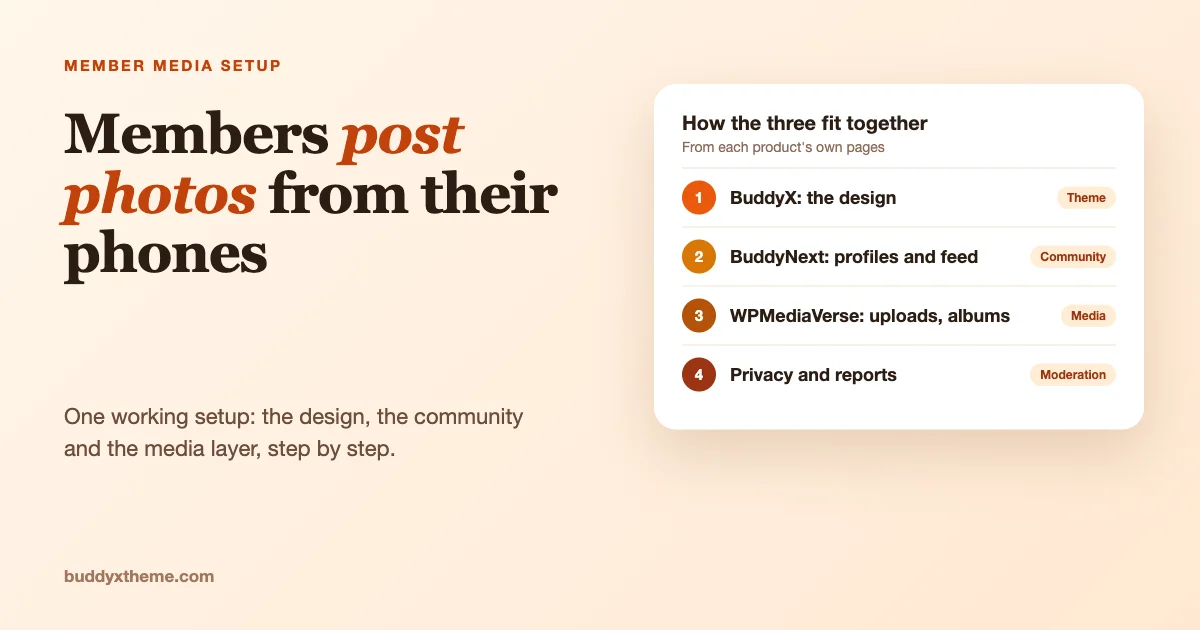
A community where members share photos from their phones needs three jobs done: a place that looks like yours, a community where people have profiles and a feed, and a media layer that handles uploads, albums, privacy and moderation. On our stack those jobs are done by three products that fit together: BuddyX (the theme), BuddyNext (the community engine) and WPMediaVerse (member photos, video and albums). This post follows one member’s photo from their phone to the feed, then follows the owner’s setup behind it.
Before we start, a rule we kept while writing. Every feature below comes from the product’s own live page or documentation, read on 23 October 2026: buddyxtheme.com/integrations, buddynext.com, and the WPMediaVerse product page, BuddyNext page and feature and docs pages. Where a page says nothing about a question, we say so instead of guessing. Products change, so check the pages again before you build.
What do the three products each do?
| Product | Its job in this setup | What its own page says |
|---|---|---|
| BuddyX | The theme: the design members see | The BuddyX integrations page describes BuddyNext as the engine BuddyX now runs on by default. |
| BuddyNext | The community: profiles, feed, spaces, messaging, moderation | “Our free community engine”, covering the feed, spaces, member profiles and messaging. Labelled free. |
| WPMediaVerse | Member media: uploads, albums, privacy, moderation of media | Described on BuddyNext’s own page as the media add-on, with a photo and video library. Free to start. |
One detail worth knowing up front: on the BuddyNext page, media is not part of the core plugin. It is listed as an add-on called MediaVerse. The BuddyX integrations page groups MediaVerse in the same Wbcom catalog as BuddyX and BuddyNext, and describes it as supporting member photos and videos in albums, with reactions, comments, direct messages and privacy controls. WPMediaVerse’s own pages say it works with or without BuddyPress, and that it detects BuddyNext at runtime and hands over the interface when BuddyNext runs the community. We come back to that handover.
The member’s flow: from a phone to the feed
Step 1: the member opens the community on their phone
The member signs in and opens their profile. BuddyNext’s page says profiles are rich, with connections and a directory members can search. That is where the photos will live. We do not cover the theme’s phone layout here. If you want to check how your own site looks on a phone, test the member journey on a real phone before launch.
Step 2: the member picks a photo and uploads it
WPMediaVerse offers front-end drag-and-drop uploads, so members add files without going into wp-admin. According to the product page and the first-upload documentation, each upload goes through a fixed sequence:
- The file type is checked against your allowed list. The feature page says files are checked by content rather than by the name they arrive with.
- The file size is checked against your maximum.
- Duplicates are checked by a SHA-256 hash, counting only the member’s own earlier uploads. By default it warns and still uploads.
- GPS location is removed from photos. The setting is “Remove location from photos” and it is on by default.
- The file is stored in the location set under Storage, on your server by default, with a random file name.
- A record is created in the plugin’s own media table. Media is not stored as a WordPress post.
- AI analysis and AI moderation run if you have turned them on.
- BuddyPress activity is recorded if BuddyPress is active.
Two points matter for phone photos. First, the documentation states the default allowed images are JPEG, PNG, GIF and WebP, with MP4 and WebM for video and MP3 and OGG for audio. The list can be changed under MediaVerse, Settings, General, Allowed File Types. Second, the maximum size is a setting called Max Upload Size, which the documentation says defaults to 100 MB. The product page says oversized files are refused with the MB limit named in the message, which is a message a member can act on.
The product page also says phone rotation is applied, and location data is removed by default. That matters for phone users, since phone cameras embed location in a photo. The feature page adds that since version 2.5.1 stripping is GPS-only, so camera, lens and exposure details and copyright fields survive.
What the pages do not say about phones
We looked for answers to four questions a phone user raises, and the pages we read do not state them. We will not guess.
- HEIC photos. The default allowed list does not include HEIC. The pages do not describe HEIC handling. Test an iPhone photo on your own site before you promise members that it works.
- Taking a photo directly with the phone camera. The pages do not describe camera capture. Test it.
- Upload progress and slow connections. The pages we read do not describe progress indicators, resuming or chunked uploads.
- Resizing and compression before upload. The upload documentation covers GPS removal and says nothing about resizing the original.
These are test items for your staging site, not reasons to avoid the plugin. They are also the reason we suggest keeping a modest size limit at first, so a member on a poor connection is not stuck uploading a very large file.
About WordPress 7.2’s in-browser image processing
The WordPress 7.2 Beta 1 announcement says 7.2 expands client-side media processing to the Media Library, so images can be resized, compressed and converted in the browser before upload. WPMediaVerse stores media in its own tables rather than as WordPress posts, and the pages we read do not say whether this WordPress feature applies to its uploads. So we make no claim either way. Our WordPress 7.2 Beta test plan for a BuddyX site lists member uploads as the first thing to test on a staging copy, and that is the right place to find out.
Step 3: the photo appears in profiles and the feed
On the BuddyNext side, the WPMediaVerse page says media uploads and albums are visible on member profiles and in activity feeds, and that members can post photos into the BuddyNext feed, with photos attached directly to BuddyNext posts. The BuddyNext feed is described on its own page as a real-time stream with reactions, comments and hashtags.
The WPMediaVerse page also describes the interface handover. A filter called mvs_buddynext_active tells WPMediaVerse that BuddyNext runs the community. WPMediaVerse then stops loading its own assets, hides its panels and turns off its own notification bell, so members get one notification stream rather than two competing bells. For an owner this means one place for members to look, and not a second set of icons.
What the page does not state: how photos behave in BuddyNext spaces (groups) or messages, and what triggers notifications. The page lists those as not stated. If your community depends on photo posting inside spaces, test that on a staging site and ask the team before you commit. (For BuddyPress sites, the WPMediaVerse BuddyPress page does describe a gallery tab on member profiles and a media tab per group, but that is a BuddyPress integration, and we do not assume it applies to BuddyNext.)
Step 4: the member organises photos into albums
Members can build ordered albums with covers. The product page also describes smart collections that fill from rules such as tag, type, author or date, which is useful for an owner who wants a “newest from the community” collection without hand-picking. All of this is labelled free: the product page says everything on it ships in the free plugin unless it is marked Pro.
If your community wants photo layouts in the style of other photo sites, the product page marks Instagram, Pinterest, Flickr and Dribbble layouts as Pro. Choose on purpose, not by accident.
Step 5: the member decides who can see it
Privacy is where a community of ordinary people, not professional photographers, needs the most care. The privacy page lists nine levels: public, members, logged-in, friends, group, space, private, direct message and custom. It says the “space” level is enforced in the free plugin, and the list can be extended with a filter. The page says access levels apply on every item and album, though it does not explain how an album’s level and an item’s level interact, so test that before you rely on it.
Members choose a level when they upload, unless you turn off member privacy choice in one setting. That is the owner decision: do you want members to choose, or do you want a single site-wide rule?
Private files are protected in a specific way. The page says private media stays on local disk and never reaches a CDN, and that delivery goes through a signed route instead of a guessable path. Signed links are checked on every delivery, including for public items, so a link held by someone who has since been blocked stops working. The default lifetime is one hour and it can be changed. The page also mentions a Site Health test that can show whether your upload directory is exposed. On BuddyNext, the WPMediaVerse page says a members-only photo “stays members-only wherever it appears”, without describing the mechanics.
The privacy page labels the whole model as free, including all nine levels, signed delivery, the setting that removes member choice, GDPR export and erasure and member-initiated account deletion.
Step 6: another member reports a photo
Members can report content. The moderation page says an item auto-hides once it passes a threshold that defaults to three reports, then appears in an admin screen for review. Reporting is on by default, and a master switch can turn it off. The product page adds that you can change the number of reports, or set it to zero.
The owner or moderator then reviews. The moderation page says that if you turn on moderation, new uploads go into a queue instead of publishing, and you can approve or reject items one at a time or in bulk. Since version 2.5.0, a rejected item is refused at its permalink, its signed file URL and its thumbnail URL, while owners and moderators can still see rejected items so takedowns stay reviewable.
On defaults, be careful. The moderation page describes a queue when moderation is on, and the product page says uploads publish immediately by default. Treat that as “moderation is a setting you choose”, and check the setting on your install before you invite members.
The product page also says AI moderation through OpenAI is optional and off by default. The moderation page says usage is capped by a monthly budget setting. Additional AI providers are marked Pro. For a community where members may post photos of other people, a combination of reporting, a review queue and a clear house rule is the sensible minimum, and AI checks are an extra.
On the BuddyNext side, BuddyNext’s own page says it includes reports, a review queue and tools to keep things kind. The WPMediaVerse page says moderation is a free feature, and names no BuddyNext-specific moderation hooks. So you have two moderation tools, one for community content and one for media, and the pages do not describe a single combined queue. Plan your moderators’ routine around both.
What the owner sets up, in order
- Install and connect the three products. BuddyX as the theme, BuddyNext as the community plugin, WPMediaVerse for media. WPMediaVerse detects BuddyNext at runtime, according to its page.
- Choose who can upload. MediaVerse, Settings, General has a “Who can upload media” setting, based on WordPress roles. The setup wizard does not configure roles, according to the documentation, so do this by hand. The wizard itself asks only for display settings: items per page (12, 24 or 48) and a default layout (grid, justified rows or list).
- Set the upload limits. Review Max Upload Size and the Allowed File Types list. If members only share photos, remove video and audio from the list.
- Decide on privacy. Let members choose a level, or remove the choice and set one rule.
- Decide on moderation. Check reporting is on, keep or change the threshold of three, and choose whether new uploads go through a queue.
- Decide on storage. Media stays on your server by default. An optional per-member storage limit sits in Settings, General and is unlimited unless you set one. Administrators are never limited. Cloud storage drivers for S3, BunnyCDN, R2 and DigitalOcean Spaces are marked Pro on the storage page, which also says private files never go to a CDN whatever driver you choose.
- Check thumbnails and sizes. The feature page says thumbnails are generated at three sizes, with WebP and AVIF versions, and AVIF generation is off by default. The product page says the lightbox opens photos at the 1024 px size by default, and owners can switch it to the original file.
- Write a house rule. One short paragraph: what members may post, what is not allowed and how to report. Link it near the upload button.
- Test it as a member on a phone. Upload a normal photo, an iPhone photo, a very large photo and a photo with a person in it. Set one to private. Report one from a second account. Approve and reject.
Free or Pro?
Labels matter here, so we use each page’s own words. The WPMediaVerse product page says everything on it ships in the free plugin unless it is marked Pro. From the pages we read:
| Free (per the pages) | Marked Pro (per the pages) |
|---|---|
| Front-end uploads, type allowlist, duplicate detection, GPS stripping, thumbnails with WebP and AVIF versions | Watermarking |
| Albums, smart collections, the nine privacy levels, signed delivery | Cloud storage: S3, BunnyCDN, R2, Spaces |
| Moderation queue, reporting with auto-hide, blocking, member suspension, AI moderation through OpenAI | Additional AI providers; Instagram, Pinterest, Flickr and Dribbble layouts |
| Local storage, optional per-member storage limit, migration tools between storage backends | Member document drive; photo competitions; importers |
BuddyNext’s own page labels its core community features free, and lists monetization, AI assistance, real-time updates, push notifications and priority support as Pro. The WPMediaVerse BuddyNext page does not label which parts of the pairing are free or Pro, so we do not either.
Problems you may meet, and what to check
A member says their photo will not upload
Check: the file type against your allowed list, and the size against Max Upload Size. The product page says oversized files are refused with the limit in the message. If the member has a storage limit, the documentation says an upload that would go over it is refused with a message. Fix: raise the limit, add the type or ask the member to resize. Prevent: state the limits near the upload button.
An iPhone photo is rejected
Check: the file extension. HEIC is not in the default list and the pages do not describe HEIC handling. Fix: tell members how to share as JPEG from their phone settings, or test whether your setup accepts it. Prevent: add HEIC to your staging test list.
A private photo shows in the feed
Check: the privacy level on the item and the album, and the site-wide privacy setting. The privacy page says the BuddyPress activity form honours the site-wide privacy setting from 2.5.1, and the BuddyNext page says a members-only photo stays members-only wherever it appears. Fix: correct the level, and test with a second account. Prevent: decide whether to remove member choice.
Members see two notification icons
Check: that BuddyNext is active and detected. The page says the filter mvs_buddynext_active turns off MediaVerse’s own bell. Fix: confirm the plugin versions are current. Prevent: test on staging after every update.
Reports are not hiding photos
Check: that reporting is switched on and the threshold is not set to zero in a way you did not intend. The product page says three reports hide an item by default and that the number can be changed. Fix: adjust the setting and test with enough accounts. Prevent: write the threshold in your moderator notes.
Questions owners ask
Do I need BuddyPress as well?
The WPMediaVerse product page says it works with or without BuddyPress, and its BuddyNext page describes the pairing with BuddyNext. On a BuddyX and BuddyNext site you do not need BuddyPress for this setup, according to those pages. The BuddyPress integration page describes profile gallery tabs and group media tabs for sites that do run BuddyPress.
Can members share video as well as photos?
The documentation lists MP4 and WebM as default video types and MP3 and OGG as default audio types. The feature page also says the plugin does no video transcoding, so a very large or unusual video file is stored as the member uploaded it. If your community is mainly photos, narrow the allowed types so the rules match what you moderate.
Where do the photos live, and can I move them later?
On your own server by default. The storage page says the free plugin includes tools to migrate a library between storage backends, repair a half-finished move and pull private files back to local, and that the migration runs in batches and can be safely re-run. Cloud storage drivers are the Pro part. Plan your storage choice early, because a large library is slower to move.
Is a member’s location exposed in their photos?
The documentation says GPS location is removed from photos by default, through a setting called Remove location from photos. If the parser cannot read a file, the feature page says it fails closed and removes the whole metadata segment. Leave the setting on unless you have a reason not to.
Can I sell access to photos or albums?
The privacy page says selling access is not supported in either tier. BuddyNext’s own page lists paid plans and members-only content as part of its Pro layer, so check that page if monetization matters to your plan.
How does this compare with other approaches?
If you are still choosing between ways to add albums, our comparison Best WordPress Photo Album Plugins sets member-owned albums against admin-curated galleries, and it is about choosing the plugin. If you are starting from nothing and want the larger picture of a photo and video website you own, read How to Build a Photo Sharing Website. This post is narrower: it assumes you chose BuddyX, BuddyNext and WPMediaVerse, and follows one member’s phone photo through the setup, with the owner’s decisions along the way.
What we have not verified
We read the product pages, the feature pages and two documentation pages, on 23 October 2026. We did not install the three products together for this article, so we make no claim about speed, layout on a phone or how photos appear inside spaces and messages. The pages do not describe HEIC, camera capture, upload progress or resizing before upload. Two pages differ slightly on the default for holding new uploads for approval, so check your own settings. Free and Pro labels are copied from the pages, which can change. If you find a page that now states something we marked as unknown, tell us and we will update this post.
The shape of the answer is simple. BuddyX gives you the look. BuddyNext gives you the people, the profiles and the feed. WPMediaVerse gives you the photos, albums, privacy and moderation. Set the upload limits, privacy and moderation choices on purpose, test it as a member on a phone, and write the house rule before you invite anyone. That is a complete setup, built from parts that each state what they do.