
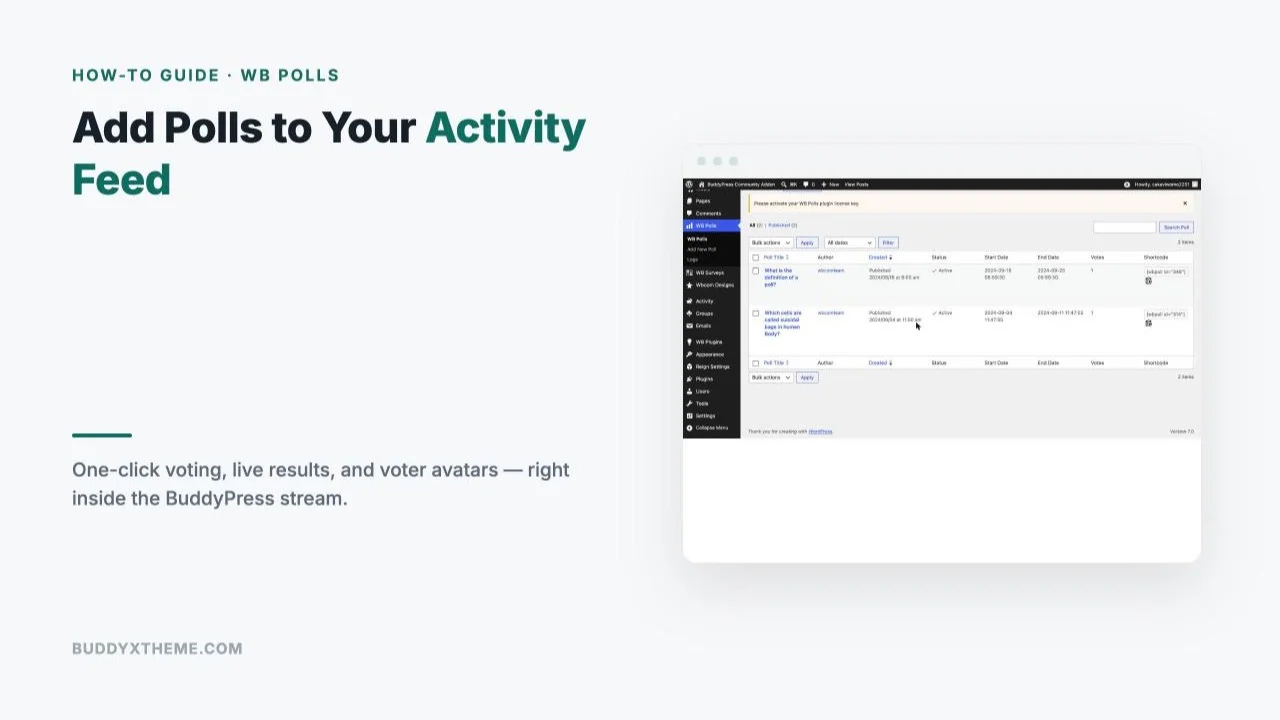
A standalone poll page gets ignored. Most members never visit it, and the ones who do forget it exists by the next login. A poll that lives inside the BuddyPress activity feed is different, it shows up exactly where members already are, between a group update and a new member’s introduction post, and voting takes one click without leaving the stream.
WB Polls builds this specific experience: polls that post directly into the activity feed with voter avatars gathering under the winning option as votes land, live results that animate in real time, and one-click voting that never pulls a member away from what they were already scrolling through. This guide walks through setting it up on a BuddyPress or BuddyBoss community site, from install to a poll actually running in the feed.
Table of Contents
- Why Activity-Feed Polls Outperform Standalone Pages
- What You Need Before You Start
- Step 1: Install and Activate WB Polls
- Step 2: Create a Poll
- Step 3: Configure It to Post Into the Activity Feed
- Step 4: How Voting and Avatars Work
- Step 5: Moderation and Vote Controls
- Step 6: Reading Results and Analytics
- Common Mistakes That Kill Poll Engagement
- A Real-World Scenario: A Weekly Engagement Poll
- FAQs
Interactive content like polls and Q&As drives 28% more engagement than static posts, with a 72.7% completion rate and roughly 112 seconds of active engagement per interaction. People are also 80% more willing to share interactive content than a static post, which matters for a community where member-to-member reach drives most organic growth.
Why Activity-Feed Polls Outperform Standalone Pages
A poll embedded on its own page, or even in a sidebar widget, depends on a member choosing to go find it. An activity-feed poll depends on nothing, it’s already in front of every member scrolling their feed, formatted exactly like the posts and updates around it. That single placement difference is most of why feed polls get meaningfully higher participation than the same question asked on a dedicated page.
The second factor is social proof. Watching voter avatars accumulate under the leading option in real time, right in a feed full of people you recognize, creates a different psychological pull than seeing a static percentage on an isolated page. Members vote partly because they can see their peers already have.
The third factor is friction, or rather the lack of it. A standalone poll page typically means a click from the main feed, a page load, finding the poll on the page, voting, then navigating back to whatever you were doing. An activity-feed poll removes every one of those steps except the vote itself. Interactive-content research puts real-time polls at 25-45% higher response rates than standard surveys specifically because of this kind of friction removal, the format changes from “a task to complete” into “a thing you do while already doing something else.”
None of this means standalone polls are useless, a longer-form survey with multiple questions genuinely doesn’t belong crammed into a single feed item, and WB Polls’ separate Standalone and Survey engines exist precisely for that use case. The point is narrower: for a quick, single-question engagement poll meant to spark participation rather than collect deep research data, the activity feed is structurally the better placement, and treating it as the default rather than an afterthought changes how much of the community actually interacts with it.
What You Need Before You Start
WB Polls requires an active BuddyPress or BuddyBoss install with the Activity component enabled, since that’s the component the plugin hooks into to post polls as activity items. Pricing runs $49/year for a single site (Personal), $99/year for 5 sites (Professional), or $129/year unlimited (Agency), with lifetime one-time options also available ($149/$299/$349 respectively) if you’d rather not renew annually. Every tier includes the same three poll engines, activity-feed polls, standalone polls, and multi-page surveys, so the license difference is purely site count and support level, not feature access.
Step 1: Install and Activate WB Polls
Install WB Polls the way you would any WordPress plugin, upload the zip or install from your account dashboard, then activate. On activation, a new “WB Polls” menu item appears in your wp-admin sidebar alongside “WB Surveys” for the multi-page survey engine, since both ship in the same plugin. No separate BuddyPress integration step is required, if BuddyPress is active, the activity-feed posting option is already available the first time you create a poll.
Step 2: Create a Poll
From WB Polls → Add New Poll, give the poll a title (this becomes the question members see), then work through the settings below before publishing.
| Setting | What it controls | Recommended for an engagement poll |
|---|---|---|
| Answer options | Label + optional image per choice | 2-5 options, image optional |
| Never Expire | Whether the poll ever closes | No, set a real end date |
| Start / End Date | Voting window | Defaults to today + 7 days |
| Who Can Vote | Which roles have vote capability | Match to who the question concerns |
| Show Result After Expires | Live results vs. hidden until close | No, live results drive social proof |
| Enable Multi Choice | Single vs. multiple selectable answers | No, unless the question genuinely allows multiple answers |
| Votes Per User | How many times one member can vote | 1 |
A flat statement gets scrolled past. An actual question with a clear stake gets read and answered.
That discipline applies to the poll title itself: keep it short enough to read in the half-second a member’s eye spends on a feed item, specific enough to convey what’s actually being decided. The same goes for answer labels, four or five words each, specific rather than vague, so a member can compare options at a glance rather than reading paragraph-length choices before voting.
If you’re migrating from a different poll plugin or from running informal polls in comment threads, there’s no automatic import, each poll gets recreated fresh in WB Polls’ editor. For a community with a handful of recurring poll formats (a weekly feature-feedback poll, a monthly satisfaction check), it’s worth building the first instance of each format carefully, since copying an existing poll’s structure for future instances is faster than building every poll from a blank screen.
One more decision worth making before publishing: whether the poll should also be pinned or announced through another channel, an email digest, a group announcement, a pinned post at the top of the feed, rather than relying solely on members scrolling past it organically. For a community with lower daily active usage, that extra nudge can matter more than any single setting inside the poll editor itself.
Step 3: Configure It to Post Into the Activity Feed
WB Polls ships three engines in one plugin: Activity (posts directly into the BuddyPress stream), Standalone (embeds via shortcode anywhere on the site), and Surveys (multi-page, for longer-form feedback). For the activity-feed use case this guide covers, select the Activity engine when creating the poll, rather than relying on the shortcode, that’s what triggers the plugin to publish the poll as a native activity item rather than a static embed.
Once published with the Activity engine selected, the poll appears in the stream exactly like a status update or group post, title as the headline, answer options as clickable vote bars, author avatar and timestamp matching every other activity item’s format. Members browsing the feed see it without any extra navigation.
Step 4: How Voting and Avatars Work
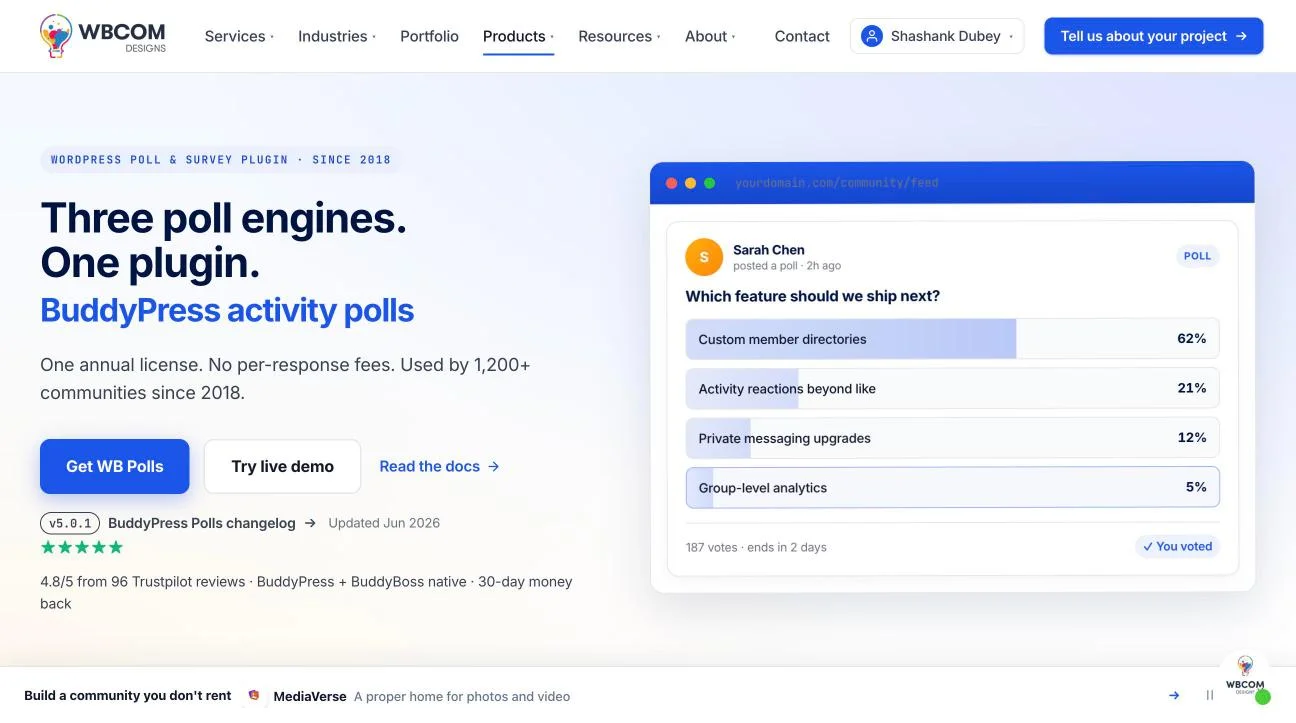
A member clicks an answer option directly in the feed, no page reload, no separate confirmation screen. The vote registers immediately, the percentage bars animate to reflect the new tally, and the voter’s avatar appears, stacked with other voters’ avatars, under the option they chose. As more members vote, the avatar stack under the leading answer grows visibly, which is the specific mechanic that drives the social-proof effect.
Multi-choice polls (if enabled) let a member select more than one option before the vote locks in; single-choice polls lock immediately on the first click. Either way, once a member has used their allotted votes (per the Votes Per User setting), the interface shows their own choice rather than letting them revote, consistent with how most feed-native voting UIs behave.
Step 5: Moderation and Vote Controls
The “Who Can Vote” setting is your primary moderation lever, restrict voting to specific logged-in roles if you want to keep results representative of actual members rather than any site visitor. For communities with guest access enabled, WB Polls requires a visitor address for anonymous votes specifically to prevent trivial duplicate voting from the same unauthenticated browser.
Beyond voter eligibility, there’s no separate approval queue for poll creation itself in the free core, poll creation permissions follow whatever role you’ve configured as able to publish the wbpoll post type, the same way you’d control who can publish a regular post. For a community where only admins or moderators should launch polls, keep that capability restricted to those roles in your user-role configuration.
Vote integrity for logged-in members is handled automatically once Votes Per User is set correctly, the plugin tracks which members have voted and enforces the limit without additional configuration. The area that genuinely needs a decision from you is guest voting: if your community allows visitors to browse (and therefore potentially vote) without an account, weigh whether letting anonymous input into a poll’s results is actually useful for your purpose. A product-feedback poll benefits from restricting votes to verified members whose opinions you can trust and, if needed, follow up with directly. A lighter “just for fun” engagement poll may genuinely not care whether every vote comes from a logged-in account.
Step 6: Reading Results and Analytics
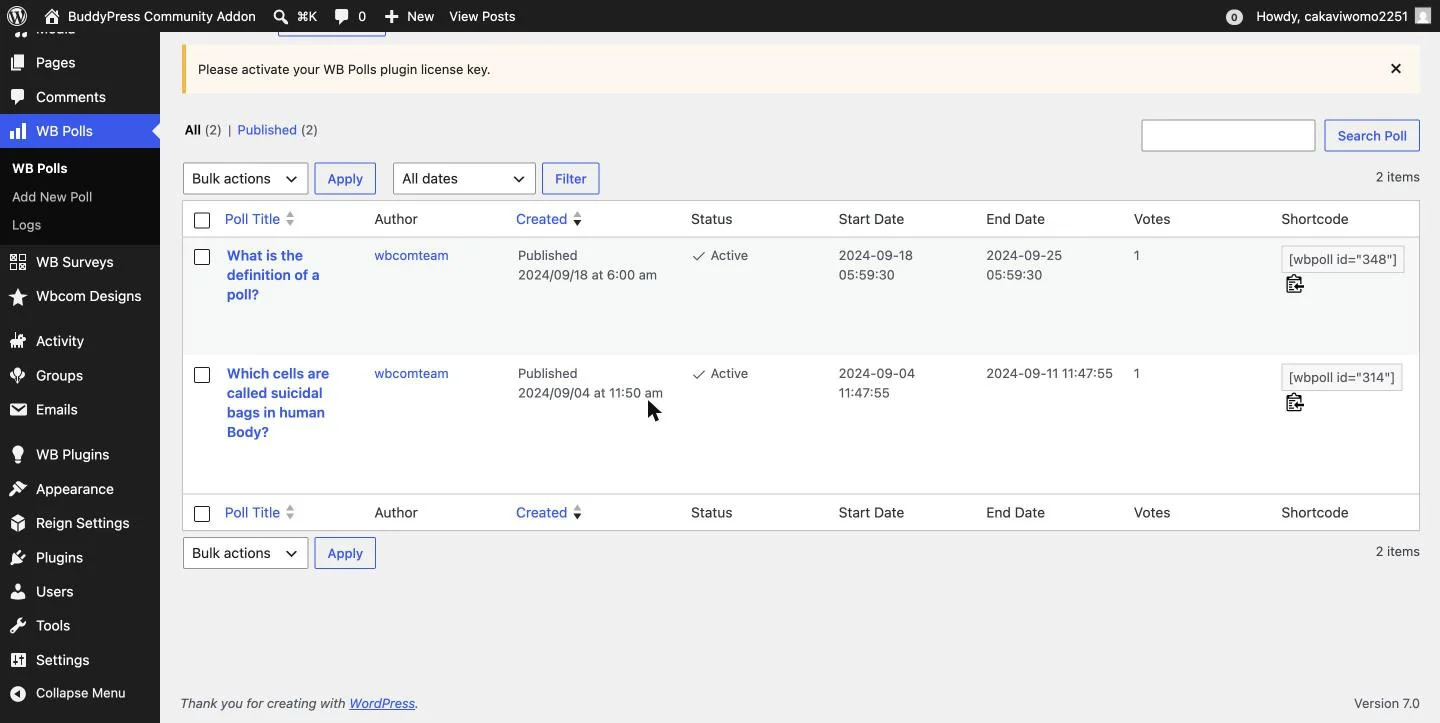
Every poll’s admin row shows vote count and status (Active, Published) directly in the WB Polls list screen, so checking engagement at a glance doesn’t require opening each poll individually. For the Survey engine specifically, WB Polls adds a dedicated response-analytics dashboard with custom statuses (active, paused, closed) and CSV export for pulling raw data into a spreadsheet, plus email notifications to administrators and respondents when a new response comes in. The plugin stores poll and vote data in dedicated database tables rather than overloading WordPress’s default post-meta structure, specifically so analytics queries stay fast even as vote counts grow into the thousands.
Common Mistakes That Kill Poll Engagement
A handful of predictable mistakes show up repeatedly once a community starts running activity-feed polls regularly, and most of them are easy to avoid once you know to watch for them.
- Asking a question nobody has an opinion on. “What’s your favorite color?” gets clicks out of novelty the first time and ignored every time after. A poll that references something real, an actual product decision, an actual scheduling conflict, an actual community debate already happening in comments, pulls far more genuine votes than a generic icebreaker, because members are answering something they already care about.
- Leaving a poll running indefinitely. “Never Expire” on a poll meant to inform a real decision loses urgency fast, the avatar stack stops growing within a day or two, and it quietly becomes feed clutter nobody re-engages with. A clear end date, even a generous two weeks, gives members a reason to vote now rather than “eventually.”
- Over-restricting who can vote. Locking a poll to a narrow role when the question genuinely applies to the whole community shrinks the visible vote count and, with it, the social-proof effect this feature is built around. Match “Who Can Vote” to who the question actually concerns, not to whoever’s easiest to query.
- Posting too many polls too close together. One well-timed poll a week reads as a feature of the community. Five polls in two days reads as spam, and members start scrolling past all of them, including the ones that genuinely matter. Treat poll frequency like any other recurring content format, consistent, not overwhelming.
A Real-World Scenario: A Weekly Engagement Poll
Picture a community manager running a SaaS product’s user community, a few thousand members, moderate daily activity. Rather than hoping members organically post enough to keep the feed active, she runs one lightweight poll every Monday, “Which feature should we ship next?”, “What’s blocking your workflow this week?”, rotating through genuinely useful product-feedback questions rather than filler content.
Posted as an Activity-engine poll, it shows up in every active member’s feed without a separate announcement. Voter avatars accumulating under the leading option by Tuesday morning become a visible signal that the community is alive, both for members scrolling past and, honestly, for the community manager herself, since a feed with zero fresh activity between weekly polls would otherwise look dead. Results after each poll closes feed directly into actual product-roadmap conversations, turning what could be throwaway engagement content into a lightweight, recurring feedback channel the team didn’t have to build from scratch.
Over a quarter, that single weekly habit, maybe fifteen minutes of setup time each Monday, produces thirteen data points on what the community actually wants, plus thirteen moments where the feed had guaranteed fresh activity even on weeks when organic posting ran quiet. Neither outcome required a separate survey tool or a dedicated feedback-collection project, it’s the same plugin and the same five-minute poll-creation flow, repeated on a schedule.
FAQs
1. Does WB Polls require BuddyPress, or does it work on any WordPress site?
WB Polls’ Standalone and Survey engines work on any WordPress site via shortcode. The Activity engine specifically, the one that posts polls into a live feed, requires BuddyPress or BuddyBoss with the Activity component active.
2. Can members vote more than once on the same poll?
Only if you set “Votes Per User” above 1. The default is 1, meaning each eligible member gets a single vote per poll, matching how most feed-native poll UIs behave.
3. Do results show immediately, or only after the poll closes?
That’s controlled by the “Show Result After Expires” setting. Set to No (the default), results update live as votes land. Set to Yes, results stay hidden until the poll’s end date passes.
4. Can I let non-members or guests vote on a poll?
Yes, depending on your “Who Can Vote” role configuration. For anonymous or guest voting specifically, WB Polls requires a visitor address to prevent the same unauthenticated browser from voting repeatedly.
5. Is there a limit to how many answer options a poll can have?
The admin interface supports adding answer options one at a time without a hard-coded cap in the core plugin, though for an activity-feed poll specifically, keeping it to 2-5 options tends to produce better completion rates than a long list, consistent with general interactive-content engagement patterns.
6. Does WB Polls work with BuddyBoss, or only vanilla BuddyPress?
Both. WB Polls is built for BuddyPress-based activity streams generally, which includes BuddyBoss’s fork, so activity-feed polls work the same way on either platform.
7. Can I add images to poll answers instead of plain text?
Yes, each answer option has an optional Image URL field alongside its text label, so a poll can present visual choices, product mockups, design variants, photos, rather than text-only options.
8. How is WB Polls different from a generic WordPress survey plugin?
A generic survey plugin typically lives on its own page and has no native concept of a social activity stream. WB Polls’ Activity engine is purpose-built to post as a native BuddyPress activity item, feed-formatted, vote-in-place, avatar-tracked, which a standalone survey tool isn’t designed to do.
9. Does creating a lot of polls slow down the activity feed?
Poll and vote data live in dedicated database tables separate from the standard post tables, specifically so vote-counting and results queries stay fast independent of how many polls or votes accumulate, rather than adding query load to the general activity-stream tables.
10. Can I reuse a poll’s results for marketing or community reports later?
The Survey engine specifically includes CSV export for pulling response data out for reporting. Standard Activity-engine polls show their tallies in the admin list screen, which can be screenshotted or manually recorded for a community report even without a dedicated export button on that engine.
11. What happens to a poll’s data if I deactivate WB Polls later?
Poll and vote data live in the plugin’s own dedicated database tables, which deactivation (as opposed to deletion) leaves untouched, so reactivating the plugin later restores access to existing polls and their recorded votes.
12. Can I schedule a poll to go live automatically at a future date rather than publishing it immediately?
The Start Date field controls when a poll becomes active for voting, so setting it to a future date effectively schedules the poll, it can be created and configured ahead of time but won’t accept votes until that start date arrives.
Summary
A poll on its own page competes for attention it will mostly lose. The same question posted directly into the activity feed, with voter avatars and live results, gets seen and voted on simply because it’s already where members are scrolling. WB Polls’ Activity engine is built specifically for that placement, five minutes of setup per poll, no separate survey tool, no standalone page nobody visits, worth running as a recurring habit rather than a one-off experiment.
Before rolling this out community-wide, run one test poll yourself: create it, vote on it from a second account or incognito window, and confirm the avatar and percentage updates actually render the way you expect in your specific theme and BuddyPress setup. Theme compatibility varies enough across the BuddyPress ecosystem that a quick dry run beats discovering a display issue after the first real poll is already live in front of the whole community.
Interesting Reads:
How to Let Community Members Post Their Own Company’s Job Openings
Self-Hosted Job Board vs SaaS: What Actually Costs Less Long-Term