

WordPress 5.0 shipped in December 2018 with a change big enough that plenty of long-time users almost jumped ship over it: the Classic Editor, a single large text box that had defined WordPress publishing for over a decade, got replaced by Gutenberg, a block-based editor named after Johannes Gutenberg, inventor of the movable-type printing press. The metaphor was deliberate: instead of one continuous document, every piece of content becomes an individual, self-contained block. A paragraph is a block. An image is a block. A button, a quote, a column layout, all blocks, each editable and movable independently of everything around it.
Years later, that shift has mostly settled into “just how WordPress works” for anyone who started publishing after 2019. But for the sizable number of users still thinking in Classic Editor terms, or migrating from a page builder plugin, understanding blocks properly, not just clicking around and hoping, makes a real difference in how fast you can build a page and how little custom CSS you end up fighting with. This tutorial walks through the editor from the ground up, including the parts most quick-start guides skip.
What Actually Changed With Block-Based Editing
The core idea is simpler than the terminology suggests. In the Classic Editor, formatting a post meant selecting text and applying styles within one continuous field, closer to using a word processor. Gutenberg breaks that same content into discrete, independently editable units. That distinction matters for three practical reasons:
- Rearranging content means dragging a block to a new position, not cutting and re-pasting text and hoping the formatting survives the trip.
- Each block type ships with its own relevant settings, an Image block offers cropping and alt-text fields; a Paragraph block offers drop cap and text color options, rather than one generic toolbar trying to cover every content type at once.
- Layout blocks (Columns, Group, Cover) let you build genuinely structured pages without touching HTML or relying on shortcodes from a page builder plugin.
Gutenberg is maintained by WordPress’s core development community and ships updates on the same release cadence as WordPress core itself, so the feature set has grown substantially since 2018, full-site editing, more sophisticated block patterns, and better accessibility support have all landed incrementally rather than through one big rewrite.
Finding Your Way Around
Getting In
From your WordPress dashboard, hover over Posts or Pages in the left sidebar depending on what you’re creating, then choose Add New. That opens directly into the block editor for any WordPress install running 5.0 or later.
The Three Regions That Matter
1. The Editor Canvas: The main working area where your blocks live. Click into any block to edit it directly; click away and the block’s inline toolbar disappears until you select it again.
2. The Settings Sidebar: Appears on the right side and changes based on what’s selected, block-specific settings when a block is active, document-level settings (categories, tags, featured image, excerpt) when nothing is selected.
3. The Block Toolbar: A floating toolbar that appears directly above whichever block is currently selected, offering formatting options specific to that block type, alignment for an image, heading level for a heading block, list style for a list.

The Block Types You’ll Actually Use
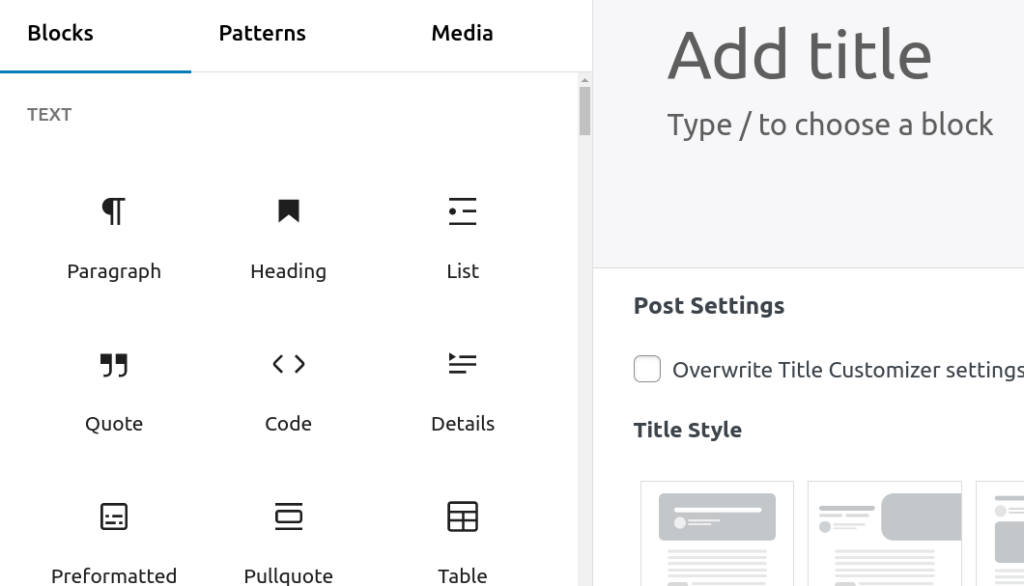
WordPress ships with dozens of built-in blocks, but a working knowledge of a much smaller core set covers most day-to-day publishing:
Paragraph: The default block for body text. Type directly or paste from elsewhere; Gutenberg strips most incompatible formatting automatically on paste to avoid dragging foreign styles into your site.
Heading: Structures content hierarchically with H1 through H6 levels. Skipping levels (jumping from H2 straight to H4) is a common accessibility and SEO mistake worth avoiding, screen readers and search engines both rely on a logical heading order to understand a page’s structure.
Image: Insert from an upload, the media library, or a direct URL. Alt text isn’t optional if you care about accessibility or image search traffic, it’s the single most commonly skipped field on this block.
Gallery: Groups multiple images into a single block with configurable column counts and sizing, useful for portfolios or product showcases without needing a dedicated gallery plugin.
List: Bulleted or numbered lists, genuinely semantic HTML output (actual <ul>/<ol> tags) rather than manually typed dashes and numbers that don’t read correctly to assistive technology.
Quote: Renders a proper blockquote element, which matters for both visual hierarchy and semantic correctness, search engines and screen readers both treat blockquote content differently than regular paragraphs.
Embed: Paste a YouTube, Vimeo, Twitter/X, or Instagram URL directly into a new block, and WordPress automatically converts it into a proper embed without needing raw iframe code.
Button: A styled call-to-action link with configurable text, destination, and appearance, no custom CSS class required for a basic button.
Managing Blocks: Add, Delete, Rearrange
Add a new block via the “+” icon at the top-left of the editor, or type “/” followed by the block name for a faster keyboard-driven insert, typing “/image” and hitting enter inserts an Image block without touching the mouse at all. Delete a block by selecting it, opening the three-dot menu in its toolbar, and choosing Remove Block, or use the Shift + Alt + Z shortcut directly. Rearrange blocks by grabbing the six-dot drag handle and dragging to a new position, or use the up/down arrow icons in the toolbar for precise single-step moves.
Going Beyond the Basics
Block-Level Settings: Alignment, Color, Spacing
Nearly every block exposes settings specific to its content type, accessible from either the floating toolbar or the right-hand sidebar:
Alignment: Left, center, right, or full-width/wide alignment, depending on what the active theme supports for that block type.
Color: Text and background color options on blocks like Paragraph and Heading, pulled from the active theme’s defined color palette when one exists, which keeps color choices consistent with the site’s design rather than drifting into arbitrary hex values scattered across posts.
Spacing: Padding and margin controls on supporting blocks, letting you fine-tune visual rhythm without needing a custom CSS snippet for every minor adjustment.
Reusable Blocks
Any block or group of blocks you use repeatedly, a call-to-action, a standard disclaimer, a recurring promo section, can be saved as a reusable block via the three-dot menu’s “Create Pattern” or “Add to Reusable Blocks” option (the exact label has shifted slightly across WordPress versions). Once saved, it’s available from the block inserter’s Reusable tab in every future post or page, and editing the saved block updates every instance of it site-wide simultaneously, a genuinely useful feature for anything that changes occasionally but appears in dozens of places, like a seasonal promotion banner.
Custom CSS Classes on Individual Blocks
Under Advanced settings in a block’s sidebar panel, you can attach a custom CSS class name to any block. This is the escape hatch for styling something the block editor’s built-in controls don’t cover, you write the CSS rule once in your theme (or a custom CSS plugin) targeting that class, and apply it to any block that needs it.
Extending With Custom Blocks
Developers can register entirely new block types using JavaScript and the Block API, distributed as standalone plugins. If the built-in block library doesn’t cover a specific need, a pricing table, a testimonial carousel, a custom form layout, there’s a strong chance a plugin already exists in the WordPress repository adding exactly that block type, rather than requiring custom development from scratch.
Working With Media
Images, galleries, embedded video, and audio all integrate directly into the editing flow rather than requiring separate media-management screens.
Images and Galleries
Insert a single Image block for one photo, or the Gallery block when you need multiple images grouped together with consistent sizing and spacing. Gallery settings include column count and individual image cropping, adjustable per-instance without affecting other galleries on the site.
Embedding Video
Add an Embed block and paste a YouTube or Vimeo URL directly, WordPress fetches the embed automatically via oEmbed, no iframe code required. The same mechanism works for a long list of supported platforms beyond video specifically.
Audio and Playlists
The Audio block handles a single file; the Playlist block groups multiple audio files with built-in controls for autoplay and looping, useful for podcast archives or music-focused sites without needing a dedicated media plugin.
Layout and Structural Design
Columns and Grid Layouts
The Columns block splits content into side-by-side sections, each capable of holding its own nested blocks, text next to an image, or three feature callouts in a row. Column widths, alignment, and spacing are all adjustable, and most themes render columns responsively by default, stacking to a single column on narrow screens without additional configuration.
Block Patterns
Patterns are pre-assembled groups of blocks, a hero section, a feature grid, a testimonial layout, available directly from the block inserter’s Patterns tab. Rather than building a complex layout piece by piece, inserting a pattern gives you a fully structured starting point that you then customize with your own content and images, which meaningfully speeds up building anything more elaborate than a simple text post.
Full-Site Editing
Full-site editing extends block-based editing beyond individual posts and pages to the entire site structure, headers, footers, sidebars, and template layouts all become editable blocks rather than fixed theme files. Availability depends entirely on whether the active theme is a block theme built to support it; a classic PHP-template theme won’t expose full-site editing options regardless of WordPress version. For anyone curious, experimenting with a block theme on a staging site is the easiest way to see the full scope of what this unlocks without committing a production site to the switch.
Working With Others
Real-Time Collaboration
Multiple users with appropriate permissions can work within the same post, and changes from other editors become visible without a manual page refresh in most modern WordPress setups, useful for teams coordinating on a single piece of content rather than emailing drafts back and forth.
Revision History
WordPress saves revisions automatically as you edit. Access the full history via the three-dot menu in the top toolbar, selecting History (or Revisions, depending on version), which opens a timeline showing every saved version along with the timestamp and the user responsible for each change. You can compare any two revisions side by side and restore an earlier version entirely if a recent edit introduced a problem.
Why Revision History Matters More Than It Seems
Beyond simple undo functionality, revision history acts as a lightweight version control system for content, tracking who changed what and when, which becomes genuinely valuable on any site with more than one editor, or any post that’s been revised enough times that “what did this actually say two weeks ago” becomes a real question worth answering.
Speeding Up Your Workflow
Keyboard Shortcuts Worth Learning
A handful of shortcuts cover the overwhelming majority of editing actions:
- Ctrl+Z / Ctrl+Shift+Z, undo and redo
- Ctrl+X / Ctrl+C / Ctrl+V, cut, copy, paste
- Ctrl+S, save your current changes
- Ctrl+Shift+D, duplicate the currently selected block
- Shift+Alt+Z, delete the currently selected block
The full list is documented on WordPress’s official keyboard shortcuts reference, and it’s worth a skim once, several of the less obvious ones save real time once they’re muscle memory.
Pairing the Editor With the Right Theme and Plugins
Gutenberg works with any WordPress theme, but themes specifically built with block editing in mind tend to render the built-in blocks more consistently and expose a wider color palette and typography set in the editor itself. Popular block-focused plugins that extend the default library include CoBlocks, Stackable, and Kadence Blocks, each adds a substantial library of additional block types beyond WordPress core, from pricing tables to advanced layout options.
Performance and SEO Habits Worth Building Into the Workflow
Compress images before uploading. Large, unoptimized images are still the single most common cause of slow-loading WordPress pages, block editor or not. Resize to the display dimension and compress before uploading rather than relying entirely on a plugin to fix it after the fact.
Respect heading hierarchy. One H1 per page (usually the post title, handled automatically by most themes), followed by H2s for major sections and H3s for subsections beneath them, skipping levels confuses both search engines and assistive technology.
Write meta titles and descriptions deliberately rather than leaving them to auto-generate from the first sentence of the post, which often makes for a mediocre search snippet.
Test on mobile before publishing. Column layouts and image blocks that look balanced on a wide desktop editor view sometimes stack awkwardly on a phone screen, a quick preview catches this before it goes live rather than after a reader complains.
Coming From the Classic Editor or a Page Builder
Two groups of users tend to hit the same handful of snags when they first switch to the block editor, and knowing them in advance saves a frustrating first afternoon.
Coming from the Classic Editor: The single biggest adjustment is that formatting now lives per-block rather than as one continuous flow. A paragraph you want to indent, color, or align differently from the text around it is no longer a matter of selecting a range of text, it’s its own block with its own settings. Old posts written in the Classic Editor still open and edit fine (WordPress wraps the entire old content in a single “Classic” block for backward compatibility), but converting that legacy content into individual native blocks, via the “Convert to Blocks” option in that block’s toolbar, unlocks the same per-block editing flexibility for older posts, at the cost of occasionally needing to clean up formatting quirks that carried over from the old editor.
Coming from a page builder plugin (Elementor, Divi, Beaver Builder): The instinct to reach for drag-and-drop, pixel-precise layout control carries over, and the block editor’s Columns and Group blocks cover a genuine amount of that ground natively now. Where it still falls short of a dedicated page builder is fine-grained pixel control and some of the more elaborate animation and interaction options those plugins specialize in. For content-heavy pages, blog posts, documentation, standard marketing pages, native blocks are usually sufficient and load faster since there’s no page-builder JavaScript framework to ship alongside the page. For a highly custom landing page with animated sections, a page builder plugin layered on top of WordPress may still be the better tool for that specific job.
Troubleshooting Common Block Editor Frustrations
“My block toolbar keeps disappearing.” The toolbar only shows for the currently selected block, clicking outside any block, even into empty canvas space, deselects everything. This is expected behavior, not a bug, though it trips up nearly everyone in their first week.
“Pasted content looks wrong.” Gutenberg strips most external formatting on paste by design, to prevent foreign CSS from a source document leaking into your site’s styling. If a paste brings in unwanted formatting anyway (common when pasting from Word or Google Docs), pasting as plain text first (Ctrl+Shift+V on most systems) and then reformatting within WordPress avoids the issue entirely.
“A plugin’s custom block broke after an update.” Third-party blocks occasionally lag behind core WordPress or theme updates. Checking the plugin’s changelog for a compatibility note, and testing on a staging site before updating a production site, is the standard defensive habit worth adopting once a site depends on more than a couple of third-party block plugins.
Where This Leaves You
The block editor’s real advantage over the Classic Editor isn’t cosmetic, it’s structural. Content built from discrete, independently configurable blocks is easier to rearrange, easier to extend with plugins, and increasingly the foundation WordPress itself is built on as full-site editing matures. The learning curve is real for anyone coming from a decade of the old single-textbox editor, but it flattens fast once the core block types and a handful of keyboard shortcuts become second nature. From there, the ceiling on what you can build without touching a line of custom code is considerably higher than it used to be.
Interesting Reads:
Easy Ways to Identify WordPress Themes
WordPress Image Optimisation Plugins
Best WordPress Caching Plugins