

A slow or over-complicated checkout is one of the fastest ways to lose a sale that was otherwise already won. Too many fields, unclear costs, forced account creation, each is a small reason to close the tab. Streamlining checkout isn’t about making it shorter for its own sake, it’s about removing the specific friction points that cause abandonment.
I’ve watched stores fix one field, one confusing label, one hidden shipping cost, and see a measurable jump in completed orders within a week. Checkout isn’t the place for creativity or extra steps. It’s the one page on your entire site where every unnecessary click has a direct dollar cost attached to it, and unlike a product page or a blog post, a customer doesn’t return to a broken checkout tomorrow. They just buy from someone else.
What Checkout Optimization Actually Means
Trimming the final steps of the sales funnel so customers complete purchases quickly and with confidence: fewer distractions, simpler forms, a logical flow. The real skill is balance, collecting what you actually need for fulfillment without asking for anything extra. Ask for too little and you can’t ship the order. Ask for too much and the customer never finishes typing.
What Actually Causes Cart Abandonment
Long forms are the most obvious culprit. A checkout that asks for a dozen fields before it will even show a total discourages quick completion, especially from a customer who’s already decided to buy and just wants to be done. Every field beyond what’s strictly necessary for shipping and payment is a small tax on the customer’s patience.
Forced account creation is a well-documented abandonment trigger, and it’s one of the easier fixes on this list. A customer who just wants to buy one thing and never visit the store again shouldn’t have to invent a password to do it. Guest checkout, with an optional account creation offer after the order completes, removes this friction entirely without losing the option to build a customer database.
Surprise costs revealed only at the final step do more damage than almost anything else on this list. A customer who adds an item expecting a certain total, then discovers shipping and taxes push the price up thirty percent at the last screen, feels tricked even if nothing dishonest happened. Showing estimated totals earlier in the funnel, ideally on the product page or in the cart, prevents that late surprise from ever happening.
Slow load times cost conversions in a way that’s easy to underestimate. Every extra second a checkout page takes to load pushes a percentage of customers to abandon, and mobile connections make this worse than desktop testing usually reveals. A checkout that feels instant on your office wifi can feel sluggish on a customer’s phone during a spotty commute.
Limited payment options lose sales outright rather than just adding friction. A customer who only trusts PayPal, or who exclusively uses Apple Pay for anything on their phone, simply won’t complete the purchase if that option isn’t there. This isn’t a nudge-them-along problem, it’s a hard stop.
Confusing layout rounds out the list. A checkout page that buries the “place order” button below unrelated content, or scatters form fields in an order that doesn’t match how a person naturally thinks through billing and shipping, frustrates users mid-purchase in a way that compounds every other issue on this list.
Checkout Field Editor for WooCommerce
Checkout Field Editor for WooCommerce (confirmed active, 20,000+ installs, ~$55/yr) lets you add, edit, or remove checkout fields without code. Worth flagging directly: this extension only works with WooCommerce’s legacy (shortcode-based) checkout, not the newer block-based checkout that’s now the default recommendation as of WooCommerce 10.0. If your store is running the block checkout, confirm compatibility before buying, the developer’s own documentation recommends migrating to a block-checkout-compatible option when one’s needed.
With it, you can remove unnecessary fields to cut friction, reorder fields into a more logical flow, and add custom fields for things like gift messages or special instructions. It also lets you control field visibility by user role or product type, and mark individual fields optional or required depending on what a specific order actually needs.
Setting It Up
Step 1: Install and Activate

Purchase and download from WooCommerce.com, then Plugins > Add New > Upload Plugin, install, and activate. Standard plugin installation, nothing unusual about the process itself.
Step 2: Open the Field Editor
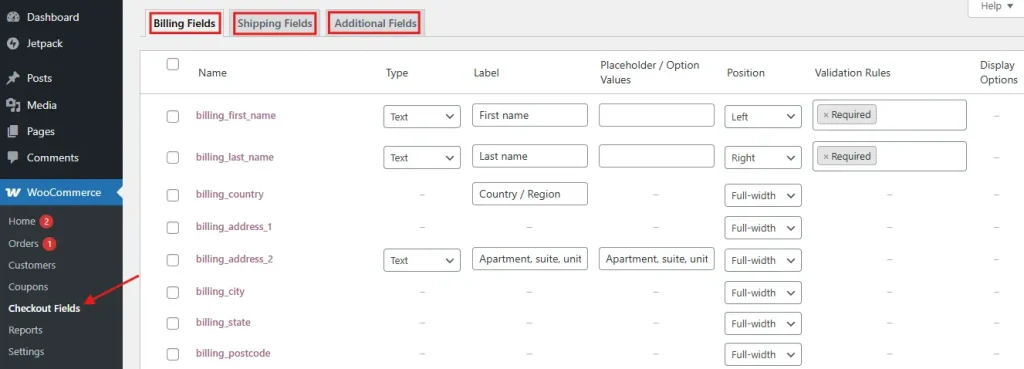
WooCommerce > Checkout Form in the admin menu. You’ll see Billing, Shipping, and Additional tabs, each covering the fields relevant to that section of the checkout process.
Step 3: Customize Fields
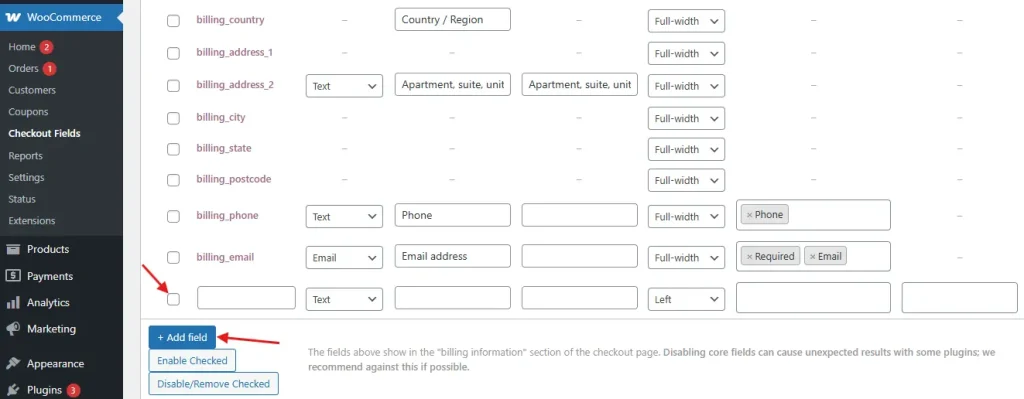
Edit existing fields via the pencil icon, adjusting labels, placeholder text, field type, and validation rules. Add new fields through Add Field, choosing the type and setting any visibility conditions that apply. Remove fields you don’t need with the delete icon, and don’t hesitate to be aggressive here. Every field you delete is one less reason for someone to bail before the order completes.
Step 4: Reorder Fields
Drag and drop into whatever sequence guides customers most naturally through checkout. A logical order, contact details first, then shipping, then payment, reduces the mental effort of filling the form out compared to a layout that jumps around.
Step 5: Save and Test
Save changes, then run a real test order to confirm the new layout works cleanly end to end. Don’t skip this step. A field reordering that looks fine in the admin preview can still break validation logic or confuse the checkout flow in ways that only show up when you actually try to complete a purchase.
Beyond the Plugin: Strategy That Actually Moves the Needle
Simplify the Fields
Ask only for what you genuinely need. Selling digital products? Drop shipping fields entirely, they’re irrelevant and just add friction to an order that has nothing to ship. This sounds obvious written out, but a surprising number of digital product stores still run the default WooCommerce checkout with a full shipping address form nobody needs.
Enable Autofill and Address Lookup
Let the browser’s own autofill do the work rather than fighting it with custom field structures that break autocomplete. Address lookup tools cut typing further, letting a customer select their address from a dropdown after typing just a few characters instead of filling in street, city, state, and zip by hand.
Offer Real Payment Variety
Cards, PayPal, Apple Pay, Google Pay, and relevant local payment methods for your specific market. Missing a customer’s preferred option is an unforced loss, the kind of abandonment that has nothing to do with your product or pricing and everything to do with a gap in your checkout setup.
Mobile Checkout Specifically
Mobile now accounts for the majority of online purchases, so mobile checkout isn’t a secondary concern, it’s arguably the primary one. Confirm the checkout page is genuinely responsive, not just technically functional on a small screen. There’s a real difference between a page that scales down and one that was actually designed to work well at phone width.
Use large, tappable buttons and clearly sized input fields. A “Place Order” button that’s easy to miss with a thumb, or form fields so small that tapping the wrong one is common, adds friction specifically for your mobile customers, who are likely the majority of your traffic. Avoid pop-ups or overlays that obstruct the form on mobile specifically, since a newsletter signup modal covering half the checkout form on a phone screen is exactly the kind of thing that tanks completion rates without anyone noticing why.
Build Visible Trust
Show your return policy, shipping details, and contact information directly on the checkout page, and display trust badges and SSL indicators where they’re visible without digging. Customers hand over payment details more readily when the page itself signals it’s safe to do so, especially first-time buyers who have no prior relationship with your store to fall back on.
This matters more for smaller or newer stores than it does for well-known brands. A shopper who’s never heard of your store before landing on the checkout page is silently running a risk assessment, whether they realize it or not, and small trust signals, a visible phone number, a clear refund policy, a security badge near the payment fields, tip that assessment in your favor. Skip these and a hesitant first-time buyer has one more reason to close the tab and think it over, which in practice usually means they never come back.
Where Testing Actually Pays Off
Google Analytics, or whichever analytics platform your store runs, lets you monitor the actual checkout funnel and see exactly where people drop off. A funnel report showing forty percent of customers abandoning between the shipping step and the payment step tells you precisely where to focus, rather than guessing at what might be wrong across the whole flow.
A/B testing lets you compare layout variants directly rather than guessing which change actually helped. Change one thing at a time, field order, button color, copy on the submit button, and let real traffic tell you whether it moved completion rates instead of assuming based on a hunch. Resist the urge to change five things at once even when you’re confident about all five. A test that mixes variables tells you the combination worked, not which piece of it actually mattered, which leaves you no wiser for the next round of changes.
Direct customer feedback on what confused or frustrated them fills in the gaps that analytics alone can’t explain. A support ticket mentioning “I couldn’t figure out how to apply my discount code” is worth more than a week of funnel analysis for identifying that specific problem. Watching a handful of real customers, or even friends unfamiliar with your store, attempt a test purchase while narrating their thought process out loud surfaces friction points that no dashboard will ever show you directly.
A Common Mistake: Optimizing Once and Walking Away
Checkout optimization isn’t a one-time project. Payment methods shift in popularity, customer expectations around speed and simplicity keep rising, and WooCommerce itself keeps evolving its checkout system, the shift from legacy shortcode checkout to the newer block-based checkout being the clearest recent example. A checkout flow that was well optimized two years ago can quietly fall behind without a single change on your end, simply because the baseline for what feels fast and easy has moved.
Revisit the checkout experience every few months. Pull up the funnel report, run through the flow yourself on both desktop and mobile, and check whether new payment methods or address autofill standards have emerged that your store hasn’t adopted yet. Keep it lean, and keep revisiting it as customer expectations shift, because the store that treats checkout as finished is the one that slowly bleeds conversions without ever noticing why.
The Block Checkout Transition, and Why It Matters Here
WooCommerce’s shift toward block-based checkout as the default, formalized around version 10.0, changes the calculus for anyone still running the legacy shortcode checkout. The block checkout is built on the same block editor framework as the rest of modern WordPress, which means it renders faster in many cases and integrates more cleanly with block themes. It also means plugins built specifically for the legacy checkout, including some field editors, need their own compatibility check before you assume they’ll work.
If you’re building a new store today, start with the block checkout rather than the legacy version. If you’re maintaining an older store already running legacy checkout with heavy customization, the migration deserves planning rather than a same-day switch. Test the block checkout on staging first, confirm every custom field and third-party integration still functions, and only then schedule the cutover on the live site. Rushing this switch on a store with meaningful order volume is the kind of decision that costs far more in lost sales during a broken transition than it ever saves in getting ahead of the deprecation timeline.
Frequently Asked Questions
How much does checkout optimization actually improve conversion rates?
It varies significantly by store and by which specific friction points get fixed, but stores that address forced account creation and hidden shipping costs, the two most damaging issues on this list, commonly see measurable improvement within weeks. There’s no universal percentage to promise, since starting conditions differ too much store to store, but the direction is consistently positive when real friction gets removed.
Should I always offer guest checkout?
In almost every case, yes. Requiring an account before purchase measurably increases abandonment, and you can still capture the customer relationship by offering an easy account creation option immediately after the order completes, when the customer has already committed to the purchase and has less reason to bail.
Is the Checkout Field Editor plugin worth the annual cost?
If you’re on the legacy checkout and need meaningful field customization beyond what WooCommerce offers natively, yes, it’s a well-established tool that does the job reliably. If you’re on the newer block checkout, check compatibility first since the plugin doesn’t support it, and look at block-checkout-native customization options instead.
What’s the single highest-impact change I can make this week?
Enabling guest checkout if it isn’t already on, and showing shipping cost estimates earlier in the shopping flow rather than only at the final checkout step. Both take minutes to implement on most WooCommerce setups and both address the two most common abandonment triggers directly.
Does checkout speed really matter that much on a fast broadband connection?
Your own testing environment, usually a fast office or home connection, will almost always understate real-world load times. A meaningful share of your customers are on mobile data with variable signal strength, and testing exclusively on a strong connection hides exactly the slowdowns that cost you the most conversions in practice.
Prioritizing When You Can’t Fix Everything At Once
If resources are limited, start with the fixes that cost the least and matter the most. Enabling guest checkout and showing shipping estimates earlier in the funnel both take minutes to implement and address two of the biggest abandonment triggers on this list. Adding more payment methods and testing mobile responsiveness come next, since both directly affect whether a customer can complete a purchase at all rather than just how pleasant the experience feels.
Field editing and layout customization, while genuinely useful, matter less than the fundamentals above. A checkout with a slightly awkward field order but guest checkout enabled and transparent pricing will outperform a beautifully organized checkout that still forces account creation and hides shipping costs until the last screen.
Think of it as a sequence rather than a single project. Fix the fundamentals first, guest checkout, transparent pricing, working payment methods. Move to mobile responsiveness and load speed next, since those affect whether the checkout works at all for a large share of your traffic. Only then spend time on field ordering, custom fields, and visual polish, the improvements that make an already-functional checkout feel a little smoother rather than the ones that determine whether it functions in the first place.