

The best WordPress security plugins in 2026 are Sucuri Security, Wordfence Security, iThemes Security, WP Fail2ban, Jetpack, Patchstack (formerly WebARX), Hide My WP, Shield Security, Astra Web Security, and All In One WP Security & Firewall. Wordfence is the most widely used option with real-time firewall and malware scanning in its free tier. Sucuri leads for website monitoring and post-hack cleanup. For beginners who want hands-off protection, Shield Security activates automatically and handles suspicious activity without constant configuration.
Why Website Security Matters for WordPress Users
With WordPress powering over 43% of websites globally, it remains a prime target for attackers. Reports show that over 90,000 attacks occur on WordPress sites every minute. Cyber threats including malware infections, brute force attacks, and data breaches can compromise sensitive information, damage site reputation, and cause financial losses.
Without proper security measures, your site risks downtime, SEO penalties, and loss of customer trust. WordPress security plugins detect vulnerabilities, block malicious attempts, and provide automated protection against emerging threats. Here are the 10 best options for 2026.
Common Services WordPress Security Plugins Provide
- Continuous security monitoring
- File and malware scanning
- Blacklist monitoring
- Security updates and patching
- Firewall protection
- Brute force attack prevention
- Security breach alerts
- Post-hack recovery actions
In addition to security plugins, organizations that need comprehensive assurance can use a professional Penetration Testing Service to identify vulnerabilities that automated tools may miss, simulating real-world attacks across application, network, and cloud environments.
Best WordPress Security Plugins for 2026
1. Sucuri Security

Sucuri Security is available in both free and paid versions. The free version covers activity monitoring, file integrity checks, blacklist monitoring, and security notifications. The paid version adds a website firewall (WAF), CDN performance improvements, and dedicated technical support. A strong choice for site owners who want monitoring plus cleanup support if something goes wrong.
2. Wordfence Security
Wordfence is one of the most widely installed WordPress security plugins, offering a free tier with endpoint firewall, malware scanner, and login security. The premium version ($99/year) adds real-time threat intelligence, country blocking, and the ability to manage multiple sites from a central dashboard.
3. iThemes Security
iThemes Security (formerly WP Security) covers brute force protection, weak password detection, and outdated software alerts. The free version provides solid baseline protection; the Pro version (~$80/year) adds two-factor authentication, password expiration, malware scanning, and technical support for up to two sites.
Also Read: 10 Best AI Writing Tools In 2026
4. WP Fail2ban
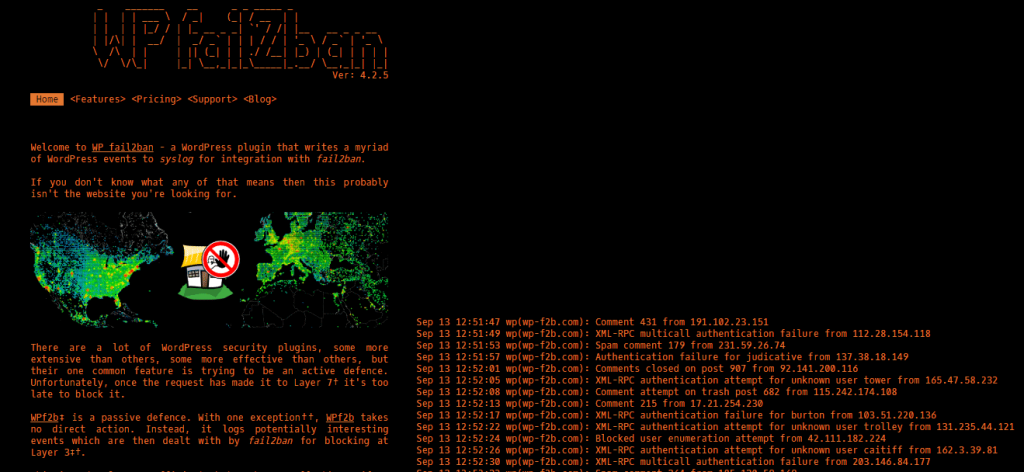
WP Fail2ban monitors every login attempt and logs each one, including successful and failed logins, spam comments, and pingback activity. It works alongside the server-level Fail2ban tool to automatically block IPs that show suspicious behavior. The brute force protection component is free and requires no ongoing configuration once set up.
5. Jetpack

Jetpack is developed by the WordPress.com team and bundles security alongside site performance and spam management. The free plan includes brute force protection and downtime monitoring. Paid plans add automated backups, malware protection, real-time security scanning, and one-click restore functionality.
6. Patchstack (formerly WebARX)

WebARX rebranded to Patchstack, and the product shifted along with the name. Rather than a simple site firewall plugin, Patchstack is now a vulnerability mitigation platform built around a database of over 12,000 known WordPress vulnerabilities, with a feature called RapidMitigate that patches known security holes in plugins and themes before an official update ships, sometimes days or weeks ahead of the vendor’s own fix. It’s positioned more toward hosting providers, agencies, and software maintainers than a simple single-site install, competing directly with Wordfence’s premium tier rather than sitting in the same lightweight category WebARX used to occupy.
7. Hide My WP
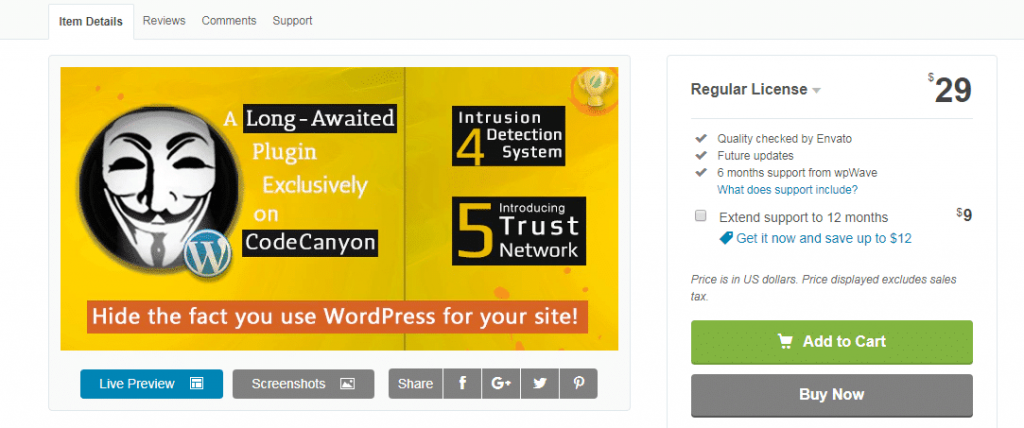
Hide My WP prevents attackers from detecting that your site runs on WordPress, removing a primary targeting signal. It blocks XSS and SQL injection attacks through its intrusion detection system, hides plugin and theme names, blocks PHP file access, and stops directory listing. Available for $24 on Codecanyon.
8. Shield Security

Shield Security is an autonomous plugin that starts protecting your site from the moment it’s installed. It blocks suspicious visitors and abnormal traffic without sending constant email alerts. Detailed logs cover traffic analysis, suspicious activity, and attack attempts. A particularly good fit for beginners who want solid protection without ongoing manual management.
9. Astra Web Security

Astra Web Security covers malware, XSS, brute force, and SQL injection attacks with a clean, user-friendly interface. Clients like Ford and Gillette use the platform. Pricing starts at $9/month, with a 20% discount on annual plans. It’s a practical choice for businesses that want enterprise-grade protection at a manageable cost.
10. All In One WP Security & Firewall

All In One WP Security & Firewall is a comprehensive free plugin covering firewall rules, login security, user account protection, and database security. A built-in grading system shows exactly where your site’s security stands and what to improve. IP blocking, file integrity monitoring, and login lockdowns provide solid protection without slowing down site performance.
Choosing based on what your site actually does
Which plugin makes sense for a specific site depends more on what you’re protecting than on any list ranking. A single-author blog with no e-commerce and no logged-in user base can run comfortably on a free tier, Wordfence, Sucuri, or All In One WP Security & Firewall all cover the baseline threats (brute force login attempts, known malware signatures, file integrity checks) without a monthly cost. A WooCommerce store handling customer payment data or a membership site storing personal information needs the paid tier of one of these plugins, or a dedicated web application firewall like Patchstack, because the cost of a breach involving customer data is categorically different from the cost of a defaced blog post.
Agencies managing several client sites face a different problem: not detection quality, but oversight at scale. Checking ten separate WordPress dashboards for security alerts every morning doesn’t scale past a handful of sites. Platforms built around centralized dashboards, where alerts from every managed site surface in one place, save real time once a client roster grows past five or six sites, even if the per-site protection isn’t meaningfully stronger than a well-configured Wordfence install.
Free vs paid: what you actually get
Free tiers across this list cover real protection, not a crippled trial. Firewall rules, malware signature scanning, login attempt monitoring, and blacklist checks are present in the free versions of Wordfence, Sucuri, and All In One WP Security & Firewall. What the paid tiers add is speed and depth: real-time firewall rule updates instead of a delay of a day or more before free-tier users get the same protection, automated malware removal instead of just detection, and direct support access when something needs untangling under time pressure. For most small sites, the free tier is a legitimate long-term choice, not a stopgap until you can afford to upgrade.
The attack patterns these plugins are actually stopping
Most attacks against WordPress sites fall into a handful of recognizable patterns, and knowing which one a plugin is actually defending against clarifies why certain features matter. Brute force attacks try thousands of username and password combinations against the login page, this is what login attempt limiting and CAPTCHA challenges exist to stop. Vulnerability exploitation targets outdated plugins and themes with known, published security holes, which is why a plugin that checks installed software against a vulnerability database, rather than just scanning for malware after the fact, catches problems before they’re exploited rather than after.
File injection attacks upload malicious PHP files through a vulnerable upload form or compromised FTP credentials, caught by file integrity monitoring that flags unexpected changes to core files. SQL injection targets database queries directly, usually through poorly sanitized form fields, and is blocked at the firewall level before the malicious input ever reaches the database.
Setting up a security plugin without breaking your site
Installing a security plugin and leaving every default setting untouched provides real protection, but a short setup pass improves it meaningfully. Enable two-factor authentication on every admin account first, this alone blocks the majority of successful credential-stuffing attacks even when a password gets compromised elsewhere. Set a login attempt limit low enough to stop brute force attempts without locking out a legitimate user who fat-fingers their password twice. Schedule malware scans to run during low-traffic hours if the plugin offers scheduling, since a full scan on a large site can briefly affect performance while it runs. And test the firewall rules against your own site’s actual functionality before assuming they’re correctly configured, an overly aggressive firewall rule can block legitimate form submissions or payment processing just as effectively as it blocks an attacker.
What a plugin can’t protect: the server underneath it
A security plugin protects the application layer, WordPress itself, its plugins, its themes, its login page. It doesn’t protect the server underneath it. Hosting providers vary enormously in how seriously they take server-level security: automatic PHP version updates, isolated hosting environments that prevent one compromised site from infecting others on shared hosting, and their own server-level firewall rules all sit outside what any WordPress plugin can control. A strong plugin on weak hosting still leaves real gaps, worth checking your host’s actual security practices rather than assuming the plugin covers everything end to end.
What a breach actually costs
The reflex is to treat a security plugin as an optional cost, something to add once the budget allows it. That framing gets the math backwards. Cleaning up an actively compromised WordPress site, removing injected malware, reviewing every file for backdoors, restoring search rankings after a site gets blacklisted, routinely costs more than years of a premium security plugin subscription, and that’s before counting lost revenue during downtime or the reputational cost of a site getting flagged by Google Safe Browsing. Sucuri’s cleanup service alone starts well above what a full year of most premium security plugins costs. Prevention is cheaper than remediation in almost every case, which is the actual argument for paying for a security plugin rather than running bare defaults.
Security basics no plugin handles for you
A plugin handles a lot, but a few habits outside any plugin’s control still matter:
- Keep WordPress core, every plugin, and the active theme updated, most successful attacks exploit a known vulnerability in outdated software rather than a novel exploit.
- Use unique, generated passwords for every admin account, not a password reused from another site.
- Limit the number of admin-level accounts to people who actually need that access level.
- Keep offsite backups that aren’t stored on the same server as the live site, a compromised server can take local backups down with it.
- Remove plugins and themes that aren’t actively in use, an inactive plugin with a known vulnerability is still an entry point even if it’s deactivated but not deleted.
Confirming your setup actually works
Confirming a security plugin actually works is worth doing once setup is finished, rather than trusting the install process blindly. Try logging in with a deliberately wrong password several times in a row from a private browser window and confirm the lockout or CAPTCHA challenge actually triggers. Check that the plugin’s activity log is recording events, not sitting empty, an empty log after a week of normal traffic usually means logging isn’t configured correctly rather than that nothing happened. If the plugin includes a vulnerability scanner, run it manually once against the current plugin and theme list rather than waiting for the first scheduled scan to confirm it’s pulling from an up-to-date vulnerability database.
Why the threat landscape looks different than it did a few years ago
The threat landscape a WordPress site faces has shifted over the past few years in ways that changed which plugin features actually matter. Automated attacks, bots scanning millions of sites for known vulnerabilities rather than a human targeting a specific site, now account for the overwhelming majority of attack traffic, which is why vulnerability-database-aware scanning has become more valuable than it used to be relative to simple malware signature matching. Supply chain attacks, where a legitimate plugin gets compromised at the source and pushes a malicious update to everyone using it, are a newer risk category that traditional malware scanning catches only after the fact. Plugins and services that track disclosed vulnerabilities across the entire WordPress plugin ecosystem, rather than just scanning your specific site’s files, catch this earlier because they’re watching for the vulnerability disclosure itself rather than its symptoms on your server.
Frequently asked questions
Do I need more than one security plugin running at once?
No, and running two full security suites at the same time usually causes more problems than it solves. Two plugins both trying to manage the same firewall rules or scan the same files can conflict, slow the site down, or generate duplicate alerts that make it harder to spot a real issue. Pick one comprehensive plugin and configure it properly rather than layering multiple tools that overlap in scope.
Will a security plugin slow down my site?
A well-configured one shouldn’t be noticeable to visitors. Firewall rules that run on every request add a small amount of overhead, typically milliseconds, and scheduled malware scans can briefly use more server resources while running. The bigger performance risk comes from misconfiguration, an overly aggressive scan schedule running constantly, or a firewall doing more processing than the site actually needs, rather than the plugin category itself being inherently heavy.
What should I do if a security plugin flags my site as already compromised?
Don’t panic, and don’t immediately delete flagged files without reviewing what they are first, sometimes legitimate plugin files trigger false positives. Take the site offline or put it in maintenance mode, change every admin password and API key, and either use the plugin’s cleanup tools if it offers them or bring in a specialist cleanup service like Sucuri’s for anything beyond a simple flagged file. Restore from a clean backup taken before the compromise if one exists and the extent of the damage is unclear.
Is a free security plugin enough for a small business site?
For a site without e-commerce, membership logins, or stored customer data, yes, a well-configured free tier from Wordfence, Sucuri, or All In One WP Security covers the realistic threat level. Once the site processes payments or stores customer personal information, the calculation changes, the cost of a paid tier is small next to the cost of a data breach involving customer records.
How often should a security plugin’s malware scan run?
Daily is a reasonable default for most sites, with an immediate manual scan after any plugin or theme update, since that’s a common window for a compromised or vulnerable update to slip through. High-traffic sites or sites that accept user-generated content, comments, forum posts, file uploads, benefit from more frequent scanning since they have more entry points an attacker could use.
Choosing your setup
Securing a WordPress site isn’t a single purchase decision so much as a stack of smaller ones: which plugin, which tier, how it’s configured, and what happens outside the plugin entirely. Wordfence and Sucuri remain the strongest general-purpose choices for most sites because both cover the full range of common attack vectors at a free tier that’s genuinely usable, with a paid tier that adds real-time protection and cleanup support when something does go wrong. Shield Security and All In One WP Security & Firewall suit site owners who want solid coverage without regularly opening a dashboard to check on it. Astra Web Security and Patchstack fit better for agencies or businesses that need centralized oversight across multiple sites, or vulnerability intelligence that goes beyond what a single-site plugin tracks on its own.
Whichever plugin ends up installed, treat it as one layer rather than the whole defense. Combine it with routine updates, unique passwords, offsite backups, and periodic manual checks that the protection is actually working the way the dashboard says it is. A security plugin catches most of what a WordPress site realistically faces, but it’s not a substitute for the basic hygiene that keeps most sites from becoming a target in the first place.
Interesting Reads:
How WordPress Sites Can Enhance Their Cloud Security
Substack vs. WordPress: Choosing the Right Platform for Your Blogging Journey (2026)