

A sluggish or complicated checkout process is one of the fastest ways to lose a potential customer. Studies consistently show that shoppers abandon their carts when faced with too many form fields, confusing layouts, or unnecessary steps. To build trust, maintain momentum, and secure more sales, you need to streamline WooCommerce Checkout for both convenience and speed.
Reducing cart abandonment is not just about making the process shorter; it’s about creating a seamless, intuitive, and customer-friendly journey from the cart page to order confirmation. The right tools and strategies can transform a clunky checkout into a conversion powerhouse. One of the most effective ways to achieve this is by leveraging the WooCommerce Checkout Field Editor plugin, which allows you to customize, remove, or rearrange fields with ease.

Quick Links
What Is Checkout Optimization in WooCommerce?
Checkout optimization is the process of refining the final steps of your eCommerce sales funnel so that customers can complete purchases quickly and confidently. In WooCommerce, this means minimizing unnecessary distractions, simplifying form fields, and providing a logical flow that aligns with customer expectations.
The process is about striking the right balance between collecting essential information for order processing and avoiding overburdening customers with irrelevant questions. Whether you sell physical goods, digital downloads, or services, an optimized checkout is key to building trust and improving the overall shopping experience.
Why Streamlining Checkout Matters More Than Ever
The modern online shopper is impatient. With so many options available, any obstacle in the buying process can drive them to your competitors. This is where the decision to Streamline WooCommerce Checkout becomes critical.
When your checkout is easy to navigate, buyers feel more confident and less stressed. They are more likely to complete their purchase and even return for future transactions. On the other hand, a checkout page cluttered with unnecessary fields and steps creates friction, leading to abandoned carts and lost revenue.
Common Reasons for Cart Abandonment
Before diving into how to streamline WooCommerce Checkout, let’s pinpoint the major culprits behind cart abandonment:
- Too many form fields—Lengthy forms discourage quick completion.
- Mandatory account creation – Forcing users to register before buying.
- Unexpected costs – High shipping fees or hidden charges revealed late.
- Slow loading times – Every second counts during checkout.
- Lack of payment options – Limited or inconvenient payment gateways.
- Confusing navigation – Poorly designed layouts that frustrate users.
By addressing these pain points, you can significantly improve your store’s conversion rate.
The WooCommerce Checkout Field Editor Plugin: Your Secret Weapon
One of the most effective ways to streamline WooCommerce Checkout is by customizing it with the WooCommerce Checkout Field Editor plugin. This powerful tool lets you easily add, edit, or remove checkout fields without touching a single line of code.
With it, you can:
- Remove unnecessary fields to reduce friction.
- Rearrange field order for logical flow.
- Add custom fields when needed for special instructions or gift messages.
- Control field visibility based on user roles or product types.
- Mark fields as optional or required based on necessity.
By tailoring the checkout experience, you not only speed up the process but also make it feel more personal and relevant to your audience.
How to Set Up the WooCommerce Checkout Field Editor Plugin
Setting up the plugin is straightforward, even if you’re not tech-savvy. Follow these steps to start customizing your checkout page:
Step 1: Install and Activate the Plugin
- Purchase and download WooCommerce Checkout Field Editor from the official WooCommerce marketplace.
- Go to your WordPress Dashboard → Plugins → Add New → Upload Plugin.
- Select the ZIP file and click Install Now.
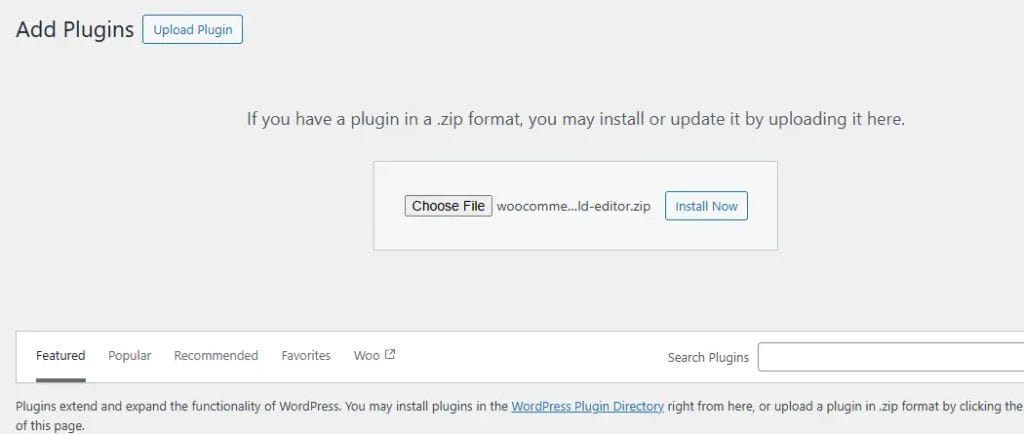
4. After installation, click Activate Plugin.
Step 2: Access the Field Editor
- Navigate to WooCommerce → Checkout Form in your WordPress admin menu.
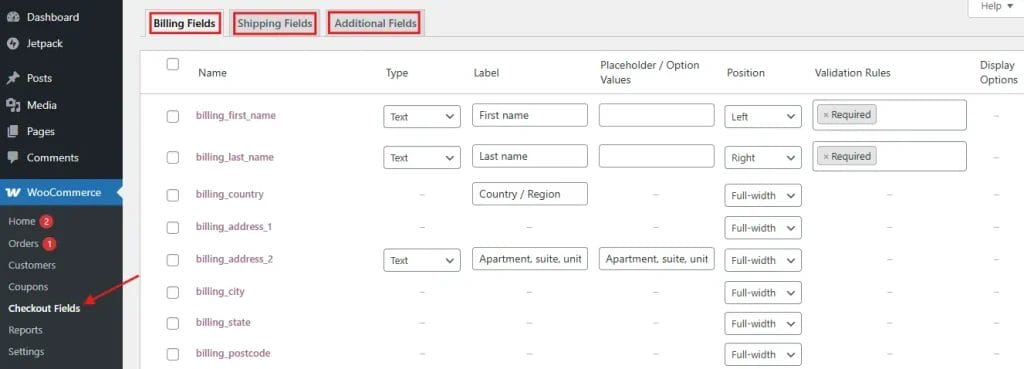
- Here, you’ll see three tabs: Billing, Shipping, and Additional.
Step 3: Customize Fields
- Edit existing fields – Click the pencil icon to change labels, placeholder text, field type, or validation rules.
- Add new fields—Click Add Field, choose a field type (text, checkbox, select, etc.), and set visibility conditions.
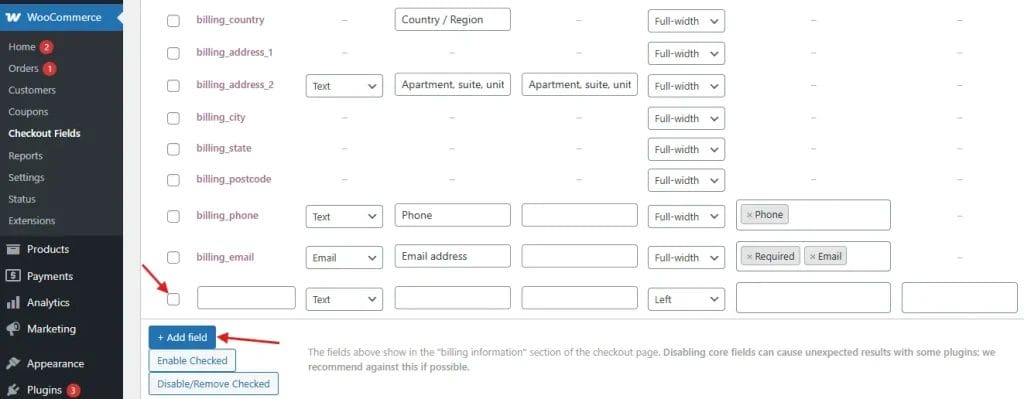
- Remove fields—Use the delete icon to remove unnecessary steps.
Step 4: Rearrange Field Order
-
Drag and drop fields into a logical sequence that guides customers naturally through the checkout process.
Step 5: Save and Test
- Click Save Changes after customization.
- Run a test order to ensure the new layout is smooth and error-free.
How to Streamline WooCommerce Checkout Effectively
While the plugin provides the tools, the strategy makes the difference. To streamline WooCommerce Checkout most effectively, follow these proven methods:
Simplify the Form Fields
Ask only for information you truly need. For example, if you’re selling digital products, shipping details are irrelevant. Removing them speeds up the process significantly.
Use Autofill and Address Lookups
Enable browser autofill and integrate address lookup features to save customers time.
Provide Multiple Payment Options
Support credit/debit cards, PayPal, Apple Pay, Google Pay, and local payment gateways for maximum convenience.
Optimize for Mobile Checkout
Mobile shopping now accounts for the majority of online purchases. To Streamline WooCommerce Checkout for mobile users:
- Ensure the checkout page is responsive and easy to navigate on smaller screens.
- Use large, tappable buttons and clear input fields.
- Avoid pop-ups or overlays that obstruct the form.
By optimizing for mobile, you remove another common barrier to completing purchases.
Build Trust with Clear Policies
Transparency helps customers feel secure when sharing their payment information. Display your return policy, shipping details, and contact information directly on the checkout page.
Highlighting trust badges and SSL certificates reassures shoppers that their data is safe.
Testing and Continuous Improvement
Even after implementing changes, you should continually test and refine your checkout process. Use tools like:
- Google Analytics – Monitor checkout funnel performance.
- A/B Testing—Compare different checkout layouts.
- Customer Feedback—Ask shoppers what they liked or disliked.
The goal is to keep the checkout process lean, intuitive, and fast, adapting to evolving customer expectations.

Final Thoughts
By understanding customer behavior, removing unnecessary friction, and using the right customization tools, you can streamline WooCommerce Checkout and drastically reduce cart abandonment rates. The WooCommerce Checkout Field Editor plugin gives you complete control over your checkout form, letting you create a process that’s both efficient and tailored to your audience’s needs.
Your checkout page is the last impression you leave before a sale is confirmed—make it count.
Interesting Reads:
How to Add a Free Shipping Limit in WooCommerce the Right Way
How to Limit Shipping and Payment Methods in WooCommerce
WooCommerce 10.0 Release: What’s New, What Matters, and What’s Next for Your Store

