

An image slider is one of the more reliable ways to showcase photos, promotions, or featured content in a compact space without cluttering a homepage. Picking the right plugin matters more than it looks: a badly built slider can genuinely slow a site down and hurt the exact search rankings and conversions it was meant to help. This list covers 6 that balance features against actual performance, along with the setup details that determine whether a slider helps or quietly hurts a site.
Why Use an Image Slider Plugin
Sliders let you present multiple images, offers, or messages in one space instead of stacking them vertically. Beyond the visual appeal, most current slider plugins ship with responsive output, lazy loading, and reasonably SEO-friendly image handling by default, though it’s worth checking each plugin’s actual performance impact on your specific theme before committing.
The Core Warning: Why Sliders Have a Bad Reputation
Before the list, it’s worth being honest about why image sliders earned a genuinely poor reputation among web performance and UX people over the last decade, since that history is directly relevant to how you should evaluate the plugins below. A heavy hero slider loading several large, uncompressed images above the fold, all requesting simultaneously, animating via JavaScript before the browser has finished laying out the page, was a textbook cause of poor Largest Contentful Paint and Cumulative Layout Shift scores back when Core Web Vitals became a ranking factor, and it’s still a common cause of slow perceived load time today. There’s also a genuine engagement problem separate from performance: eye-tracking studies on slider usage have repeatedly found that most visitors interact only with the first slide, and click-through rates on slides two through five drop off sharply, meaning a lot of sliders quietly waste design effort on content most visitors never see. None of this means sliders are never the right choice, but it does mean the plugin choice and configuration matter more than the decision to use a slider at all: a lean, well-optimized slider with two or three genuinely important slides and lazy-loaded off-screen images is a very different thing from an unoptimized six-slide carousel loading everything eagerly.
Alternatives Worth Considering Before You Commit to a Slider
Given the performance and engagement caveats above, it’s genuinely worth a moment’s pause before defaulting to a slider at all, since the actual goal, showcasing a handful of important things, has other solutions that avoid the tradeoffs entirely. A static hero image with a single strong message and a clear call to action often converts better than a rotating slider, precisely because there’s no competition for attention and no risk of a visitor missing your one most important message because it happened to not be the slide showing when they arrived. A simple grid or masonry layout works well when you have several roughly equal-priority items to showcase, product categories, feature highlights, and it gives every item genuine visibility rather than hiding most of them behind slide two through six. If a slider is still the right call for your specific content and goals, that’s a legitimate choice, plenty of sites use them well, but it’s worth arriving at that decision deliberately rather than by default, since a slider is meaningfully more work to build well and more prone to the performance and engagement problems covered above than these simpler alternatives.
Best WordPress Image Slider Plugins
1. Soliloquy
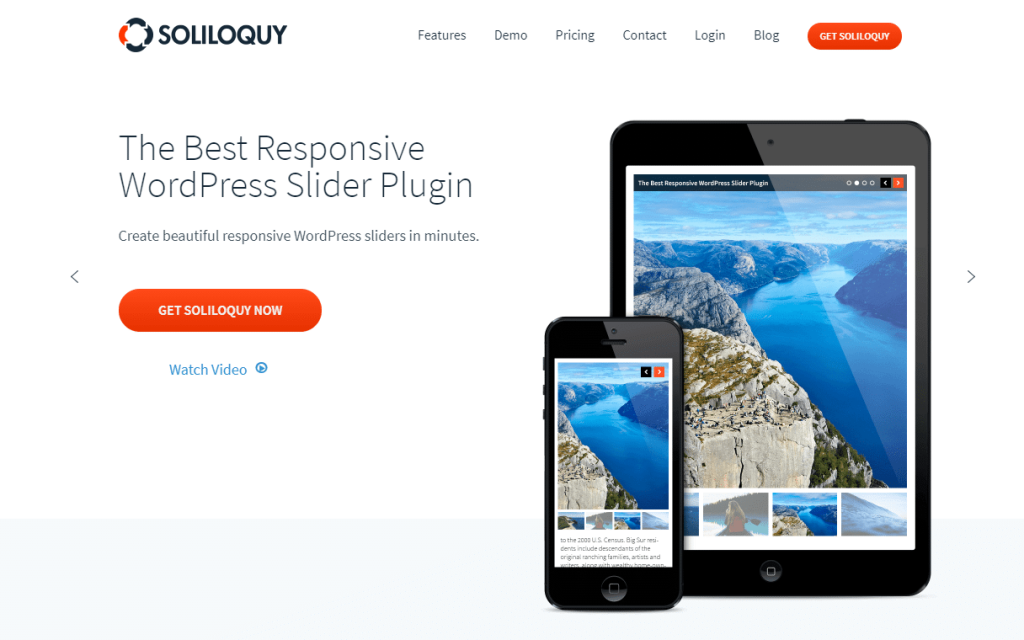
Soliloquy covers 10+ slider types, carousel, featured content, lightbox, video, Instagram, Pinterest, PDF, WooCommerce, and thumbnail sliders among them. The free/lite version handles a standard image slider with drag-and-drop organization and per-image title/alt text/caption/URL fields, inserted via shortcode or PHP. Most slider types beyond the basic one require the paid tiers: developer license ($99, 25 sites, all slider types) or agency license ($249, unlimited sites, client management, multisite support). Confirm current tier pricing directly, since Soliloquy doesn’t publish exact figures on its homepage.
2. Smart Slider 3

Free version ships 11 templates; Pro unlocks 180+. Not limited to static images either, video, blog posts, and dynamic post insertion (filtered by category, tag, or post format) are all supported. The configuration panel gives real control over arrows, bullets, thumbnails, animation, and load behavior, plus touch support and background image handling.
3. MetaSlider
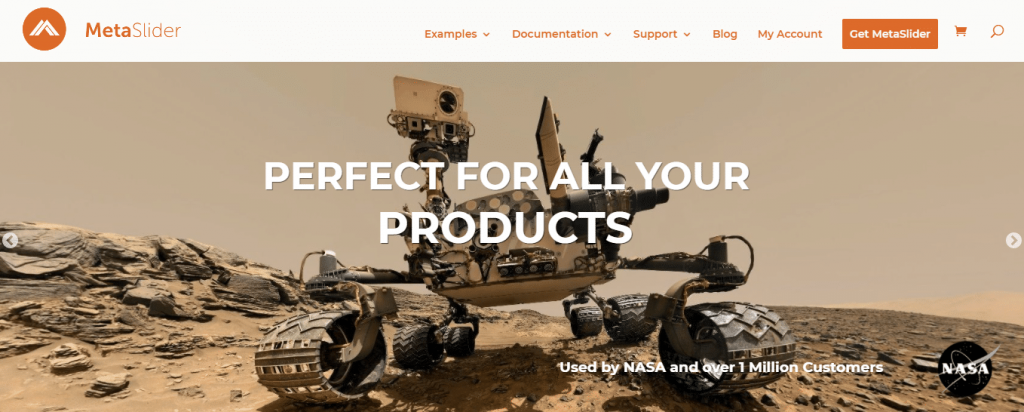
Gutenberg-compatible, multisite-compatible, and generous with its free tier: flex slider, responsive slider, Nivo slider, and coin slider styles are all included free, with drag-and-drop image ordering and 14 themes. Pricing scales by site count rather than feature tier, so every license gets the full plugin: $39 for 2 sites, $59 for 5, $89 for 25, $149 unlimited, all with a money-back guarantee and a year of support.
4. Slider Revolution

Goes beyond a basic slider into full hero sections and layout building, 200+ templates, layer animations, parallax effects, and multimedia support (images, video, social content), with lazy loading and WooCommerce integration built in.
5. Master Slider
3.2M+ downloads, free and Pro WordPress editions plus a standalone jQuery version for non-WordPress use. Touch-friendly navigation, CSS3/JS animation, parallax and layer effects, deep linking, autoplay, and video backgrounds.
Also read: Secure Your Website With WordPress Salt Keys.
6. Ultimate Responsive Image Slider
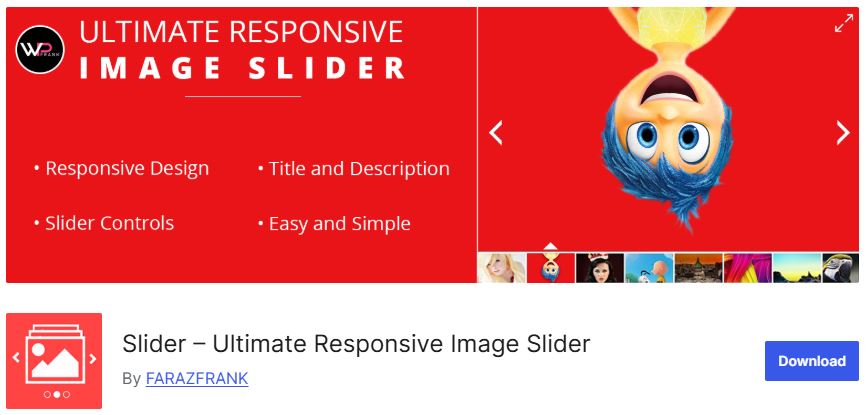
Free (WordPress.org, 1.5M+ downloads, updated May 2026), lightweight, and unlimited images per slider with touch-swipe navigation. The honest budget pick on this list if you don’t need the advanced features the paid options above offer, adjustable slide speed, pagination, drag-and-drop ordering, and shortcode placement cover most basic needs.

Core Web Vitals: What to Actually Check Before Publishing
Whichever plugin you choose, a few concrete settings determine whether the resulting slider helps or hurts your Core Web Vitals scores, worth checking directly against your specific setup rather than trusting a plugin’s marketing claims about being “fast.” First, confirm the first slide’s image, the one visible on page load, is not lazy-loaded, it should load eagerly since it’s above the fold and lazy-loading it actually delays Largest Contentful Paint rather than helping it; every subsequent slide’s image, by contrast, should be lazy-loaded since visitors may never scroll to or click through to them. Second, check the plugin reserves the correct aspect-ratio space for the slider container before images load, a slider that doesn’t do this will cause a layout shift as images pop in, directly hurting Cumulative Layout Shift. Third, confirm images served through the slider are actually compressed and served in a modern format (WebP or AVIF with a fallback) rather than the plugin trusting whatever raw file you uploaded, an unoptimized 4MB hero image inside a “fast” slider plugin is still a 4MB image. Run a real Lighthouse or PageSpeed Insights test on the actual published page, not the plugin’s demo page, before considering the slider done.
Accessibility: Sliders Have Real Accessibility Pitfalls
Beyond performance, image sliders are a genuinely common accessibility failure point worth checking specifically rather than assuming a plugin handles correctly out of the box. Auto-advancing slides are the biggest issue: a slide that changes automatically while a screen reader user or someone with a cognitive or motor disability is still reading or trying to interact with the current slide is a real barrier, and WCAG guidance is specific here, auto-advancing content needs a pause/stop control, or shouldn’t auto-advance in the first place. Keyboard navigation matters too, confirm the slider’s next/previous controls and any pagination dots are actually reachable and operable via keyboard alone, not just mouse or touch, and that focus order through the slider makes sense rather than trapping keyboard focus inside it. Alt text on every slide image is non-negotiable and worth auditing manually, it’s easy for a slider full of decorative background images to end up with missing or unhelpful alt text if nobody specifically checks each slide during setup. Test the actual published slider with keyboard-only navigation and, ideally, a screen reader before considering an accessibility pass complete, a plugin’s general accessibility reputation doesn’t guarantee your specific slide content and configuration is accessible.
Page Builder and Theme Compatibility
Worth checking directly rather than assuming, since it varies more than the plugin pages tend to advertise: how well a given slider plugin integrates with your specific page builder or theme’s block editor support. Soliloquy, Smart Slider 3, and MetaSlider all ship dedicated Gutenberg blocks and generally play well with major page builders like Elementor and Divi through native widgets or shortcode support, worth confirming for your specific combination before committing rather than assuming universal compatibility. Slider Revolution, given its heavier feature set as a full layout builder rather than a simple slider, has historically had more reports of conflicts with certain page builder JavaScript, particularly around z-index stacking and script loading order, worth a real test on a staging copy of your actual site before rolling it out to production, especially if your theme or page builder is a less common combination. A plugin that works flawlessly on the vendor’s demo site running a clean install of a popular theme doesn’t guarantee the same experience once layered on top of your specific stack of theme, page builder, and other active plugins.
Mobile Behavior: Sliders Often Need Different Rules on Small Screens
A slider that looks fine on desktop can behave badly on mobile if it’s not specifically configured for smaller viewports, and it’s worth testing at a real 390px width rather than just resizing a desktop browser window, since touch behavior and real device rendering can differ from a resized desktop view. Touch-swipe navigation should feel natural, not laggy or requiring an unnaturally precise swipe gesture, and text overlaid on slide images needs to remain legible at mobile sizes, a headline that’s readable over a 1920px hero image can become illegibly small or awkwardly wrapped at 390px if the plugin doesn’t handle responsive text scaling well. It’s also worth reconsidering slide count specifically for mobile: a six-slide desktop hero slider might reasonably show only two or three of those slides on mobile, or switch to a simpler static image entirely, since the performance and engagement tradeoffs of a heavy slider are worse on the generally slower connections and smaller attention spans typical of mobile visits.
SEO Considerations Beyond Core Web Vitals
Performance is the biggest SEO lever a slider affects, but not the only one. Confirm the plugin outputs real, crawlable image tags rather than rendering slide images purely through JavaScript in a way that hides them from search engine image crawlers, most reputable plugins on this list handle this correctly, but it’s worth spot-checking with a “view page source” against the actual rendered output rather than assuming. If slider images are genuinely important content, product photography, key promotional graphics, make sure they’re included in your XML sitemap’s image sitemap extension if your SEO plugin supports it (Yoast and Rank Math both do), since that helps search engines discover and index slider images that might otherwise be missed if they’re loaded dynamically. And avoid stuffing keyword-heavy alt text across every slide purely for SEO purposes, alt text should describe the image accurately for accessibility first, search engines are generally good at recognizing and discounting obviously keyword-stuffed alt attributes anyway, so there’s little upside and a real accessibility downside to that approach.
Content Strategy: How Many Slides Actually Make Sense
Given the engagement data on later slides mentioned earlier, it’s worth deliberately deciding slide count rather than defaulting to whatever number the plugin’s demo shows. A strong case can be made for two or three slides maximum in a hero position, each genuinely important enough to justify the design and development effort, rather than five or six where the last few are essentially invisible to most visitors. If you have more content than that genuinely worth showcasing, consider whether a slider is even the right pattern, a grid of cards below the fold, where every item gets equal visual weight and isn’t competing for the same rotating slot, often serves visitors better than burying content four slides deep in a carousel most people never reach. Reserve the slider itself for the handful of messages that most deserve the prominence of that above-the-fold real estate, and treat everything else as better served by a layout where it isn’t competing against four other messages for the same rotating slot.
Analytics: Tracking Whether a Slider Actually Earns Its Space
Given how much of this article has been about the real tradeoffs a slider introduces, it’s worth actually measuring whether yours is earning the real estate and performance cost it carries, rather than assuming it’s working because it looks nice. Set up click tracking on the slider’s call-to-action buttons or linked images specifically, most analytics tools (GA4 with enhanced measurement, or a dedicated heatmap tool) can track this without much setup effort, and compare click-through rates across slide positions. If the data confirms what the general research suggests, sharp drop-off after slide one, that’s a concrete, site-specific signal to either reduce slide count, reorder content so the highest-priority message is always first, or reconsider the slider format entirely in favor of the static or grid alternatives mentioned above. Revisit this data periodically rather than setting it up once and never checking again, what performs well can shift as your content and audience change over time, and a slide that converted well last season can quietly stop pulling its weight without anyone noticing unless someone’s actually watching the numbers.
Common Technical Pitfalls Worth Avoiding
A few recurring problems show up across slider plugins regardless of which one you pick, worth checking for specifically during setup. Plugin conflicts with theme-level animation or lazy-load scripts are common, since many themes now handle their own lazy loading, and running two separate lazy-load systems (the theme’s and the slider plugin’s) can produce broken or double-loading images, test thoroughly after activation rather than assuming compatibility. Autoplay speed set too fast for the actual amount of text on a slide is another common miss, if a slide has a headline and two lines of body copy, a 3-second autoplay interval doesn’t give a visitor enough time to actually read it before it changes, slow autoplay down enough that the content is genuinely readable, or better, disable autoplay entirely and let visitors control pacing themselves. And don’t forget to test the slider specifically after any theme or plugin update, sliders that rely on JavaScript animation libraries are more prone than most content types to breaking silently after an update to jQuery, a theme’s script loading order, or a caching plugin’s JS minification settings, worth adding “check the homepage slider” to your post-update QA checklist rather than discovering it’s broken from a customer complaint days or weeks after the update went live.
Picking One
Ultimate Responsive Image Slider or MetaSlider’s free tier if budget’s the deciding factor. Soliloquy and Smart Slider 3 if you need the specialized slide types (product, Instagram, dynamic post feeds). Slider Revolution if the goal is a full hero/layout builder rather than just a slider. Master Slider sits in between, solid mid-tier option with a genuinely free version worth trying first. Whichever you choose, treat the Core Web Vitals and accessibility checks above as part of setup, not an optional extra, they’re the difference between a slider that genuinely helps present your content and one that quietly costs you search ranking and real visitors. Run a real before-and-after PageSpeed Insights comparison once the slider is live, if the score drops noticeably from your pre-slider baseline, that’s worth investigating and fixing before calling the implementation finished, not a cost to simply accept as the price of having a slider at all.