

A fast-loading website is crucial for retaining visitors, improving SEO rankings, and ensuring customer satisfaction. Whether you’re running a personal blog, an eCommerce store, or a business website, website speed can significantly impact your success. Thankfully, WordPress offers numerous plugins designed to enhance your website’s performance. Selecting the right combination of tools can improve your site’s speed dramatically. This guide covers the 10 best WordPress plugins for website speed, ensuring you have everything you need to optimize your site’s performance.
What is Website Speed Optimization?
Website speed optimization refers to the process of enhancing your site’s load times by refining elements such as images, code, and server performance. A fast website ensures visitors can access content quickly without delays. In turn, this improves search engine rankings, conversion rates, and user engagement.
Why Does Website Speed Matter?
Website speed plays a pivotal role in user experience. Studies show that visitors abandon websites that take longer than three seconds to load. Speed also impacts search engine rankings, as Google prioritizes fast-loading websites. Improved performance reduces bounce rates, increases customer retention, and enhances overall satisfaction.
How to Improve Website Speed on WordPress
To achieve optimal website speed, combining several strategies is essential. This includes caching, image compression, minimizing HTTP requests, and reducing code bloat. Using the right plugins can simplify these tasks, ensuring your website operates at peak performance.
Also Read: Best Hour Tracking Software
10 Best WordPress Plugins for Website Speed
1. WP Rocket: The Powerhouse Caching Plugin
WP Rocket is one of the most powerful caching plugins for WordPress. This all-in-one solution optimizes your site’s performance without complex configurations. By enabling page caching, GZIP compression, and browser caching, WP Rocket ensures rapid load times.
Additionally, WP Rocket offers features like database optimization, lazy loading, and CDN integration. These features collectively enhance website performance, making WP Rocket an indispensable tool for webmasters seeking speed improvements.
2. W3 Total Cache: Comprehensive Performance Optimization
W3 Total Cache is another well-established caching plugin that enhances website performance. Known for its extensive customization options, W3 Total Cache improves website speed by minimizing CSS, JavaScript, and HTML files.
The plugin connects directly with CDN services to deliver content faster. W3 Total Cache also enhances browser caching and database optimization, ensuring your website maintains optimal speed even under high traffic conditions.
3. LiteSpeed Cache: High-Performance Optimization
LiteSpeed Cache is a comprehensive optimization plugin designed for websites using LiteSpeed servers. It offers server-level caching, which provides superior performance compared to traditional caching plugins.
LiteSpeed Cache includes image optimization, database cleanup, and lazy loading features. This combination dramatically improves your site’s load times and enhances server efficiency.
4. Autoptimize: Optimizing CSS, JavaScript, and HTML
Autoptimize simplifies website optimization by aggregating, minifying, and caching CSS, JavaScript, and HTML. This efficient plugin also optimizes Google Fonts and can defer JavaScript to improve load times.
By reducing unnecessary code and improving overall page structure, Autoptimize ensures faster site performance. It pairs effectively with other caching plugins for even greater results.
5. WP-Optimize: Database Cleaning and Performance Boosting
WP-Optimize is a must-have plugin that cleans and optimizes your WordPress database. Over time, WordPress databases accumulate unnecessary data, slowing down your site.
WP-Optimize removes redundant post revisions, spam comments, and transient options. By automating database cleanups, this plugin keeps your WordPress website fast and efficient.
Also Read: Best Construction Project Tracking Software
6. Smush: Image Compression Without Quality Loss
Images often contribute significantly to website slowdowns. Smush is a powerful image compression plugin that optimizes images without compromising quality.
With bulk compression features and lazy loading options, Smush effectively reduces image file sizes to improve load times. The automated compression feature ensures new uploads are optimized instantly.
7. Perfmatters: Reducing Unnecessary Scripts and Features
Perfmatters is a lightweight yet powerful plugin designed to minimize unused scripts and disable features that slow down your website. By disabling unnecessary WordPress features such as emojis, embeds, and dashicons, Perfmatters improves performance dramatically.
The plugin also supports DNS prefetching, which enhances loading speeds for third-party scripts like Google Analytics and social media embeds.
8. Asset CleanUp: Optimizing Unused CSS and JavaScript
Asset CleanUp helps improve website speed by unloading unused CSS and JavaScript files. The plugin scans your website and allows you to selectively disable scripts that are not required for specific pages.
By eliminating unnecessary resources, Asset CleanUp reduces page size and improves load times. This targeted approach ensures your website remains efficient and clutter-free.
9. Lazy Load by WP Rocket: Efficiently Load Media
Lazy Load by WP Rocket is a lightweight plugin that delays loading images and videos until they are visible on the screen. This technique reduces initial page load times and improves user experience.
Lazy Load by WP Rocket is particularly useful for content-heavy websites, as it minimizes bandwidth consumption without affecting media quality.
Also Read: Best Accounting Software Cloud Based
10. ShortPixel: Advanced Image Optimization
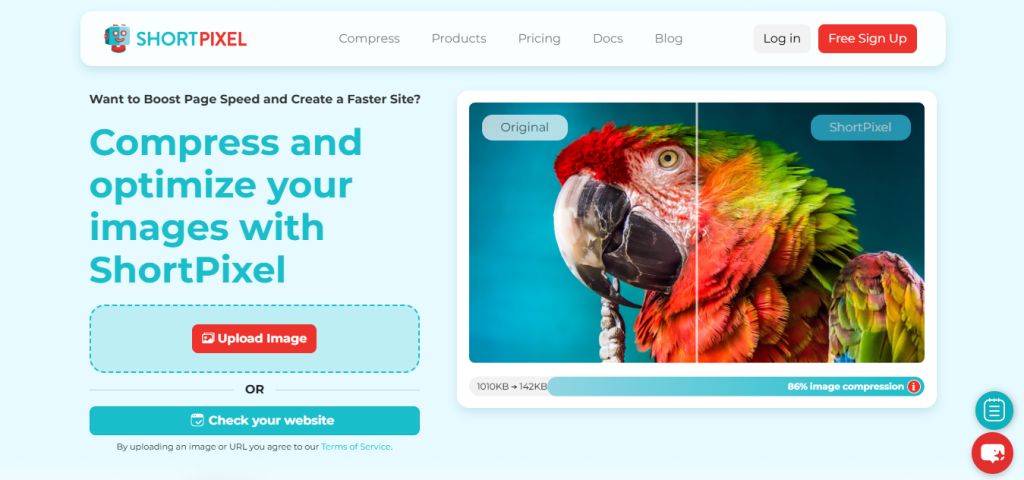
ShortPixel is a leading image optimization plugin that compresses images and PDF files to improve website speed. The plugin offers both lossy and lossless compression methods, ensuring visual quality is maintained.
With features like WebP conversion and automatic resizing, ShortPixel effectively reduces image sizes and enhances performance across all devices.
Choosing the Best Combination for Your Website
Combining multiple plugins strategically can yield the best results. For example, pairing WP Rocket with Smush and Perfmatters can provide comprehensive performance improvements. Understanding your website’s unique needs and implementing the right combination of tools is essential for maximizing speed.
Regular Maintenance for Sustained Speed
Website speed optimization is an ongoing process. Regular updates, database cleanups, and performance checks ensure your website remains fast and efficient. Plugins like WP-Optimize automate maintenance tasks, saving you time and effort.
Common Speed Optimization Mistakes
Installing five caching and optimization plugins at once and hoping for the best is one of the more common ways site owners make things worse instead of better. Several caching plugins running simultaneously can conflict, each trying to manage the same CSS and JavaScript minification in a different way, which sometimes produces a broken layout instead of a faster one. Pick one primary caching plugin, WP Rocket, W3 Total Cache, or LiteSpeed Cache if your host supports it, and build the rest of your stack around that single choice rather than layering multiple caching solutions on top of each other.
Another mistake is optimizing images after the fact instead of at upload time. Retroactively compressing a media library with thousands of existing images takes far longer and is easier to skip than simply configuring Smush or ShortPixel to compress every new upload automatically from day one. If you’re migrating an older site with years of accumulated media, budget real time for a bulk compression pass rather than assuming it’ll happen on its own.
Finally, testing speed changes only on desktop, using a fast office connection, misses how most real visitors actually experience your site. Mobile traffic on a throttled connection is where slow themes and heavy scripts show up most clearly. Run your before-and-after comparisons using a mobile device emulation setting in PageSpeed Insights or GTmetrix, not just the default desktop test, so the numbers you’re optimizing against reflect real-world visitor conditions.
How to Measure Whether Any of This Actually Worked
Installing plugins without measuring the before-and-after result is a common way to end up unsure whether anything actually improved. Run a baseline test with Google PageSpeed Insights or GTmetrix before making any changes, save that report, then re-test after each significant change rather than after installing everything at once. That sequencing tells you which specific plugin or setting actually moved the needle, instead of leaving you with a vague sense that “it’s faster now” without knowing why.
Core Web Vitals, Largest Contentful Paint, Cumulative Layout Shift, and Interaction to Next Paint, are the metrics Google actually uses as part of its ranking signals, so track those specifically rather than only watching an overall performance score. A plugin that improves your overall score but makes Cumulative Layout Shift worse, common with poorly configured lazy loading, can hurt search visibility even as the headline number goes up.
Caching vs. CDN: They Solve Different Problems
A common point of confusion is treating caching and a content delivery network as interchangeable when they solve different parts of the speed problem. A caching plugin like WP Rocket or LiteSpeed Cache stores a pre-built version of your page so the server does not have to rebuild it from PHP and database queries on every single visit, which cuts server response time. A CDN instead copies your static assets, images, CSS, JavaScript, to servers physically closer to each visitor around the world, which cuts the network transfer time for those files.
A site with strong caching but no CDN will still load slowly for a visitor on the opposite side of the planet from your hosting server, because the physical distance the data has to travel is the bottleneck, not how quickly the server generated the page. Conversely, a site with a CDN but no caching plugin still rebuilds every page from scratch on the server side, which is slow regardless of how close the visitor is. Most of the plugins in this list, along with a CDN service like Cloudflare, work together rather than competing, and skipping either half of that pair leaves real performance on the table.
Server-Level Optimization Plugins Cannot Fix
Plugins can only optimize what happens inside WordPress itself. If the underlying hosting plan is genuinely underpowered, shared hosting with hundreds of other sites competing for the same limited server resources, no combination of caching and image compression plugins will get a site to genuinely fast load times. This is one of the most common reasons a site owner installs every plugin on this list, sees marginal improvement, and concludes that speed optimization does not work, when the actual bottleneck was never inside WordPress at all.
A rough diagnostic is Time to First Byte, the time between a browser requesting a page and the server sending back the first byte of a response. If Time to First Byte stays consistently high, often above 600 milliseconds, even after implementing solid caching, that is usually a signal pointing at the hosting environment itself rather than anything a plugin can fix. Moving to a hosting plan with dedicated resources, or a host that specializes in WordPress specifically and tunes its server stack for it, often produces a bigger speed improvement than any single plugin on this list, particularly for a site that has already implemented the basics and plateaued.
PHP Version and Database Health Matter More Than Most Site Owners Realize
Two technical factors sit underneath every plugin on this list and quietly determine how much headroom those plugins actually have to work with. The first is PHP version. WordPress sites running on an outdated PHP version, anything more than two major versions behind current, run measurably slower than the same site on a current PHP release, since each PHP release brings real performance improvements to how the language itself executes code. Checking your PHP version in your hosting control panel and upgrading it, ideally after testing on a staging site first since some older plugins can break on newer PHP, is one of the highest-leverage, lowest-effort speed changes available and it costs nothing beyond the testing time.
The second factor is database health. A WordPress database accumulates post revisions, expired transients, spam comments, and orphaned metadata over years of active use, and a bloated database slows down every single query the site runs, including ones a caching plugin cannot fully mask because they happen on the admin side or during cache regeneration. WP-Optimize handles this automatically once configured, but it is worth running a manual check on a database that has never been cleaned, since a site with years of accumulated revisions and abandoned plugin data can carry tens of thousands of unnecessary rows that a fresh WP-Optimize pass clears out in minutes.
Speed Optimization for Sites Running BuddyPress or Membership Features
Community and membership sites built on BuddyPress carry a different performance profile than a standard blog or brochure site, and the standard caching advice needs a small adjustment to account for it. Activity feeds, member directories, and notification counts are all logged-in, personalized content that a standard page cache generally skips, since caching a personalized feed for one member and serving it to another would be a real bug, not just a minor inefficiency. This means a big share of the pages a busy community site actually generates traffic on are precisely the pages a typical caching plugin is not helping with at all.
Object caching, using Redis or Memcached rather than the page-level caching most plugins on this list handle, becomes far more valuable on a BuddyPress site than on a typical brochure site, because it speeds up the underlying database queries that generate those personalized, uncacheable pages instead of skipping the problem entirely. Most managed WordPress hosts that specialize in community or membership sites include Redis object caching as a standard feature, and enabling it, alongside the plugins already covered in this guide, closes the performance gap that page caching alone cannot reach for a logged-in, activity-heavy site.
A Simple Testing Routine to Follow After Every Change
Installing a plugin and eyeballing whether the site “feels faster” is not a reliable way to know whether a change actually helped. A repeatable testing routine removes the guesswork. Before making any change, run the site through Google PageSpeed Insights and GTmetrix, save both reports, and note the specific Core Web Vitals scores rather than just the overall grade. After each individual change, one plugin installed or one setting toggled at a time, run the same two tests again and compare directly against the saved baseline.
This one-change-at-a-time approach takes more time upfront than installing everything from this list simultaneously, but it is the only way to know which specific change actually moved the needle versus which one quietly made things worse while another change compensated for it. It also catches conflicts early. If a specific plugin combination causes a measurable regression, isolating changes one at a time is what reveals that, rather than discovering a slowdown weeks later with five new plugins active and no way to know which one caused it.
When a Site Is Still Slow After Trying Everything on This List
If a site has a solid caching plugin, an optimized image library, a clean database, current PHP, and a CDN in place, and it is still measurably slow, the remaining bottleneck is usually one of three things. The first is a heavy page builder or theme that generates excessive markup and CSS regardless of what optimization plugins are layered on top, in which case the fix is often switching to a genuinely lightweight theme rather than continuing to add optimization plugins to compensate for a heavy foundation. The second is a specific poorly coded plugin unrelated to speed optimization itself, a booking calendar, a form builder, or an analytics script loading synchronously and blocking the rest of the page from rendering. Disabling plugins one at a time and re-testing after each is the most reliable way to isolate this, since it is often invisible from the plugin’s settings page alone.
The third is simply insufficient hosting resources for the site’s actual traffic level, which no amount of plugin configuration can fully solve. A site that has genuinely outgrown its hosting tier needs a hosting upgrade, not another plugin, and recognizing that distinction early saves the time otherwise spent chasing marginal plugin-level gains that were never going to close a resource-level gap.
Bringing the Right Combination Together
Implementing the right combination from this list can meaningfully improve your website’s performance, faster load times, a better user experience, and stronger Core Web Vitals scores. Combining one solid caching plugin, an image optimizer, and a script management tool like Perfmatters covers most of what a typical WordPress site needs. Measuring the actual impact of each change, and avoiding the trap of stacking overlapping plugins, is what turns this list into a real speed improvement instead of just a longer plugin list.