
A professional association lives on trust. Members share how they practise, ask questions they would never post on a public network, sit on committees that set standards and pay dues because the association gives them something they cannot get elsewhere. Most associations still run that on an email list, a members’ area that nobody visits and a separate system for every job: one for dues, one for events, one for CPD records.
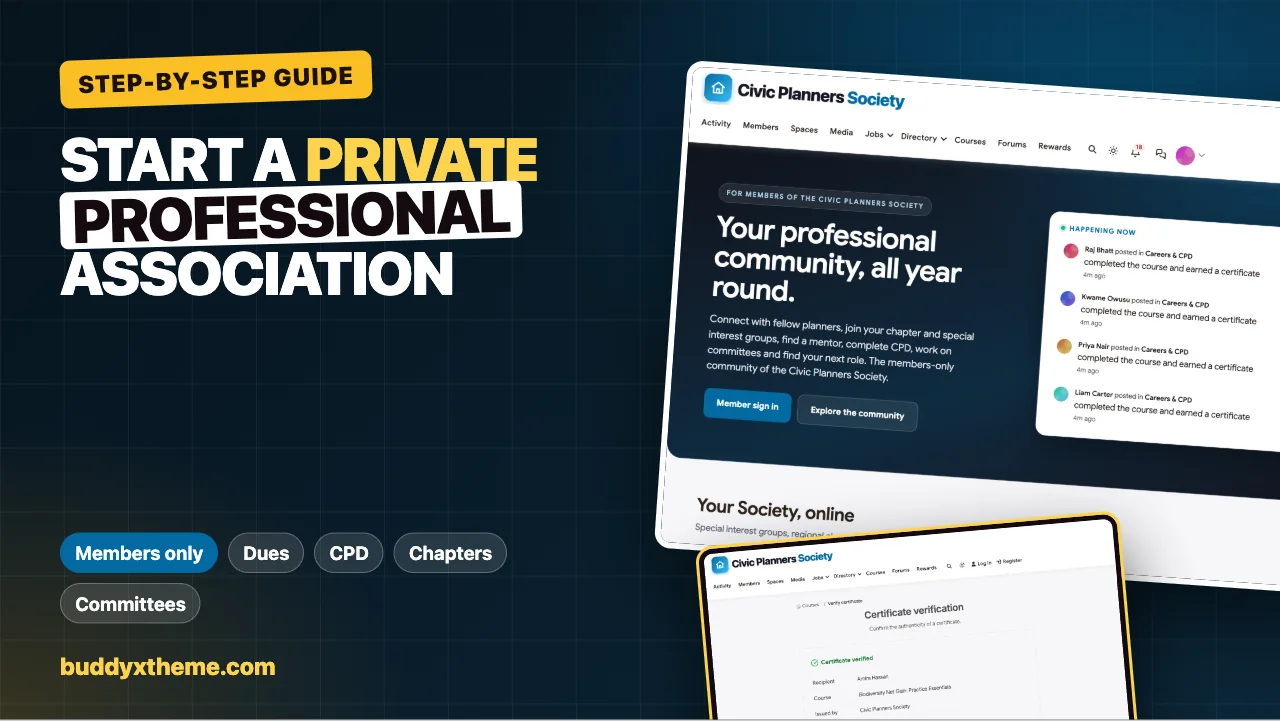
This guide shows how to start a private professional association community on your own WordPress site, with the whole member journey in one place: applications checked by your membership team, membership grades, dues and renewals, special interest groups, regional chapters, private committees, a secret board space, CPD courses with verifiable certificates, events, a careers board and a public “find a member” directory. Every screenshot comes from the Civic Planners Society, a demo association for town planners that we built for this article.
Quick answer
To start a private professional association community, install the BuddyX theme and BuddyNext on WordPress, turn on “require login to view the community” and set registration to admin approval. Add profile fields for membership grade, membership number, specialism and region, and create member types for each grade. Add BuddyNext Pro for membership plans, dues, renewals and gated spaces. Create spaces for interest groups, chapters, committees and the board, then add Learnomy for CPD courses with verifiable certificates, Eventonomy for events and WP Career Board for jobs.
In this guide
- What a professional association community has to do
- Step 1: Plan the membership model
- Step 2: Install the stack and make it private
- Step 3: Build professional profiles
- Step 4: Set up membership plans and dues
- Step 5: Create interest groups, chapters, committees and the board
- Step 6: Deliver CPD with verifiable certificates
- Step 7: Run events, careers and the member directory
- Step 8: Governance, communication and engagement
- Step 9: Launch to members
- Common mistakes
- Mobile
- Related guides
- How we built this guide
- Frequently asked questions
- The bottom line
What a professional association community has to do
An association’s online community is not a social network with a logo. It has to support the way the association actually works:
| The association’s job | What it looks like online | Step |
|---|---|---|
| Admit the right people | Applications checked against records before access | 2 and 3 |
| Recognise grades and credentials | Grade badges, membership numbers, specialisms | 3 |
| Collect dues and manage renewals | Membership plans, online payment, reminders | 4 |
| Bring practice areas and regions together | Special interest groups and chapters | 5 |
| Support governance | Private committees, a secret board space, polls | 5 and 8 |
| Deliver continuing professional development | Courses with verifiable certificates | 6 |
| Run events | Conferences, chapter evenings, webinars | 7 |
| Help careers | Jobs, mentoring and a public member directory | 7 |
If you are comparing platforms before building, our comparison of professional association community software covers the hosted association management systems and community tools. This guide is the build.
Step 1: Plan the membership model
Answer these questions with your membership team before you build anything. Each answer becomes a setting later.
Who can join, and how do you check? Most associations admit by grade (student, graduate, full or chartered member, fellow, retired) and check each application against their records or an exam register. Write down what the membership team needs to see before approving: usually a membership number or a qualification.
What does each grade get? List what is included at each grade: the members’ lounge, interest groups, CPD courses, committee eligibility, the public directory. This becomes the plan and space structure in steps 4 and 5.
How do members pay? Online by card, by invoice through an employer, or both. Many associations have a mix: individuals pay online, employers pay invoices for their staff. You need a way to handle both.
Who runs what? Name the membership manager (approvals and renewals), the education or CPD lead, the events lead, a chair for each interest group and chapter, and a committee secretary. A community where staff do everything burns out staff; one where volunteers have real roles grows.
What is private, and what is public? For most associations: everything about members is private, while a “find a member” directory and the events calendar may be public.
Step 2: Install the stack and make it private
The core of the community runs on a normal WordPress site:
- The BuddyX theme for the design.
- BuddyNext for member profiles, member types, the directory, spaces, the activity feed, messages, polls, notifications, moderation, registration controls and privacy.
- BuddyNext Pro for membership plans, dues, renewals, coupons, gated spaces, email broadcasts and onboarding emails. For a dues-paying association, Pro is the part that replaces a separate membership system.
Add the modules your association needs:
- Learnomy for CPD courses and certificates.
- Eventonomy for conferences, chapter evenings and webinars.
- WP Career Board for a careers board.
- Listora for a public “find a member” directory of practices.
- Jetonomy if you want structured Q&A, for example on standards and practice questions.
Make the community private
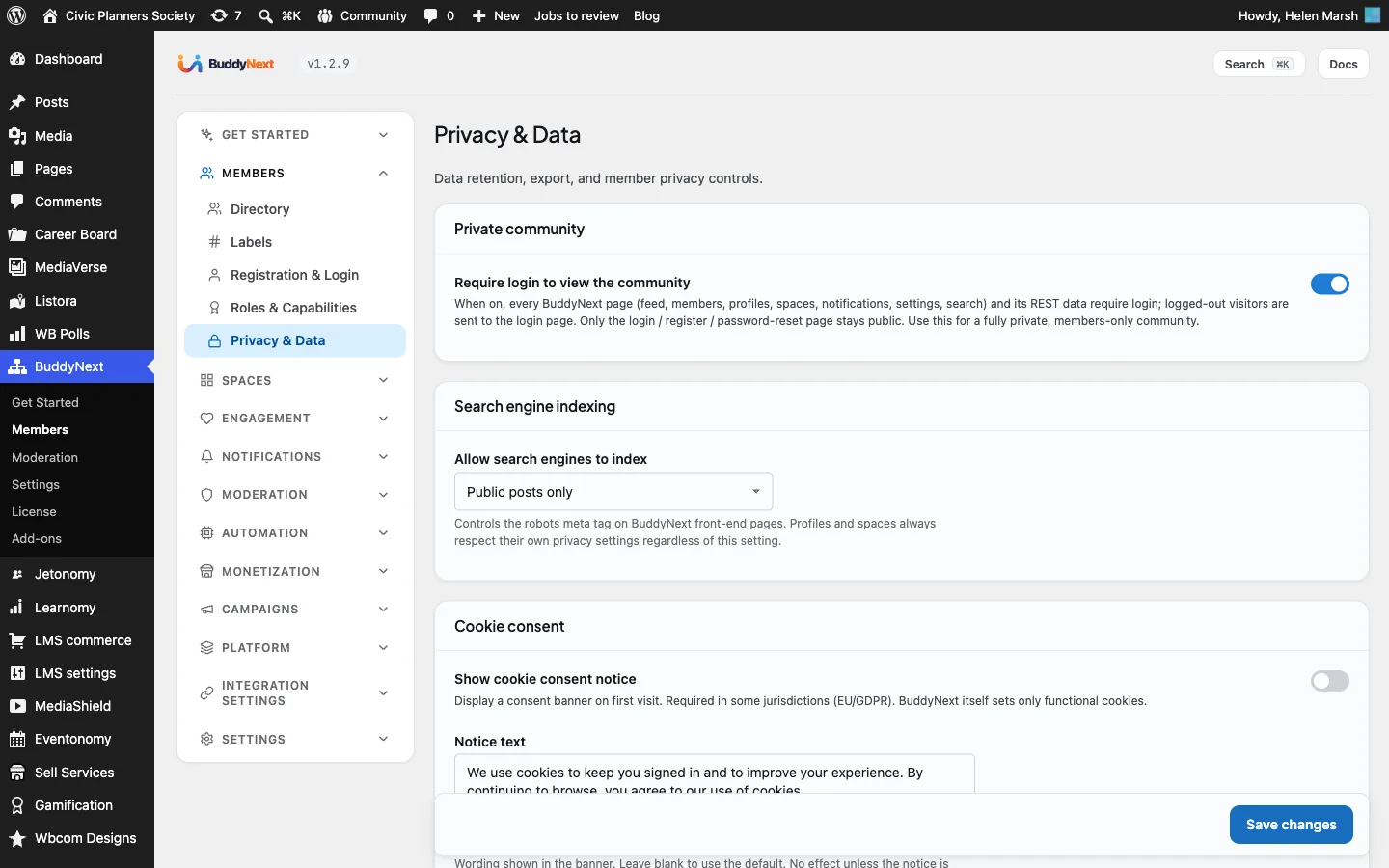
Open BuddyNext > Members > Privacy & Data and turn on Require login to view the community. Member profiles, spaces, posts and the directory are then only visible to signed-in members, and everyone else is sent to the sign-in page. On the same screen, set search engine indexing so that member content stays out of search results, and turn on the cookie notice if you have members in the UK or EU.
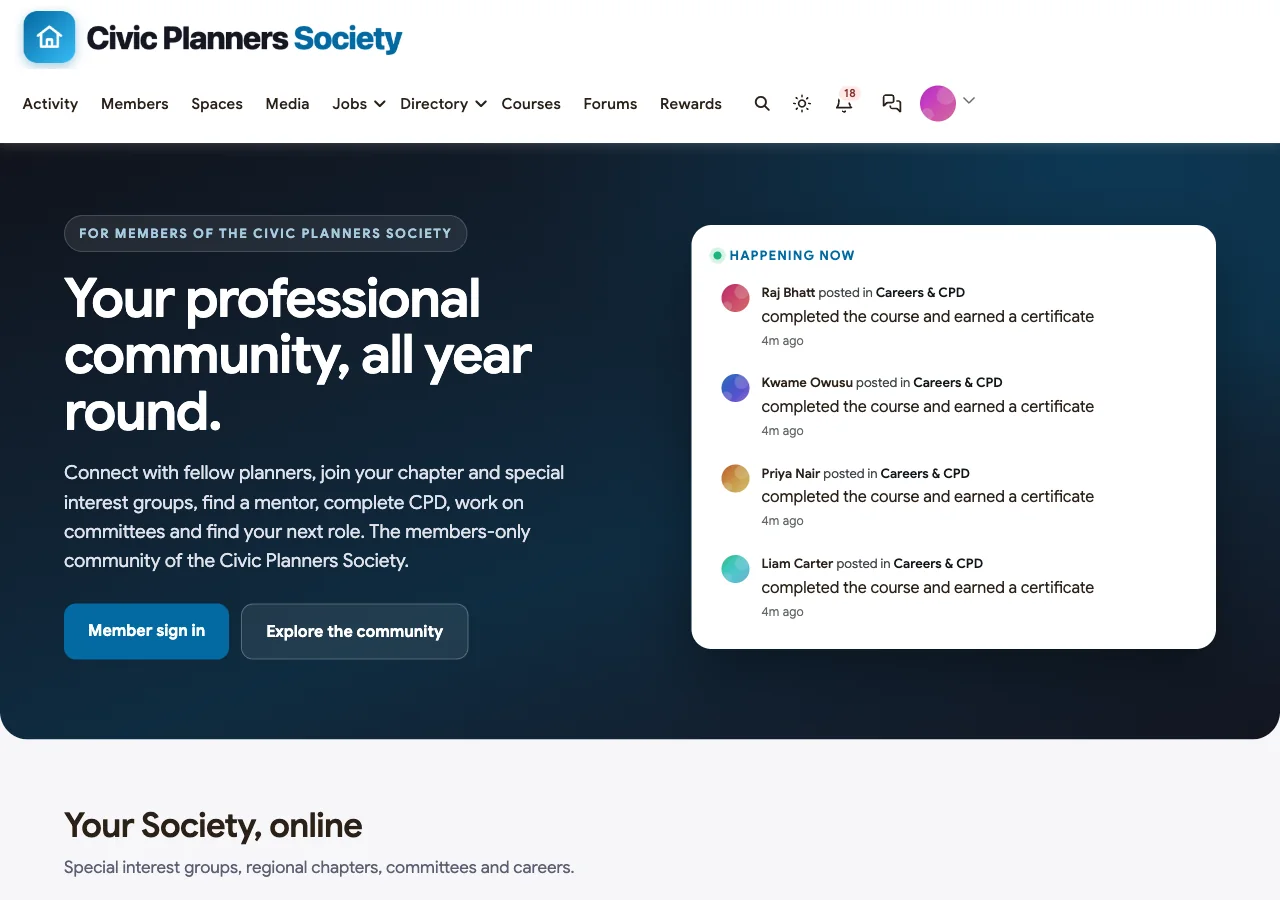
Keep your homepage public. Prospective members, employers and the press need to see what the association is and how to join.
Hold applications for review
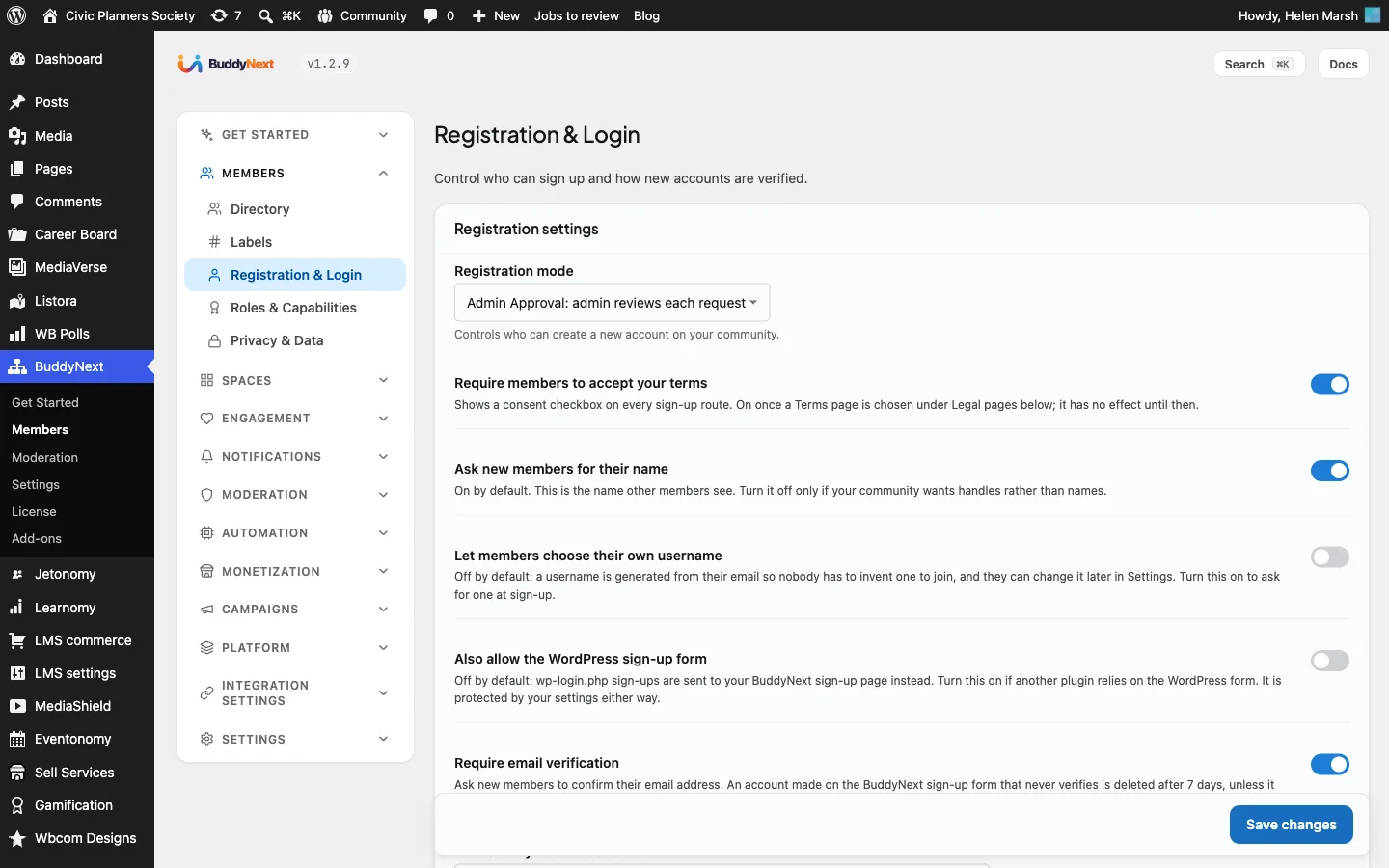
Open Members > Registration & Login and set Registration mode to Admin Approval: admin reviews each request. New applicants can register, but nothing is visible to them until the membership team approves the account. Turn on Require email verification and Require members to accept your terms, linking your code of conduct.
If your association only admits people you invite, for example a closed network of senior practitioners, use Invite Only instead and send invitations from your records under Members > Invites.
Step 3: Build professional profiles
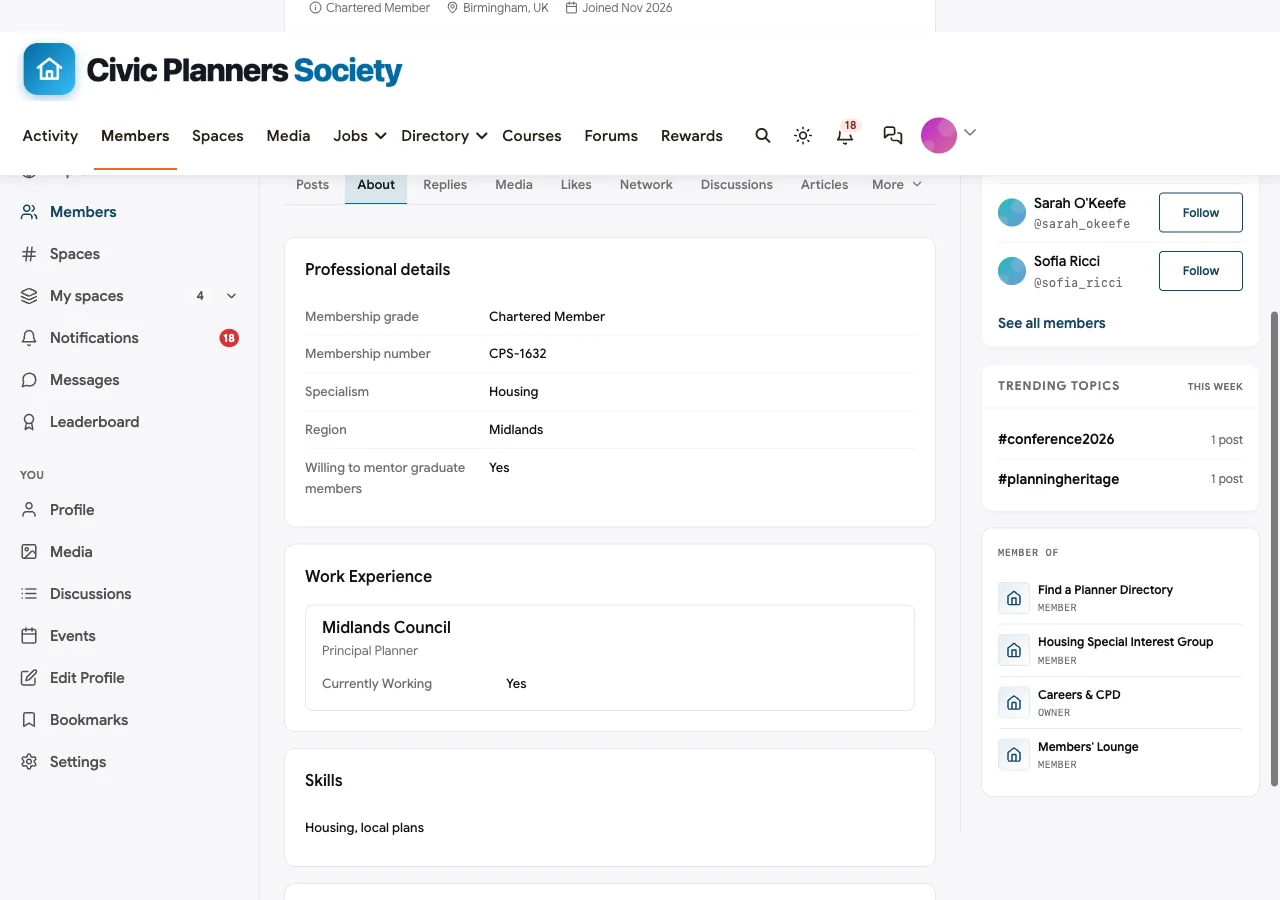
Professional profiles are what make the community useful day to day: finding a housing specialist in the Midlands, a mentor for a graduate member or a fellow who has sat on an appeal panel.
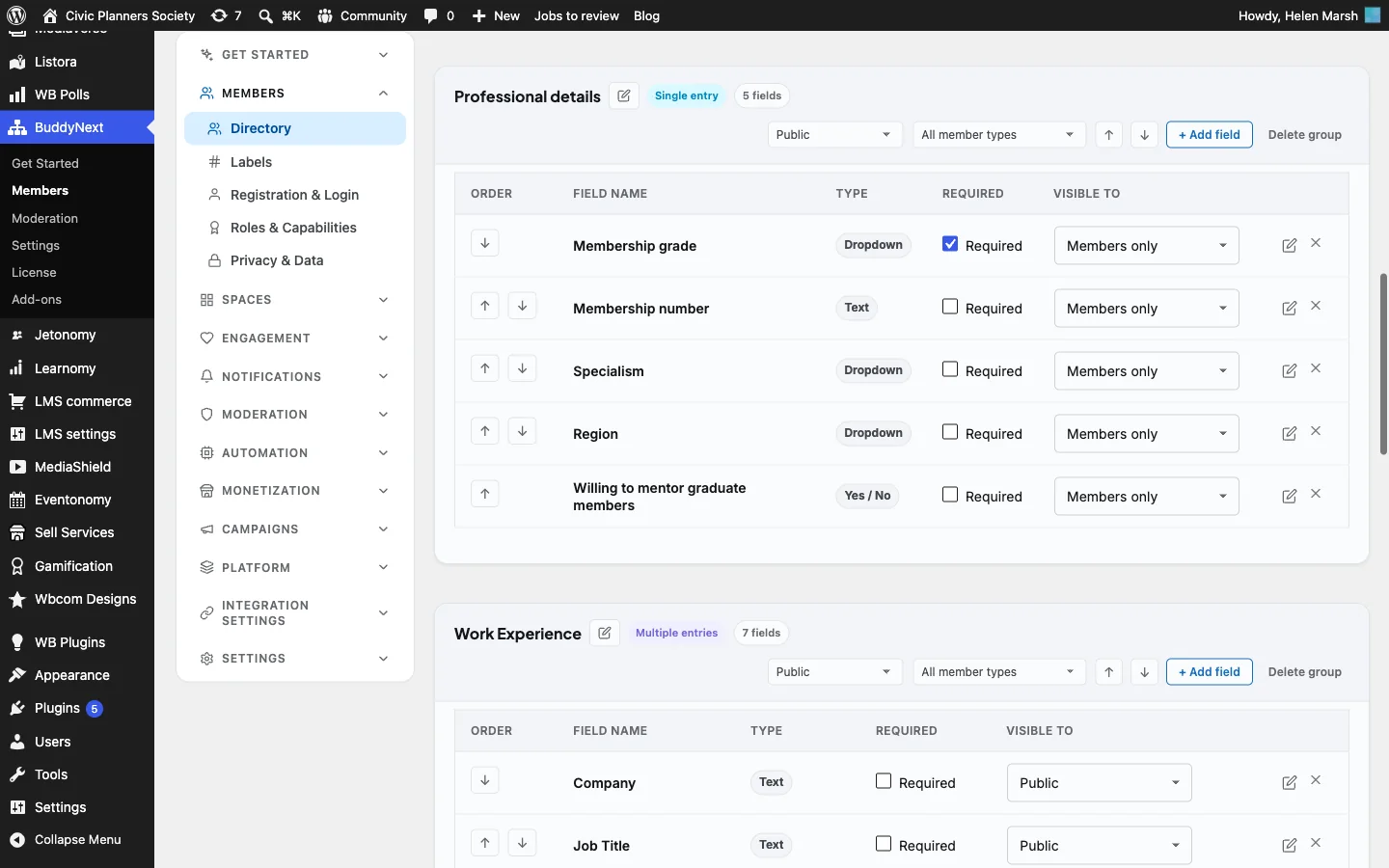
Open Members > Profile Fields and create a group called Professional details:
| Field | Type | Required | At sign-up | Visible to |
|---|---|---|---|---|
| Membership grade | Dropdown (Student, Graduate, Chartered Member, Fellow, Retired) | Yes | Yes | Members only |
| Membership number | Text | No | Yes | Members only |
| Specialism | Dropdown | No | No | Members only |
| Region | Dropdown | No | No | Members only |
| Willing to mentor graduate members | Yes / No | No | No | Members only |
Grade and membership number at sign-up give the membership team what it needs to approve each application. Specialism and region make the directory searchable. Willing to mentor turns the directory into a mentoring scheme with no extra software.
Each field has its own visibility, from Public through Members only, Followers only and Connections only to Only me. Membership numbers are a good candidate for “Only me” if you only need them for approval. Members can also hide themselves from the member directory in their own privacy settings.
Member types for grades
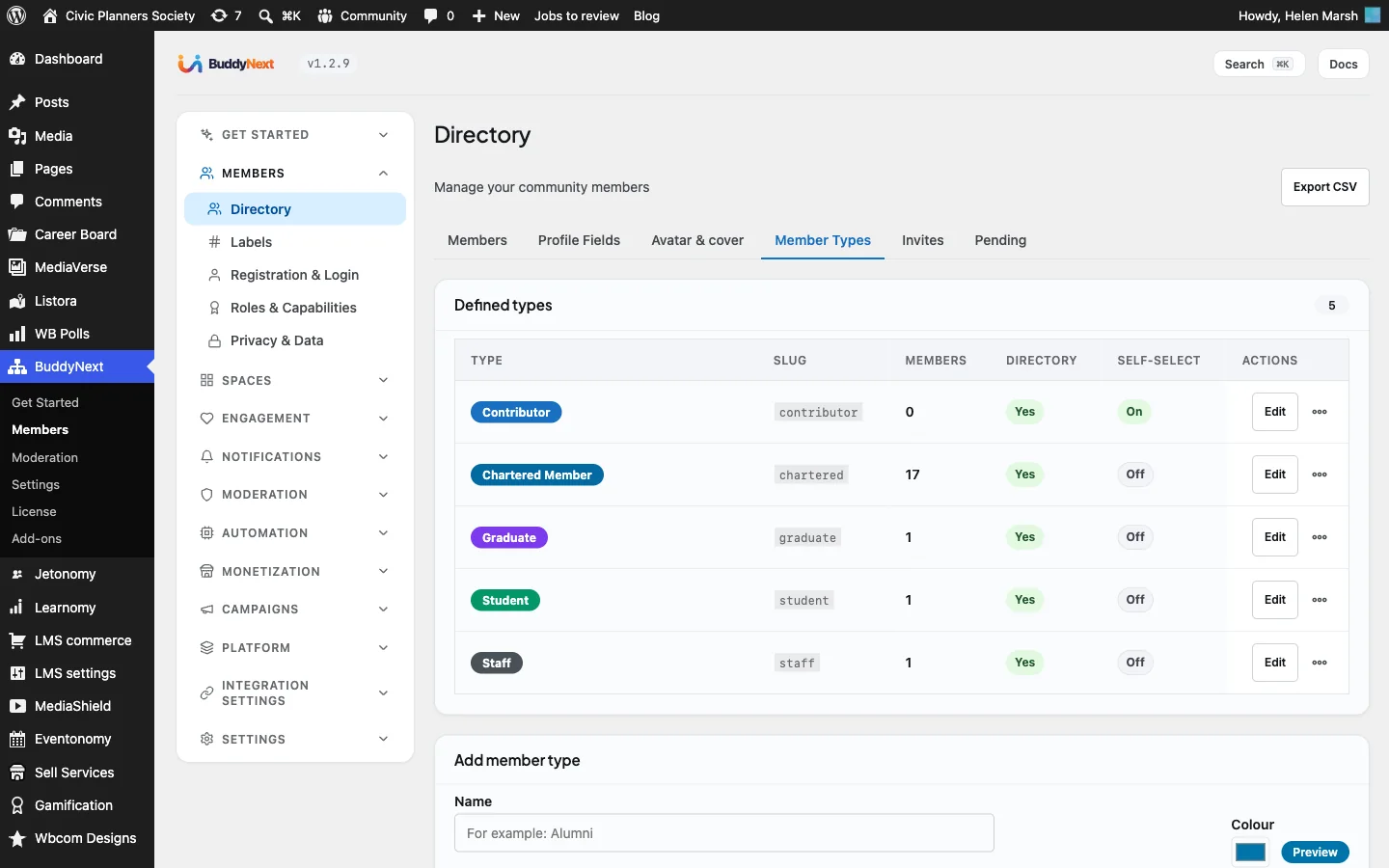
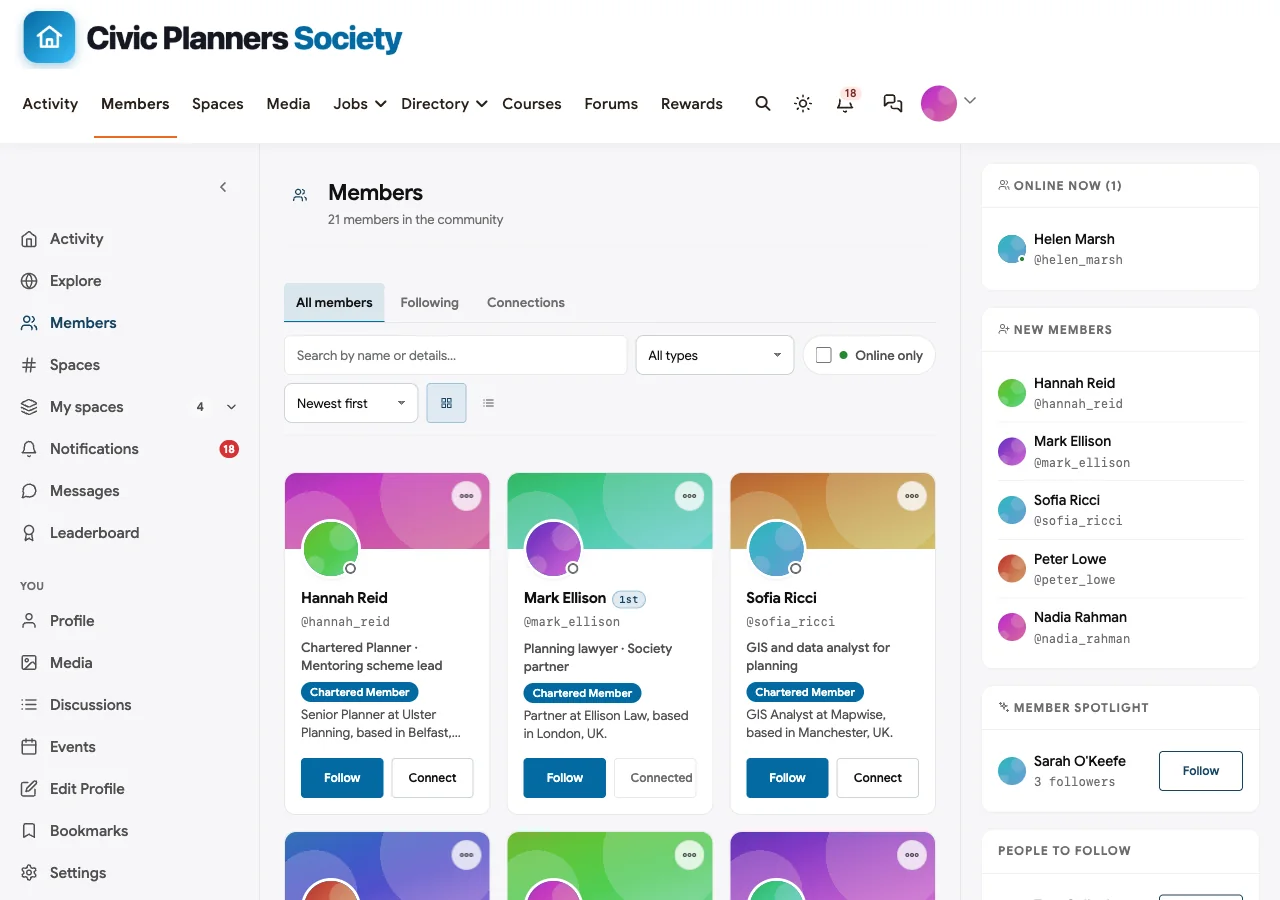
Under Member Types, create one type per grade that matters in the community, such as Chartered Member, Graduate and Student, plus Staff for the association team. Turn self-select off so only the membership team assigns types; a grade badge has to be earned. Each type shows as a coloured badge on profiles and member cards and can be used to filter the directory.
Step 4: Set up membership plans and dues
This step needs BuddyNext Pro. If your association already uses an association management system for dues and only wants the community, skip to the section on connecting an external system at the end of this step.
Plans
Under BuddyNext > Monetization > Plans, create one plan per membership grade or category. Each plan can be:
- Recurring, billed monthly or yearly, or a one-time payment for lifetime or fixed-term membership.
- Given trial days (recurring plans only), which suits a discounted first year for new graduates.
- Set to active, or unlisted so it only works from a direct link, which is useful for special categories such as honorary fellows or employer-sponsored members.
Each plan carries entitlements: what a member on that plan can do, such as send direct messages, join open spaces, view protected content or enter gated spaces. Plans also map to spaces, so a “Chartered Member” plan can open the chartered members’ spaces automatically, and one space can be opened by several plans.
Payments, including invoices
Members can pay online through Stripe or PayPal. For members who pay by invoice, bank transfer or employer purchase order, the membership team records the payment with the Offline gateway, which never appears at checkout. Staff can also add a membership to a member’s account by hand from their user profile, with an end date or set to never expire, which covers honorary and life members.
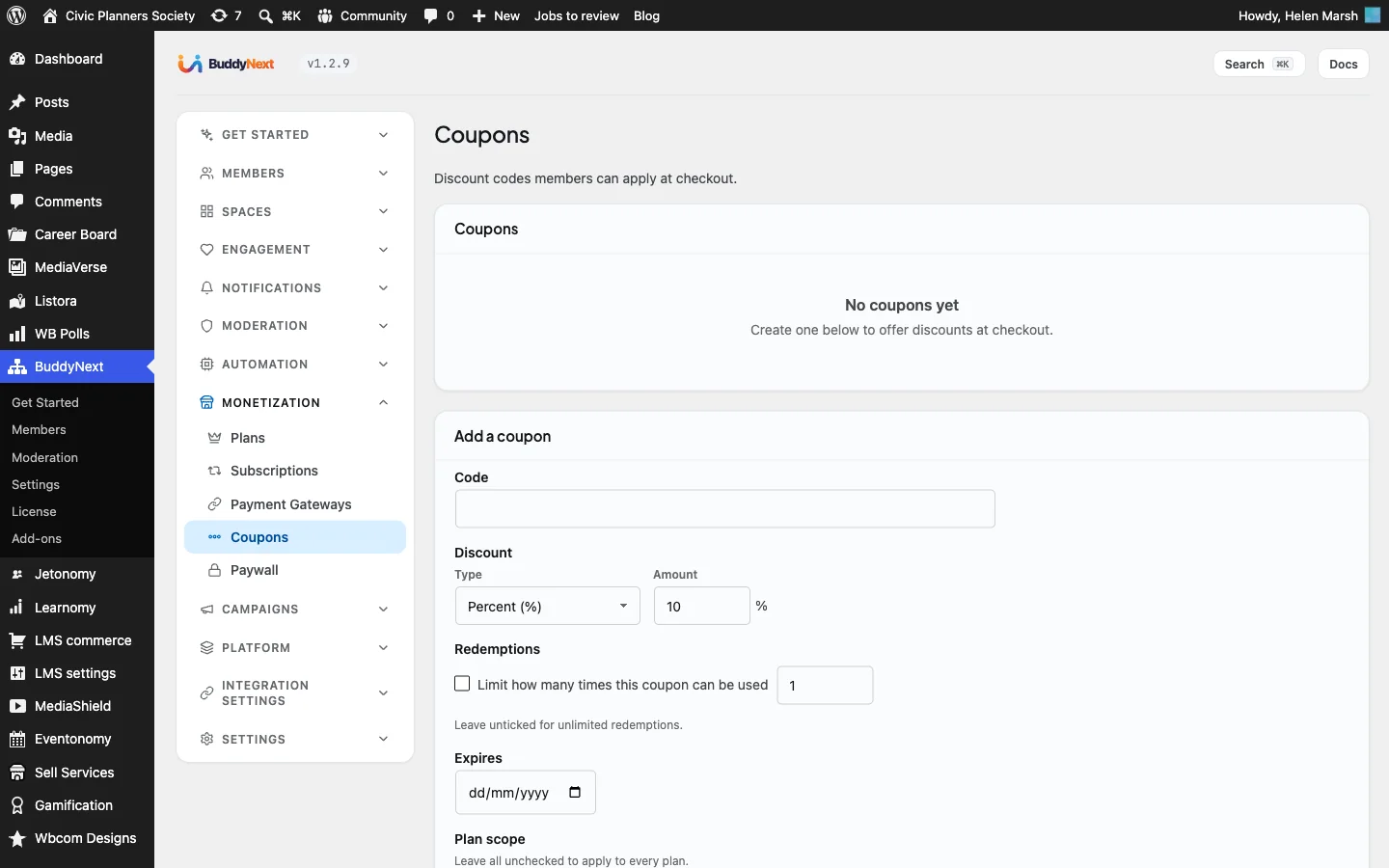
Coupons take a percentage or a fixed amount off, can be limited to certain plans, capped at a number of uses and given an expiry date. A coupon for students or retired members is easier to manage than a separate plan for every discount.
Renewals and lapsed members
Renewals are where associations lose most members, usually by accident. BuddyNext Pro handles the routine:
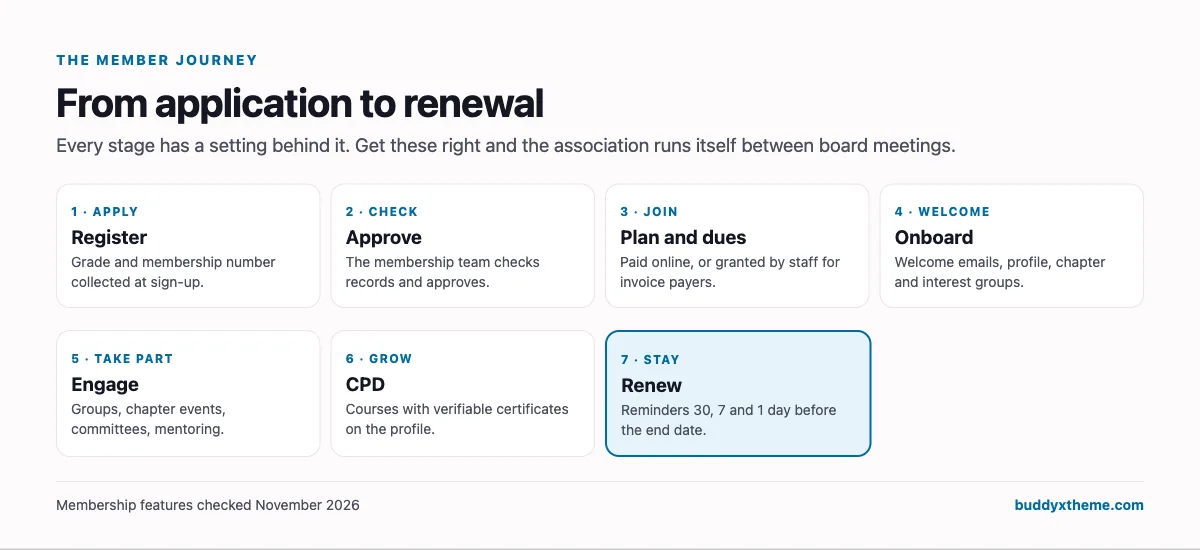
- Reminders are emailed 30, 7 and 1 day before a membership’s end date, with different wording for members who renew automatically and members whose plan is ending.
- Failed payments get a grace period of 7 days by default, during which the member keeps access and receives a “payment failed” email.
- Expiry is checked daily. When a membership expires, the access that plan gave is removed and the member receives an expiry email.
Other emails cover a new membership, a plan change, a cancellation and a refund, so the membership team does not have to write them by hand.
What non-members see
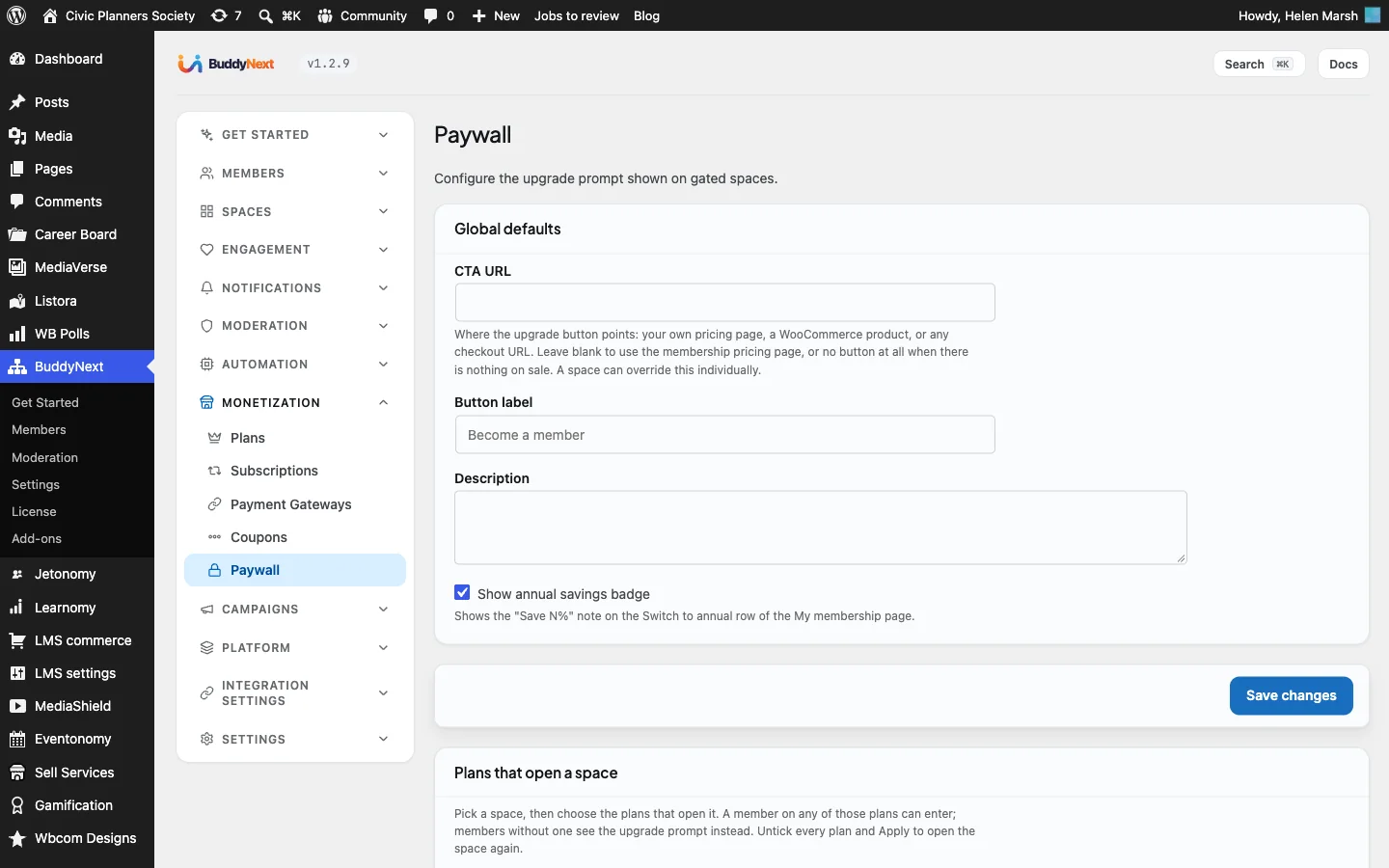
A gated space shows a blurred preview and a Become a Member button to signed-in members without the right plan. Under Monetization > Paywall you set the button label, where it goes and a short description of what membership includes.
For ordinary WordPress pages, such as a members-only practice note, wrap the protected part in the [buddynext_members_only] shortcode. Non-members see the first 40 or so words and a locked card.
If you already have an association management system
Many associations keep dues in an association management system or CRM. BuddyNext can still control access: its inbound access webhook accepts signed requests to grant, extend or cancel a plan for a member’s email address, so your existing system can tell the community who is a member in good standing. Plan actions need BuddyNext Pro.
Step 5: Create interest groups, chapters, committees and the board
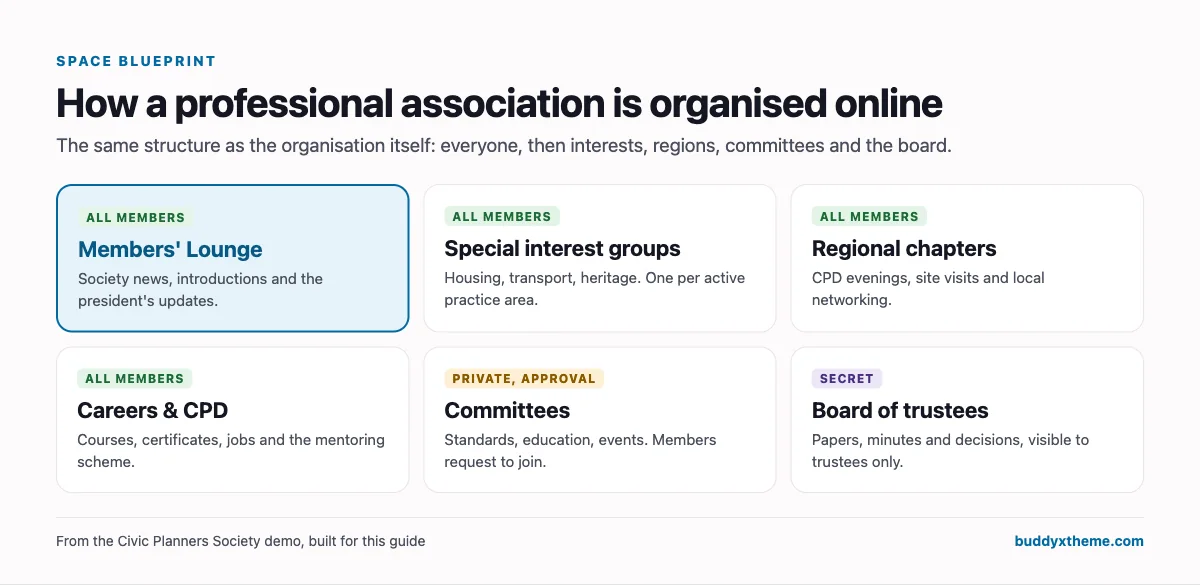
Spaces mirror the association’s structure. In the demo:
| Space | Type | Who runs it | Purpose |
|---|---|---|---|
| Members’ Lounge | Open to all members | Association staff | News, introductions, the president’s updates |
| Housing, Transport and other special interest groups | Open to all members | Group chairs | Practice discussion, policy responses, webinars |
| Northern and Southern chapters | Open to all members | Chapter chairs | CPD evenings, site visits, networking |
| Careers & CPD | Open to all members | Education lead | Courses, mentoring, careers |
| Professional Standards Committee | Private, approval required | Committee secretary | Committee papers and discussion |
| Board of Trustees | Secret | Chief executive | Board papers, minutes and decisions |
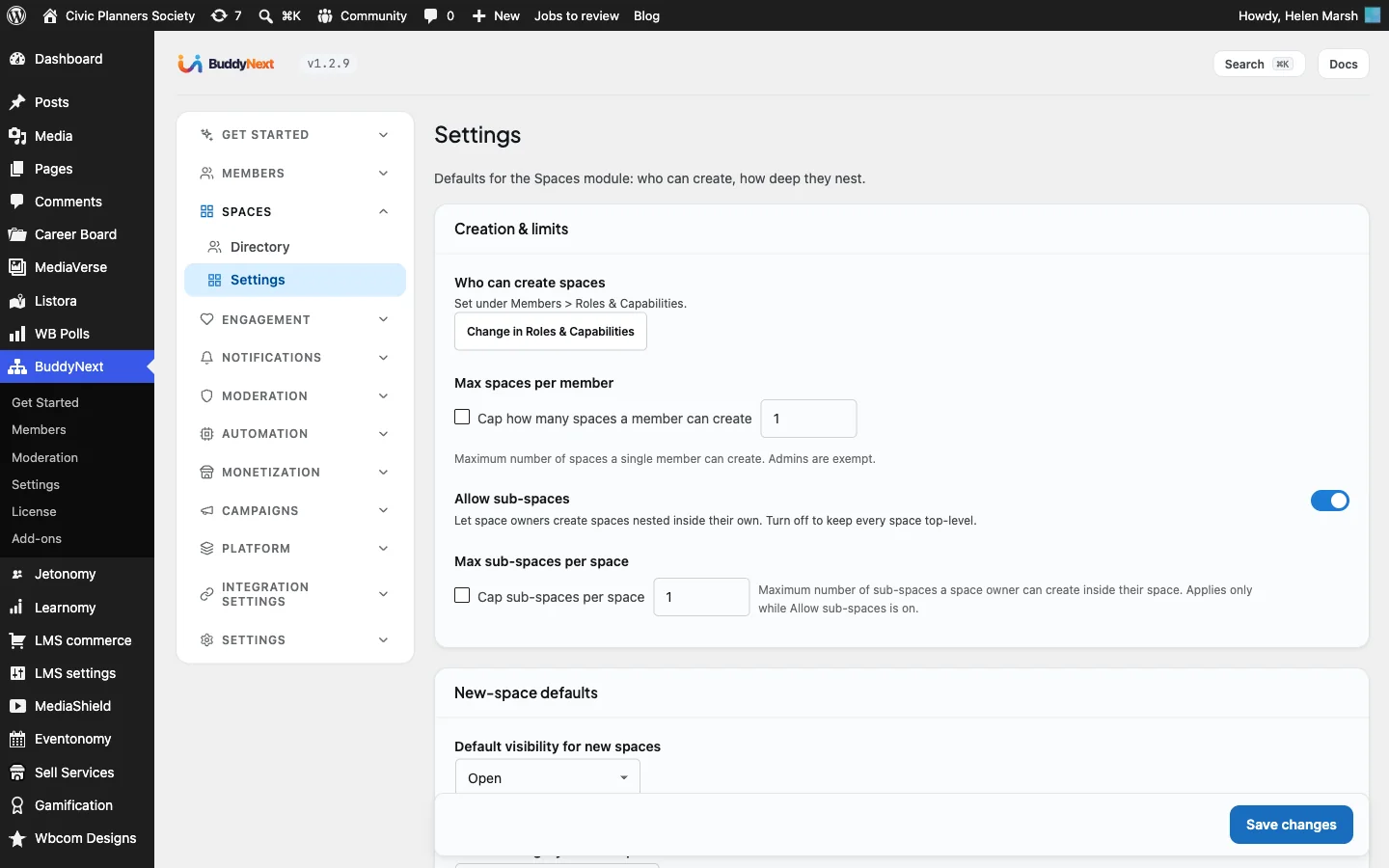
“Open” here still means members only, because the whole community requires login. Private spaces show up in the directory, but posts are only visible to their members and joining needs approval. Secret spaces are hidden from the directory and search entirely; trustees are added by invitation.
Create interest groups and chapters only when someone has agreed to chair them. An association with thirty empty groups looks inactive; one with eight busy ones looks thriving.
Here is the private Professional Standards Committee as a member who is not on the committee sees it, with a Request to join button:
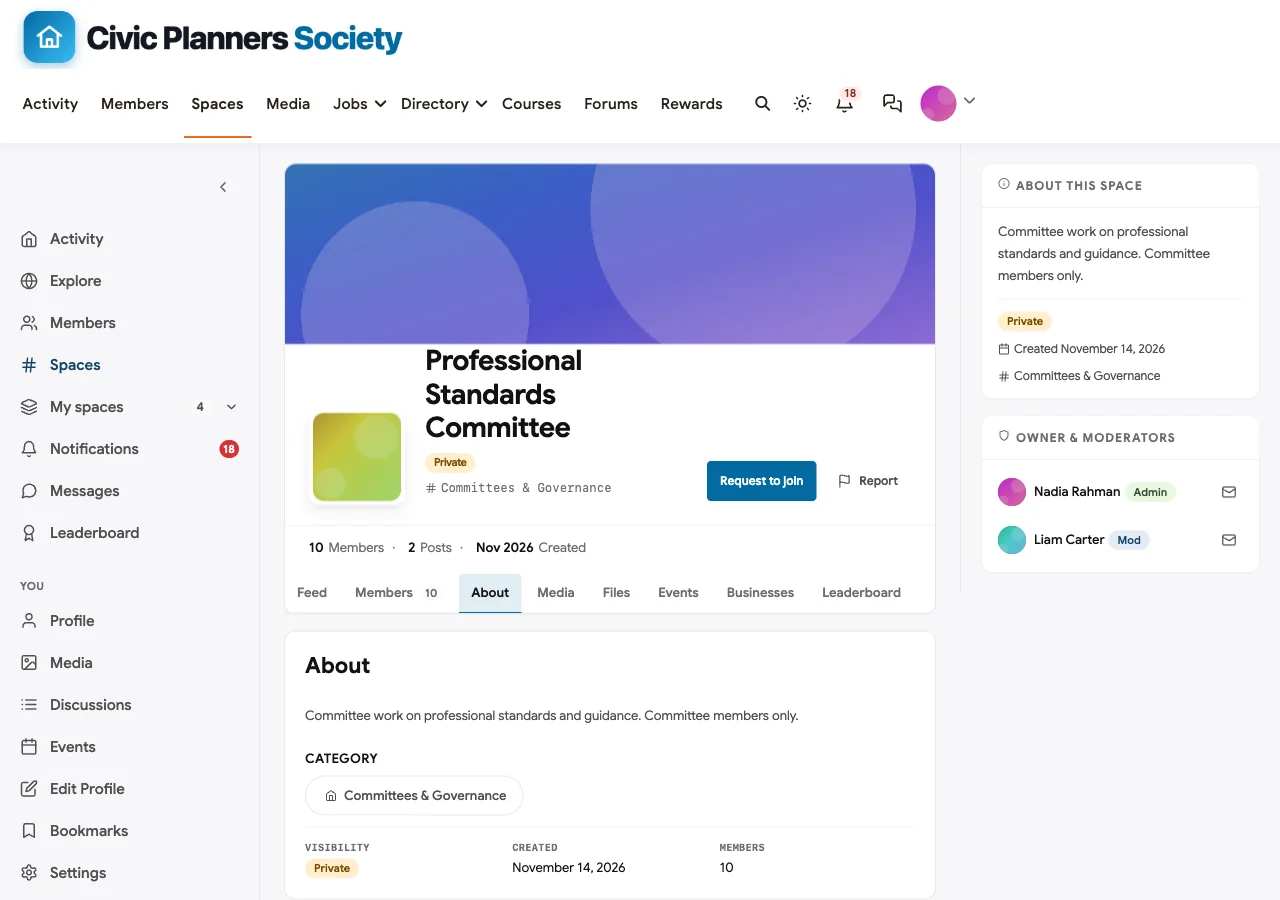
Each space has its own feed, members, events and discussions. With MediaVerse Pro, spaces also get a Files tab for committee papers, guidance notes and slide decks, with uploads limited to space members.
Step 6: Deliver CPD with verifiable certificates
Continuing professional development is often the main reason members renew. Learnomy brings courses into the community.
Build a CPD course
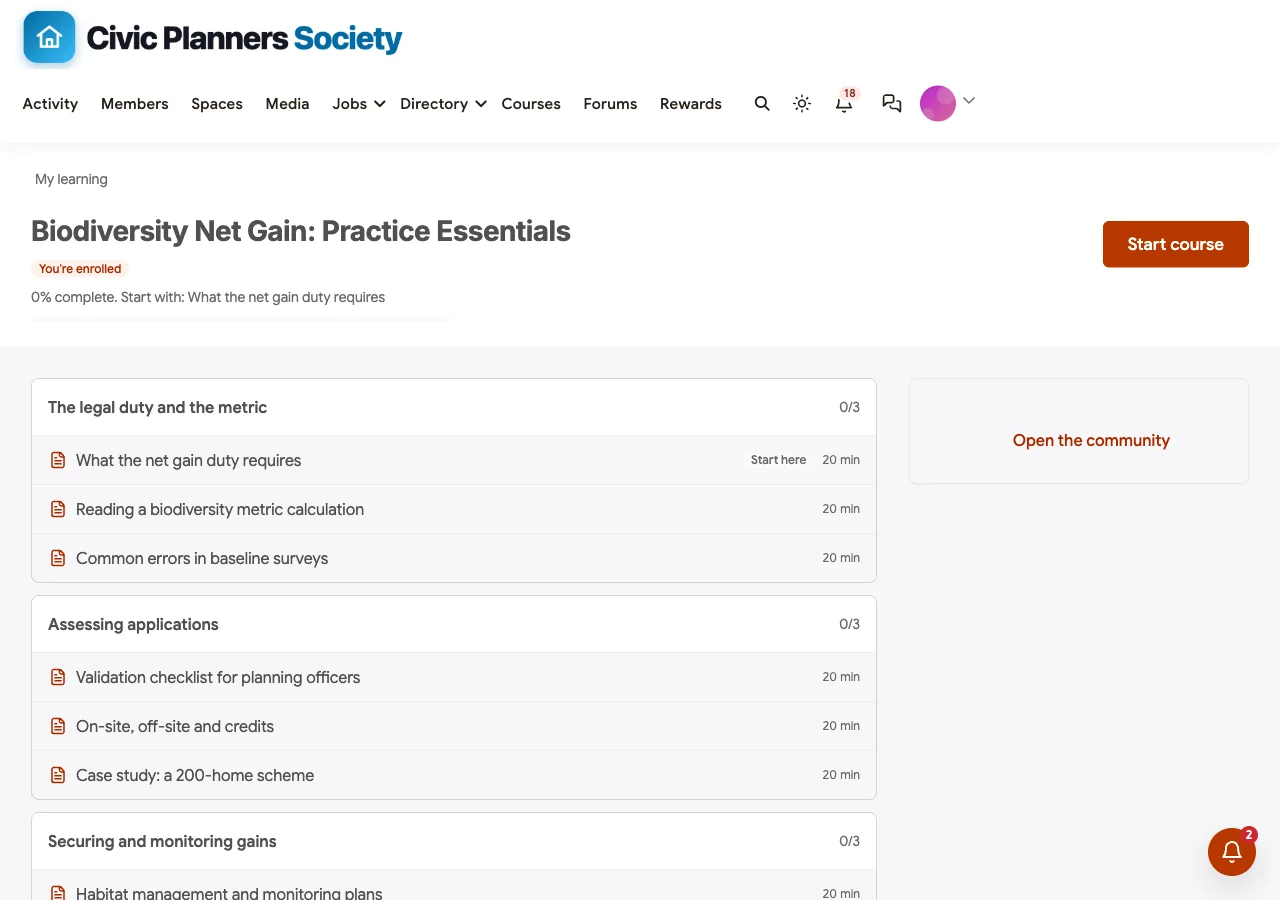
Create a course in Learnomy with modules and lessons. In the demo, Biodiversity Net Gain: Practice Essentials has three modules (the legal duty and the metric, assessing applications, securing and monitoring gains) and nine short lessons. Learnomy does not have a dedicated “CPD hours” field, so state the hours in the course description and on the certificate template, for example “Counts as 3 hours of CPD”.
Link the course to a space
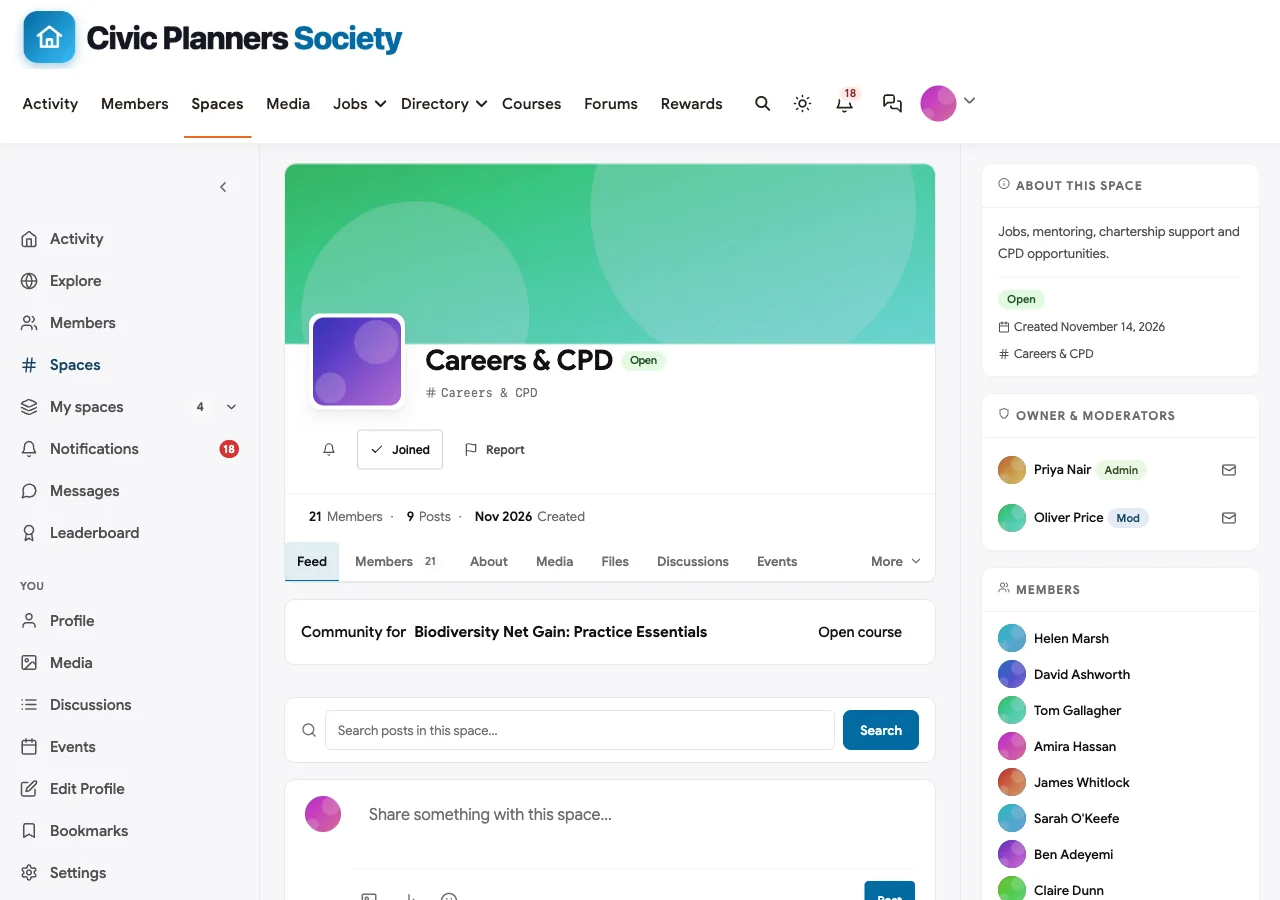
Link the course to the Careers & CPD space. Learners are added to the space, the course appears at the top of the space’s feed, and course completions and certificates are posted to the activity feed, so members see colleagues completing CPD and are prompted to do the same.
If you use BuddyNext Pro plans, you can map a plan to courses, so members on that plan are enrolled automatically and lose access if their membership lapses.
Certificates members can prove
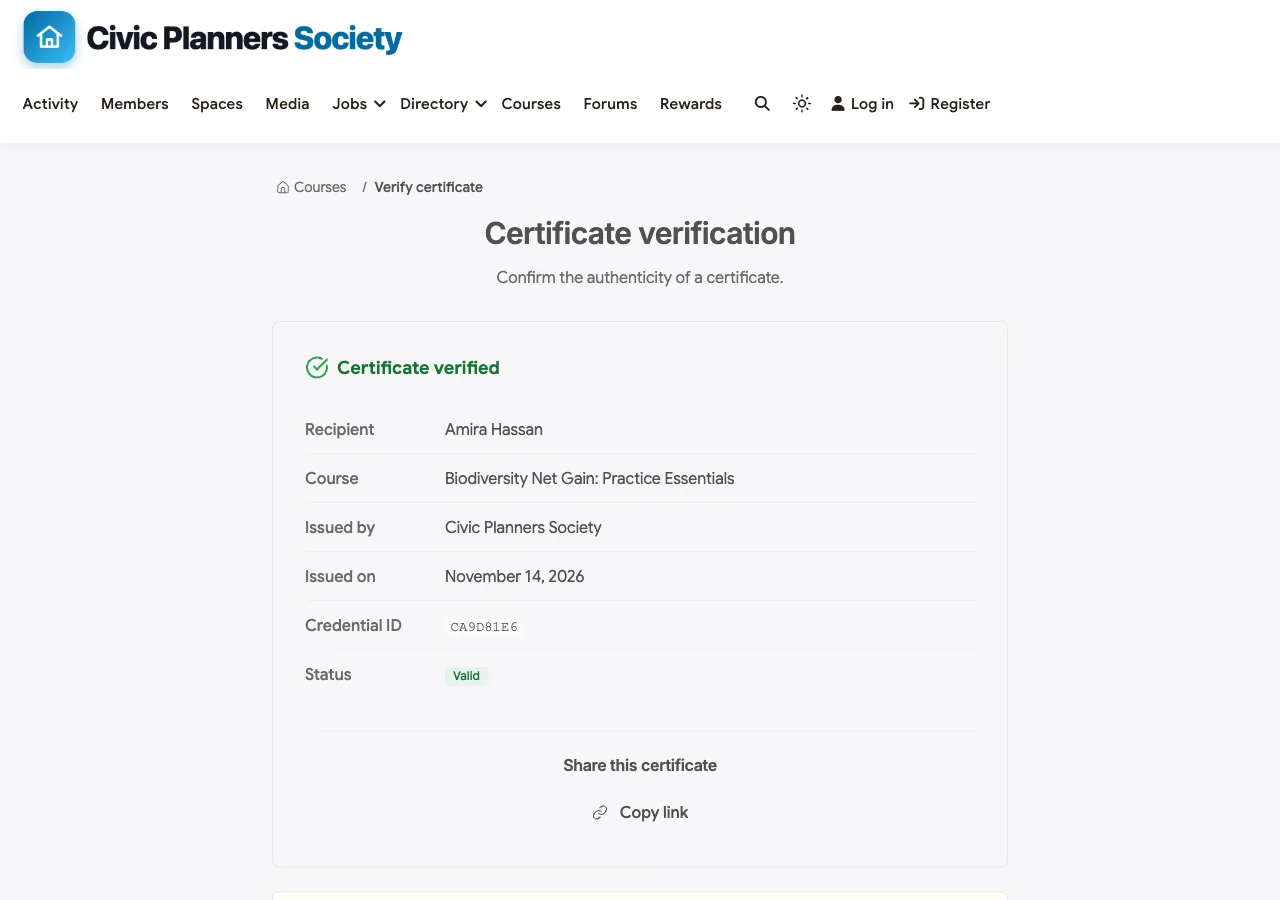
When certificates are switched on for a course, Learnomy issues one automatically on completion, as a PDF with the member’s name, the course and the date. Every certificate has a public verification page with a credential ID, so an employer or regulator can confirm it is genuine, and members can add it to LinkedIn. Certificate templates can carry an expiry date if a qualification has to be renewed.
Learnomy Pro adds scheduled cohorts with start and end dates, advanced quizzes, Open Badges and Credly credentials, which suit formal programmes such as a chartership pathway.
Step 7: Run events, careers and the member directory
Events
With Eventonomy, create the annual conference, chapter CPD evenings and online webinars. Events created inside a space belong to that space, so a Northern Chapter evening appears on the chapter’s Events tab and in its members’ feeds.
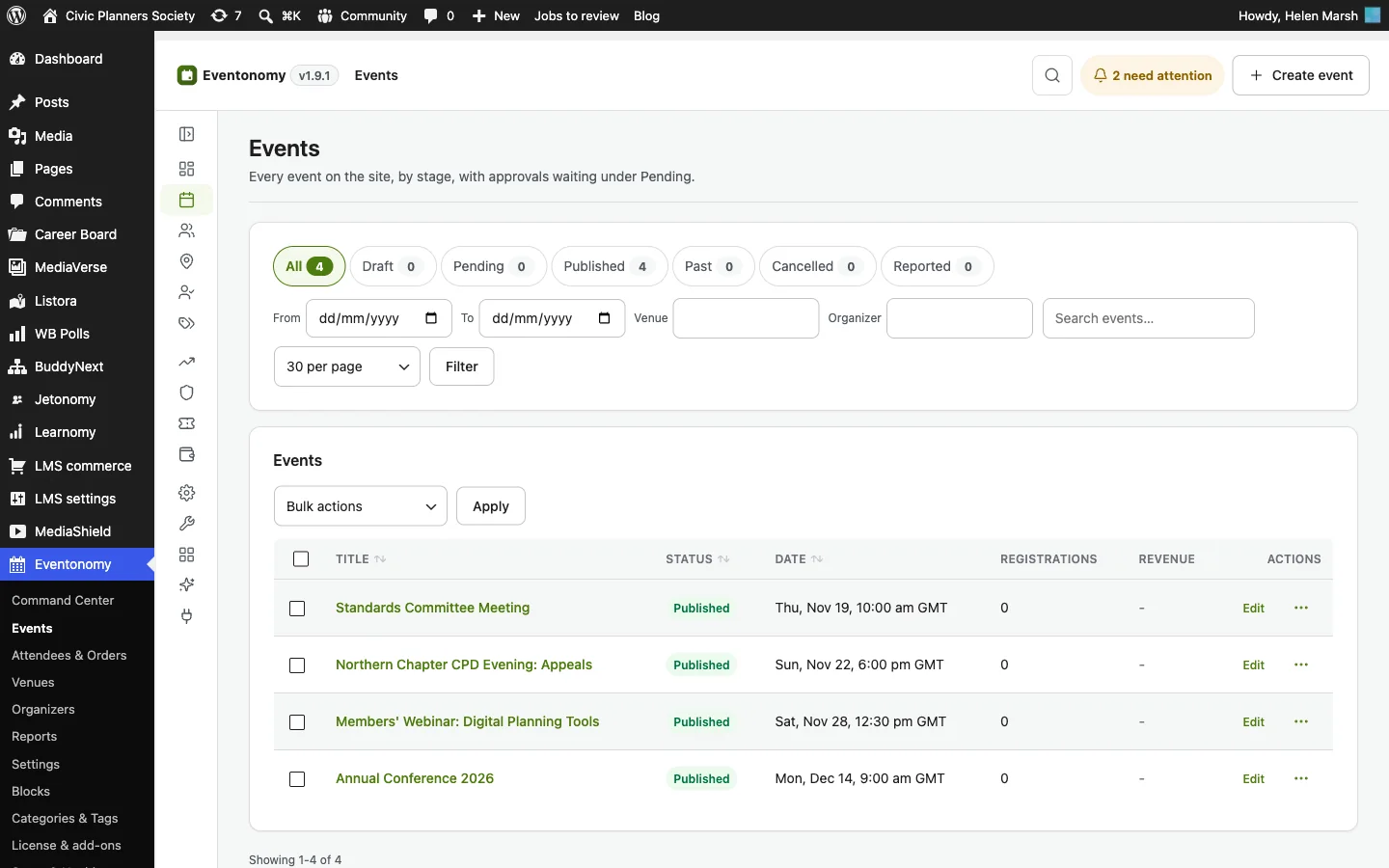
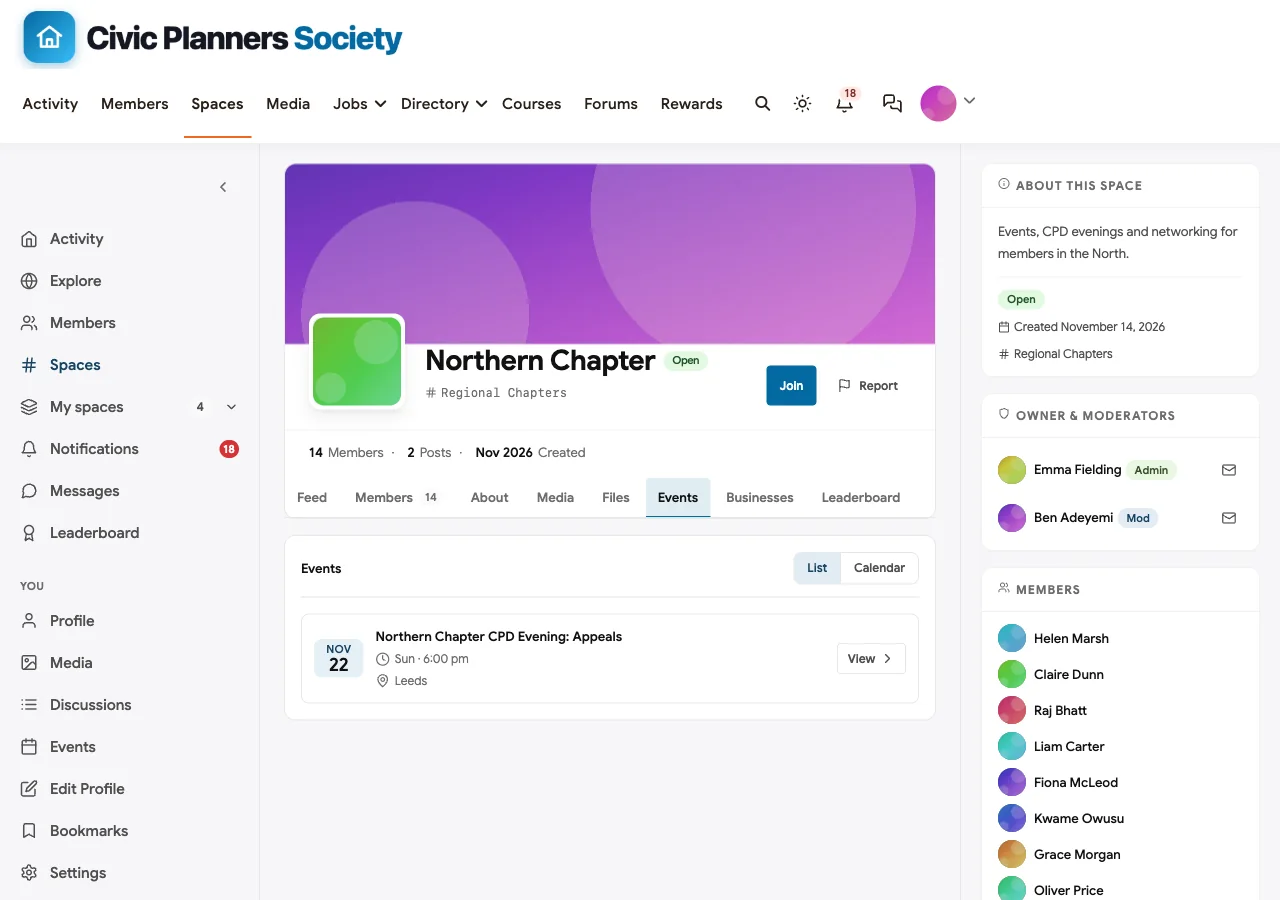
Eventonomy supports free, paid and donation tickets, capacity limits with a waitlist that promotes people automatically, and a setting that limits registration to signed-in members. Eventonomy Pro adds QR check-in at the door.
Careers
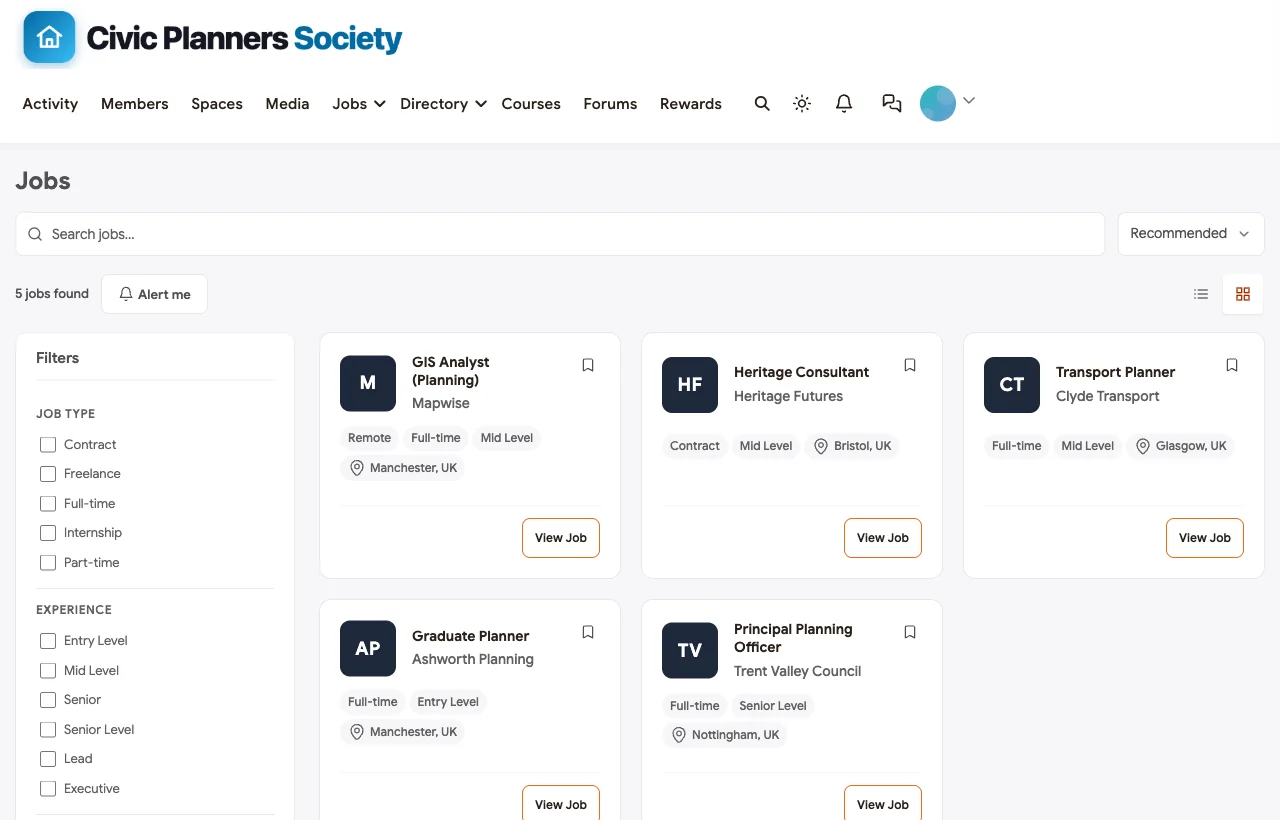
A careers board with WP Career Board gives employers a reason to engage with the association and members a reason to visit between events. Ask member organisations to post roles, and link it from the Careers & CPD space.
A public “find a member” directory
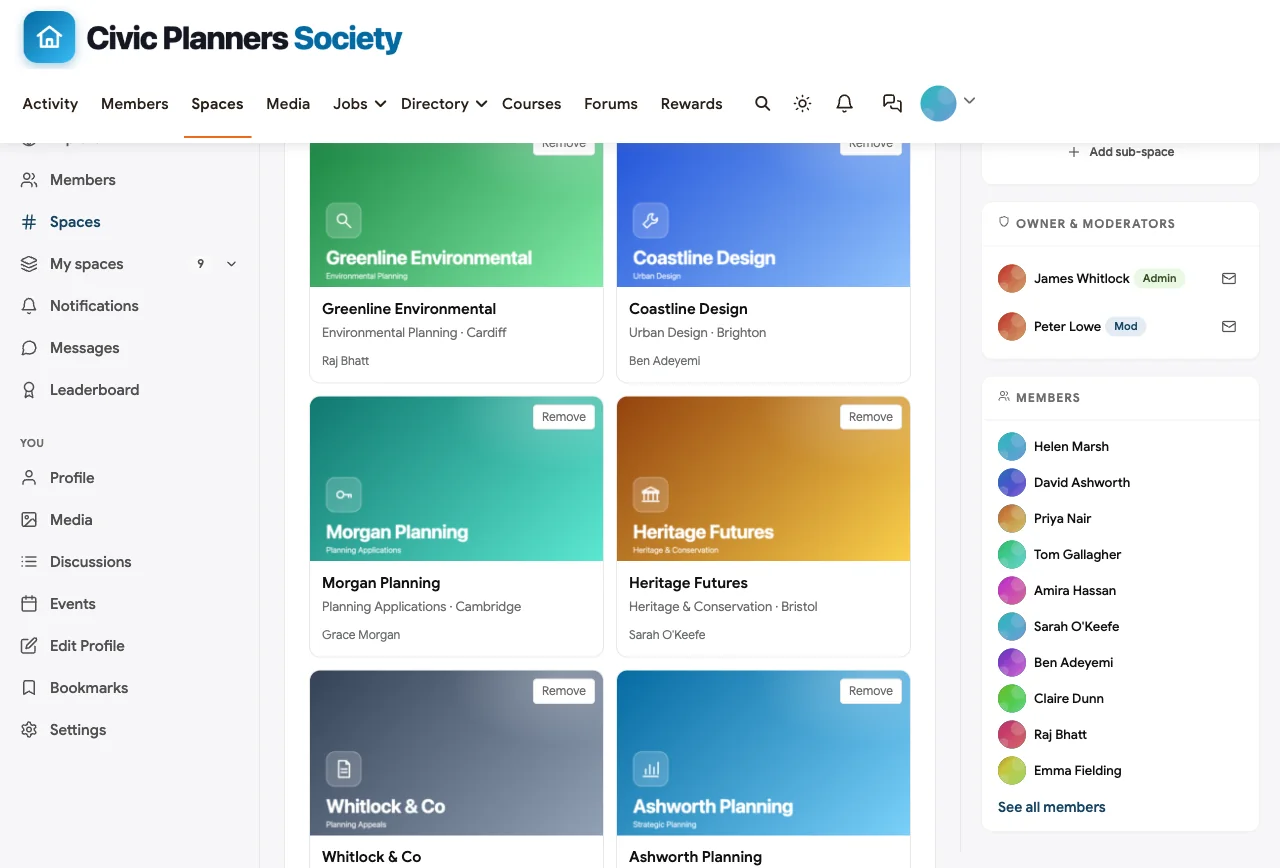
The member directory inside the community is private. Many associations also want a public directory of practices or accredited members, so the public and employers can find a qualified professional. Listora provides that as a separate, public directory with listings by specialism and region, while member profiles stay private.
Step 8: Governance, communication and engagement
Polls for quick decisions
BuddyNext polls take two to five options, one choice per member, with an optional closing date. Members can change their vote until the poll closes, and results show as percentages and a vote count. They are ideal for quick member input, such as the topic of the next webinar, and for informal committee decisions.
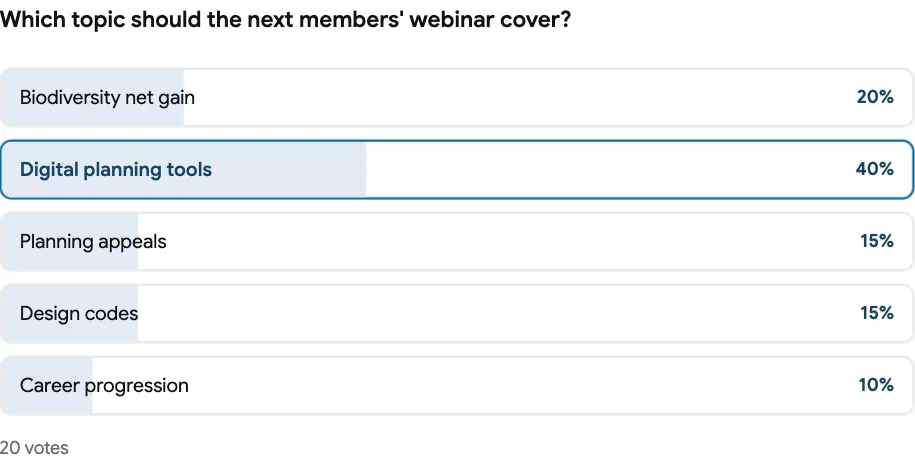
Polls are not a formal ballot: there is no anonymous-ballot setting and results are visible as votes come in. For constitutional votes and elections to the board, use a dedicated ballot service and announce the result in the community.
Questions and answers
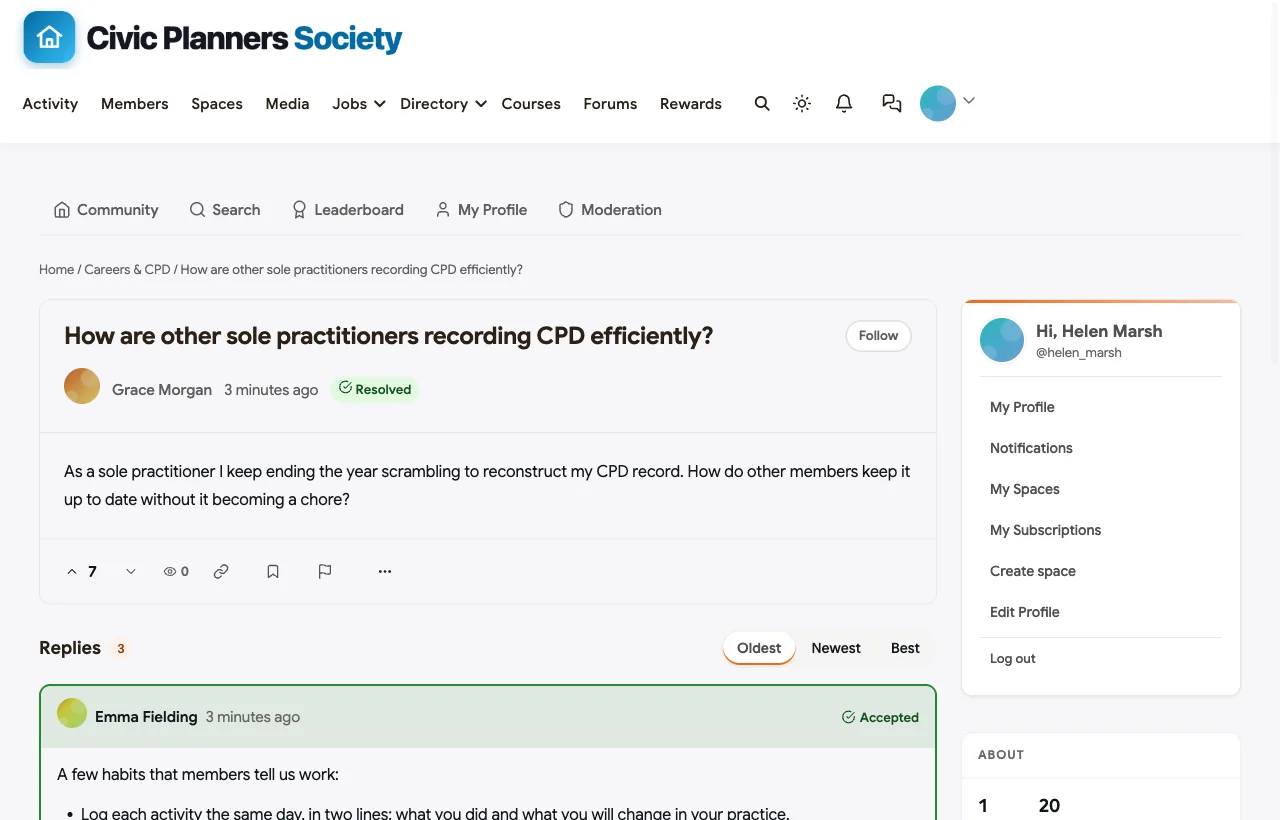
Members ask practice questions, from recording CPD to interpreting new guidance. With Jetonomy’s Q&A, the association’s staff or senior members answer and mark the accepted answer, building a searchable library of guidance over time.
Communication
- Announcements under Engagement > Announcements put the president’s message or a consultation deadline at the top of the feed, site-wide or in one space.
- Email broadcasts with BuddyNext Pro reach the members of chosen spaces (one chapter, one interest group), members with a given label, or members by activity or join date.
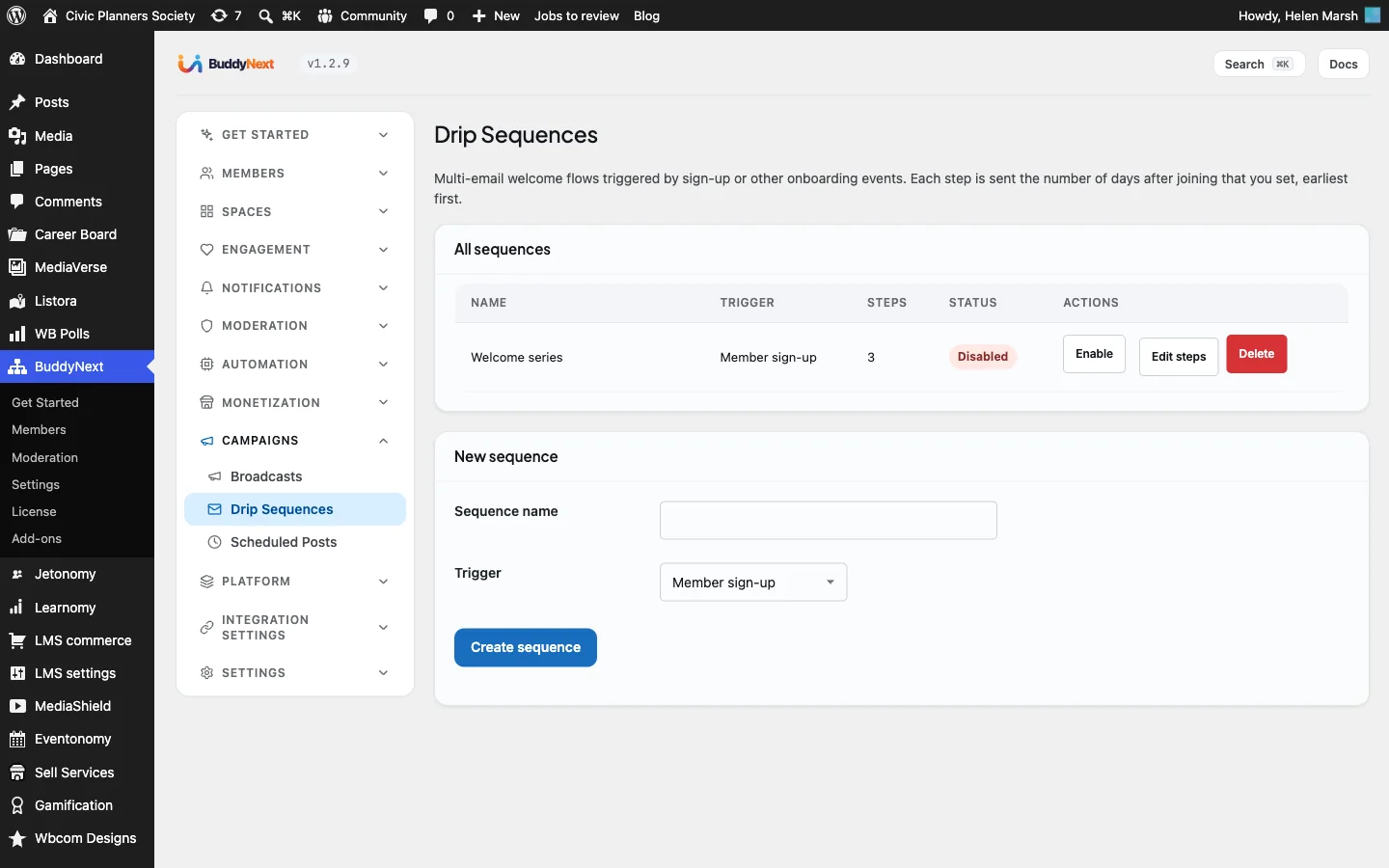
- Drip sequences with BuddyNext Pro send a short series of welcome emails after registration, introducing the interest groups, the CPD programme and the mentoring scheme.
Recognising contribution
Committee members, mentors and chapter chairs keep an association alive. With WB Gamification, members earn points and badges for contributing, and a leaderboard shows the most active. Many associations prefer to keep this low-key in a professional setting: badges for mentoring and chairing rather than a competitive leaderboard on the homepage.
Professional conduct and moderation
A professional community needs the same standards online as the association applies offline. Link your code of conduct from the registration form, so every member accepts it when they join, and from the Members’ Lounge.
- Reporting. Members can report any post or comment. Reports go to the moderation queue under BuddyNext > Moderation, where staff can hide, remove or restore content and warn or suspend a member.
- Safeguards. Under Automation > Controls, add banned words, block link domains and set a new member review threshold, which holds a new member’s first posts for review. In a small professional network this catches the rare bad actor without slowing anyone else down.
- Moderators in each space. Make each group chair, chapter chair and committee secretary a moderator of their own space, so problems are handled by someone who knows the people involved.
- A route for complaints. Decide in advance how a complaint about a member’s professional conduct online is handled, and whether it goes to your standards process. Write it down before you need it.
Data protection
Because the community runs on your own WordPress site, member data stays in your own database, and you decide how long to keep it. Members can update or delete their own profile information, administrators can export a member’s data or erase it through WordPress’s privacy tools, and the member directory can be exported as CSV for your records. Mention all of this in your privacy notice.
Step 9: Launch to members
- Seed with volunteers. Two weeks before launch, invite the board, committee members, group chairs and chapter chairs. Ask each to post once in their space: a welcome, a policy question, an upcoming event.
- Import members in waves. Invite current members by grade or region rather than all at once, so the membership team can handle questions and approvals. Start with the most engaged: committee members, recent CPD participants, chapter regulars.
- Make the first visit useful. Feature an announcement with three things to do: complete your profile, join your chapter and one interest group, and look at the CPD programme.
- Run one event in the community. A webinar or chapter evening booked through the community teaches members where things are.
- Review after 90 days. Profiles completed, active spaces, CPD completions, event bookings and renewal rates. Close or merge spaces nobody uses.
Common mistakes
- Building a public social network. Members of a professional association expect privacy. Require login and keep profiles members-only.
- Approvals that take a week. Applicants lose interest. Check the queue every working day.
- One space per committee on day one. Create spaces as chairs agree to run them.
- Ignoring invoice payers. If employers pay for many members, plan for offline payments or an external system before launch.
- Using polls for elections. Polls are for member input, not formal ballots.
- CPD with no proof. Members need certificates they can show. Turn certificates on and make sure each one has a verification link.
Mobile
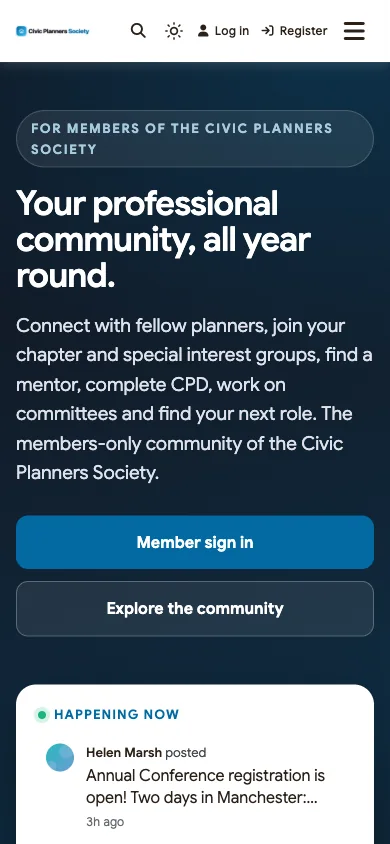
Members check events and messages between meetings and site visits. BuddyX and BuddyNext are responsive, so the feed, spaces, courses and profiles work on a phone.
Related guides
- Best software for a professional association community: how BuddyNext compares with association management systems and community platforms.
- How to build a university alumni network on WordPress: approvals, profile fields, chapters and mentoring for alumni.
- How to build a SaaS customer community with feature requests and a public roadmap: ideas, voting and closing the loop with members.
- How to set up a community space on WordPress with free plugins: the general setup guide behind every community in this series.
Want to try a BuddyNext community before you build? The live demo runs in your browser.
How we built this guide
We built the Civic Planners Society on a local WordPress site running the BuddyX theme, BuddyNext, BuddyNext Pro, Learnomy, Eventonomy, WP Career Board, Listora and Jetonomy, with a fictional association, members, spaces, a CPD course and events created for this guide. Every screenshot comes from that site, taken in November 2026. Membership, renewal and certificate behaviour was checked against the plugins’ code at the time of writing and may change in later versions. We have not shown or quoted any membership fees. buddyxtheme.com is published by the team behind BuddyNext.
Frequently asked questions
How do I make a professional association community private?
In BuddyNext, turn on “Require login to view the community” under Members > Privacy & Data, and set registration to admin approval so the membership team checks each application. Keep the homepage public so prospective members can see how to join.
Can members pay dues online?
Yes, with BuddyNext Pro. Create a plan for each grade, recurring monthly or yearly or a one-time payment, and take payments through Stripe or PayPal. Members who pay by invoice can be recorded with the offline gateway or given a membership by hand.
How are renewals handled?
BuddyNext Pro emails reminders 30, 7 and 1 day before a membership ends, gives a 7-day grace period for failed payments by default, and removes the plan’s access when a membership expires, with an email at each stage.
Can we keep using our association management system?
Yes. BuddyNext’s inbound access webhook lets an external system grant, extend or cancel a member’s plan by email address, so the community follows your existing membership records.
How do we deliver CPD in the community?
Use Learnomy for CPD courses. Link each course to a space, turn certificates on, and state the CPD hours in the course description and certificate. Certificates are issued on completion with a public verification page.
Can we run committees privately?
Yes. Make committee spaces private, so members can see they exist and request to join, and make the board space secret, so it is hidden from everyone except invited trustees.
Can we hold elections in the community?
Use the community for nominations, hustings and announcements, but run formal elections through a dedicated ballot service. BuddyNext polls suit quick member input; they do not offer anonymous ballots.
Can the public search for our members?
Member profiles stay private. For a public “find a member” directory, use Listora to publish listings of practices or accredited members by specialism and region.
How do we separate membership grades?
Create a member type for each grade, assigned by the membership team, and a profile field for the grade collected at sign-up. With BuddyNext Pro, map each grade’s plan to the spaces and courses it includes.
The bottom line
A private professional association community works when it follows the shape of the association: admission by grade, dues and renewals that run themselves, interest groups and chapters with real chairs, private committees, CPD with certificates members can prove, and events that bring people together. On WordPress, BuddyX with BuddyNext, BuddyNext Pro and Learnomy covers that whole journey on your own domain, with your members’ data in your own database.
And give your members a professional home they renew for.