
BuddyPress Customizer Settings
Free & ProCustomize every aspect of your BuddyPress community through the WordPress Customizer. BuddyX Pro provides extensive settings to match your community's brand and style.
Where these settings live: BuddyX Pro groups every BuddyPress and bbPress control under a customizer panel named Community Settings (not "BuddyPress"). All paths on this page read Customizer > Community Settings > [Section].
Youzify note: The entire Community Settings panel - every control described on this page - is removed when the Youzify plugin is active. Youzify manages its own directory, profile, and activity screens, so BuddyX Pro hands those controls off to it. To see the settings below, run BuddyPress (or bbPress) without Youzify active.
What You Can Configure
The Community Settings panel contains these sections (they appear when BuddyPress or bbPress is active and Youzify is not):
- General Setting - Avatar style and MediaPress media-view option
- Activity Control - Cover-image activity types shown in the feed
- Members Directory - Member directory view and card elements
- Groups Directory - Group directory view and card elements
- Single Member - Individual member profile header, navigation, and social links
- Single Group - Individual group header and navigation
- Forums Archive Layout - bbPress forums archive layout (only when bbPress is active)
Accessing BuddyPress Settings
- Log in to your WordPress admin dashboard
- Go to Appearance > Customize
- Click the Community Settings panel
- Select the section you want to configure
General Setting
Configure global BuddyPress appearance options.
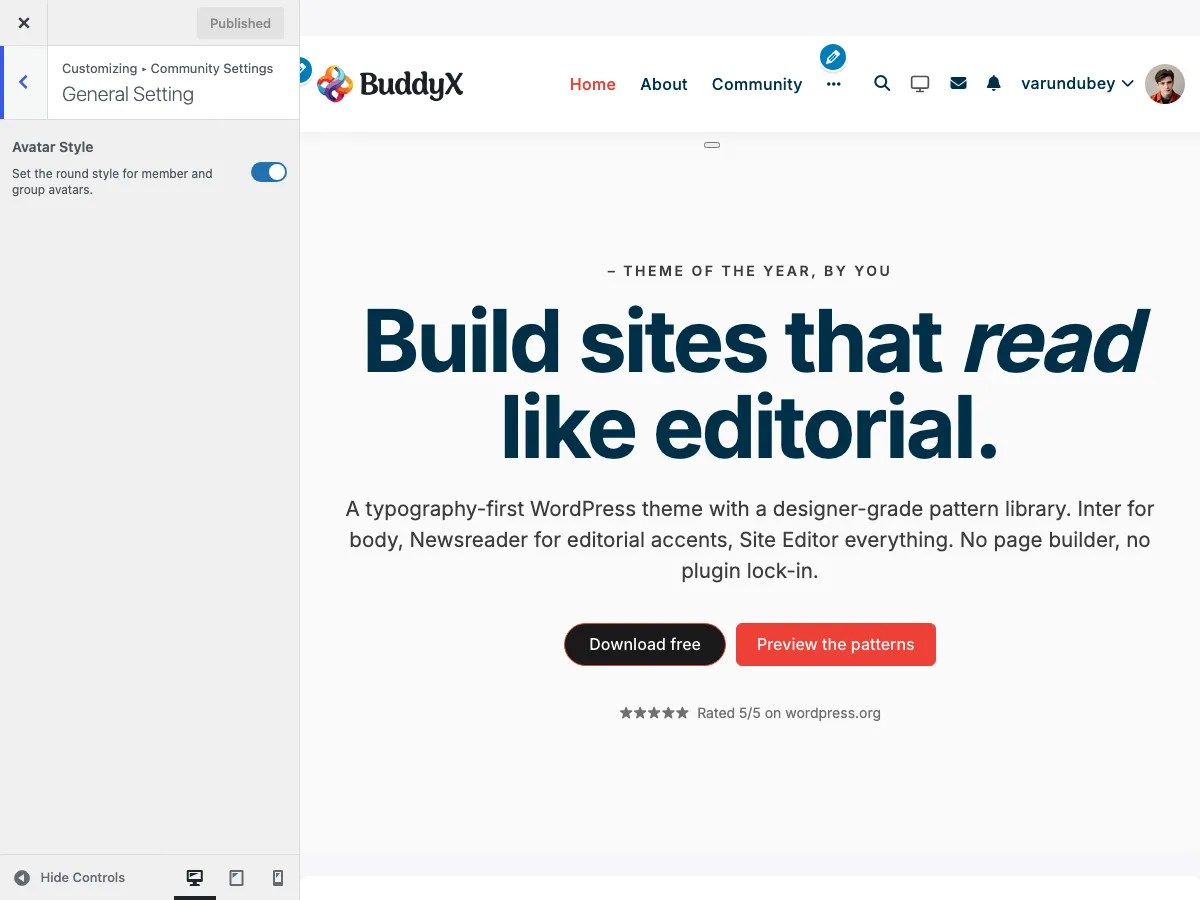 BuddyPress general settings for avatar style and activity media options
Available Settings
| Setting | Options | Default | What It Does |
|---|---|---|---|
| Avatar Style | Yes/No | Yes | Makes avatars circular. Turn off for square avatars. |
| Override Activity Media List View | Enable/Disable | Enable | Enhances MediaPress media display. This control only appears when the MediaPress plugin is active. |
Location: Customizer > Community Settings > General Setting
Activity Control
Control what appears in activity streams across your community.
Available Settings
| Setting | Options | Default | What It Does |
|---|---|---|---|
| Member Cover Image Activity | Yes/No | Yes | Shows activity when member updates cover photo. |
| Group Image Activity | Yes/No | Yes | Shows activity when group avatar changes. |
| Group Cover Image Activity | Yes/No | Yes | Shows activity when group cover photo updates. |
Why This Matters: Disabling these options reduces activity stream clutter if your community prefers to focus on user-generated content rather than profile updates.
Location: Customizer > Community Settings > Activity Control
Members Directory
Customize how members appear in your directory and what information displays.
Directory Layout Options
The Members Directory View control (a select) offers three styles. The theme default is Style 2 (Card).
| Layout | Value | Description | Best For |
|---|---|---|---|
| Style 1 | default |
Classic list view with avatars on left | Traditional social networks |
| Style 2 (Card) - default | card |
Card layout with cover images | Visual, portfolio-based communities |
| Style 3 (Card1) | card1 |
Compact card with action buttons | Professional networks, business directories |
How to Change:
- Customizer > Community Settings > Members Directory
- Find Members Directory View
- Select your preferred style
- Click Publish
Cover Image Customization
Available for: Style 2 and Style 3 layouts
| Setting | Default | What It Does |
|---|---|---|
| Customize Members Cover Background? | No | Enables custom default cover images. Appears only when the view is Style 2 or Style 3. |
| Set Default Cover Image | (empty) | Upload image shown when member has no cover. Appears once Customize Members Cover Background is set to Yes. |
BuddyBoss note: These two cover-image controls are not available when BuddyBoss Platform is active - BuddyBoss manages directory cover images itself, so the theme omits them. They appear only on a BuddyPress (non-BuddyBoss) site.
Recommended Cover Dimensions: 1300px x 225px
Member Directory Elements
Control which information appears on member cards:
| Element | Default | What It Shows |
|---|---|---|
| Online Status | On | Green dot for online, gray for offline |
| Profile Type | Off | Member type badge (if using member types) |
| Followers | Off | Follower count (requires BP Follow or BuddyBoss) |
| Last Active | On | "Active 2 hours ago" timestamp |
| Joined Date | On | "Joined Jan 2024" registration date |
Performance Tip: The Online Status indicator updates every 5 minutes. Disable it on high-traffic sites to reduce database queries.
Followers appears only when the BP Follow plugin or BuddyBoss Platform is active.
Location: Customizer > Community Settings > Members Directory > Member Directories Elements
Groups Directory
Configure how groups display in your directory.
Directory Layout Options
The Groups Directory View control (a select) offers two styles. The theme default is Style 2 (Card).
| Layout | Value | Description | Best For |
|---|---|---|---|
| Style 1 | default |
List view with group info | Simple communities with few groups |
| Style 2 (Card) - default | card |
Card layout with cover images | Communities with many active groups |
Cover Image Customization
Available for: Style 2 (Card) layout
| Setting | Default | What It Does |
|---|---|---|
| Customize Groups Cover Background? | No | Enables custom default cover images. Appears only when the view is Style 2 (Card). |
| Set Default Cover Image | (empty) | Upload image shown when group has no cover. Appears once Customize Groups Cover Background is set to Yes. |
BuddyBoss note: These two cover-image controls are not available when BuddyBoss Platform is active - BuddyBoss handles group cover images itself. They appear only on a BuddyPress (non-BuddyBoss) site.
Recommended Cover Dimensions: 1300px x 225px
Group Directory Elements
Control which information appears on group cards:
| Element | Default | What It Shows | Available In |
|---|---|---|---|
| Cover Images | On | Group cover photo | Style 2 only |
| Avatars | On | Group profile picture | All styles |
| Group Privacy | On | Public/Private/Hidden badge | All styles |
| Last Activity | On | Most recent activity timestamp | All styles |
| Members | On | Member count | BuddyBoss only |
| Group Descriptions | On | Brief description text | BuddyBoss only |
| Join Buttons | On | Join/Request to Join button | All styles |
Location: Customizer > Community Settings > Groups Directory > Group Directories Elements
Directory Sidebar Layouts
BuddyX Pro lets you set the sidebar layout for your BuddyPress directory pages independently of the rest of the site. Each directory picks from the same four presets - None (full width, no sidebar), Left, Right, or Both.
| Setting | Options | Default | What It Controls |
|---|---|---|---|
| Activity Directory Sidebar Layout | None / Left / Right / Both | Both | Sidebar placement on the main activity stream directory |
| Members Directory Sidebar Layout | None / Left / Right / Both | Right | Sidebar placement on the members directory |
| Groups Directory Sidebar Layout | None / Left / Right / Both | Right | Sidebar placement on the groups directory |
Location: Customizer > Site Sidebar
Note: These three controls appear only when BuddyPress is active and Youzify is not installed. Youzify manages its own directory layouts, so the theme hands off sidebar control to it when Youzify is present.
Youzify Appearance Override
If you run the Youzify profile plugin alongside BuddyX Pro, the theme adds one control so your custom color scheme can take over Youzify's own light/dark styling.
| Setting | Options | Default | What It Does |
|---|---|---|---|
| Override Youzify Default Appearance Mode? | Yes/No | Yes | When Yes, BuddyX Pro's custom colors drive Youzify's profile surfaces instead of Youzify's built-in appearance mode. Set to No to leave Youzify styling untouched. |
Location: Customizer > Site Skin
Note: This control appears only when Youzify is active, and it takes effect once Custom Colors is enabled in Site Skin. With Custom Colors off, Youzify keeps its default appearance.
Single Member Profile Settings
Customize individual member profile pages with multiple header layouts and navigation styles.
Header Layout Options
| Layout | Description | Best For |
|---|---|---|
| Left View | Avatar on left, info on right, full width | Classic profiles |
| Centered View | Avatar centered, info below | Modern, minimal designs |
| Container Left View | Left layout within container | Boxed site layouts |
| Container Centered View | Centered layout within container | Professional networks |
| Stretch Left View | Left layout, full browser width | Magazine-style sites |
| Stretch Centered View | Centered layout, full browser width | Portfolio communities |
Navigation Options
Single Member Navigation View (default: Swipe):
- More - Dropdown for extra tabs
- Swipe - Horizontal scroll navigation
Single Member Navigation Style (default: Icon + Label):
- Default - Text labels only
- Icon + Label - Icons with text
- Icon + Label (Swipe 1) - Compact icons for swipe
- Icon + Label (Swipe 2) - Larger icons for swipe
Display Name Format
Available for: BuddyPress only. This control is hidden when BuddyBoss Platform is active.
| Format | Shows | Example |
|---|---|---|
| Username | WordPress username | @johndoe |
| Display Name | User's display name | John Doe |
Profile Header Elements
Control what information appears in member headers:
| Element | Default | What It Shows |
|---|---|---|
| Online Status | On | Online/offline indicator |
| Profile Type | On | Member type badge |
| Member Handle | On | @username display |
| Joined Date | On | Registration date |
| Last Active | On | Last activity timestamp |
| Followers | On | Follower count. Appears only when BP Follow or BuddyBoss Platform is active. |
| Following | On | Following count. Appears only when BP Follow or BuddyBoss Platform is active. |
User Social Links
Enable members to add social media profiles to their BuddyPress profiles.
How to Enable:
- Customizer > Community Settings > Single Member
- Enable Show User Social Links (default: No)
- Configure social networks in User Social Links section
Default Networks:
Add Custom Networks:
- Click Add button
- Enter network name
- Add FontAwesome icon code (e.g.,
<i class="fa-brands fa-tiktok"></i>) - Choose icon color
- Save
Members can then add their profile URLs in their BuddyPress profile edit page.
Location: Customizer > Community Settings > Single Member
Single Group Settings
Configure individual group pages with header and navigation options.
Header Layout Options
The Single Group Header Layout control (default: Left View) mirrors the Single Member layouts, with one label difference - the second option is named Container View here:
- Left View (default)
- Container View
- Container Left View
- Container Centered View
- Stretch Left View
- Stretch Centered View
Navigation Options
Single Group Navigation View (default: Swipe):
- More (dropdown)
- Swipe (horizontal scroll)
Single Group Navigation Style (default: Icon + Label):
- Default
- Icon + Label
- Icon + Label (Swipe 1)
- Icon + Label (Swipe 2)
Group Header Elements
Control what information appears in group headers:
| Element | Default | What It Shows |
|---|---|---|
| Group Type | On | Group type badge |
| Last Activity | On | Most recent activity |
| Group Description | On | Group description text |
| Group Organizers | On | Group admin/moderator info |
| Group Privacy | On | Public/Private/Hidden status |
Location: Customizer > Community Settings > Single Group
Forums Archive Layout (bbPress)
When bbPress is active, the Community Settings panel adds a Forums Archive Layout section that sets how the forums archive page lists its forums.
| Setting | Options | Default | What It Does |
|---|---|---|---|
| Forums Archive Layout | Default / Card / Cover | Default | Chooses the listing layout for the forums archive page. |
This section appears only when bbPress is installed and active, and (like the rest of the panel) is hidden when Youzify is active.
Location: Customizer > Community Settings > Forums Archive Layout
Recommended Configurations by Community Type
Professional Network
Members Directory:
- Layout: Style 3 (Card1)
- Show: Profile Type, Followers, Joined Date
- Hide: Last Active, Online Status
Single Member:
- Header: Container Centered View
- Navigation: Icon + Label
- Show: Profile Type, Member Handle, Followers
- Enable: User Social Links
Casual Social Community
Members Directory:
- Layout: Style 2 (Card)
- Show: Online Status, Last Active, Joined Date
- Custom: Add fun cover images
Single Member:
- Header: Left View
- Navigation: Swipe with Icon + Label
- Show: Online Status, Last Active, Followers
Learning Community
Members Directory:
- Layout: Style 1
- Show: Profile Type, Joined Date, Last Active
Groups:
- Layout: Style 2 (Card)
- Show: Cover Images, Descriptions, Member Count
Single Member:
- Header: Container Left View
- Navigation: More (dropdown)
Private Membership Site
Members Directory:
- Layout: Style 3 (Card1)
- Show: Profile Type, Joined Date
- Hide: Online Status (privacy)
Single Member:
- Header: Container Centered View
- Hide: Last Active (privacy)
- Show: Profile Type, Member Handle
Common Questions
Q: Do I need to refresh the page to see changes? A: Yes. Most BuddyPress settings require publishing and refreshing the page as live preview is not available.
Q: Can I use different layouts for different member types? A: No. The layout applies to all members. You can use custom CSS to style specific member types differently.
Q: Will changing layouts break my site? A: No. You can safely test different layouts. If you don't like a change, simply switch back.
Q: Do cover images slow down my site? A: Cover images add visual appeal but do increase page weight. Use optimized images (WebP format, under 200KB) for best performance.
Q: What if I don't see the Community Settings panel in Customizer? A: The panel appears only when BuddyPress, BuddyBoss Platform, or bbPress is active. It is also completely removed when the Youzify plugin is active, because Youzify manages those screens itself. Deactivate Youzify (or confirm a community plugin is active) to see the panel.
Q: Can members choose their own layout? A: No. Layout settings are site-wide and controlled by administrators only.
Q: How do I know which layout looks best? A: Test each layout with real member data. Ask a few community members for feedback before finalizing.
Q: Will these settings work with BuddyBoss Platform? A: Yes. BuddyX Pro is fully compatible with both BuddyPress and BuddyBoss Platform.
Related Settings
- Member Profiles - Detailed profile customization
- Member Directory - Directory features and filters
- Groups - Group settings and layouts
- Activity Stream - Activity feed configuration
- BuddyPress Overview - Integration overview
Got a question? We're a friendly team - happy to help.
- Visit our Documentation Portal
- Email us at support@wbcomdesigns.com
- View Video Tutorials