
Typography
Free themePick the fonts your site uses for its title, headings, menu, and body text - and fine-tune size, spacing, and weight for each.
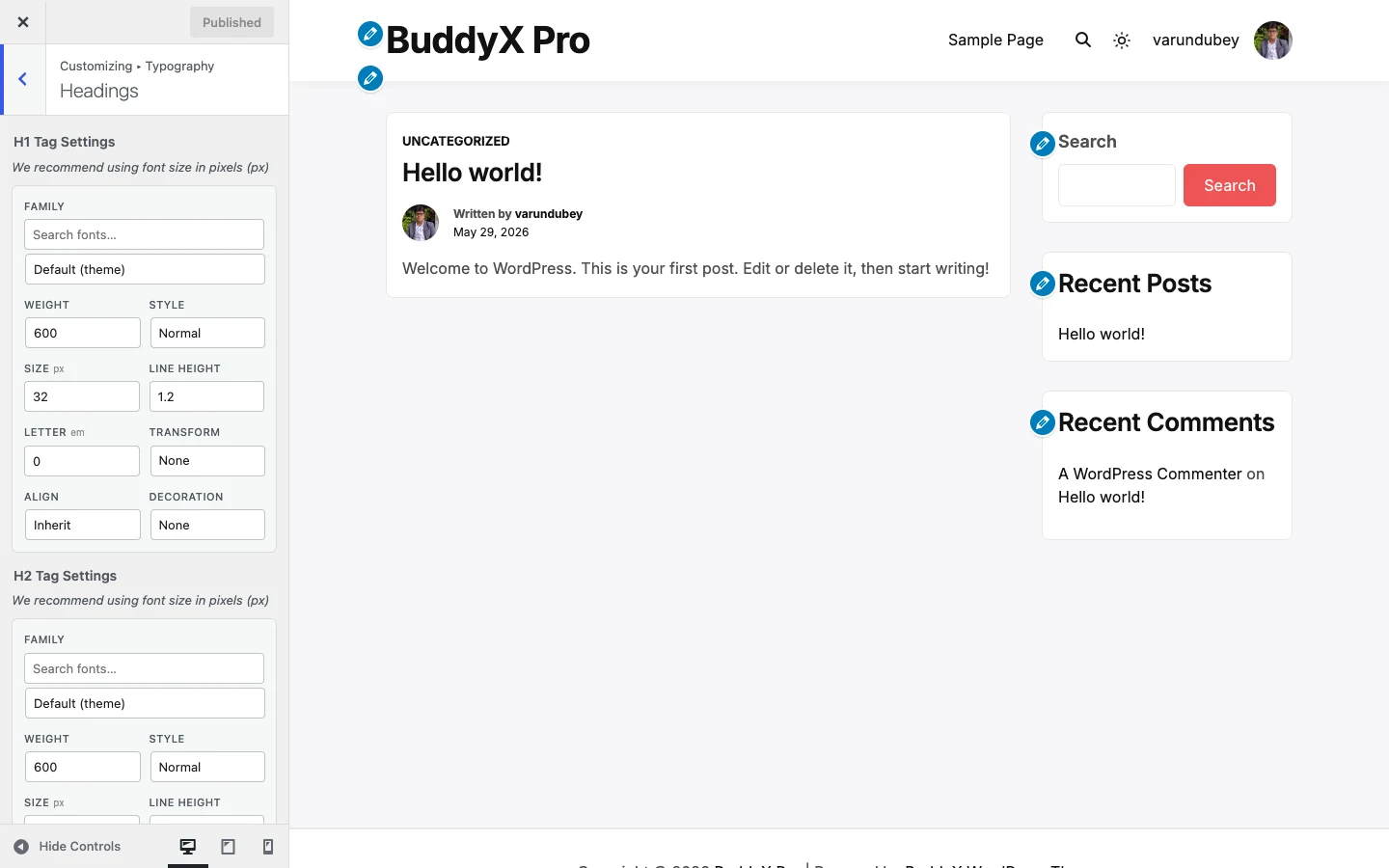
The Typography panel groups every text control into four sections: Site Title, Headings, Menu, and Body. Each control lets you set a font family, a weight/style variant, font size, line height, letter spacing, and text transform for that part of the site. All of it is in BuddyX free.
To open it, go to Appearance -> Customize -> Typography, then pick the section you want to change.
First-time tip: you do not have to touch any of this. BuddyX ships with self-hosted Inter for UI and body text and Newsreader for a serif option, both tuned with sensible sizes and weights. Leaving every field on its default is perfectly fine - come back here only when you want a specific look.
The four sections
| Section | Controls | What it styles |
|---|---|---|
| Site Title | Site Title Settings, Site Tagline Settings | Your site name and tagline in the header |
| Headings | H1 to H6 Settings | Every heading level across posts, pages, and archives |
| Menu | Menu Settings, Sub Menu Settings | Top-level navigation links and dropdown items |
| Body | Settings | Paragraph text, inputs, and the global body font |
What each typography control does
Every section above opens the same set of fields. Set them per control - your H1 can use one font while your body uses another.
| Setting | Default | What it does |
|---|---|---|
| Family | Theme default (self-hosted) | The font family. Choose from self-hosted theme fonts, the Google Fonts list, or any custom font you uploaded to the WordPress Font Library. |
| Variant | Varies (600 for headings, 400 body, 500 menu, 700 title) | The weight and style, for example 400 regular, 600 semibold, 700 bold, italic. |
| Font size | Varies (40px title, 32px H1 down to 16px H6, 16px body) | Text size. Use px for a fixed size or em to scale with the parent. We recommend px. |
| Line height | Varies (1.1 to 1.6) | Vertical spacing between lines. A unitless value like 1.6 scales with the font size. |
| Letter spacing | Varies (-0.01em to 0.02em) | Space between characters. Negative tightens, positive opens it up. |
| Text transform | None | Force UPPERCASE, lowercase, or Capitalize - or leave as None to keep the original casing. |
| Text align | Left / inherit | Horizontal alignment for that text block. |
Text color is not set here - color lives under Appearance -> Customize -> Site Skin so all your colors stay in one place.
Fonts you can choose from
The Family picker groups fonts into three sets:
- Self-hosted theme fonts - Inter and Newsreader ship with the theme and load from your own server, so there is no external request and nothing to configure.
- Google Fonts - pick any family from the built-in Google Fonts list. BuddyX only requests the exact families you actually select.
- Custom fonts from the WordPress Font Library - new in 5.1.4, any font you upload under Appearance -> Fonts shows up in the picker and is served as a self-hosted
@font-face. This is a great way to use a brand or licensed font.
Privacy note: if you choose a Google Font and want to avoid calling Google's servers on every page load, BuddyX can download and serve those fonts locally. Turn on Load Google Fonts Locally under Appearance -> Customize -> Site Performance. Uploaded Font Library fonts are always self-hosted.
BuddyX free vs BuddyX Pro
Every typography control on this page - all four sections, font family (Google Fonts, self-hosted Inter and Newsreader, and Font Library uploads), size, line height, letter spacing, text transform, and per-level heading styling - is included in BuddyX free. You do not need Pro to control your fonts.
BuddyX Pro adds layout and styling features around your type - header layouts, mega menu, WooCommerce shop styling, per-page settings, and style presets - but the Typography panel itself is the same set of font controls in both.
Related
- Customizing overview
- Site Skin - colors and dark mode
- Header and menu
- First-time setup