
Dark Mode
Free themeBuddyX includes a built-in dark mode that works across every page - blog, BuddyPress community surfaces, WooCommerce (if active), comments, forms, footer. No flash-of-wrong-color on page load. No external plugins required.
Quick answer: Dark mode is on by default in the visitor toggle (the sun/moon button in the header). Default look is Light. See Quick Start Step 9 for first-time setup.
The two color modes
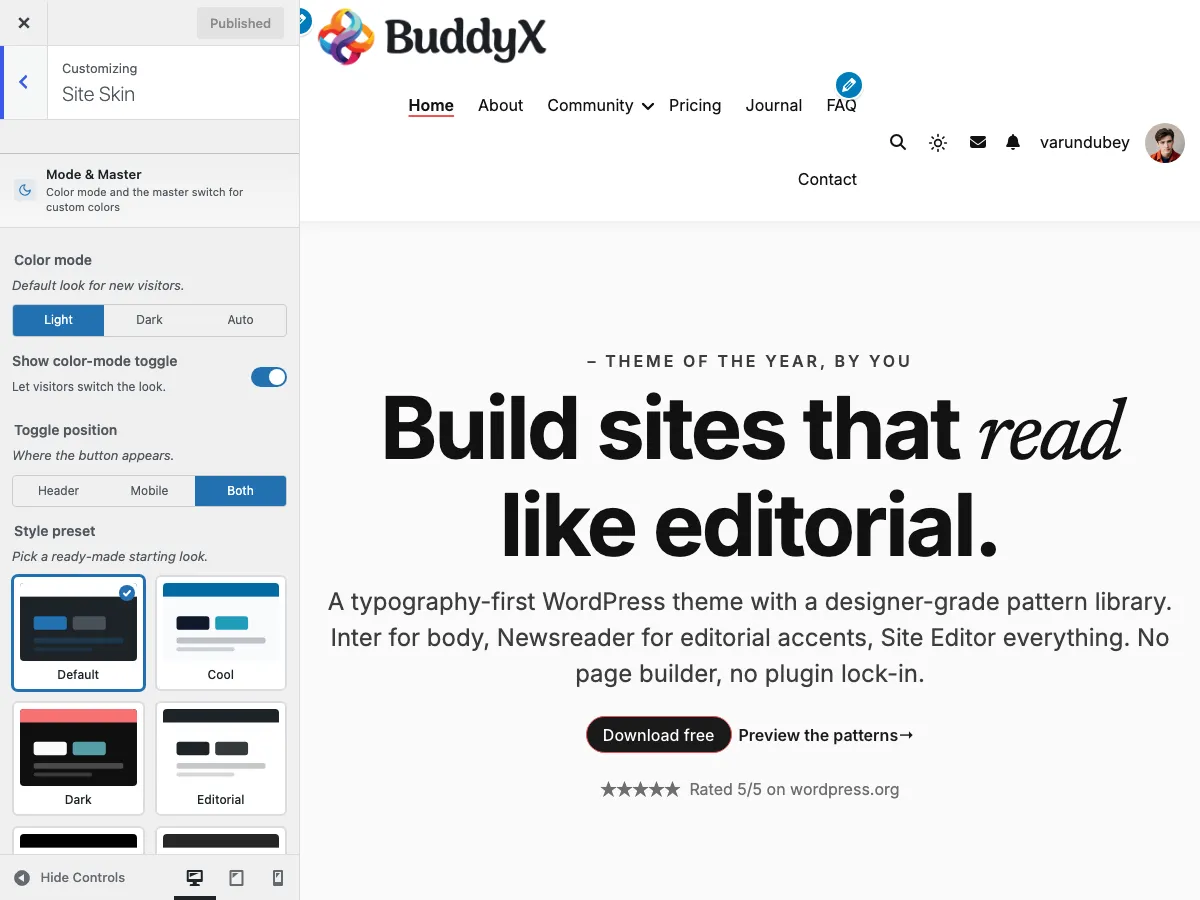
BuddyX has two "Default color mode" choices at Appearance → Customize → Site Skin → Color Mode → Default color mode:
| Mode | What new visitors see |
|---|---|
| Light (default) | Bright background, dark text - the traditional web look |
| Dark | Dark background, light text - the modern alternative |
Setting: site_color_mode (default light)
Most sites pick Light. Dark as a default is bold and best for content sites with mostly evening reading.
The visitor toggle
The sun/moon icon button in the header lets visitors switch modes on their own. Their choice persists across page loads (via localStorage) - so if a visitor toggles dark, every page they visit on your site stays dark.
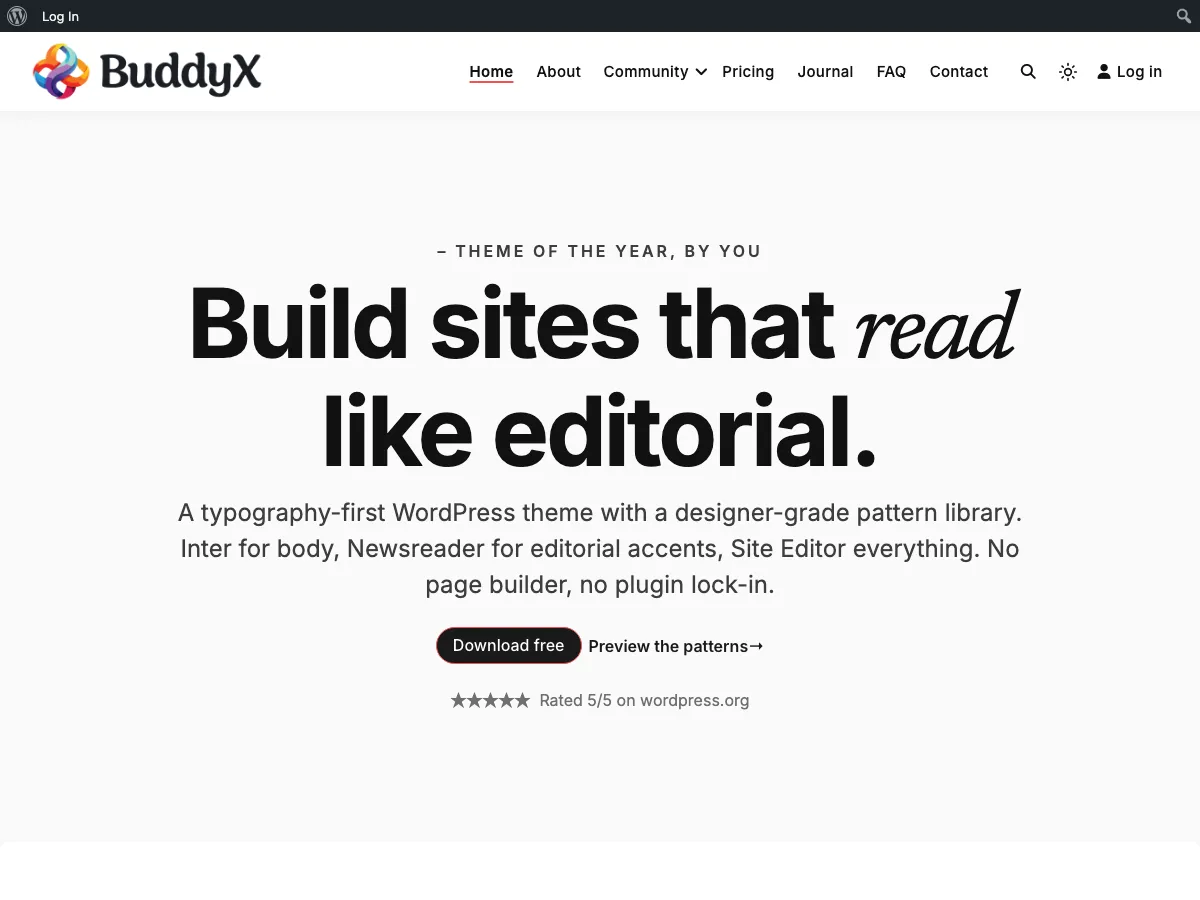
Light mode (default): sun icon visible in the header.
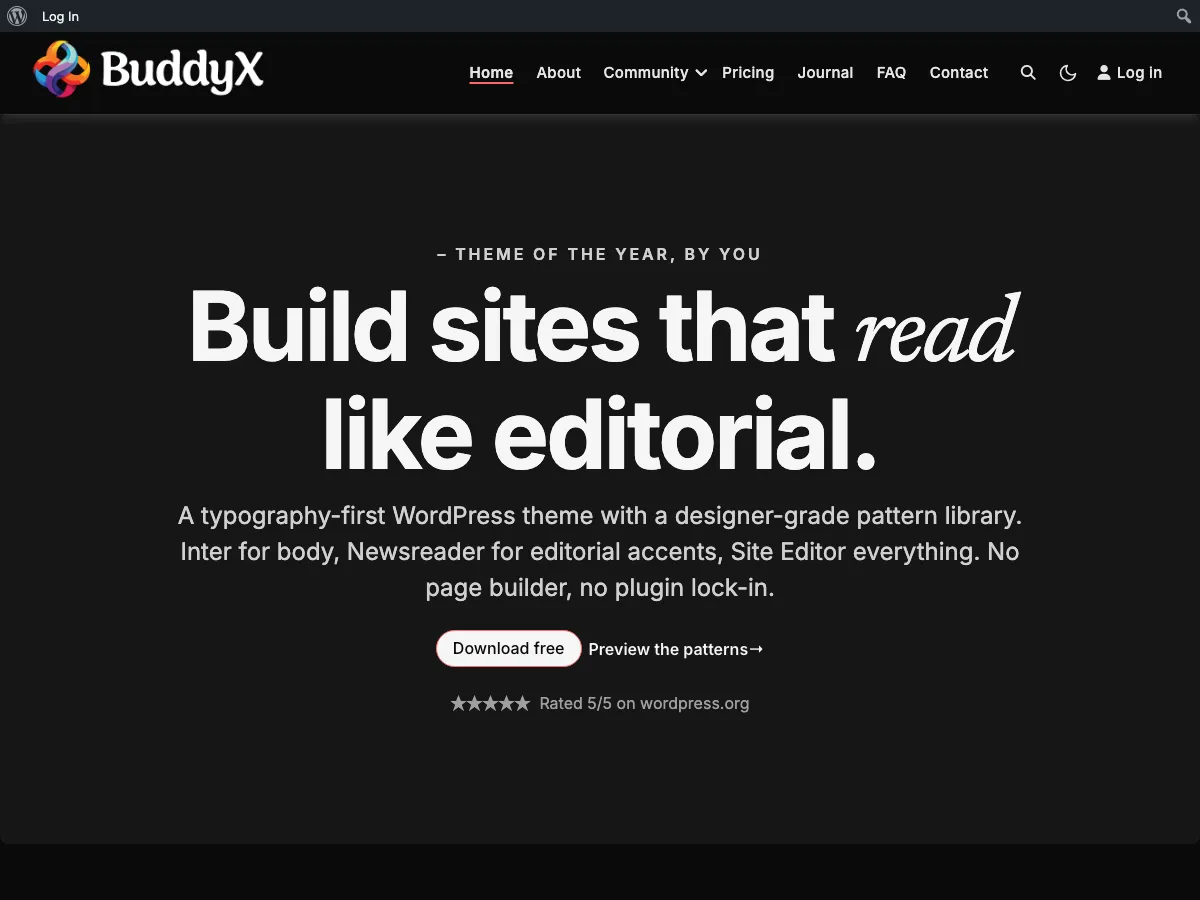
After click → dark mode applies: moon icon shown, palette flips, choice saved to localStorage.
Toggle settings
At Customize → Site Skin → Color Mode:
| Setting | Default | What it does |
|---|---|---|
| Show color-mode toggle | On (Show) | Adds a sun/moon button. Turn off if you want a one-look-only site. |
| Toggle position | Both | Where the button appears: Header (desktop nav), Mobile (mobile menu only), Both. |
Settings: site_color_mode_toggle_show (default on), site_color_mode_toggle_position (default both)
Hiding the toggle entirely
If you want a "this site is always light" or "this site is always dark" look:
- Customize → Site Skin → Color Mode → Show color-mode toggle → Hide
- Set Default color mode to whatever you want everyone to see
- Publish
The toggle is gone; everyone sees the same look.
No flash on page load
A common dark-mode complaint on other themes is the "FOUC" (Flash of Unstyled Content) - a page briefly loads light, then snaps to dark.
BuddyX 5.1.0 specifically prevents this with a first-paint script in the <head> that:
- Reads the visitor's saved preference
- Adds the correct
dark/lightclass to<html>before the page renders - The browser paints the correct colors from the very first frame
You don't need to do anything to enable this - it's automatic. If you ever see a flash on a BuddyX 5.1.0+ site, see Troubleshooting → Dark mode flashes on page load.
The dark palette (in free)
When dark mode is active, BuddyX free applies a theme-controlled dark palette:
| Element | Dark color |
|---|---|
| Page background | #0a0a0a (near-black) |
| Elevated surfaces (cards, modals) | #161616 |
| Subtle surfaces | #101010 |
| Primary text | #f5f5f5 (off-white) |
| Muted text | #a0a0a0 |
| Accent / Primary | #ff6b6b (slightly brighter red than light mode's #ef5455, for dark-bg contrast) |
| Button background | #ff6b6b |
| Button text | #0a0a0a (dark text on bright button) |
| Border / divider | #2a2a2a |
These values are designed to meet WCAG-AA contrast on the dark background and pair cleanly with the light-mode brand color.
Can I change the dark palette in free?
Not in the Customizer - BuddyX free does not expose per-element dark-mode color settings.
You have three options if you need different dark colors:
Pick the "Dark" style preset - Customize → Site Skin → Style preset → Dark. This sets a dark-themed light-mode palette (so the site looks dark even in light mode); not the same as actual dark-mode customization, but works for "dark-first" sites where you don't need a separate light variant.
Use BuddyX Pro - BuddyX Pro adds 30+
dark_*Customizer fields letting you set every dark color individually (dark body bg, dark heading colors, dark button colors, dark footer, etc.). Sold separately.Use a child theme - override the
--bx-color-*tokens in a child theme's CSS, scoped to[data-color-mode="dark"]. Example:[data-color-mode="dark"] { --bx-color-accent: #00d4ff; --bx-color-bg: #001020; }
How dark mode works internally
For developers + curious users:
BuddyX uses CSS custom properties (tokens) to define every color. When dark mode is active, the same tokens get re-assigned to dark values.
:root {
  --bx-color-bg: #f7f7f9;       /* light mode */
  --bx-color-fg: #111111;
}

[data-color-mode="dark"] {
  --bx-color-bg: #0a0a0a;       /* dark mode */
  --bx-color-fg: #f5f5f5;
}

body {
  background: var(--bx-color-bg);   /* reads either, no duplication */
  color: var(--bx-color-fg);
}
The token system means every page picks up dark mode automatically - there's no per-page or per-component dark-mode code to maintain.
See Design Tokens reference for the full token list.
How dark mode persists
When a visitor clicks the toggle:
- Their choice is saved to
localStorage(browser-side, no cookies, no server roundtrip) - On every subsequent page load, the first-paint script reads
localStorageand applies the correct class before rendering - The choice survives navigation, tab close + reopen, and browser restart
- If the visitor clears their browser data, their choice resets to the site's default
This works for all visitors - logged in or guest. No user-account dependency.
Block patterns + dark mode
WordPress block patterns (Gutenberg patterns) use a separate color system: --wp--preset--color--*. BuddyX 5.1.0 specifically maps these block presets to its dark tokens, so block-pattern-built homepages render correctly in dark mode.
If you're using BuddyX block patterns or third-party patterns, they should "just work" in dark mode out of the box.
If you see a pattern that breaks in dark (e.g., dark text on dark background somewhere unexpected), file a GitHub issue with a screenshot.
Common scenarios
"I want my site to be always-dark"
- Customize → Site Skin → Color Mode → Default color mode → Dark
- Show color-mode toggle → Hide
- Publish
Everyone sees dark, no toggle.
"I want the toggle but only on mobile (not header)"
- Show color-mode toggle → Show
- Toggle position → Mobile
- Publish
Desktop visitors don't see the toggle; mobile visitors find it in the mobile menu.
"Dark mode breaks a specific plugin's UI"
Report it to us at support@wbcomdesigns.com with: (1) the plugin name + version, (2) the page URL where it breaks, (3) a screenshot in dark mode, (4) the BuddyX version. We test against BuddyPress, WooCommerce, FluentCart, SureCart, bbPress, and the WordPress core surfaces. BuddyX 5.1.4 also ships dark overrides for several popular add-ons out of the box - Better Messages, GamiPress, rtMedia, and BP Verified Member - loaded only when each plugin is active. Other plugins may have their own light-only color assumptions that need a small CSS bridge.
Related
- Color Scheme - light-mode color settings + Default + 8 style presets (9 options)
- Quick Start Step 9 - first-time dark mode setup
- Troubleshooting → Dark mode flashes on page load - fix for FOUC
- Design Tokens reference - full
--bx-color-*token list (for developers)