
Sub-Header & Breadcrumbs
Pro featureThe sub-header area appears below your main header and typically displays the page title and breadcrumb navigation. This helps visitors understand where they are on your site and how to navigate back.
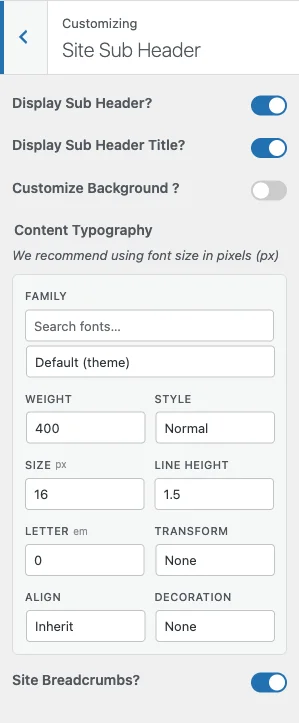 Sub-header and breadcrumb configuration in the Site Sub Header section
What You Can Do
With BuddyX Pro's sub-header settings, you can:
- Show or hide the sub-header area
- Show or hide the page/archive title inside it
- Give the sub-header its own background image
- Set the sub-header text typography
- Show or hide the breadcrumb trail
Understanding the Sub-Header
The sub-header is the horizontal bar between your main navigation and your page content:
┌─────────────────────────────────────────────────┐
│ [Logo]          Main Navigation Menu            │  ← Header
├─────────────────────────────────────────────────┤
│        Home > About Us > Our Team               │  ← Breadcrumbs
│              Our Team                           │  ← Page Title
│    (optional background image)                  │
├─────────────────────────────────────────────────┤
│                  Page Content                   │
Enabling the Sub-Header
- Go to Appearance > Customize
- Open the Site Sub Header section
- Set Display Sub Header? to Yes
- Configure the controls below
- Click Publish
Sub-Header Controls at a Glance
BuddyX Pro ships these exact controls in the Site Sub Header section:
| Control | Setting ID | What It Does | Default |
|---|---|---|---|
| Display Sub Header? | site_sub_header_visibility |
Shows or hides the whole sub-header area | On |
| Display Sub Header Title? | site_sub_header_title_visibility |
Shows or hides the page/archive title inside the sub-header | On |
| Customize Background ? | site_sub_header_bg |
Toggles the background editor below on | No |
| Background Control | sub_header_background_setting |
Sets the sub-header background image, repeat, position, size, and attachment (appears only when Customize Background is Yes) | No image |
| Content Typography | site_sub_header_typography |
Font family, size, line height, letter spacing, transform, and decoration for the sub-header text and title | Theme default |
| Site Breadcrumbs? | site_breadcrumbs |
Shows or hides the breadcrumb trail | On |
The Background Control stays hidden until you switch Customize Background to Yes, so the sub-header uses your theme colors by default.
Page Title
Use Display Sub Header Title? (site_sub_header_title_visibility) to show or hide the page or archive title inside the sub-header. There is no separate position or size control - the title inherits its placement from the sub-header layout and its font from the Content Typography control below.
Content Typography
Content Typography (site_sub_header_typography) styles the sub-header text and title together. It exposes the standard typography fields:
| Field | Purpose |
|---|---|
| Font Family | Google Font or system font for the sub-header text |
| Variant / Weight | Thickness of the text |
| Font Size | Size of the text (px recommended) |
| Line Height | Space between lines |
| Letter Spacing | Space between characters |
| Text Transform | none, uppercase, lowercase, capitalize |
| Text Decoration | none, underline |
Tip: set the font size in pixels (px) for predictable results.
Breadcrumbs
Breadcrumbs show the path from the homepage to the current page. Use Site Breadcrumbs? (site_breadcrumbs) to show or hide the trail.
Example: Home > Products > Electronics > Smartphones
What Breadcrumbs Show
| Page Type | Breadcrumb Example |
|---|---|
| Blog Post | Home > Blog > Category > Post Title |
| Product Page | Home > Shop > Category > Product Name |
| Archive Page | Home > Category Name |
| Custom Page | Home > Parent Page > Current Page |
Background
Switch Customize Background ? (site_sub_header_bg) to Yes to reveal the Background Control (sub_header_background_setting). It applies to the .site-sub-header element and exposes these fields:
| Field | Description | Default |
|---|---|---|
| Background Image | Upload the sub-header background image | None |
| Repeat | How the image tiles | repeat |
| Position | Image anchor point | center center |
| Size | cover, contain, or auto | cover |
| Attachment | scroll or fixed | scroll |
Tip: if you place light text over a busy image, choose an image with enough contrast, or keep the sub-header text dark against a light image.
Sub-Header Colors
The sub-header background color and title color are not in the Sub Header section - they live under Appearance > Customize > Site Skin, where each has a light and a dark-mode variant (for example site_subheader_bg_color / dark_site_subheader_bg_color and subheader_title_color / dark_subheader_title_color). Use the Customize Background control here for an image; use Site Skin for solid colors.
Recommended Setups by Site Type
Corporate Website
Display Sub Header: Yes
Display Sub Header Title: Yes
Customize Background: Yes (solid brand image or Site Skin color)
Breadcrumbs: Yes
Why: professional appearance with clear navigation and consistent branding across pages.
Blog / Magazine
Display Sub Header: Yes
Display Sub Header Title: Yes
Customize Background: Yes (feature image)
Breadcrumbs: Optional
Why: the title becomes a hero element for each post.
Community Platform
Display Sub Header: Yes
Display Sub Header Title: Yes
Customize Background: No (use Site Skin color)
Breadcrumbs: Yes
Why: quick orientation for members moving between profiles, groups, and activity.
Portfolio Site
Display Sub Header: Yes
Display Sub Header Title: Yes
Customize Background: No
Breadcrumbs: No
Why: a clean, minimal sub-header lets portfolio work take center stage.
Mobile Display
On mobile devices the sub-header scales down: the title uses a smaller font and may wrap, and long breadcrumb trails may be truncated. Keep page titles concise for the best mobile display.
Common Questions
Should I show breadcrumbs? Yes, if your site has multiple levels of navigation. They help visitors and can help SEO.
Can I hide the whole sub-header? Yes. Set Display Sub Header? to No.
Can I hide just the title but keep breadcrumbs? Yes. Set Display Sub Header Title? to No and leave Site Breadcrumbs? on.
How do I set a background color instead of an image? Use the sub-header color controls under Appearance > Customize > Site Skin. The Customize Background control here is for images.
Related Settings
- Header Layout Styles - Main header above the sub-header
- Topbar Settings - Bar above the main header
- Blog Settings - Post title display
- Site Layout - Overall layout options
Got a question? We're a friendly team - happy to help.
- Visit our Documentation Portal
- Email us at support@wbcomdesigns.com