
Login Page Branding
Pro featureBrand the standard WordPress login page - logo, colors, and layout - so members get a polished, on-brand first impression instead of the plain /wp-login.php screen.
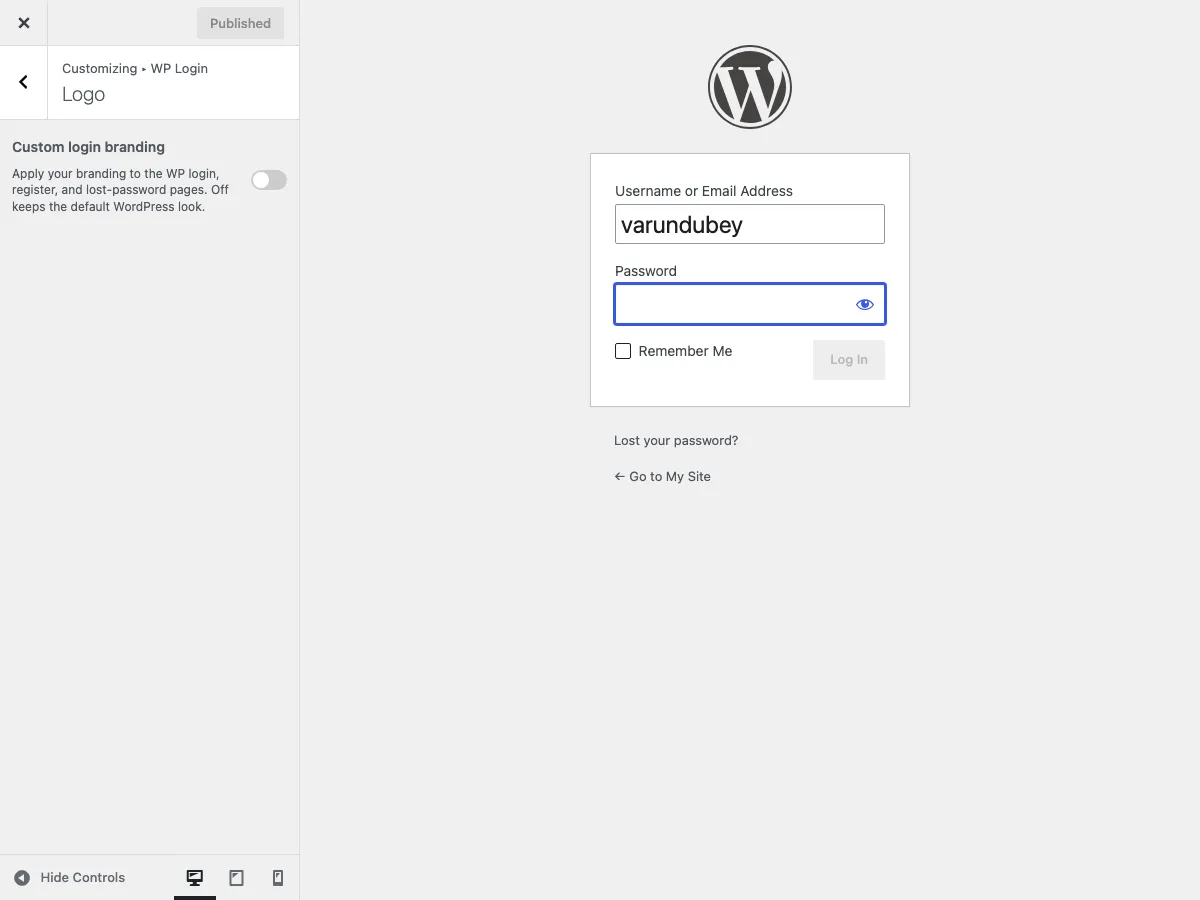 The WP Login panel under Appearance > Customize, with the Logo section where every login-branding control lives.
Overview
BuddyX Pro 5.1.0 replaced the older 81-field login customizer with a preset-driven, five-control surface that mirrors the Style preset and Font preset pickers used elsewhere in the theme. You turn branding on, pick one of four layout presets, set a brand color, and (for the image-based presets) add a background image. The theme renders a complete, polished login look - card radius, shadows, form transparency, spacing, and heading colors are all handled for you.
The same branding applies across all three account surfaces - the login page, the lost-password page, and the register page (including the BuddyPress register screen and any page you map as your Registration Page). For the preset picker in depth, see Login Presets.
Where it lives
- Go to Appearance > Customize.
- Open the WP Login panel.
- Select the Logo section - every login-branding control is here.
- Turn Custom login branding on to reveal the rest of the controls.
The Layout, Brand color, Background image, and Login logo override controls stay hidden until Custom login branding is on. A fresh install keeps the standard WordPress login until you opt in. The Background image control also hides itself for the Minimal preset, which does not use one.
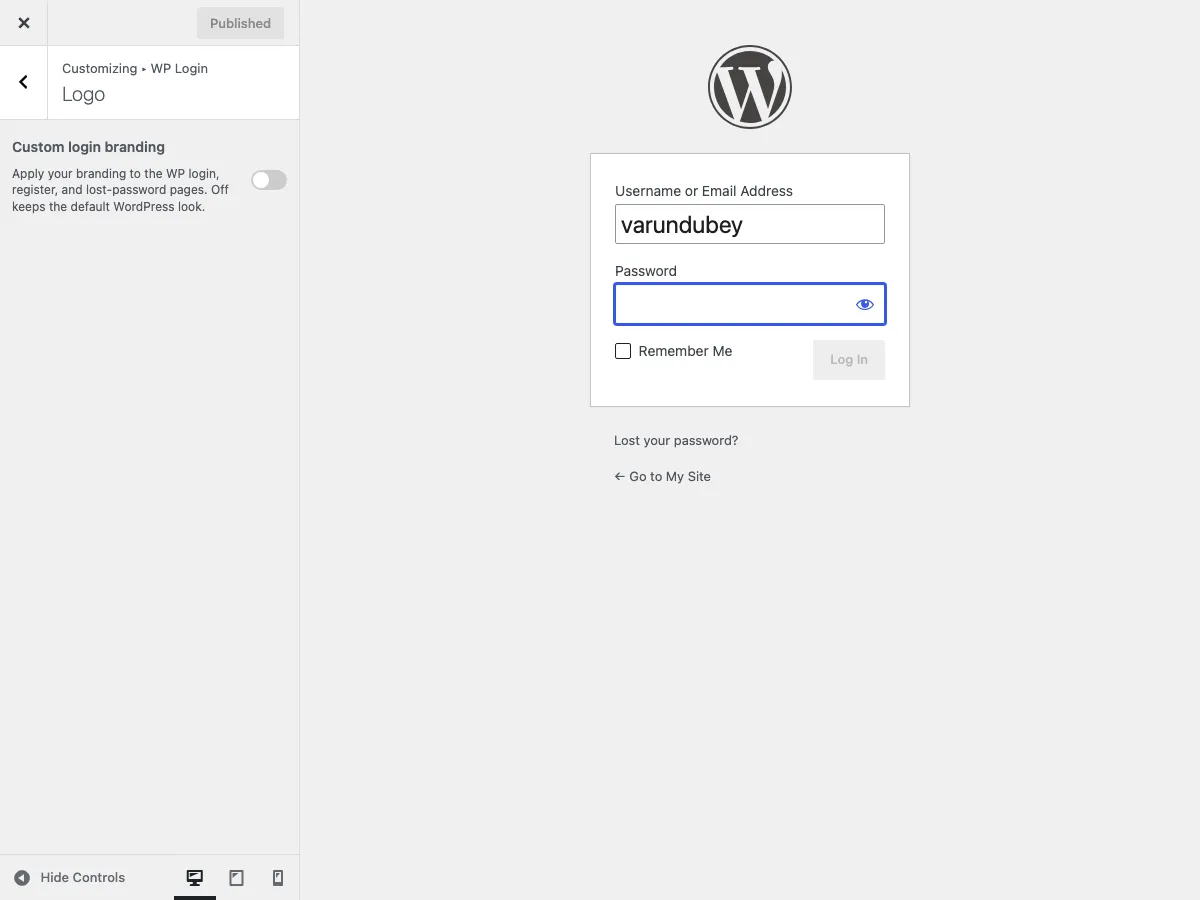 The Logo section: master toggle, layout preset picker, brand color, background image, and login logo override.
The full control set
Five controls drive every login look. The setting keys below are the real customizer keys, so you can target them from a child theme with get_theme_mod().
| Control | Key | Type | Default |
|---|---|---|---|
| Custom login branding | enable_custom_login |
On / Off switch | Off |
| Layout | custom_login_preset |
Preset card picker | Minimal |
| Brand color | custom_login_brand_color |
Color (no alpha) | #0f172a |
| Background image | custom_login_background_image |
Image upload | Empty |
| Login logo override | custom_login_logo_image |
Image upload | Empty |
Custom login branding
The master gate. Off by default so a fresh install ships with the unmodified WordPress login as a safe fallback. Turn it on to brand the login, register, and lost-password pages.
Layout
Pick one of four ready-made login styles. Each preset is opinionated and complete - you do not tune per-control card radius, shadow, or heading colors.
| Preset | What it looks like | Uses background image |
|---|---|---|
| Minimal | Centered form card on a calm, plain background. | No |
| Brand left | Background image fills the left panel; the form sits on the right. | Yes |
| Brand right | Background image fills the right panel; the form sits on the left. | Yes |
| Hero image | Fullscreen background image; the form floats centered over a translucent backdrop. | Yes |
Minimal is the default - choose it for a clean, distraction-free sign-in when you have no brand image to feature. Brand left and Brand right are the split-screen layouts, best when you have a strong vertical or half-frame image beside the form. Hero image is the most immersive - a single full-bleed image with the form floating on top. See Login Presets for a fuller walkthrough and the buddyxpro_login_presets filter that lets a child theme register more layouts.
Brand color
The single accent source. It colors the sign-in button, form links, focus outlines, and - on Brand left and Brand right - the brand panel background behind your image. Alpha is disabled, so pick a solid color. Default is #0f172a (near-black slate).
Background image
Used by Brand left, Brand right, and Hero image. Minimal ignores it, so the control hides when Minimal is selected. Use a large, high-quality image - hero layouts show it fullscreen; split layouts show it at roughly half width. If a split or hero preset is selected with no image, BuddyX Pro fills the brand panel with a tasteful diagonal gradient built from your brand color, so it never reads as an empty block.
Login logo override
Optional. Leave it blank to reuse the logo from Appearance > Customize > Site Identity. Set a different image here when the login page needs its own mark - for example a square icon that reads better than a wide header logo.
Logo source order: BuddyX Pro uses the Login logo override first, then falls back to your Site Identity custom logo, and finally to the site title text if neither is set. Most sites that already configured a header logo need to do nothing here. On the Hero preset, when no override is set the default logo is forced white so it stays visible on the dark backdrop; when you upload your own login logo, its real colors are kept.
The brand panel (split and hero presets)
On Brand left and Brand right, BuddyX Pro renders a brand panel beside the form containing your site name (from Settings > General) and your tagline (Settings > General "Tagline"). If no tagline is set, the panel shows "Welcome back. Sign in to continue." so it never looks half-empty. On mobile (under 782px) the split layouts collapse to a single column and the brand panel is hidden so the form takes the full width. The Minimal and Hero presets do not show this panel.
Dark mode
The login branding is dark-mode aware. When your site is in dark mode, the form card, inputs, labels, and navigation links switch to a dark palette automatically - no separate configuration. This matches the site-wide dark-mode toggle documented under the theme's color settings.
How the branding reaches the register and lost-password pages
The login preset is not limited to /wp-login.php. BuddyX Pro applies the same body classes and inline CSS to:
- The lost-password screen (
wp-login.php?action=lostpasswordand the reset form). See Password Reset. - The BuddyPress register page and any page you set as the Registration Page under Appearance > Customize > General > Page Mapping. See Registration Page Branding.
On front-end register pages the theme applies the shared form-card and brand-color styling (button, links, focus rings) but deliberately skips the full split-panel or hero-canvas layout, because a BuddyPress page carries a site header, content, and footer that the wp-login split grid is not designed to wrap.
Sign-in popup alternative
Instead of sending visitors to a full login page, you can surface login and registration inside an in-page modal. That is a separate Pro feature configured under Appearance > Customize > General > Sign-in Popup | Register Form Fields. When it is on, the header Log in and Register buttons (the .buddypress-icons-wrapper .btn-login and .btn-register elements) open the modal instead of navigating to /wp-login.php.
The popup and the branded login page are not mutually exclusive - the popup only takes over the header buttons; visitors who reach /wp-login.php directly still get your branded login page. For the full set of popup controls, redirects, and custom-shortcode mode, see Sign-in Popup.
Recommended presets by site type
Community / social network
- Preset: Brand left or Brand right
- Brand color: Your community accent
- Background image: A community or activity photo (vertical framing works best for split layouts)
E-learning platform
- Preset: Minimal or Hero image
- Brand color: Match your course-category accent
- Login logo override: A clear, centered mark
Business / corporate
- Preset: Minimal
- Brand color: Brand primary color
- Background image: None - Minimal keeps the focus on the form
Creative agency
- Preset: Hero image
- Brand color: A bold accent
- Background image: A full-bleed artistic image
Membership site
- Preset: Hero image or Brand right
- Brand color: Your membership accent
- Background image: Member-benefit imagery
Live preview
Because every login control uses the refresh transport, the Customizer preview reloads the login page as you change settings. Publish to save. Some hosts and security plugins guard /wp-login.php; if the preview does not update, publish and open the login page in a separate tab.
Common questions
How do I change the logo on the login page?
Go to Appearance > Customize > WP Login > Logo. Either upload a Login logo override, or leave it blank to reuse your site logo from Appearance > Customize > Site Identity.
Can I have different logos for the site header and the login page?
Yes. Upload a separate image in WP Login > Logo > Login logo override. If it is empty, your Site Identity logo is used.
Why isn't my background image showing?
Check these:
- Custom login branding is on.
- Your Layout is Brand left, Brand right, or Hero image - the Minimal preset ignores the background image (and hides the control).
- You published after uploading. The preview uses
refresh, so a hard reload (Cmd/Ctrl+Shift+R) helps.
How do I remove the logo completely?
Leave both the Login logo override and the Site Identity logo empty. The login page then falls back to the site title text.
My changes are not visible. What is wrong?
- Custom login branding is off.
- Not published - click Publish.
- Browser cache - hard refresh.
- Another login-customization plugin is overriding the page.
I upgraded from 5.0.x - where did all the old login settings go?
The pre-5.1.0 per-field settings (form radius, shadow opacity, input colors, and the rest) still exist in your database but are no longer read. Picking a preset now controls all of that at once. Your saved login logo and background image carry over automatically; if you had a background image but never picked a preset, BuddyX Pro starts you on the Hero image preset so that image stays visible. See Login Presets.
Does this work on mobile devices?
Yes. All presets are responsive. The split layouts collapse to a single column under 782px and the brand panel hides so the form fills the width.
Can I add custom CSS to the login page?
Yes. Use Appearance > Customize > Additional CSS. The branded login body carries the classes bx-login and bx-login-{preset} (for example bx-login-hero), so you can target the active preset:
body.bx-login.bx-login-hero #login {
  /* your custom styles */
}
Can I add social login buttons?
Social login requires a separate plugin (for example Nextend Social Login). BuddyX Pro's form styling applies to the standard form; social plugins render their own buttons within it.
Related Settings
- Login Presets - the four presets and the five controls in depth
- Sign-in Popup - open login and registration in an in-page modal
- Registration Page Branding - how the preset extends to the register screen
- Password Reset - the lost-password surface
- Site Identity - the logo the login page falls back to
Support
Need help with login page branding?
- Documentation: BuddyX Pro Documentation
- Support Forum: Support Portal
- Email: support@wbcomdesigns.com
Before contacting support, note your active preset and brand color, and take a screenshot of your WP Login > Logo settings.