
Wbcom Essential
Free & ProWbcom Essential is the free companion plugin you install right after BuddyX Pro. It ships 31 Gutenberg blocks (including 5 BuddyPress blocks) and 43 Elementor widgets - and every one of them auto-inherits your BuddyX Pro colors, typography, and dark mode. You build full landing pages, community home screens, and section layouts inside the native block editor, with no page builder required and no extra styling to write.
Where to get it: Get it
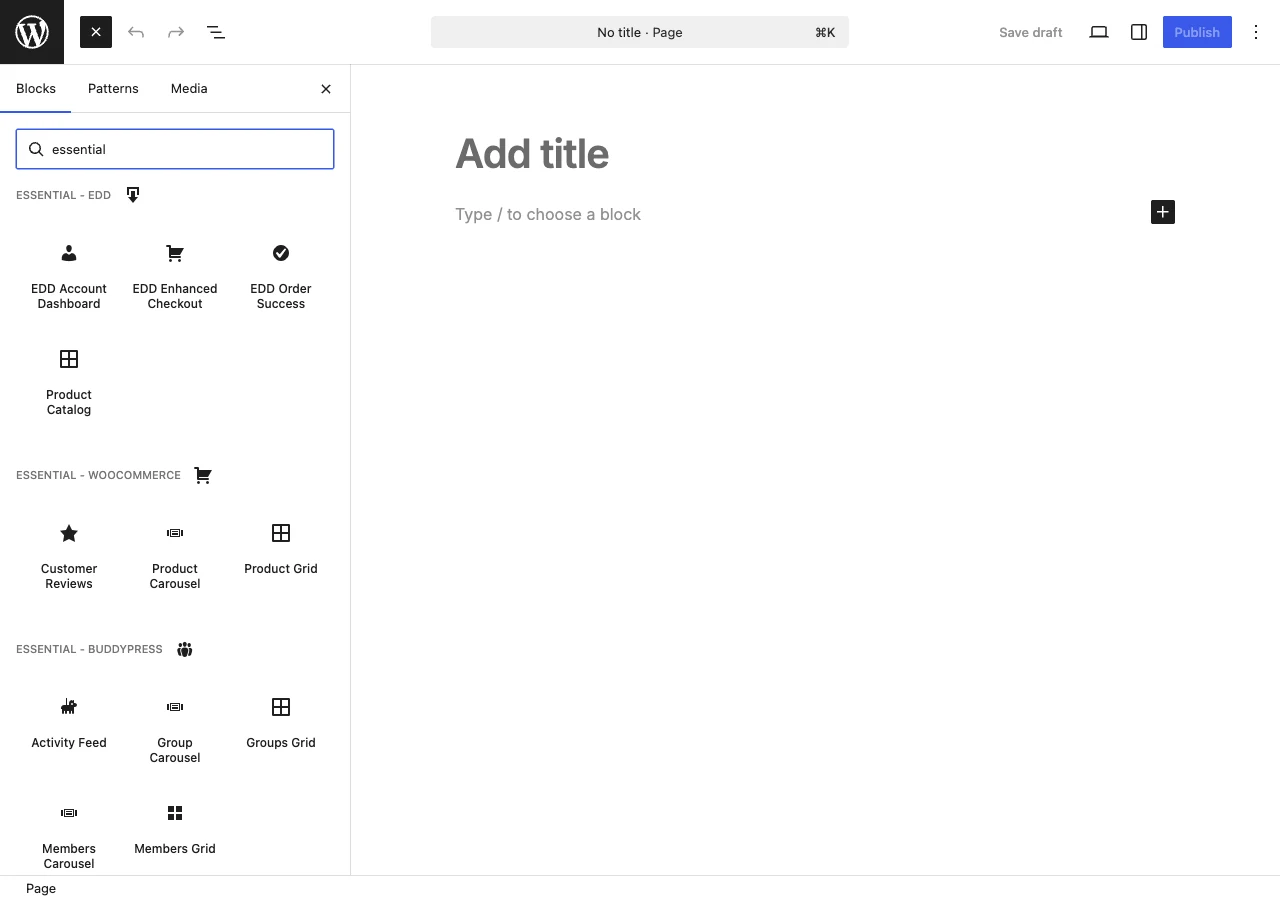 The Wbcom Essential block library.
What Wbcom Essential Adds
Wbcom Essential extends the WordPress editor with production-ready building blocks so you can assemble marketing and community pages the same day you activate the theme:
- 31 Gutenberg blocks (including the 5 BuddyPress blocks below) - Heroes, feature grids, pricing tables, testimonials, team cards, counters, tabs, accordions, call-to-action rows, and more, all in the native block editor.
- 43 Elementor widgets - The same building set for sites that run Elementor, so your page builder of choice is covered either way.
- 5 BuddyPress blocks - Drop members, groups, activity, and profile surfaces straight into any page, so a community home screen is a block layout, not a template edit.
- Block patterns - Pre-composed section layouts you insert and edit in place, so a full page is a few clicks rather than a from-scratch build.
Because the blocks read the theme's design tokens, you never pick colors twice. Set your palette once in the Customizer and every Wbcom Essential block follows it.
Wbcom Essential is free to start, with a Pro upgrade that adds more blocks, advanced controls, and premium patterns. See the Wbcom Essential product page for the full feature list.
Build Full Pages Without a Page Builder
You do not need Elementor or any third-party builder to lay out a complete page. The Gutenberg block set covers the whole page - hero at the top, feature and pricing sections in the middle, testimonials and a call-to-action at the bottom - inside the editor you already use.
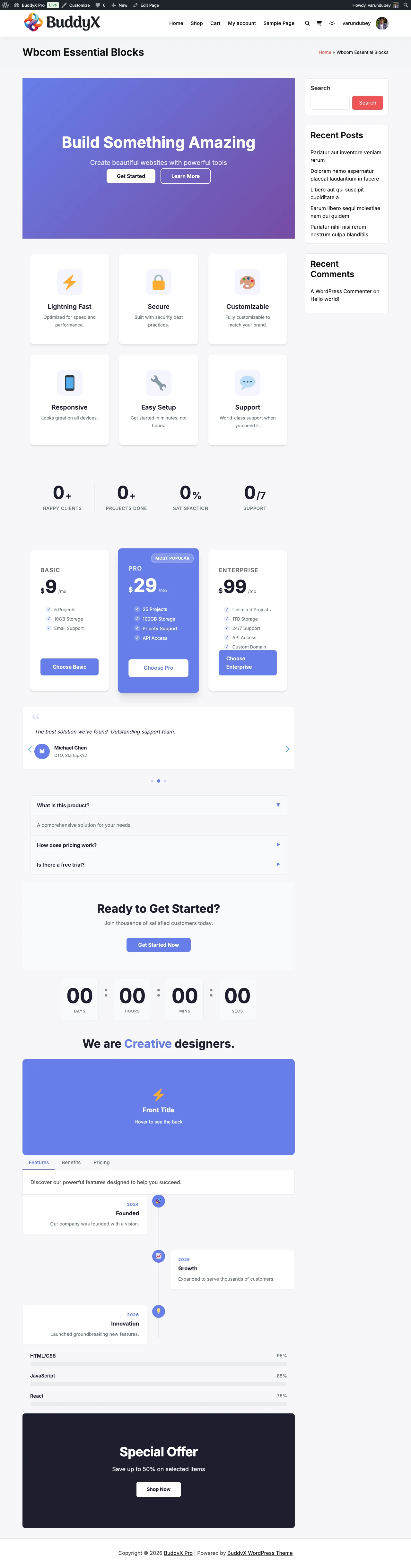 A full page built from the blocks, in BuddyX Pro colors.
Start from a block pattern, swap the copy and images for your own, and the section is done - already in your brand colors, already responsive, already dark-mode aware.
How Wbcom Essential Pairs with BuddyX Pro
Wbcom Essential's blocks are built to read the theme's design tokens, so once the plugin is active every block inherits your theme choices. There is no separate skin to install and no per-block color to set - the fit comes from shared tokens and the standard page frame.
| Surface | How it inherits from BuddyX Pro |
|---|---|
| Colors | Every block inherits your primary and accent colors from the --bx-color-* tokens - no hardcoded block palette |
| Dark mode | Blocks and patterns repaint cleanly when a visitor toggles dark mode, including the --wp--preset--color--* mappings the theme sets |
| Typography | Block headings and body text use the theme's typography presets and self-hosted Inter and Newsreader fonts |
| Sidebars | Pages built from blocks respect your Customizer sidebar layout (Left, Right, None) |
| Header layouts | Block pages sit under whichever Pro header layout, top bar, and mega menu you have set |
| Cards and buttons | Block cards and call-to-action buttons adopt the theme's border radius, hover effects, and button styling |
Because Wbcom Essential shares the same design tokens as the theme, your blocks stay on-brand across the whole site with zero extra CSS.
Set It Up
1. Install Wbcom Essential
- Download Wbcom Essential from its product page: https://wbcomdesigns.com/downloads/wbcom-essential/ (free).
- In wp-admin, go to Plugins > Add New > Upload Plugin, choose the downloaded zip, and click Install Now.
- Click Activate. Every block picks up your BuddyX Pro colors right away.
See Plugin Family for the full in-house lineup.
2. Add a Block to a Page
- Edit any page or post, or create a new one.
- Click the + inserter and search for a Wbcom Essential block or pattern.
- Insert it, edit the content, and publish. The block renders in your BuddyX Pro colors right away.
3. Confirm Dark Mode
- Toggle dark mode from the header.
- Visit the page you built.
- Every block and pattern should repaint cleanly in dark and light.
Tip: Color mode is Light and Dark only. Set your palette once in Appearance > Customize and every Wbcom Essential block follows it in both modes, so you never restyle a block by hand.
Related
- Plugin Family - The full in-house Wbcom lineup, including Wbcom Essential
- Dark Mode - How the theme repaints every surface
- Sidebar Layouts - Configure sidebars on block pages
- Bundled Plugins - What ships with your BuddyX Pro license
Got a question? We're a friendly team - happy to help. support@wbcomdesigns.com