
Site Identity Settings
Pro featureThe Site Identity panel in the WordPress Customizer allows you to configure your website's core branding elements including the site title, tagline, logo, and site icon (favicon).
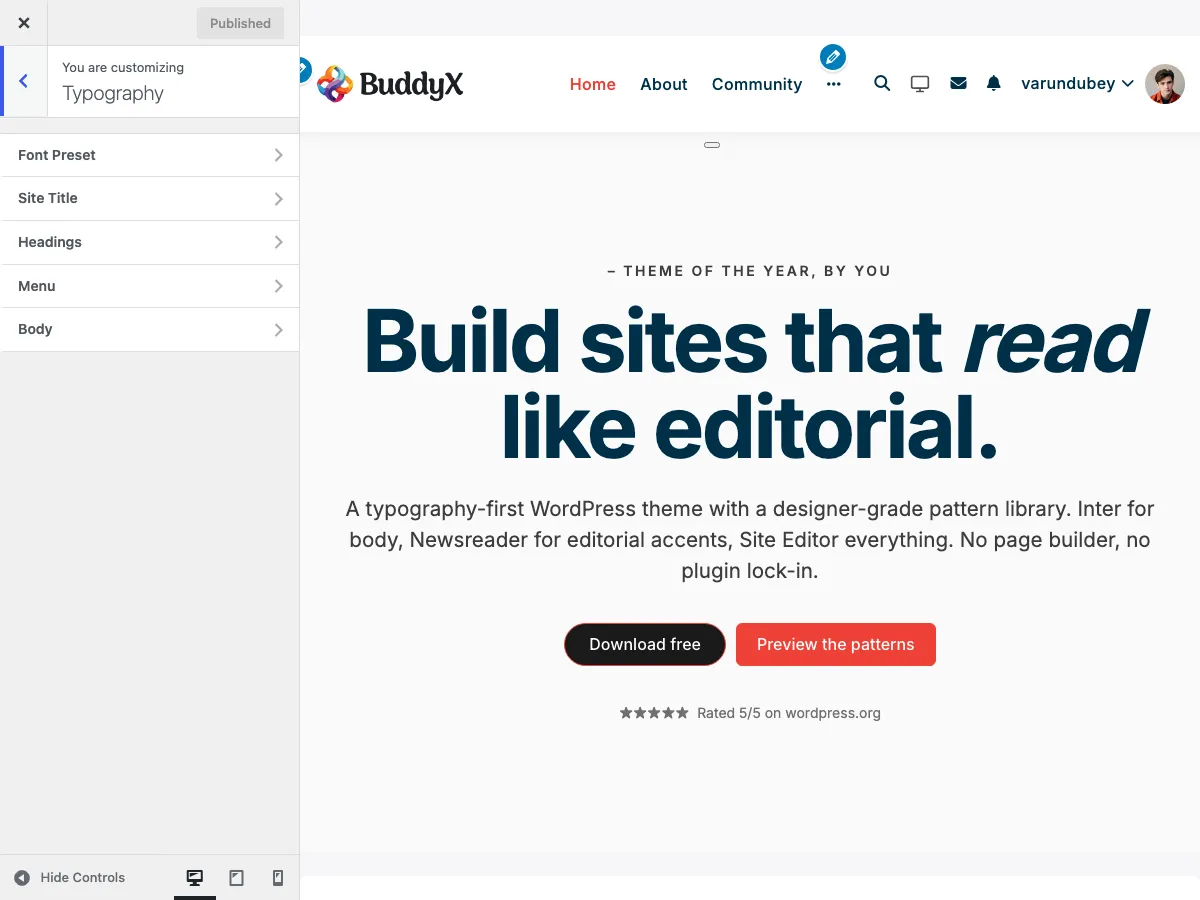 Site title typography settings in the Customizer
Accessing Site Identity Settings
- Go to Appearance > Customize in your WordPress admin
- Click on Site Identity in the customizer panel
Available Settings
Site Title
The site title appears in browser tabs, search results, and can be displayed in your header. It is a standard WordPress Site Identity field.
| Setting | Setting ID | Description |
|---|---|---|
| Site Title | blogname |
Your website's name (e.g., "My Community Site") |
Best Practices:
- Keep your site title concise (under 60 characters)
- Use your brand name or a descriptive title
- Consider SEO implications for search visibility
Tagline
The tagline is a short description of your website's purpose. It is a standard WordPress Site Identity field.
| Setting | Setting ID | Description |
|---|---|---|
| Tagline | blogdescription |
A brief description of your site |
Best Practices:
- Keep taglines under 120 characters
- Describe what makes your site unique
- Include relevant keywords naturally
Logo
BuddyX Pro adds a Logo Size control to the standard WordPress logo field.
| Setting | Setting ID | Description | Default |
|---|---|---|---|
| Logo | custom_logo |
Upload your primary logo image | None |
| Logo Size | logo_size |
Adjust desktop logo width (150-300px) | 150px |
Logo Size Adjustment:
The Logo Size slider allows you to control the desktop display width:
- Minimum: 150px
- Maximum: 300px
- Step: 1px increments
Supported Formats:
- PNG (recommended for logos with transparency)
- SVG (vector format, scales without quality loss)
- JPG (for photographic logos)
- WebP (modern format with good compression)
Recommended Dimensions:
- Standard logo: 300px x 100px (max)
- For crisp high-DPI display, upload at 2x the intended display size, or use SVG
- File size: Under 100KB for optimal loading
Dark Mode Logo
When dark mode is active, BuddyX Pro can display an alternate logo optimized for dark backgrounds. This is a single image field (there is no separate retina field - upload a 2x image or an SVG if you need high-DPI sharpness). It reuses the same Logo Size value as the primary logo.
| Setting | Setting ID | Description | Default |
|---|---|---|---|
| Dark Mode Logo | dark_mode_logo |
Alternate logo shown when dark mode is active | None |
When to Use:
- Your primary logo has dark text that's invisible on dark backgrounds
- You want brand consistency across color schemes
- Your logo uses colors that clash with dark mode
BuddyX Pro uses the same logo across screen sizes - there is no separate mobile logo field. The logo scales down responsively on smaller screens. A distinct mobile logo would require custom code in a child theme.
Site Icon (Favicon)
The site icon appears in browser tabs, bookmarks, and mobile home screens.
| Setting | Description |
|---|---|
| Site Icon | Square image for browser tabs |
| Recommended Size | 512 x 512 pixels |
Requirements:
- Must be square (1:1 aspect ratio)
- Minimum 512 x 512 pixels
- PNG format recommended
- Simple, recognizable design
Where It Appears:
- Browser tabs
- Bookmark bars
- Mobile home screen (when saved)
- Windows taskbar pins
- RSS feed readers
Site Title and Tagline Typography
The Site Identity fields above set the text of your title and tagline. To style how that text looks (font, size, weight, spacing, alignment), BuddyX Pro gives you two dedicated typography controls in the Typography panel.
- Go to Appearance > Customize
- Click on Typography
- Select Site Title Typography
Site Title Settings
Controls the typography of the site title link in the header (the .site-title element).
| Option | Description | Default |
|---|---|---|
| Font Family | Google Font or system font for the title | Theme baseline |
| Font Weight | Thickness of the title text | 600 (Semi Bold) |
| Font Size | Size of the title text | 38px |
| Line Height | Space between lines | 1.2 |
| Letter Spacing | Space between characters | 0 |
| Text Transform | Case style (none, uppercase, lowercase, capitalize) | none |
| Text Align | Horizontal alignment (left, center, right) | left |
| Text Decoration | Additional styling (none, underline) | none |
Site Tagline Settings
Controls the typography of the tagline / site description (the .site-description element).
| Option | Description | Default |
|---|---|---|
| Font Family | Google Font or system font for the tagline | Theme baseline |
| Font Weight | Thickness of the tagline text | Regular (400) |
| Font Size | Size of the tagline text | 14px |
| Line Height | Space between lines | 1.4 |
| Letter Spacing | Space between characters | 0 |
| Text Transform | Case style | none |
| Text Align | Horizontal alignment | left |
| Text Decoration | Additional styling | none |
Tip: Set font sizes in pixels (px) for predictable results. The title and tagline typography controls are independent of the Logo settings above - if you display a logo image instead of text, these settings still apply whenever the text title or tagline is shown.
Configuration Examples
Example 1: Standard Business Site
Site Title: "Acme Community"
Tagline: "Connect, Learn, and Grow Together"
Logo: acme-logo.webp (280px wide)
Site Icon: acme-icon.webp (512x512)
Example 2: Community Platform
Site Title: "Developer Network"
Tagline: "Where developers connect and collaborate"
Logo: devnet-logo.svg
Dark Mode Logo: devnet-logo-light.svg
Example 3: Learning Platform
Site Title: "LearnHub Academy"
Tagline: "Online courses for professionals"
Logo: learnhub-logo.webp
Logo Size: 200px
Site Icon: learnhub-favicon.webp
Troubleshooting
Logo Not Displaying
Problem: Logo doesn't appear after upload.
Solutions:
- Clear browser cache and refresh
- Check file permissions on uploads folder
- Verify image format is supported
- Check for CSS conflicts with caching plugins
Logo Appears Blurry
Problem: Logo looks pixelated on high-resolution displays.
Solutions:
- Upload a larger source image (at least 2x desired display size)
- Use SVG format for vector logos
- Enable and upload a retina version
- Check the Logo Size setting isn't scaling up a small image
Dark Mode Logo Not Switching
Problem: Same logo shows in both light and dark mode.
Solutions:
- Verify Dark Mode Logo is uploaded
- Check dark mode is enabled in Skin settings
- Clear any caching plugins
- Test in incognito/private browser window
Site Icon Not Showing
Problem: Favicon doesn't appear in browser tabs.
Solutions:
- Ensure image is exactly square
- Upload at least 512x512 pixels
- Use PNG format
- Clear browser cache (Ctrl+F5 / Cmd+Shift+R)
- Wait for browser to fetch new favicon
Integration with Other Settings
Site Identity settings work in conjunction with:
- Site Header - Logo placement and menu layout
- Site Skin - Dark mode logo switching
- Mobile Header - The logo scales down responsively below the hamburger breakpoint
- Typography - Site title font styling
Related Documentation
- Logo & Favicon Options - Advanced logo configuration
- Header Layout Styles - Header design options
- Dark Mode - Dark color scheme settings
Got a question? We're a friendly team - happy to help.
- Visit our Documentation Portal
- Email us at support@wbcomdesigns.com