
Site Sidebar
Free themeChoose where the sidebar sits - and for which kind of page - so your content and widgets line up the way you want.
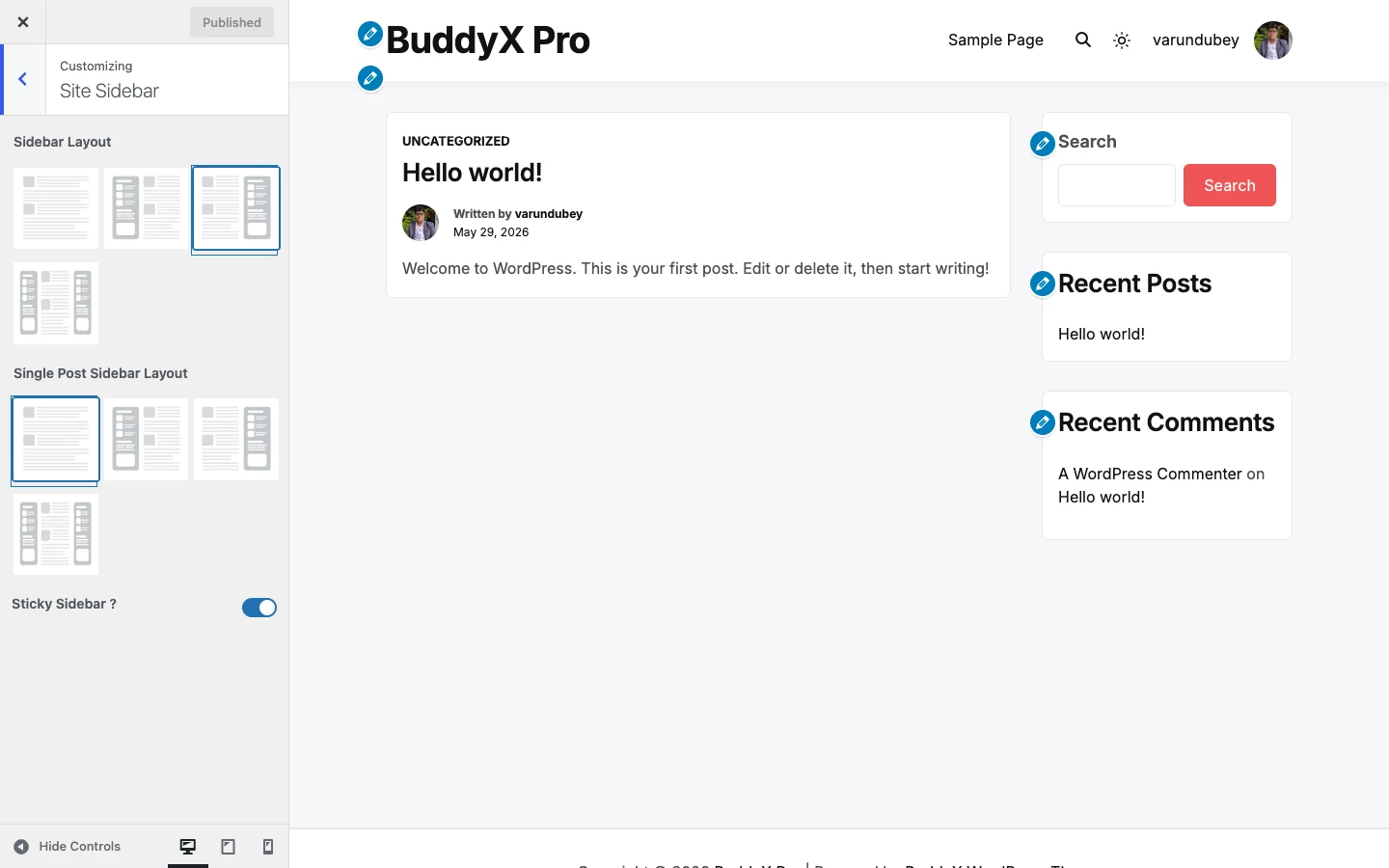
Every sidebar layout in this section is in BuddyX free. There is no Pro upgrade needed to control where your sidebar appears.
You will find all of these under Appearance -> Customize -> Site Sidebar.
How sidebar layouts work
Each control offers the same four choices, shown as small preview images:
- No sidebar - full-width content, no sidebar column.
- Left sidebar - sidebar on the left, content on the right.
- Right sidebar - content on the left, sidebar on the right.
- Both sidebars - a sidebar on each side of the content.
BuddyX gives you a separate layout for each context - your general pages, single posts, and (when the matching plugin is active) BuddyPress, bbPress, and WooCommerce screens - so a blog post can show a sidebar while your shop stays full-width, or the other way around.
First-time tip: You do not have to set all of these. The general Sidebar Layout covers most of your site out of the box. Leave the context-specific ones on their defaults until you actually need a different look for that area.
Settings
The context-specific controls only appear when their plugin is active - if you do not run BuddyPress, bbPress, or WooCommerce, you will not see those rows in the Customizer.
| Setting | Default | What it does |
|---|---|---|
| Sidebar Layout | Right | The site-wide default for pages, archives, and anything without its own rule. Choices: No sidebar, Left, Right, Both. |
| Single Post Sidebar Layout | No sidebar | Layout for individual blog posts. Defaults to full-width so posts read cleanly; switch to Right if you want post widgets. |
| Activity Directory Sidebar Layout | Both | BuddyPress activity directory layout. Only shown when BuddyPress is active (and hidden if Youzify is running). |
| Members Directory Sidebar Layout | Right | BuddyPress members directory layout. Shown when BuddyPress is active. |
| Groups Directory Sidebar Layout | Right | BuddyPress groups directory layout. Shown when BuddyPress is active. |
| bbPress Sidebar Layout | Right | Layout for bbPress forum pages. Shown when bbPress is active. |
| WooCommerce Sidebar Layout | Right | Layout for shop, product, and cart pages. Shown when WooCommerce is active. |
| Sticky Sidebar ? | Enable | When on, the sidebar stays in view as the reader scrolls a long page. Set to Disable to let it scroll away with the content. |
A note on LearnDash and other plugins
BuddyX does not add a separate sidebar layout control for LearnDash course pages. Those pages follow your general Sidebar Layout setting above. BuddyX does register a dedicated LearnDash sidebar widget area, so you can still place course-specific widgets there under Appearance -> Widgets - the layout (left, right, both, or none) simply comes from the site-wide rule.
Free vs Pro
BuddyX free gives you the complete sidebar layout system: per-context placement (left, right, both, or none) for your pages, single posts, BuddyPress directories, bbPress, and WooCommerce, plus the sticky-sidebar option. Nothing in this section is locked behind an upgrade.
BuddyX Pro is a separate optional product. It does not gate these sidebar controls - it adds different things like header layouts, a sign-in popup, per-page settings, WooCommerce shop styling, and full BuddyPress directory and header layout control. If you only need to move your sidebar around, free already covers you.
Filling your sidebar
Choosing a layout decides where the sidebar sits - what shows inside it comes from widgets. Add and arrange widgets under Appearance -> Widgets (or Appearance -> Customize -> Widgets for a live preview). Each context above draws from its matching widget area.
Related
- BuddyX documentation home
- General - layout, loader, and page mapping - container width and overall page layout
- Header - the top of every page
- Colors and style presets
- First-time setup - the guided 8-step start
Next: Footer - set up widget columns and the copyright bar at the bottom of your site.