
General - Layout, Loader, and Page Mapping
Free themeSet your site's overall shape - wide or boxed, how rounded the corners are, whether a loading animation shows, and which pages handle login, registration, and 404s.
The General panel holds three small-but-foundational sections: Site Layout (the frame everything sits in), Site Loader (an optional loading animation), and Page Mapping (point login/registration/404 at your own pages). You reach all three from Appearance -> Customize -> General.
Good news for first-time setup: every control here ships with a sensible default. You can leave this whole panel untouched and your site looks right. Come back when you want to fine-tune.
Site Layout
Path: Appearance -> Customize -> General -> Site Layout
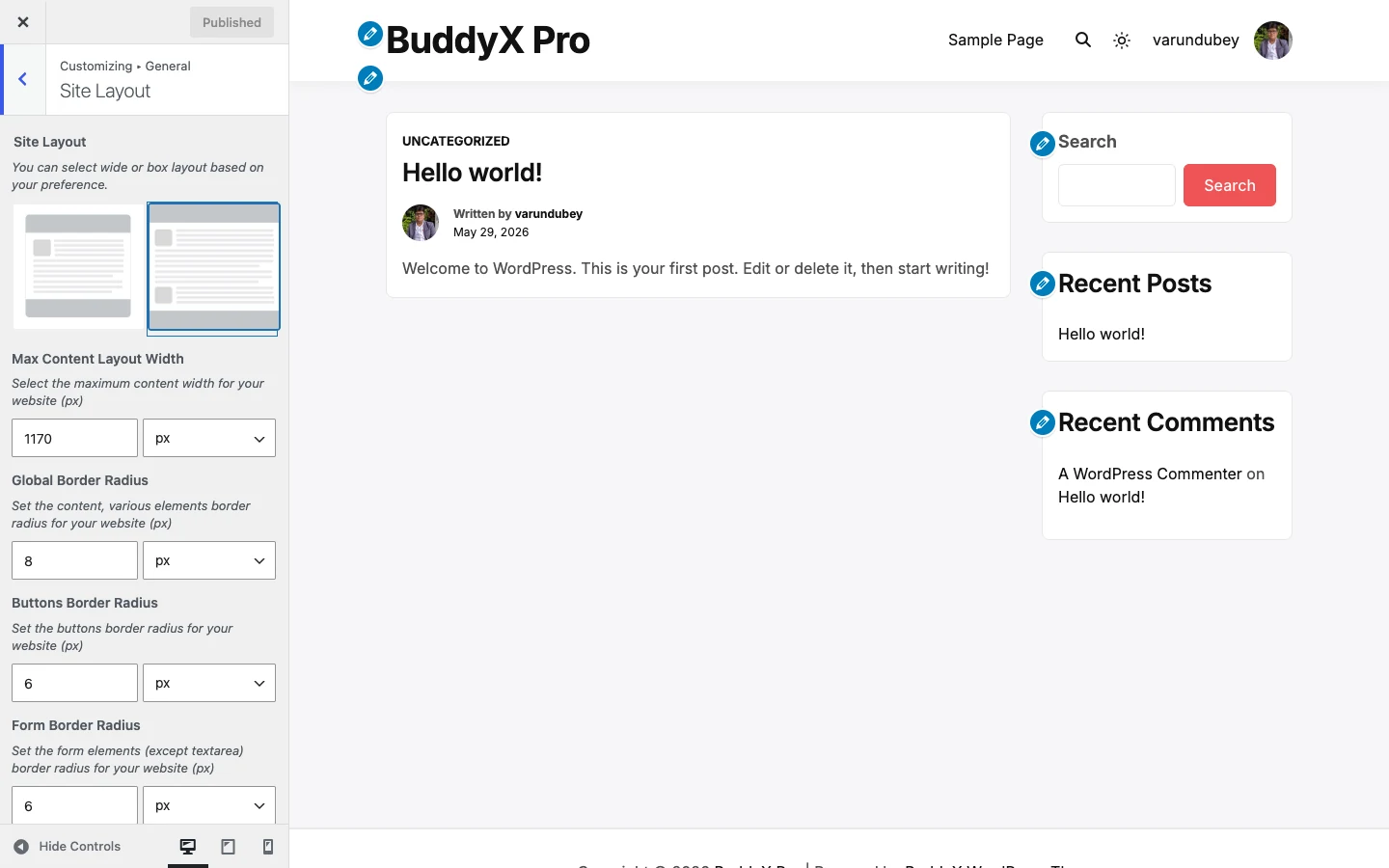
This is where you choose the frame. Wide lets your content stretch across the browser (the modern default most community and blog sites use). Boxed floats the whole site inside a centered card with a background around it - a more contained, classic look. The three border-radius controls set how rounded corners are, in pixels: one for content and general elements, one for buttons, and one for form fields.
A note on "Max Content Layout Width": this caps how wide your content area gets even in Wide layout. The default of 1170px is a comfortable reading width. Raise it for a more spacious feel on large screens; lower it to keep lines shorter.
Settings
| Setting | Default | What it does |
|---|---|---|
| Site Layout | Wide | Choose Wide (content stretches to your max width) or Boxed (site sits in a centered card with a background around it). |
| Max Content Layout Width | 1170px | The maximum width, in pixels, of your content area. |
| Global Border Radius | 8px | Corner rounding for content and general elements, in pixels. |
| Buttons Border Radius | 6px | Corner rounding for buttons, in pixels. |
| Form Border Radius | 6px | Corner rounding for form fields, in pixels (does not affect textareas). |
First-time tip: leave all five on their defaults. Wide layout and lightly rounded corners are the safe, modern choice. If you want a boxed look, switch Site Layout to Boxed and everything else keeps working.
Site Loader
Path: Appearance -> Customize -> General -> Site Loader
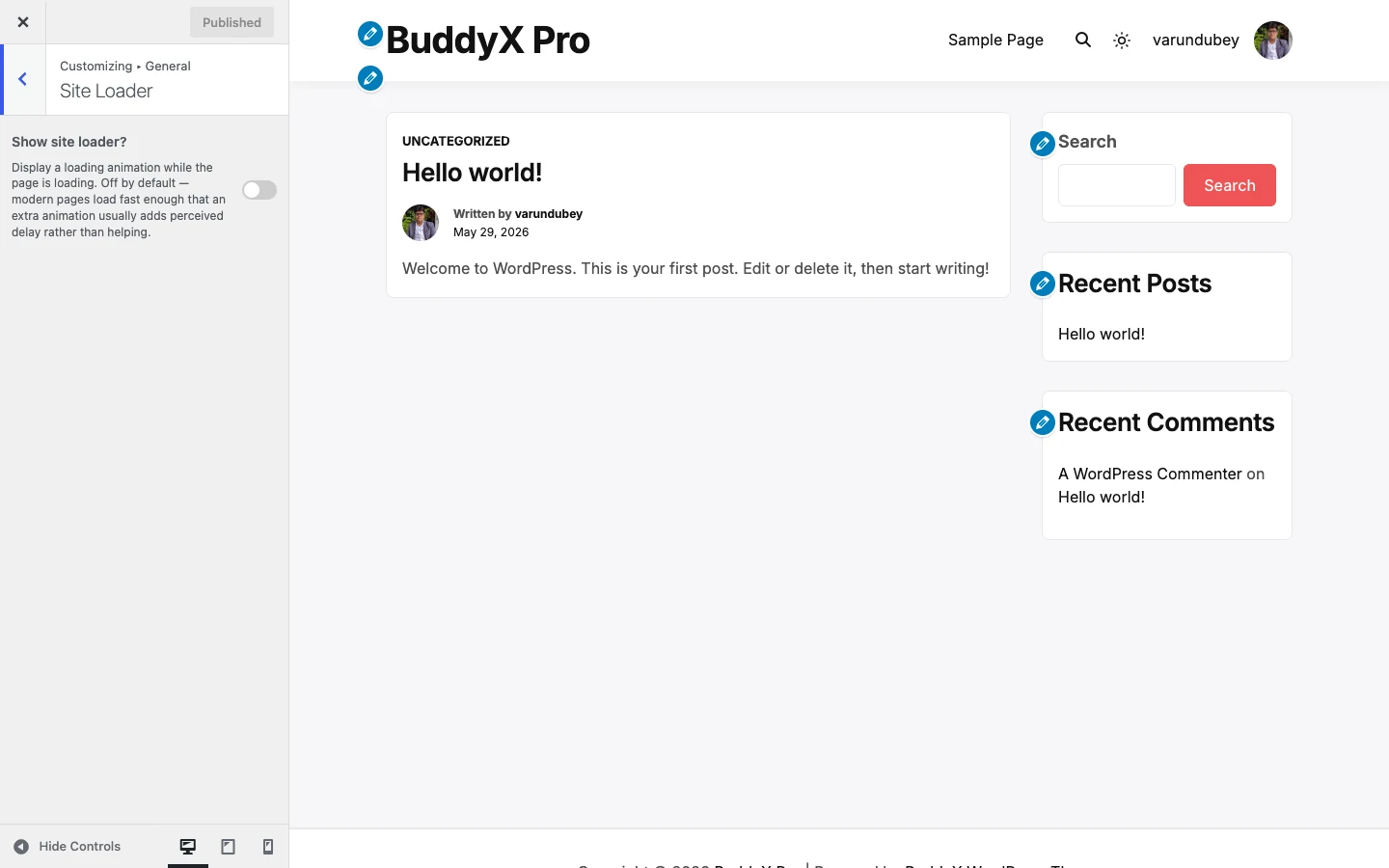
The loader is an animation that covers the page while it loads, then fades away. It is off by default on purpose - modern pages load fast enough that an extra animation usually adds perceived delay rather than helping. If your brand calls for one, turn it on and pick a style.
When you enable the loader, the rest of the controls appear: choose one of five animations (dots, spinner, pulse, bars, or your logo), set the background and element colors, add screen-reader-friendly loader text, upload a custom logo image (used only with the Logo animation), and set the animation speed.
Settings
| Setting | Default | What it does |
|---|---|---|
| Show site loader? | Disable (off) | Master switch. Off by default; turn on to show a loading animation. The controls below appear only when this is on. |
| Loader animation | Dots | Pick the animation style: Dots, Spinner, Pulse, Bars, or Logo. |
| Background color | #ef5455 | Full-screen color behind the loader (supports transparency). |
| Element color | #ffffff | Color of the spinner, dots, or text. Ignored when using a logo. |
| Loader text | Loading | Screen-reader announcement (aria-label). Also shown on screen for the Logo animation. |
| Custom logo image | (empty) | Image to use as the loader; appears only with the Logo animation. Falls back to your site logo when empty. |
| Animation speed (seconds) | 1.5 | How long one animation cycle takes, from 0.5s to 3.0s. |
Note: the loader, all five animation styles, the color controls, and the loader text are all part of BuddyX free - no upgrade needed to use any of it.
Page Mapping
Path: Appearance -> Customize -> General -> Page Mapping
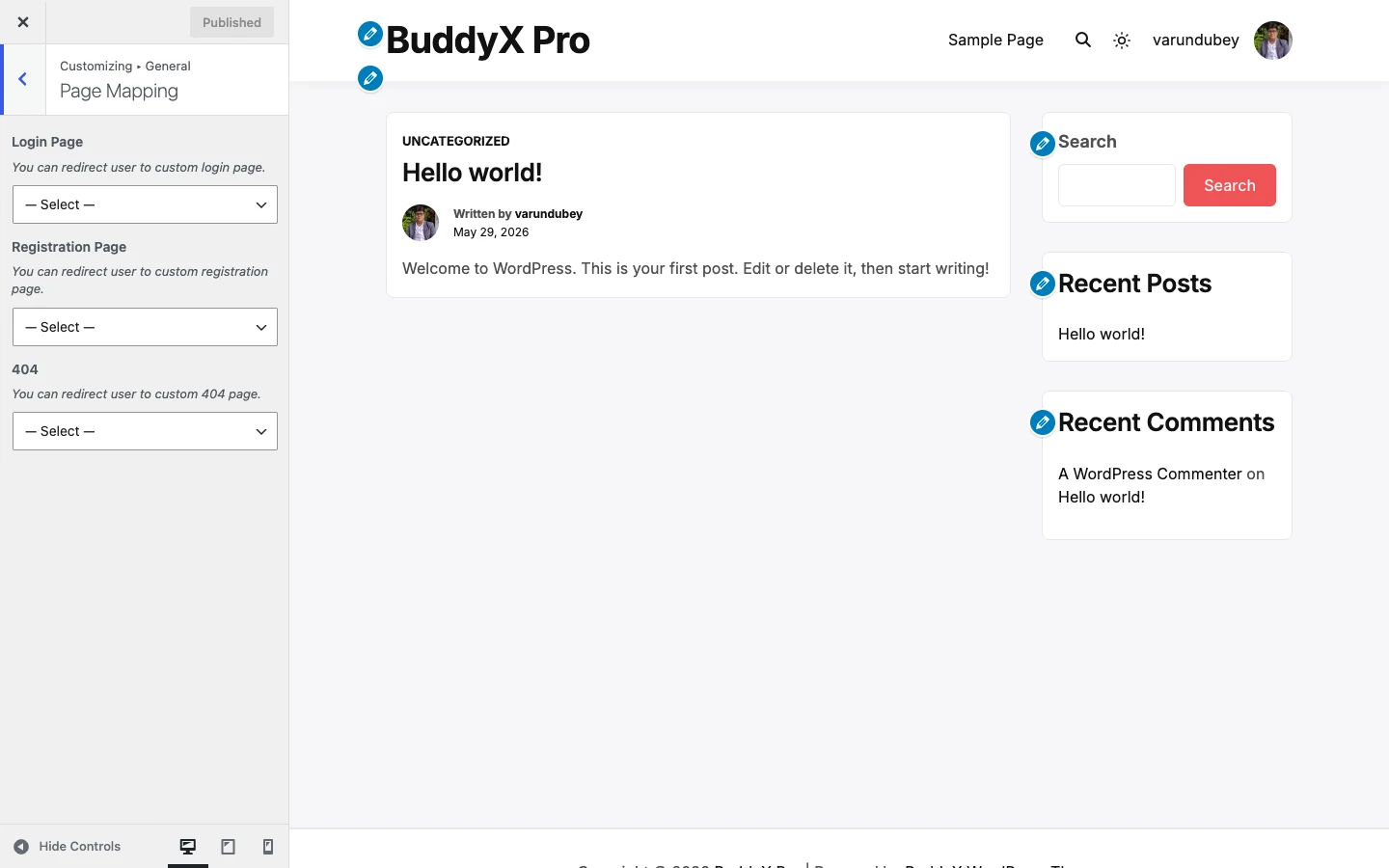
Page Mapping lets you point three system pages at pages you have built yourself. Instead of the default WordPress screens, you can send visitors to a custom login page, a custom registration page, and a custom 404 (page-not-found) page. Leave a setting on its default and BuddyX uses the standard behavior for that page - which is perfectly fine for most sites.
Settings
| Setting | Default | What it does |
|---|---|---|
| Login Page | --- Select a Page --- (none) | Redirect users to a custom login page you have created. |
| Registration Page | --- Select a Page --- (none) | Redirect users to a custom registration page you have created. |
| 404 | --- Select a Page --- (none) | Show a custom page when a visitor hits a URL that does not exist. |
Quick answer: you only need Page Mapping if you have designed your own login, registration, or 404 pages. If you have not, leave all three empty and WordPress handles them.
Free vs Pro
Everything on this page - Wide/Boxed layout, the three border-radius controls, the max content width, the full site loader with all five animation styles, and Page Mapping - is included in BuddyX free.
If you later want more control over the frame, BuddyX Pro adds header layouts and a top bar, a slide-out side panel, per-page layout settings, and a sign-in popup, among other things. Those are optional upgrades, not gaps in the free layout tools - the free controls above are complete on their own. See BuddyX Pro if you get there.
Related
- Customizing overview
- First-time setup (Quick Start)