
Wbcom Essential - the free companion plugin for BuddyX
Free themeWbcom Essential is the free plugin we recommend you install right after activating BuddyX. It gives you a library of production-ready blocks and page patterns that automatically pick up your BuddyX colors, so you can build full pages in the WordPress editor without reaching for a separate page builder.
Quick answer: Install Wbcom Essential from wbcomdesigns.com/downloads/wbcom-essential/ (or search for it under Plugins -> Add New), activate it, then open any page and add its blocks from the editor. The blocks inherit your theme colors on their own - there is nothing extra to wire up.
What it is
Wbcom Essential is a free block and pattern library built to pair with BuddyX. Instead of hand-coding sections or installing a heavy page builder, you drop in ready-made blocks - hero sections, pricing tables, testimonials, team grids, call-to-action rows - and arrange them right inside the standard WordPress editor.
The part that saves you the most time: every block reads the colors you already set in Appearance -> Customize -> Site Skin. Set your primary color once on the theme, and Wbcom Essential blocks match it automatically. Change your color scheme later and the blocks follow. You are not restyling anything twice.
This is the fast path to a finished page. No page builder required, no separate design system to learn.
What you get
| What | How much | Notes |
|---|---|---|
| Gutenberg blocks | 31 | Core content and layout blocks for the WordPress editor, across 7 categories |
| Elementor widgets | 43 | For sites that already use Elementor - optional, only load if you use it |
| BuddyPress blocks | 5 | One of the 7 categories - counted within the 31 above, not in addition to them |
Every block ships with the details that matter on a real site:
- Responsive controls at 3 breakpoints - tune spacing, columns, and visibility separately for desktop, tablet, and mobile.
- RTL ready - lays out correctly for right-to-left languages.
- FSE-compatible - works inside block themes and the Site Editor, not just classic templates.
- Accessibility built in - semantic markup and keyboard-reachable controls come standard.
- Conditional loading - a block's CSS and JavaScript load only on pages that actually use it, so your pages stay fast.
Note: The Elementor widgets and the WooCommerce and EDD blocks only come into play if those plugins are active on your site. If you are not running Elementor, WooCommerce, or EDD, you can ignore those and just use the Gutenberg and BuddyPress blocks. Nothing is forced on you.
The blocks in the editor
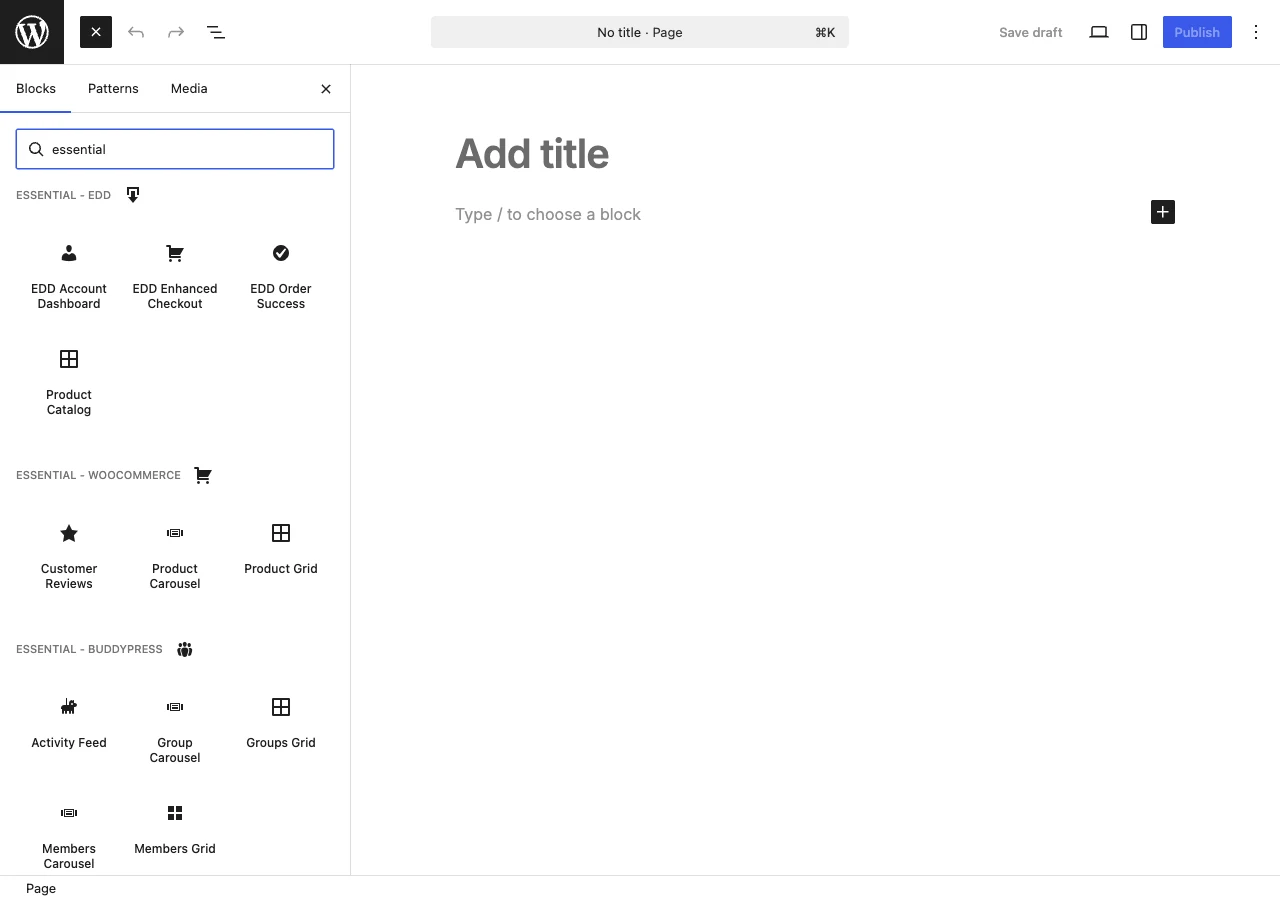
Open the block inserter and you will find all 31 Gutenberg blocks grouped into 7 categories, so the block you want is easy to spot. Here is the full catalog.
Marketing (7)
- Hero Section - a full-width headline, subtext, and call-to-action band for the top of a page.
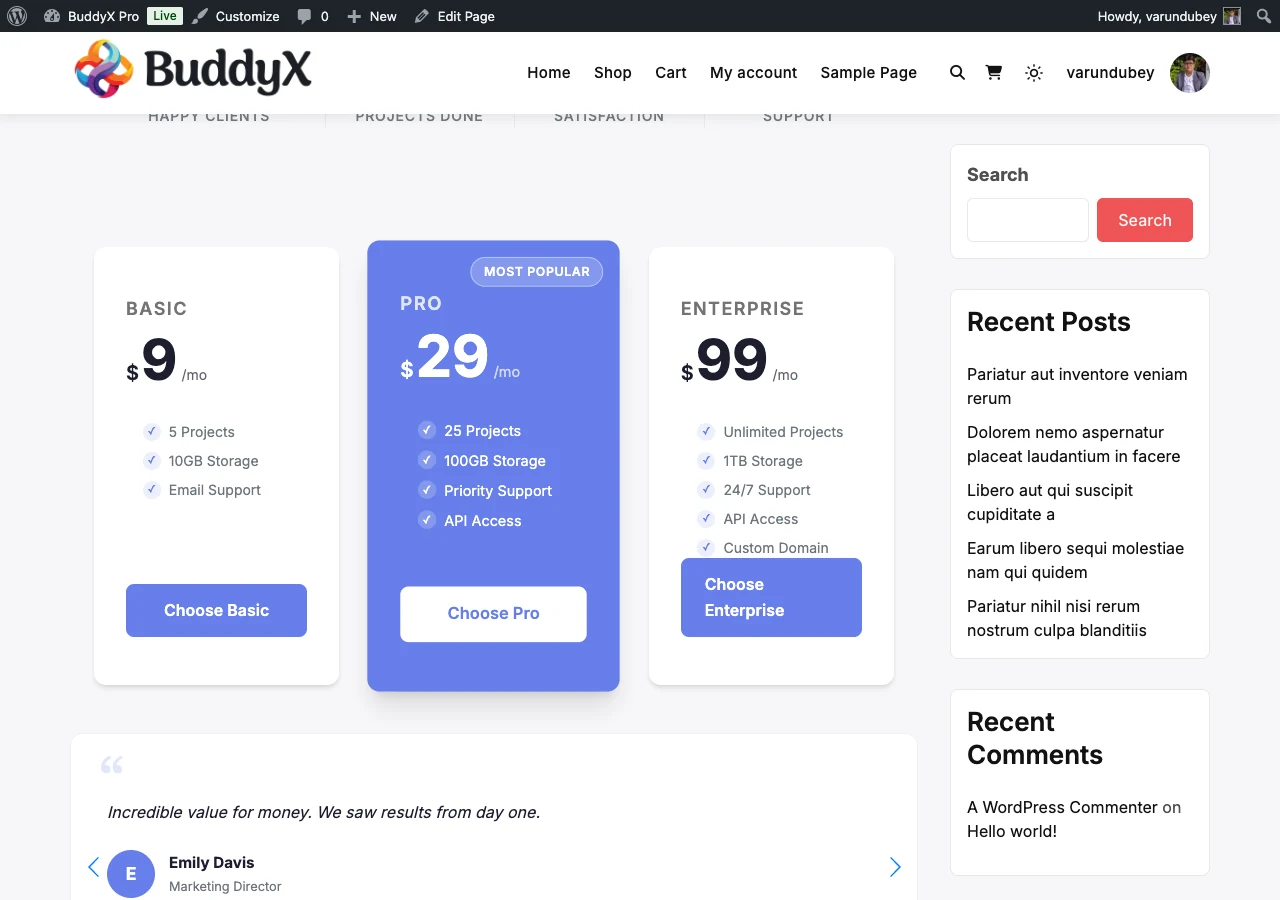
- Pricing Table - side-by-side plan columns with features and a buy button.
- CTA Section - a focused call-to-action row to drive sign-ups or clicks.
- Feature Grid - icon-and-text cells that lay out your product's key features.
- Countdown Timer - a live countdown for launches, sales, or events.
- Promo Banner - a compact promotional strip for offers or announcements.
- Testimonial Carousel - rotating customer quotes with names and avatars.
BuddyPress (5)
- Members Grid - a grid of community members pulled from BuddyPress.
- Members Carousel - the same members in a rotating slider.
- Groups Grid - a grid of your BuddyPress groups.
- Group Carousel - groups shown as a sliding carousel.
- Activity Feed - a live stream of community activity on any page.
Content (5)
- FAQ Accordion - expandable question-and-answer rows.
- Tabs - tabbed panels for organizing content in a small space.
- Timeline - a vertical, dated sequence of milestones or steps.
- Portfolio Grid - a filterable grid for showcasing work or projects.
- Login Form - a styled front-end login form you can place anywhere.
Design (4)
- Flip Box - a card that flips on hover to reveal more detail.
- Progress Bar - an animated bar for skills, stats, or completion.
- Stats Counter - numbers that count up as they scroll into view.
- Text Rotator - a headline where one word cycles through alternatives.
Blog (3)
- Category Grid - a visual grid of your post categories.
- Post Carousel - recent or selected posts in a sliding carousel.
- Posts Ticker - a scrolling headline ticker of latest posts.
WooCommerce (3)
- Product Grid - a grid of WooCommerce products with add-to-cart.
- Product Carousel - products shown as a rotating slider.
- Customer Reviews - a showcase of your store's product reviews.
EDD (4)
- Product Catalog - a browsable grid of Easy Digital Downloads products.
- EDD Enhanced Checkout - a cleaner, styled checkout for digital sales.
- EDD Account Dashboard - a customer-facing dashboard for purchases and downloads.
- EDD Order Success - a polished order-confirmation screen after a purchase.
Every one of these blocks auto-inherits your BuddyX colors, so it matches the rest of your site the moment you drop it in - no per-block restyling. Each also carries the same 3-breakpoint responsive controls, so you can adjust desktop, tablet, and mobile independently.
Note: The WooCommerce blocks appear only when WooCommerce is active, and the EDD blocks appear only when Easy Digital Downloads is active. This conditional loading keeps the inserter tidy and your pages light - you never load code for a store you are not running.
What the blocks look like
Here is a single page built entirely from Wbcom Essential blocks - hero, feature grid, stats counter, pricing table, testimonials, FAQ, call-to-action, countdown, text rotator, flip box, tabs, timeline, progress bars, and a promo banner - every one of them picking up the BuddyX theme colors automatically:
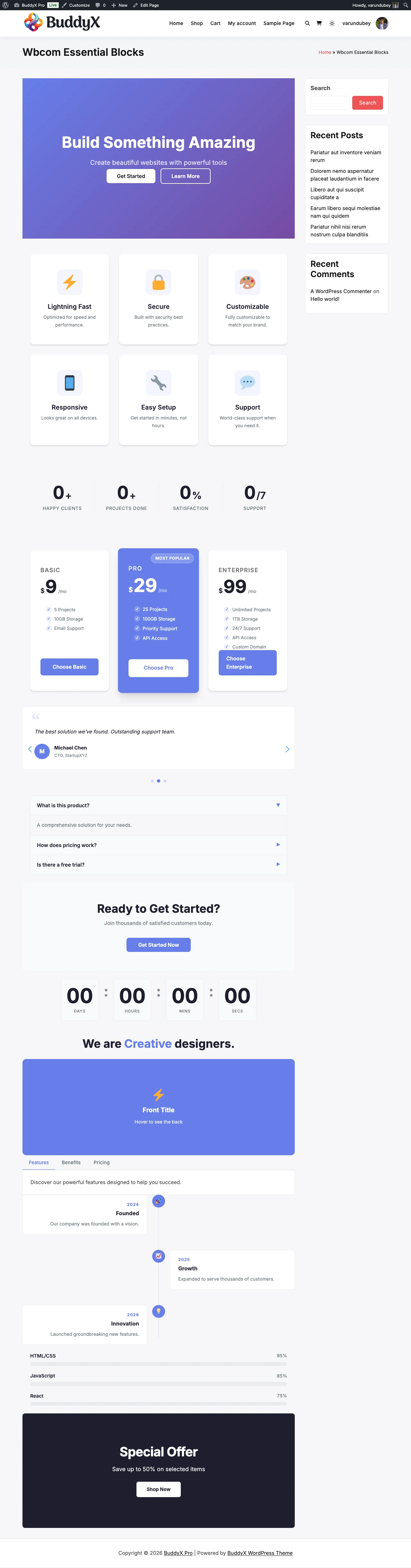
Each block ships with sensible default content, so it renders complete the moment you add it - no blank-slate setup. Here is the pricing table block on its own:
How to install
You can install Wbcom Essential the same way you would any WordPress plugin. Pick whichever route is easier for you.
Option A - search from your dashboard
- Go to Plugins -> Add New.
- Search for Wbcom Essential.
- Click Install Now, then Activate.
Option B - download and upload
- Download the plugin from wbcomdesigns.com/downloads/wbcom-essential/.
- Go to Plugins -> Add New -> Upload Plugin and choose the zip file.
- Click Install Now, then Activate.
That is the whole setup. There is no license key to enter and no configuration screen you have to visit first - the blocks are available the moment the plugin is active. For where Wbcom Essential sits in the wider in-house lineup, see Plugin family.
Using the blocks
- Open any page or post and click the editor's block inserter (the + button).
- Scroll to the Wbcom Essential category, or type a block name into the search box.
- Click a block to drop it into your page.
- Select the block and use the right-hand settings panel to adjust content, layout, and the 3-breakpoint responsive controls.
- Prefer a pre-built section? Open the Patterns tab in the inserter and insert a complete, ready-styled layout you can edit in place.
Because the blocks inherit your BuddyX colors, a page you build this way already looks like the rest of your site. Publish when it looks right, then check it on mobile - the responsive controls let you fix anything that needs a different treatment on smaller screens.
Related
- Choose your path - decide what to build and which in-house product fits
- Plugin family - the full in-house lineup of free and Pro products
- Color scheme - set the theme colors that Wbcom Essential blocks inherit
- Quick Start - first-time theme setup
Next: Color scheme - set your colors once so every block you add matches your brand.