
Single Post Layout
Pro featureCustomize how individual blog posts appear when visitors click to read them. Control the header design, featured image placement, author information, and related content.
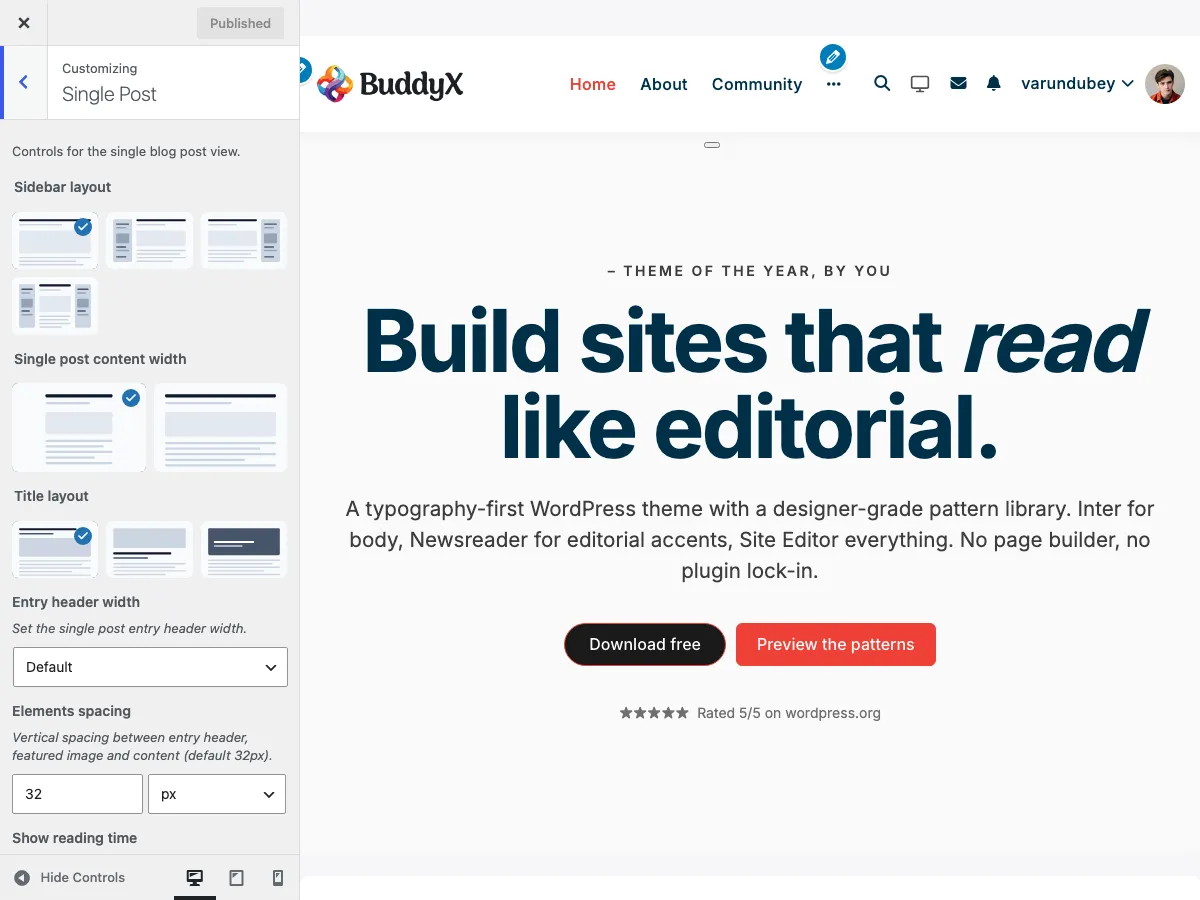
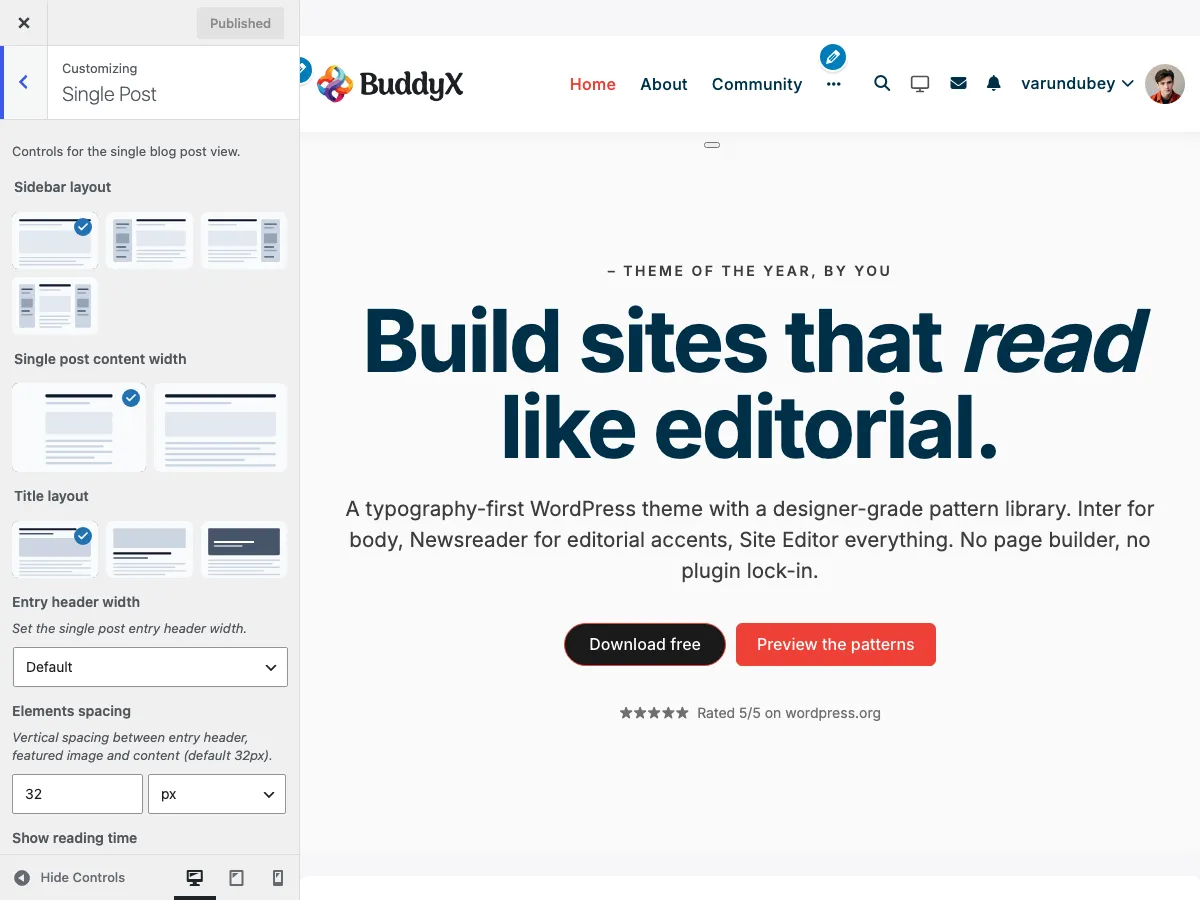
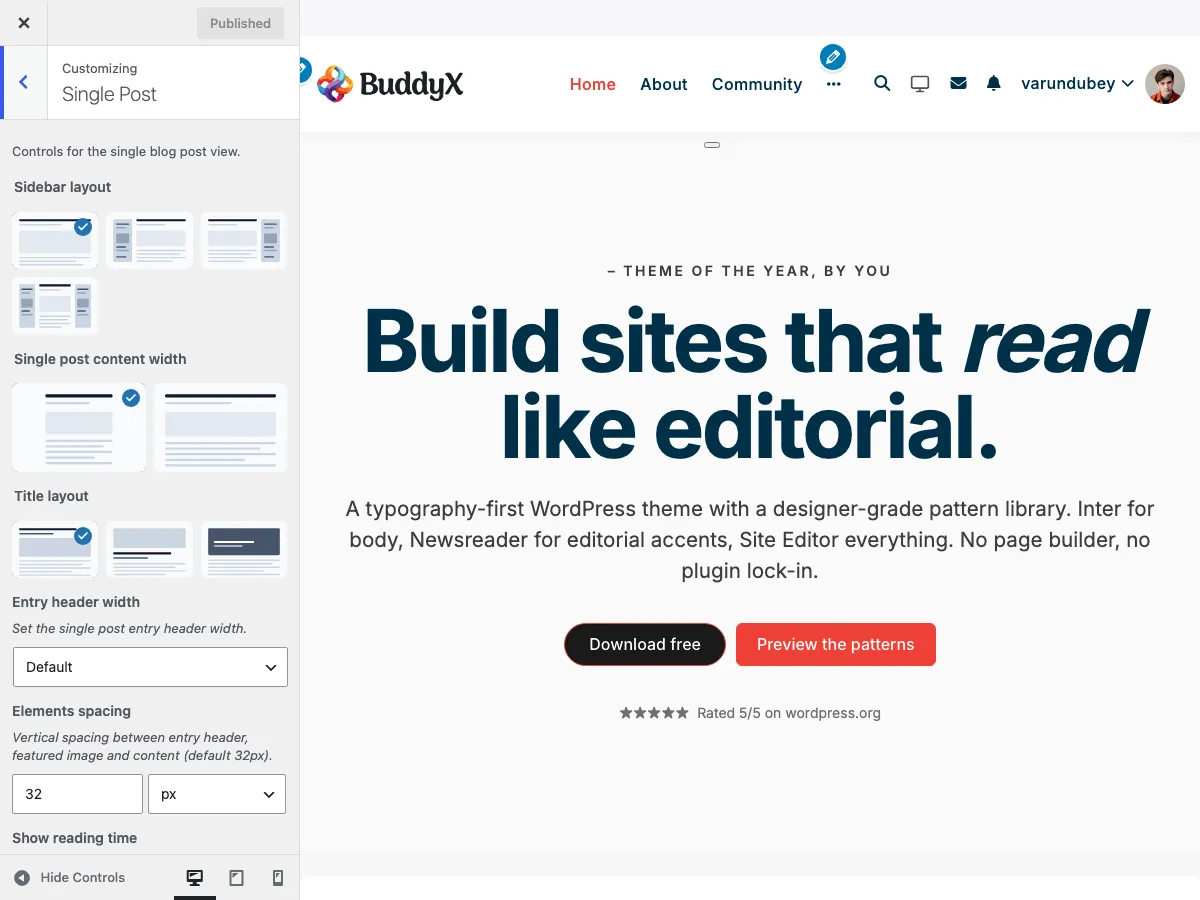
 The Single Post panel in the WordPress Customizer showing title layout, width, spacing, and element options
What You Can Do
With BuddyX Pro's single post settings, you can:
- Choose from 3 title and image layouts
- Set content width for optimal reading
- Set the sidebar for single posts
- Set the entry header width and featured image height
- Set the vertical spacing between header, image, and content
- Add an image overlay color for the title-over layout
- Show an auto-generated table of contents
- Show an estimated reading time
- Add a reading progress bar
- Display an author bio at the end of posts
- Show related posts to keep visitors engaged
- Configure post navigation (previous/next links)
- Add social sharing buttons
Accessing Single Post Settings
- Go to Appearance > Customize
- Click on Single Post (single-post controls moved out of the old Site Blog panel in 5.1.0)
Post Title Layouts
Choose how the post title and featured image appear at the top of your posts:
 Title Over Image layout - title overlaid on featured image with dark overlay
 Title Above Image layout - traditional style with title, then featured image below
Available Layouts
Setting: Title layout (single_post_title_layout)
Default: Title Above Image (buddyx-section-title-above)
There are three positions only. (A fourth "Half & Half" option existed before 5.1.0 but was removed - it relied on an undefined color token and did not read well on most posts. Posts that had it saved fall back to the default Title Above Image position.)
| Layout | Key | Description | Best For |
|---|---|---|---|
| Title Above Image (default) | buddyx-section-title-above |
Traditional: title, then featured image below | Classic blogs, clean reading |
| Title Below Image | buddyx-section-title-below |
Featured image first, title underneath | Image-focused content, portfolios |
| Title Over Image | buddyx-section-title-over |
Title overlaid on featured image with an overlay color | Hero-style posts, dramatic effect |
Layout Previews
Title Over Image:
┌─────────────────────────────────────┐
│    ┌───────────────────────────┐   │
│    │                           │   │
│    │   [Featured Image with    │   │
│    │    overlay color]         │   │
│    │                           │   │
│    │   Post Title in White     │   │
│    │   Written by Author | Date│   │
│    │                           │   │
│    └───────────────────────────┘   │
│                                     │
│  Post content starts here...        │
└─────────────────────────────────────┘
Title Above Image:
┌─────────────────────────────────────┐
│                                     │
│        Post Title in Large Text     │
│        Written by Author | Date     │
│                                     │
│    ┌───────────────────────────┐   │
│    │                           │   │
│    │    Featured Image         │   │
│    │                           │   │
│    └───────────────────────────┘   │
│                                     │
│  Post content starts here...        │
└─────────────────────────────────────┘
Title Below Image:
┌─────────────────────────────────────┐
│    ┌───────────────────────────┐   │
│    │                           │   │
│    │    Featured Image         │   │
│    │                           │   │
│    └───────────────────────────┘   │
│                                     │
│        Post Title in Large Text     │
│        Written by Author | Date     │
│                                     │
│  Post content starts here...        │
└─────────────────────────────────────┘
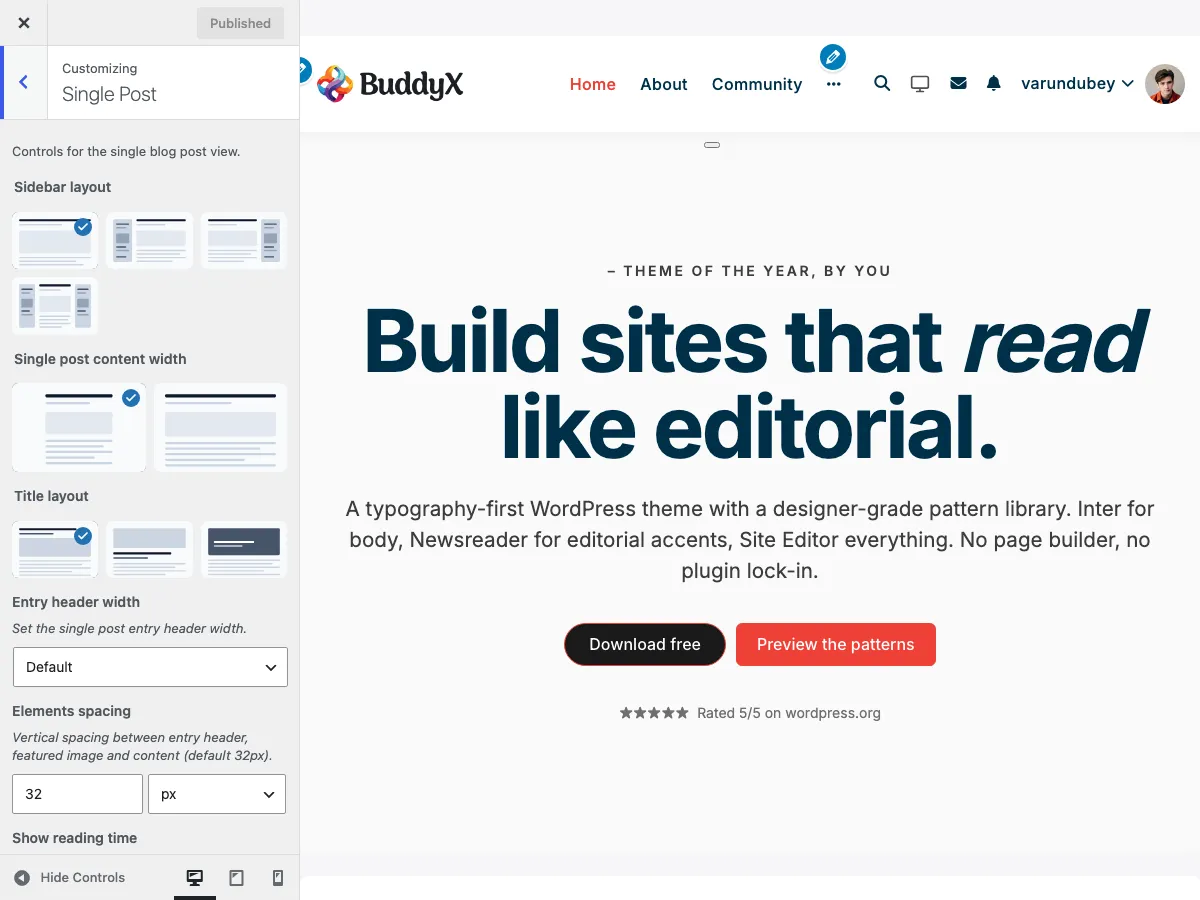 Single post layout customizer settings showing width, spacing, and element options
Sidebar Layout
Choose the sidebar arrangement for single posts. In 5.1.0 this control moved into the Single Post section so all single-post options live together.
Setting: Sidebar layout (single_post_sidebar_option)
Location: Appearance > Customize > Single Post
Default: Inherits your global sidebar setting
| Option | Effect |
|---|---|
| None | Full-width post, no sidebar (best for immersive reading) |
| Left | Sidebar to the left of the content |
| Right | Sidebar to the right of the content |
| Both | Sidebar on both sides |
Because the default mirrors your effective global sidebar, the control shows the same selection your posts already use - so picking None (or any other value) is a real, savable change rather than a no-op. See Sidebar Options for the global setting this overrides.
Content Width Settings
Control how wide the post content appears (single_post_content_width, default Small):
| Setting | Width | Description | Best For |
|---|---|---|---|
| Small | ~700px | Narrower content area | Long-form reading, text-heavy posts |
| Large | ~1200px | Wider content area | Visual content, galleries, wide images |
Reading Tip: Small width provides optimal line length (50-75 characters per line) for comfortable reading. This is recommended for most text-based blogs.
When to Use Each Width
Use Small Width For:
- Text-focused articles
- Long-form storytelling
- Professional blogs
- News articles
- Tutorial content
Use Large Width For:
- Image galleries
- Portfolio posts
- Video-heavy content
- Wide charts/diagrams
- E-commerce product showcases
Title Over Image Options
When you select Title Over Image layout, additional settings appear:
Image Overlay Color
Setting: Image overlay color (buddyx_section_title_over_overlay)
Default: rgba(0, 0, 0, 0.1) (black at 10% opacity)
Purpose: Makes white text readable over photos
Recommendations:
| Overlay Color | Best For | Example |
|---|---|---|
| Dark gray/black | Light-colored images | rgba(0, 0, 0, 0.4) |
| Navy blue | Warm-toned images | rgba(20, 30, 60, 0.5) |
| Dark purple | Vibrant images | rgba(50, 20, 70, 0.4) |
| Gradient | All images | Custom CSS required |
Opacity Guide:
- 10-20%: Subtle tint, image clearly visible
- 30-50%: Balanced, good text contrast
- 60-80%: Heavy overlay, focus on text
- 90-100%: Almost solid color
Entry Header Settings
Header Width
Setting: Entry header width (single_post_entry_header_width)
Default: Default
Options:
| Option | Description | Best For |
|---|---|---|
| Default | Header matches content width | Consistent, clean design |
| Full Width | Header spans entire container | Dramatic, hero-style headers |
Featured Image Height (Full Width Only)
When the entry header width is set to Full, you can set the featured image height.
Setting: Featured image height (single_post_featued_image_height)
Default: 500px
Value: any CSS length (a dimension field - enter a value such as 500px)
Applies to: Desktop screens (min-width 768px), and only when Entry header width is Full
Height Recommendations:
| Content Type | Suggested Height | Why |
|---|---|---|
| Standard blog posts | 400-500px | Balanced, not overwhelming |
| Portfolio/visual | 600-700px | Showcases imagery |
| News articles | 350-450px | Quick to scroll past |
| Landing page style | 700-800px | Maximum impact |
The setting key preserves a legacy spelling (single_post_featued_image_height) so upgrading sites keep their saved value.
Element Spacing
Setting: Elements spacing (single_post_elements_spacing)
Default: 32px
Value: any CSS length (a dimension field - enter a value such as 32px)
Controls vertical space between:
- Entry header (title/meta)
- Featured image
- Post content
Spacing Guide:
| Space | Effect | Best For |
|---|---|---|
| 16-24px | Tight, compact | Mobile-first, news sites |
| 28-40px | Comfortable, standard | Most blogs, balanced design |
| 48-80px | Spacious, airy | Luxury, minimalist, portfolio |
Table of Contents
Show an auto-generated "On this page" navigation at the top of each long post so readers can jump to a heading.
Setting: Show table of contents (single_post_toc)
Default: Off
Options: Yes / No
How it works
- The TOC scans the post's H2 and H3 headings and links to each.
- Posts with fewer than two headings are skipped automatically (a one-link TOC is just noise).
- H2 headings number sequentially (1, 2, 3...). H3 headings indent under their parent H2 as a nested alpha list (a, b, c...).
- The TOC sits at the very top of the rendered content, above the first paragraph.
- Anchor IDs are slug-cased from the heading text and are stable, so external links to
#some-headingkeep working across content edits as long as you don't rename the heading.
Best for
- Long-form guides and tutorials (1500+ words, 4+ headings)
- Documentation and reference articles
- Multi-section how-tos where the reader may want to jump straight to one step
Skip it for
- Short posts (under 800 words)
- News / opinion posts where readers should scroll the whole thing
- Posts with no headings (the TOC won't render anyway, but the panel toggle is wasted in the customizer)
Style notes
The TOC uses neutral surfaces from the active color mode (--bx-color-bg-muted border, --bx-color-link link colour). No standalone color controls - it inherits Site Skin and Border Radius.
Reading Progress Bar
Add a visual indicator showing how much of the post has been read:
Setting: Reading progress bar (single_post_progressbar)
Default: On
Options: Yes / No
How It Works
- Thin bar appears at top of screen
- Fills from left to right as visitor scrolls
- Reaches 100% at end of post content
- Encourages completion
Benefits:
- Shows reading progress visually
- Increases engagement
- Encourages visitors to finish reading
- Modern UX feature
- Minimal performance impact
Best For:
- Long-form content (1000+ words)
- Tutorial and guide posts
- Story-driven content
- Educational articles
Consider Disabling For:
- Very short posts (under 500 words)
- Minimal, distraction-free design
- Sites where it conflicts with header design
Author Bio Section
Display author information at the end of each post:
Setting: Show author bio (single_post_show_author_bio)
Default: No (off)
Options: Yes / No
New in 5.1.0 and off by default, so existing sites render unchanged until you turn it on.
What's Included
When enabled, displays:
- Author avatar
- Author name (linked to archive)
- Author biographical info (from user profile)
- Author social links (if configured)
- Link to view all author posts
Configuring Author Info
- Go to Users > Your Profile
- Fill out Biographical Info
- Add social profile URLs
- Upload profile picture
- Click Update Profile
Bio Writing Tips:
- Keep it 2-3 sentences
- Mention expertise/credentials
- Include a call-to-action
- Update regularly
Example: "Sarah Johnson is a WordPress developer with 10 years of experience. She specializes in building community-driven websites and shares tips weekly on this blog."
Related Posts
Keep visitors engaged by showing similar content:
 Social sharing buttons and related posts section at the bottom of single posts
Setting: Show related posts (single_post_related_posts)
Default: Off
Options: Yes / No
Related Posts Title
Setting: Related posts title (single_post_related_posts_title)
Default: "You may also like"
Visible when: Related Posts is enabled
Alternative Titles:
- "Related Articles"
- "Continue Reading"
- "More from this Category"
- "What to Read Next"
- "Similar Posts"
- "Keep Exploring"
How Related Posts Are Selected
WordPress shows related posts based on:
- Same categories (highest priority)
- Same tags
- Recent posts (if no matches)
Display Format
Related posts typically show:
- Thumbnail image
- Post title
- Post date
- Brief excerpt (optional)
Number of Posts Shown: 3 (standard)
Post Navigation
Help visitors discover more content with previous/next links:
Setting: Show post navigation (single_post_navigation)
Default: On
Options: Yes / No
Navigation Styles
Previous Post ← | → Next Post
- Simple text links
- Appears at bottom of post
- Shows adjacent posts by date
Advanced Navigation (if enabled in theme):
- Post thumbnails
- Post titles
- Category/tag based navigation
Social Sharing Buttons
Let visitors share your posts on social media:
Setting: Show social box (single_post_social_box)
Default: On
Options: Yes / No
Available Platforms
Setting: Social networks (single_post_social_link, sortable list)
Default enabled: Facebook, Twitter, Pinterest, LinkedIn, WhatsApp
Customization:
- Drag to reorder platforms
- Uncheck to hide specific platforms
- Checked items appear in your order
Platform Descriptions
| Platform | Best For | Share Format |
|---|---|---|
| General content | Link with image/title | |
| News, quotes | Text + link (280 chars) | |
| Visual content | Image + description | |
| Professional content | Article preview | |
| Mobile sharing | Direct message with link |
Share Button Placement
Position: Below post content, above comments Style: Icon buttons or text links (theme dependent) Mobile: Often combined into single "Share" button
Comments Section
Comments appear after post content (WordPress core feature):
Comment Display Settings
Access via Settings > Discussion:
| Setting | Description | Recommended |
|---|---|---|
| Allow comments | Enable/disable comments | On |
| Require name/email | Mandatory fields | On |
| Comment moderation | Manual approval | On for new sites |
| Comment registration | Must be logged in | Off (reduces engagement) |
Comment Pagination
For posts with many comments:
- Break comments into pages: Yes
- Comments per page: 50
- Show newer/older: Newer first
Recommended Single Post Layouts by Site Type
Magazine / News Site
Title Layout: Title Above Image (traditional) Content Width: Small (readability focus) Progress Bar: Yes Author Bio: Yes Related Posts: Yes (high engagement) Social Sharing: All platforms Best for: High-volume news, current events
Personal Blog
Title Layout: Title Over Image (visual impact) Content Width: Small (comfortable reading) Progress Bar: Yes Author Bio: Yes (personal connection) Related Posts: Yes (extend visit time) Social Sharing: Facebook, Twitter, Pinterest Best for: Lifestyle, travel, personal stories
Corporate Blog
Title Layout: Title Above Image (professional) Content Width: Small (focused reading) Progress Bar: Optional Author Bio: Yes (establish authority) Related Posts: Yes (thought leadership) Social Sharing: LinkedIn, Twitter, Facebook Best for: Business insights, industry news
Portfolio / Photography
Title Layout: Title Below Image (image-first) Content Width: Large (showcase visuals) Progress Bar: No (minimal distraction) Author Bio: Optional Related Posts: Yes (portfolio browsing) Social Sharing: Pinterest, Instagram (if available) Best for: Visual showcases, project case studies
Tutorial / Educational Site
Title Layout: Title Above Image (clear structure) Content Width: Large (code blocks, screenshots) Progress Bar: Yes (encourages completion) Author Bio: Yes (instructor credentials) Related Posts: Yes (lesson series) Social Sharing: Twitter, LinkedIn, Pinterest Best for: How-to guides, courses, documentation
Common Questions
Can I use different layouts for different posts?
Not directly through customizer (applies to all posts), but you can:
- Use a page builder plugin for specific posts
- Add custom CSS targeting specific post IDs
- Create custom post templates in a child theme
- Use categories with category-specific templates
The title is hard to read over my featured image.
For Title Over Image layout:
- Increase overlay opacity (try 0.5 or higher)
- Use darker overlay color
- Choose darker featured images
- Switch to Title Above Image layout
How do I disable the featured image on single posts?
- Option 1: Don't set a featured image on that post
- Option 2: Use custom CSS:
.single-post .entry-header img { display: none; } - Option 3: Use a plugin like "Hide Featured Image"
My related posts aren't showing.
Check these:
- Setting is enabled: Customizer > Blog > Related Posts = Yes
- Posts have categories/tags: Related posts need common taxonomy
- Enough published posts: Need at least 4-5 posts total
- Cache cleared: Clear site cache and refresh
Can I show author bio only on certain posts?
Requires custom code. Options:
- Use a plugin like "Author Bio Box"
- Add conditional logic in child theme
- Use post meta boxes to control per-post
Social sharing buttons aren't appearing.
Check:
- Setting enabled: Customizer > Blog > Show Social Box = Yes
- At least one platform selected: Check the platforms list
- JavaScript enabled: Social features require JS
- No conflicts: Disable other social sharing plugins
- Cache cleared: Clear cache and test
How do I change the social sharing button design?
Styling is theme-controlled. To customize:
- Add custom CSS in Customizer > Additional CSS
- Use a child theme to override styles
- Install a dedicated social sharing plugin for more options
The reading progress bar disappears on mobile.
This may be intentional design. To force it on mobile:
- Check customizer for mobile-specific settings
- Add custom CSS for mobile displays
- Contact support if it should appear but doesn't
Can I add more social platforms?
Default platforms are built into the theme. To add more:
- Use a plugin like "Social Warfare" or "AddToAny"
- Hire a developer to extend the theme
- Use a child theme to add custom share buttons
Performance Tips
Optimizing Single Posts
For Speed:
- Compress featured images before upload
- Use appropriate content width (less HTML/CSS rendering)
- Limit related posts to 3-4
- Lazy load images in post content
- Minimize social sharing platforms to essentials
For Engagement:
- Always include featured image
- Enable progress bar for long posts
- Show author bio (builds trust)
- Enable related posts
- Keep post navigation enabled
Image Recommendations
| Element | Size | Format | Max File Size |
|---|---|---|---|
| Featured image (default width) | 1200×675px | JPG | 150KB |
| Featured image (full width) | 1920×800px | JPG | 200KB |
| In-content images | 800-1200px wide | JPG/PNG | 100-150KB |
| Author avatar | 150×150px | JPG/PNG | 20KB |
Related Settings
- Blog Archive Layout - Configure blog listing pages
- Post Elements & Meta - Customize post information display
- Sidebar Options - Single post sidebar configuration
- Typography - Post text styling
- Color Scheme - Post color customization
Got a question? We're a friendly team - happy to help.
- Visit our Documentation Portal
- Email us at support@wbcomdesigns.com