
Password Reset Page
Pro featureThe lost-password and reset-password screens share the same branding as your login page, so members get one consistent, on-brand experience across the whole sign-in flow.
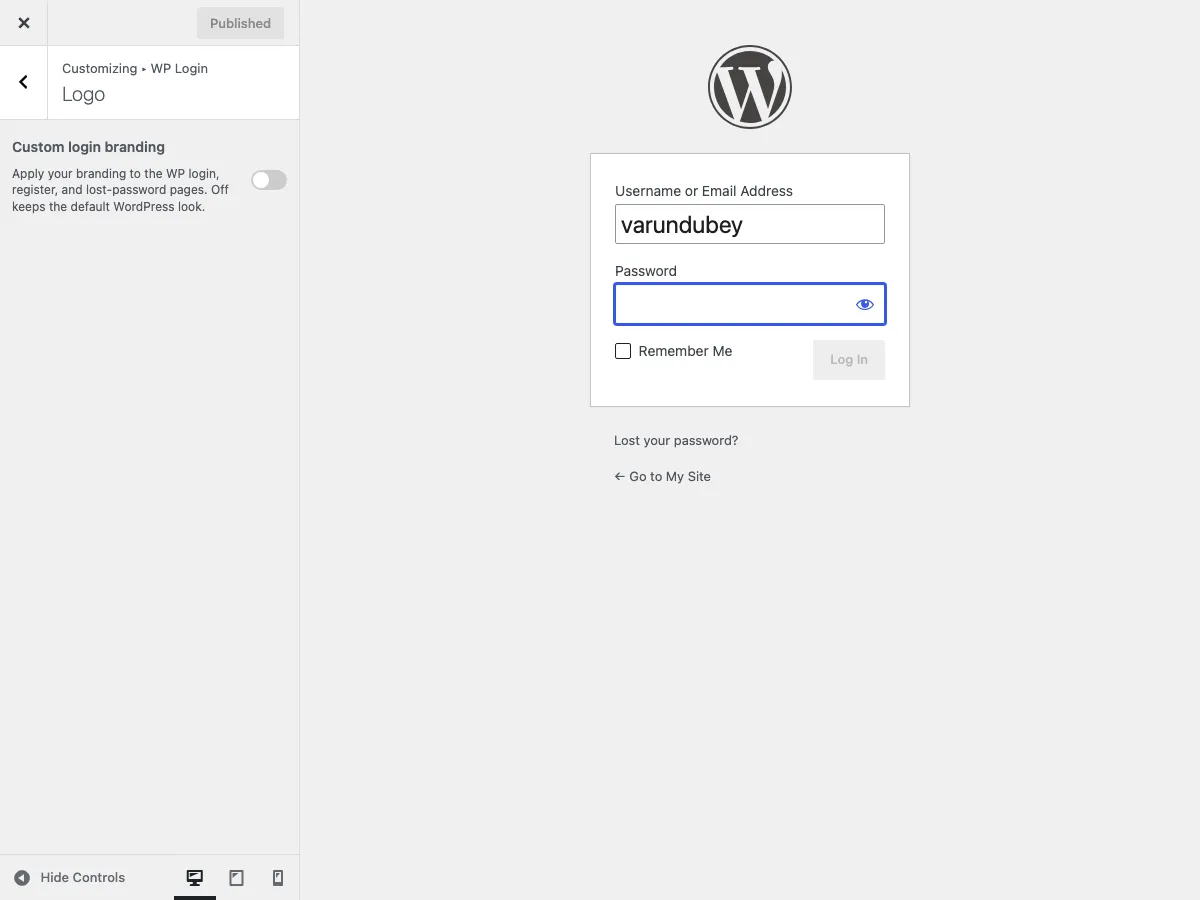 The lost-password screen inherits its branding from the WP Login > Logo preset controls - there is no separate reset-form settings group.
Overview
WordPress ships a built-in password reset flow. When members forget their password they request a reset link by email, click it, and set a new password. BuddyX Pro does not add a separate settings group for the reset screen - instead, the lost-password page (wp-login.php?action=lostpassword) and the reset-password page (wp-login.php?action=rp) automatically pick up the same login preset, brand color, background image, and logo you configured for the login page.
This is the real 5.1.0 architecture: one set of login-branding controls styles the login, lost-password, and register surfaces together. There is no "Forget Form" panel with its own background or transparency fields to configure.
How the reset screen is styled
The reset screens are served by wp-login.php, the same file as the main login page. Because BuddyX Pro adds its bx-login and bx-login-{preset} body classes and inline CSS to every wp-login.php request, the lost-password and reset-password forms are styled identically to the login form with no extra steps.
What controls it - the five login-branding controls under Appearance > Customize > WP Login > Logo:
| Control | Key | Effect on the reset screen |
|---|---|---|
| Custom login branding | enable_custom_login |
Master gate. Off keeps the default WordPress reset screen. |
| Layout | custom_login_preset |
Minimal, Brand left, Brand right, or Hero - the same preset the login page uses. |
| Brand color | custom_login_brand_color |
Colors the submit button, links, and focus rings on the reset form. |
| Background image | custom_login_background_image |
Fills the brand panel or hero backdrop (Brand left / right / Hero only). |
| Login logo override | custom_login_logo_image |
The logo above the reset form (falls back to Site Identity). |
You configure these once for the login page and the reset screen follows. See Login Page Branding and Login Presets for the control reference.
There is no per-screen override for the reset form. If you need the reset page to look different from the login page, use Additional CSS targeting the reset-specific body - see the CSS example below.
The user journey
- Member clicks Lost your password? on the login page.
- Enters a username or email on the lost-password form.
- Receives an email with a reset link.
- Clicks the link and lands on the reset-password form.
- Sets a new password and logs in.
Every branded screen in that journey (lost-password and reset-password) carries your login preset automatically.
Styling the reset screen differently (optional)
If you want the reset flow to look distinct from login, target the reset actions with Appearance > Customize > Additional CSS. WordPress adds body classes per action, and BuddyX Pro adds its preset classes alongside them:
/* Lost-password request screen */
body.login.bx-login[action] #login h1 a {
  /* your override */
}

/* Reset-password screen (after clicking the emailed link) */
body.login.bx-login.login-action-rp #loginform,
body.login.bx-login.login-action-resetpass #loginform {
  /* your override */
}
For most sites, keeping the reset screen identical to login is the right call - it reassures the member they are still on your site.
Password reset email
BuddyX Pro brands the reset screens; WordPress generates the reset email. To customize the email, use a plugin or a small code snippet.
Plugin options
- WP Mail SMTP - set the sender name and address, add a logo, deliver reliably.
- Email template plugins (for example Kadence WP) - visual HTML email designers.
- BuddyPress (if active) - Settings > BuddyPress > Emails customizes BuddyPress-related emails with tokens.
Code options
Change the subject:
add_filter( 'retrieve_password_title', function( $title, $user_login, $user_data ) {
  return sprintf( '[%s] Reset your password', get_bloginfo( 'name' ) );
}, 10, 3 );
Change the message body:
add_filter( 'retrieve_password_message', function( $message, $key, $user_login, $user_data ) {
  $reset_url = network_site_url( "wp-login.php?action=rp&key=$key&login=" . rawurlencode( $user_login ), 'login' );
  $out  = sprintf( __( 'Hello %s,', 'buddyxpro' ), $user_login ) . "\r\n\r\n";
  $out .= __( 'Someone requested a password reset for your account. If this was you, click the link below:', 'buddyxpro' ) . "\r\n\r\n";
  $out .= $reset_url . "\r\n\r\n";
  $out .= __( 'If you did not request this, please ignore this email.', 'buddyxpro' ) . "\r\n";
  return $out;
}, 10, 4 );
Adjust the link expiration (default 24 hours):
add_filter( 'password_reset_expiration', function() {
  return DAY_IN_SECONDS; // default. Use HOUR_IN_SECONDS * 2 for a tighter window.
} );
Security notes
WordPress password reset already includes solid protections:
- Unique, single-use keys - each reset link is unique and is invalidated after first use.
- Time expiration - links expire (24 hours by default).
- Generic responses - the request form does not reveal whether an account exists.
Harden further with:
- Two-factor authentication (Two-Factor, WP 2FA).
- Login-attempt limiting (Limit Login Attempts Reloaded).
- CAPTCHA on the lost-password form.
- Activity logging (WP Activity Log, Simple History) to watch for mass reset attempts.
Testing checklist
- Request a reset with a valid username, then a valid email.
- Confirm an invalid username/email shows the generic message.
- Confirm the email arrives and the link works.
- Set a new password and confirm the old one no longer works.
- Confirm a reused link is rejected.
- Verify the lost-password and reset screens show your login preset (logo, brand color, background).
- Check both screens in light and dark mode.
- Check on a 390px mobile viewport.
Common questions
Why don't I see separate password-reset settings?
Because there are none, by design. The reset screens share the login page's preset and brand controls under Appearance > Customize > WP Login > Logo. Configure the login page and the reset flow follows.
The reset screen is not branded. Why?
Confirm Custom login branding is on under WP Login > Logo and that you published. If a security plugin blocks or replaces /wp-login.php, it can also suppress the branding.
Users are not receiving reset emails.
This is an email-delivery issue, not a theme setting. Install and configure WP Mail SMTP, check spam folders, and confirm the user's email address. On some hosts you need a transactional email service (SendGrid, Mailgun).
Can I redirect users after a password reset?
Yes, with a snippet on login_redirect or by checking $_GET['password'] === 'changed'. This is WordPress-level behavior, independent of the theme.
Related Settings
- Login Page Branding - the controls the reset screen inherits
- Login Presets - the four presets and five controls
- Registration Page Branding - the register surface, also preset-driven
- Sign-in Popup - open login and registration in a modal instead
Support
Need help with the password reset flow?
- Documentation: BuddyX Pro Documentation
- Theme Support: Support Portal
- Email: support@wbcomdesigns.com
Before contacting support, confirm your login branding is on and published, and test email delivery with a plugin like WP Mail SMTP.