
Page Mapping
Pro featurePage Mapping lets you redirect users to custom pages for important site functions like login, registration, and 404 errors. Instead of WordPress defaults, you can create branded, customized pages for these experiences.
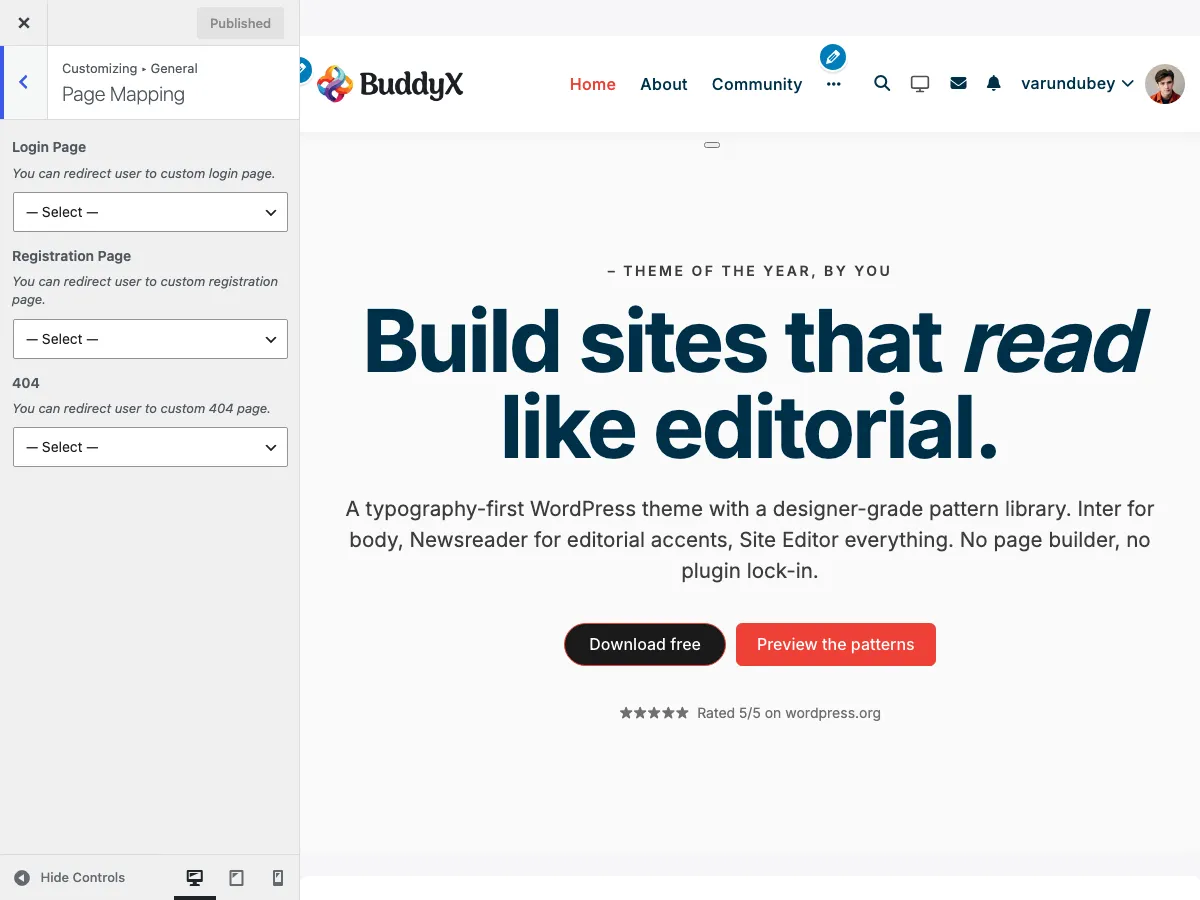 Page mapping configuration for login, registration, and 404 pages
What You Can Do
With BuddyX Pro's page mapping feature, you can:
- Redirect login to a custom page with your branding
- Send new users to a custom registration page
- Create a helpful 404 error page with navigation
- Use page builders (Elementor, etc.) for these pages
- Control the exact user experience for these key moments
- Integrate forms from plugins (WPForms, Contact Form 7, etc.)
Why Use Page Mapping?
Default WordPress Pages:
- Basic, unstyled forms
- Limited customization options
- No branding or design control
- Generic error messages
Custom Mapped Pages:
- Full design freedom
- Match your brand identity
- Add helpful content and CTAs
- Use page builders
- Include videos, images, testimonials
- Track conversions with analytics
Available Page Mappings
Login Page
Redirect users to a custom login page instead of the default wp-login.php.
Location: Appearance > Customize > General > Page Mapping
Steps:
First, create your custom login page:
- Go to Pages > Add New
- Title it "Login" or "Sign In"
- Add a login form using:
- BuddyPress login widget
- WPForms user login form
- Ultimate Member shortcode
- Custom login shortcode
- Design the page to match your brand
- Publish the page
Then map the page:
- Go to Appearance > Customize
- Click General > Page Mapping
- Find Login Page dropdown
- Select your custom login page
- Click Publish
Now when users try to access wp-login.php or click login links, they'll be redirected to your custom page.
Common Login Forms:
| Plugin/Feature | Shortcode |
|---|---|
| BuddyPress | Use Login widget or [bp-login] |
| WPForms | [wpforms id="123"] (User Login form) |
| Ultimate Member | [ultimatemember form_id="123"] |
| Custom HTML | Build your own form with styling |
Registration Page
Redirect new users to a custom registration page instead of default WordPress registration.
Steps:
Create your registration page:
- Go to Pages > Add New
- Title it "Register" or "Sign Up"
- Add registration form using:
- BuddyPress registration (if enabled)
- WPForms user registration form
- Ultimate Member registration
- Custom registration form
- Add welcome message, benefits, testimonials
- Publish the page
Map the registration page:
- Go to Appearance > Customize
- Click General > Page Mapping
- Find Registration Page dropdown
- Select your custom registration page
- Click Publish
Registration Form Options:
| Feature | How to Add |
|---|---|
| BuddyPress | Enable registration in Settings > BuddyPress > Settings |
| WPForms | Create User Registration form with email confirmation |
| Ultimate Member | Use UM registration form |
| Gravity Forms | User Registration add-on |
404 Error Page
Create a helpful 404 page instead of the default "Page Not Found" message.
Steps:
Create your 404 page:
- Go to Pages > Add New
- Title it "404 - Page Not Found" (or similar)
- Add helpful content:
- Friendly error message
- Search bar
- Popular pages links
- Categories/tags navigation
- Contact information
- "Back to Home" button
- Publish the page
Map the 404 page:
- Go to Appearance > Customize
- Click General > Page Mapping
- Find 404 dropdown
- Select your custom 404 page
- Click Publish
Helpful 404 Page Elements:
┌──────────────────────────────────────┐
│  [Logo]                              │
│                                      │
│       Oops! Page Not Found           │
│                                      │
│  The page you're looking for         │
│  doesn't exist or has been moved.    │
│                                      │
│  [Search Box]                        │
│                                      │
│  Popular Pages:                      │
│  • Home                              │
│  • Shop                              │
│  • Blog                              │
│  • Contact                           │
│                                      │
│  [Back to Home Button]               │
└──────────────────────────────────────┘
Custom Page Setup Examples
Login Page with Page Builder
Using Elementor:
- Create new page: "Login"
- Edit with Elementor
- Add sections:
- Hero section with welcome message
- Login form widget (BuddyPress/WPForms)
- Benefits section
- Footer with "Need an account?" link
- Style to match brand colors
- Publish and map in Customizer
Layout:
┌─────────────────────────────────────┐
│       Welcome Back!                 │
│   Sign in to your account           │
│                                     │
│  [Email field]                      │
│  [Password field]                   │
│  ☑ Remember me    Forgot password? │
│                                     │
│  [Sign In Button]                   │
│                                     │
│  Don't have an account? Register    │
└─────────────────────────────────────┘
Registration Page with Social Proof
Content Structure:
Hero Section
- "Join Our Community"
- Brief value proposition
Registration Form
- Email, username, password fields
- Profile photo upload (BuddyPress)
- Terms acceptance checkbox
Benefits Section
- Member testimonials
- Feature highlights
- Trust badges
FAQ Section
- "Is registration free?" → Yes!
- "How long does it take?" → Under 2 minutes
- "What happens next?" → Welcome email + tour
404 Page with Personality
Content Ideas:
┌─────────────────────────────────────┐
│         🔍                          │
│                                     │
│    404 - Lost in Cyberspace?        │
│                                     │
│  This page went on vacation without │
│  telling us. Try these instead:     │
│                                     │
│  📌 Search our site:                │
│  [Search Box]                       │
│                                     │
│  🏠 Go to Homepage                  │
│  🛒 Browse Shop                     │
│  📰 Read Blog                       │
│  📧 Contact Us                      │
│                                     │
│  Need help? Live chat is available! │
└─────────────────────────────────────┘
Working with BuddyPress
If you have BuddyPress active, consider these approaches:
BuddyPress Has Built-In Pages
BuddyPress automatically creates:
- Member registration page
- Activation page
- Profile pages
- Activity page
When to Use Page Mapping with BuddyPress:
| Scenario | Recommendation |
|---|---|
| Custom login form | Map login to custom page with BuddyPress login widget |
| Enhanced registration | Keep BP registration, style with customizer |
| Custom 404 | Always beneficial to map custom 404 |
| Landing page style | Map registration to full landing page |
BuddyPress Login Popup
BuddyX Pro has a Sign-in Popup feature separate from page mapping:
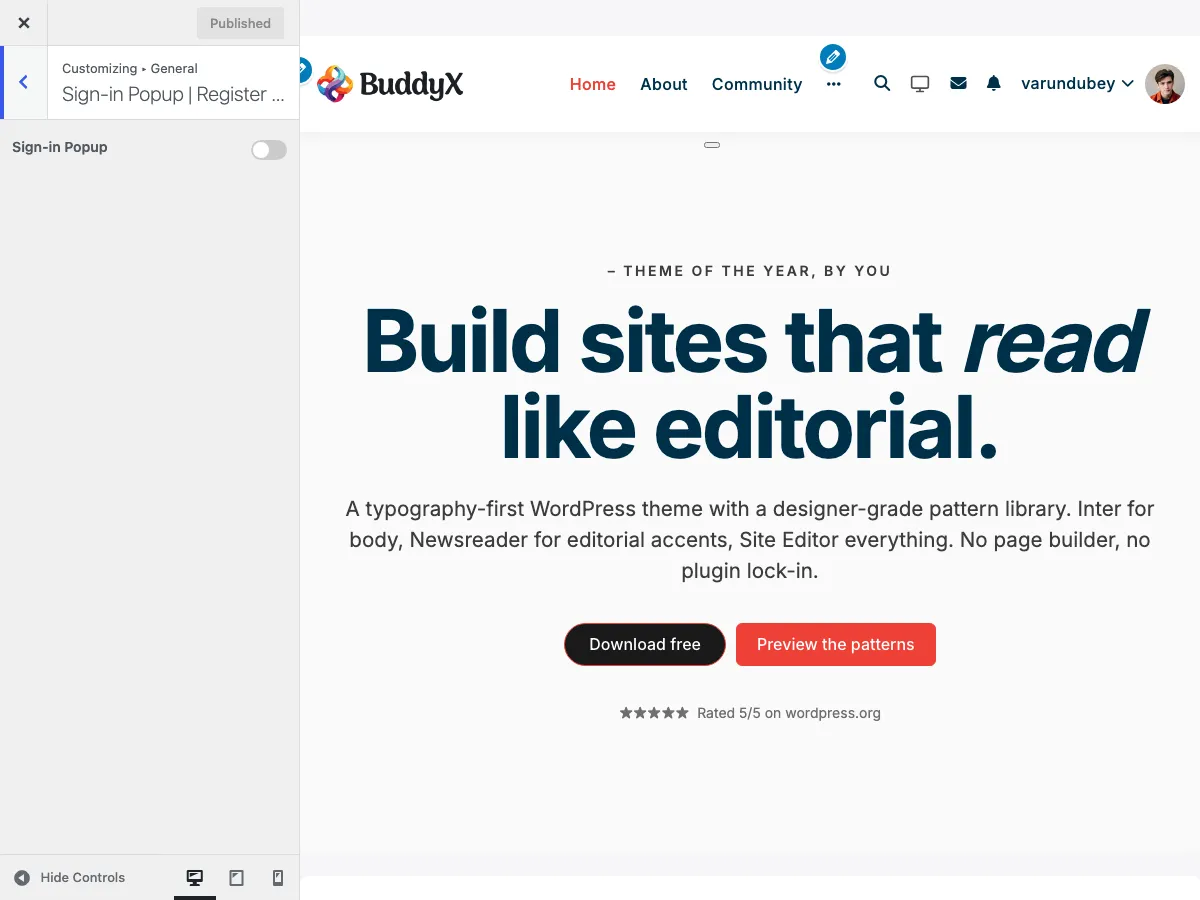 Sign-in popup customizer settings for modal login/registration experience
 Sign-in popup modal appearance on frontend
Location: Appearance > Customize > General > Sign-in Popup
This creates a modal popup for login/registration rather than redirecting to a page. Use either:
- Sign-in Popup for modal experience
- Page Mapping for full-page experience
Don't use both for the same purpose.
Recommended Setups by Site Type
E-Commerce Store
Login Page: Yes (custom with WooCommerce account benefits)
Registration Page: Yes (landing page style with discounts offer)
404 Page: Yes (with product search and popular categories)
Why: Capture leads during registration; help lost shoppers find products on 404.
Community Platform
Login Page: Optional (use BuddyPress popup instead)
Registration Page: Yes (showcase community benefits)
404 Page: Yes (suggest popular groups and activity)
Why: Registration needs strong value prop; 404 can reconnect users to community.
Blog / Magazine
Login Page: Optional (only if you have subscriber accounts)
Registration Page: Optional (for newsletter signup)
404 Page: Yes (search + popular posts)
Why: Blogs don't always need custom login; great 404 improves navigation.
Corporate Website
Login Page: Yes (professional branded page for employee/client login)
Registration Page: Yes (if offering client portal)
404 Page: Yes (professional with contact options)
Why: Maintain brand consistency; help visitors find information even on errors.
Membership Site
Login Page: Yes (upsell features and benefits)
Registration Page: Yes (landing page with pricing tiers)
404 Page: Yes (guide to member resources)
Why: Every touchpoint is a conversion opportunity; help members navigate.
Educational Platform
Login Page: Yes (student login with course previews)
Registration Page: Yes (showcase courses and instructors)
404 Page: Yes (course search and support links)
Why: Encourage enrollment; help students find courses on 404.
Testing Your Mapped Pages
After mapping pages, test thoroughly:
| Test | How to Check |
|---|---|
| Login redirect | Visit yoursite.com/wp-login.php |
| Logout redirect | Log out and see where you land |
| Registration works | Try registering a test account |
| 404 displays | Visit yoursite.com/fake-page-xyz |
| Forms function | Submit all forms to verify they work |
| Mobile responsive | Test on phone and tablet |
Troubleshooting
Redirect Loop on Login
Cause: Login page requires login to view.
Solution: Make sure your custom login page is set to Public and doesn't require authentication.
Registration Form Not Submitting
Cause: Form plugin conflict or missing shortcode.
Solution:
- Verify form shortcode is correct
- Check form plugin is active
- Test form on a regular page first
- Check browser console for JavaScript errors
404 Page Shows Default Template
Cause: Mapping not saved or cache issue.
Solution:
- Re-save Customizer settings
- Clear all caches (plugin, browser, CDN)
- Check if page is published (not draft)
Page Mapping Dropdown Is Empty
Cause: No published pages available.
Solution: Create and publish at least one page before trying to map it.
Security Considerations
| Best Practice | Why |
|---|---|
| Use CAPTCHA | Prevent spam registrations |
| Enable SSL (HTTPS) | Protect login credentials |
| Strong password requirements | Improve account security |
| Email verification | Confirm real email addresses |
| Rate limiting | Prevent brute force attacks |
Recommended Security Plugins:
- Wordfence
- iThemes Security
- All In One WP Security
Advanced Customization
Redirect After Login
Control where users go after successful login:
Location: Appearance > Customize > General > Sign-in Popup
Options:
- Current page
- Profile page
- Activity page
- Custom URL
Custom Login URL Slug
Change wp-login.php to a custom URL for security:
Use a plugin like:
- WPS Hide Login
- Perfmatters
- iThemes Security
Then map your custom slug to your custom page.
Common Questions
Can I use the same page for login and registration? Yes! Many forms support both in one page. WPForms and Ultimate Member have combined login/register forms.
What happens if I delete a mapped page? WordPress will revert to default behavior (standard wp-login.php or 404 template).
Can I have different login pages for different user roles? This requires custom code or specialized plugins. Default page mapping applies to all users.
Do I need to map all three pages? No. Map only the pages you want to customize. Others will use defaults.
Can I track conversions on my custom registration page? Yes! Add Google Analytics or Facebook Pixel to track registration completions.
Will page builders work on mapped pages? Yes! Elementor, Beaver Builder, and other page builders work perfectly for custom login/404 pages.
Can I use membership plugin pages? Yes. If you use Ultimate Member, MemberPress, or similar, you can map to their pages.
Related Settings
- Sign-in Popup - Alternative to page mapping
- WP Login Branding - Style default login page
- Header Settings - Header on custom pages
- Footer Settings - Footer on custom pages
Got a question? We're a friendly team - happy to help.
- Visit our Documentation Portal
- Email us at support@wbcomdesigns.com