
Site Blog
Free themeControl how your post list, archives, and single posts look - layout, tags, edit links, and the single-post header.
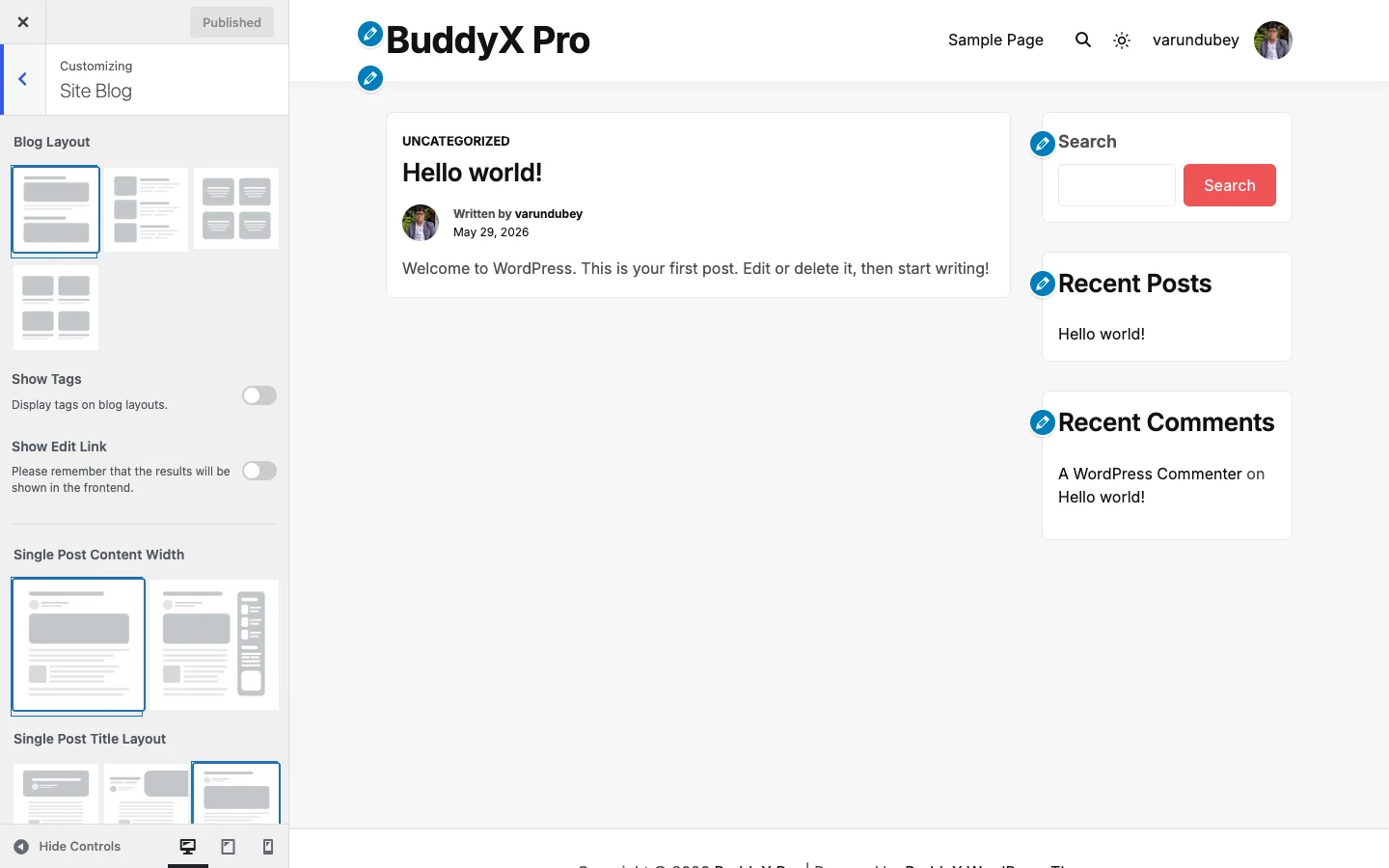
Open these controls at Appearance -> Customize -> Site Blog. The changes here affect two things: how your blog index and archive pages list posts, and how a single post displays its title and featured image.
Quick answer: if you just want a clean blog, leave everything on its default. The default layout with tags off and the "Above" single-post title reads well on any site. Come back and change it once you have a few posts published.
How the layout controls work together
The Blog Layout control is the parent. It has four options - Default, List, Grid, and Masonry - and each one reveals its own follow-up control right underneath it. You will only ever see the follow-up that matches the layout you picked:
- Pick List, and an Image position control appears (put the thumbnail on the Left or the Right).
- Pick Grid, and a Grid Columns control appears (One or Two).
- Pick Masonry, and both a View control and a Post Per Row control appear (Two or Three per row).
- Pick Default, and no extra control is needed.
So the table below lists every control in this section, but on screen you will only see the handful that apply to your chosen layout.
Settings
| Setting | Default | What it does |
|---|---|---|
| Blog Layout | Default | Chooses how posts are listed on the blog index and archives: Default, List, Grid, or Masonry. |
| Image position | Left | List layout only. Places the post thumbnail on the Left or Right of the excerpt. |
| Grid Columns | One | Grid layout only. Shows posts in One or Two columns. |
| View | Without Masonry | Masonry layout only. Turns the staggered masonry effect on (With Masonry) or off (Without Masonry). |
| Post Per Row | Two | Masonry layout only. Displays Two or Three posts per row. |
| Show Tags | Off | Displays the post's tags on the blog and archive layouts. |
| Tags Style | Default | Appears when Show Tags is on. Styles the tags as Default, Badge, or Underline. |
| Show Edit Link | Off | Shows a front-end "Edit" link on posts (visible to logged-in users who can edit). |
| Single Post Content Width | Small | Sets the reading width of a single post's content: Small (narrower, easier to read) or Large (full width). |
| Single Post Title Layout | Above | Positions the single-post title and featured image: Title Over image, Half, Above the image, or Below the image. |
| Image Overlay Color | rgba(0, 0, 0, 0.1) | Appears only when Single Post Title Layout is "Title Over image". Adds a semi-transparent color over the featured image so the title stays readable. Supports transparency (alpha). |
First-time tip: "Show Tags" and "Show Edit Link" are both off by default. Turn Show Tags on once you actually tag your posts, otherwise the control has nothing to display. The edit link only shows to users who can edit the post, so your visitors never see it.
The single-post title layouts
Single Post Title Layout decides where the post title sits relative to the featured image. "Title Over image" places the title on top of the image - that is the one case where Image Overlay Color matters, because you often need a dark overlay so white title text stays legible. The other three layouts (Half, Above, Below) put the title outside the image, so no overlay is needed and that control stays hidden.
Free vs Pro
BuddyX free gives you all four core blog layouts - Default, List, Grid, and Masonry - plus the Post Per Row control (Two or Three) on the masonry layout. That covers the large majority of blogs.
BuddyX Pro adds an extra blog layout style and finer post-per-row granularity on top of what free offers, for sites that want more control over how densely posts are packed. Plain Post Per Row already exists in free, so you are not blocked - Pro is only worth it if you have outgrown the built-in options. See BuddyX Pro.
Related
- Customizing overview
- Color scheme
- Dark mode
- First-time setup
Next: Color scheme - pick the one or two colors that carry your brand across the blog and the rest of the site.