
Sidebar Layouts
Pro featureBuddyX Pro lets you set a default sidebar position for the whole site and override it per content type (BuddyPress, WooCommerce, bbPress, LearnDash, LearnPress, LifterLMS). Every sidebar control offers the same four positions and a single global sticky toggle keeps sidebars in view while visitors scroll.
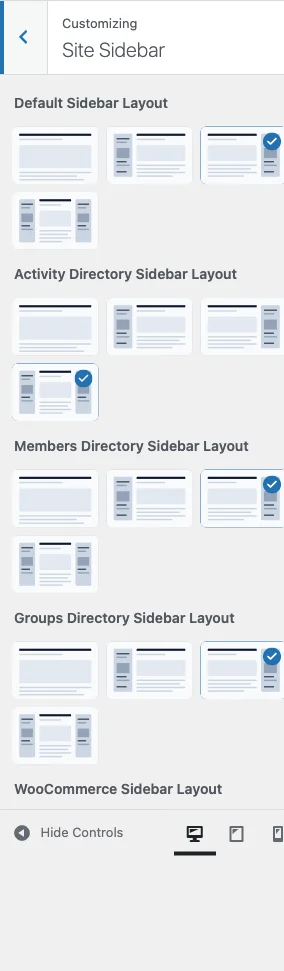 Sidebar layout configuration in the WordPress Customizer
Accessing Sidebar Settings
- Go to Appearance > Customize
- Open the Site Sidebar section
Default Sidebar Layout
The Default Sidebar Layout control (sidebar_option) sets the sidebar position for your entire site. Its default is Right.
Available Layouts
Every sidebar control in BuddyX Pro offers exactly these four positions - there is no fifth "Default" choice on the site-wide or integration controls:
| Layout | Key value | Description | Best For |
|---|---|---|---|
| Right | right |
Content left, sidebar right | Traditional blog layout, most common |
| Left | left |
Sidebar left, content right | Alternative layout, good for RTL |
| Both | both |
Sidebars on both sides | Content-rich sites, magazines |
| None | none |
Full-width content | Modern, minimal designs |
Layout Selection
Right Sidebar:
┌──────────────────────┬─────────┐
│                      │         │
│      Content         │ Sidebar │
│                      │         │
└──────────────────────┴─────────┘

Left Sidebar:
┌─────────┬──────────────────────┐
│         │                      │
│ Sidebar │      Content         │
│         │                      │
└─────────┴──────────────────────┘

Both Sidebars:
┌─────────┬──────────────┬─────────┐
│         │              │         │
│ Sidebar │   Content    │ Sidebar │
│         │              │         │
└─────────┴──────────────┴─────────┘

No Sidebar:
┌────────────────────────────────┐
│                                │
│           Content              │
│                                │
└────────────────────────────────┘
Sidebar Width
The sidebar width is a single global control - there is no per-context width and no minimum/maximum slider.
| Setting | Key | Customizer location | Default |
|---|---|---|---|
| Global Sidebar Width | site_sidebar_width |
Appearance > Customize > General > Site Layout | 260px |
Enter the width as a pixel value (for example 260px). On tablet and mobile the sidebar reflows below content automatically.
Content-Specific Sidebar Settings
The Site Sidebar section registers one sidebar control per content type. Each integration control appears only when the matching plugin is active, and each offers the same four positions (None, Left, Right, Both) - there is no per-context "Default" choice on these controls.
| Control label | Key | Default | Shows when |
|---|---|---|---|
| Default Sidebar Layout | sidebar_option |
Right | Always |
| Activity Directory Sidebar Layout | buddypress_sidebar_option |
Both | BuddyPress active (and Youzify not active) |
| Members Directory Sidebar Layout | buddypress_members_sidebar_option |
Right | BuddyPress active (and Youzify not active) |
| Groups Directory Sidebar Layout | buddypress_groups_sidebar_option |
Right | BuddyPress active (and Youzify not active) |
| bbPress Sidebar Layout | bbpress_sidebar_option |
Right | bbPress active |
| WooCommerce Sidebar Layout | woocommerce_sidebar_option |
Right | WooCommerce active |
| LearnDash Sidebar Layout | ld_sidebar_option |
Right | LearnDash (SFWD_LMS) active |
| LearnPress Sidebar Layout | lp_sidebar_option |
Right | LearnPress active |
| LifterLMS Archive Sidebar | lifterlms_course_archive_sidebar |
None (full width) | LifterLMS active |
Note: Each integration exposes a single sidebar control that governs that plugin's pages - there is no separate archive-vs-single split for WooCommerce, bbPress, or LearnDash inside the Site Sidebar section. LifterLMS defaults to None (full-width course archive); the rest default to Right (BuddyPress activity defaults to Both).
Blog sidebars live in the Blog panel
Two blog sidebar controls sit outside the Site Sidebar section, in the Blog customizer sections:
| Control label | Key | Customizer location | Choices | Applies on |
|---|---|---|---|---|
| Sidebar | blog_archive_sidebar |
Blog Archive section | Default, None, Left, Right, Both | The blog feed - is_home() (latest-posts homepage), category / tag / author / date archives for the post type. New in 5.1.0. |
| Sidebar layout | single_post_sidebar_option |
Single Post section | None, Left, Right, Both | Individual blog posts (is_singular('post')). Moved here from Site Sidebar in 5.1.0. |
Migration note (5.1.0):
blog_archive_sidebardefaults to Default (empty string), which means "inherit the globalsidebar_option".single_post_sidebar_optionkeeps its setting key, default, and value shape from before 5.1.0 - only its customizer location changed (from Site Sidebar to the new Single Post section). Existing customer sites render byte-identical on upgrade; only a customer who explicitly picks a non-inherit value sees the override apply.
Available Widget Areas
BuddyX Pro registers multiple widget areas for different contexts:
Primary Sidebars
| Widget Area | Description |
|---|---|
| Primary Sidebar | Default right sidebar |
| Secondary Sidebar | Default left sidebar (for both-sidebar layout) |
BuddyPress Sidebars
| Widget Area | Appears On |
|---|---|
| BuddyPress Left Sidebar | BP pages with left sidebar |
| BuddyPress Right Sidebar | BP pages with right sidebar |
| Members Directory Sidebar | Member listing page |
| Groups Directory Sidebar | Groups listing page |
| Activity Sidebar | Activity stream pages |
WooCommerce Sidebars
| Widget Area | Appears On |
|---|---|
| WooCommerce Left Sidebar | Shop pages with left sidebar |
| WooCommerce Right Sidebar | Shop pages with right sidebar |
LearnDash Sidebars
| Widget Area | Appears On |
|---|---|
| LearnDash Course Sidebar | Course archive and single course |
| LearnDash Group Sidebar | LearnDash group pages |
bbPress Sidebars
| Widget Area | Appears On |
|---|---|
| bbPress Left Sidebar | Forum pages with left sidebar |
| bbPress Right Sidebar | Forum pages with right sidebar |
Other Sidebars
| Widget Area | Appears On |
|---|---|
| FluentCart Left Sidebar | FluentCart shop pages |
| FluentCart Right Sidebar | FluentCart product pages |
| LearnPress Left Sidebar | LearnPress course pages |
| LearnPress Right Sidebar | LearnPress lesson pages |
| LifterLMS Left Sidebar | LifterLMS course pages |
| LifterLMS Right Sidebar | LifterLMS lesson pages |
Sticky Sidebar
Keep sidebars visible while scrolling through long content. This is a single on/off toggle - there is no offset or distance setting.
| Setting | Key | Description | Default |
|---|---|---|---|
| Sticky Sidebar ? | sticky_sidebar_option |
Fix sidebars on scroll (desktop) | On (Yes) |
How It Works:
- User scrolls page
- When sidebar top reaches viewport top
- Sidebar becomes fixed position
- Sidebar scrolls internally if taller than viewport
- Returns to normal at content end
See the Sticky Sidebar guide for the full walkthrough.
Best Practices:
- Enable for long-form content
- Ensure sidebar content isn't too tall
- Test on various screen sizes
- Consider disabling on mobile
Configuring Widget Areas
Adding Widgets
- Go to Appearance > Widgets
- Find the widget area you want to configure
- Click the + button or drag widgets
- Configure widget settings
- Save changes
Recommended Widgets by Context
Blog Sidebar:
- Search
- Recent Posts
- Categories
- Archives
- Tag Cloud
BuddyPress Sidebar:
- Who's Online
- Recently Active Members
- Groups
- Site-wide Activity
WooCommerce Sidebar:
- Product Search
- Product Categories
- Price Filter
- Active Filters
- Recently Viewed
LearnDash Sidebar:
- Course Progress
- Course Navigation
- Related Courses
Per-Page Sidebar Override
Override sidebar settings on individual pages, posts, and public custom post types via the unified Page Settings meta box (5.1.0+):
- Edit any page / post / CPT (works in both the block and classic editors)
- Scroll below the post content area to the Page Settings panel
- Open the Layout section and pick a Sidebar option
- Save / Update the entry
Available Per-Page Sidebar Options:
| Option | Behavior |
|---|---|
| Default | Use the Customizer sidebar setting (no override) |
| Left | Force left sidebar on this entry |
| Right | Force right sidebar on this entry |
| None | Hide the sidebar entirely on this entry |
The same panel exposes 9 other per-entry overrides (sub-header, sub-header title, content width, site header, site footer, header style, side panel, color mode, site loader). See the Page Settings reference under Branding > Page Settings for the full control list.
Backward compatibility: customers who saved sidebar / sub-header / side-panel overrides under the pre-5.1.0 meta boxes (buddyx_side_panel_settings, buddyx_sub_header_settings) keep their data intact - the new unified panel reads and writes the same legacy meta keys.
Layout Hierarchy
Sidebar settings follow this priority:
- Per-page setting (highest priority)
- Content-type setting (e.g., Blog Archive Sidebar)
- Global setting (fallback)
Example:
- Global: Right Sidebar
- Blog Archive: Left Sidebar
- Specific Post: No Sidebar
Result: That specific post shows no sidebar, other blog posts show left sidebar, other content shows right sidebar.
Troubleshooting
Sidebar Not Showing
Problem: Sidebar doesn't appear even when enabled.
Solutions:
- Add widgets to the appropriate widget area
- Check content-type specific settings
- Check per-page override settings
- Verify the correct sidebar position is selected
- Clear caching plugins
Wrong Widgets Appearing
Problem: Widgets from another sidebar appear.
Solutions:
- Verify widgets are in the correct widget area
- Check that context-specific sidebars have widgets
- Empty sidebars fall back to primary sidebar
- Review sidebar names carefully when adding widgets
Sidebar Overlapping Content
Problem: Sidebar overlaps or pushes content incorrectly.
Solutions:
- Reduce sidebar width
- Check for CSS conflicts
- Disable conflicting plugins
- Verify responsive breakpoints
Sticky Sidebar Jumping
Problem: Sticky sidebar jumps or behaves erratically.
Solutions:
- Ensure sidebar isn't taller than viewport
- Check for JavaScript conflicts
- Disable other sticky plugins
- Confirm the Sticky Sidebar ? toggle is set to Yes
Mobile Sidebar Behavior
On mobile devices, sidebars behave differently:
| Device | Behavior |
|---|---|
| Desktop (>1024px) | Sidebars display as configured |
| Tablet (768-1024px) | Single sidebar, reduced width |
| Mobile (<768px) | Sidebars below content or hidden |
Mobile Options:
- Sidebars can stack below content
- Can be hidden entirely on mobile
- Can become toggleable off-canvas
- Controlled in Mobile/Responsive settings
Related Documentation
- Widget Areas - Detailed widget area guide
- Sticky Sidebar - Fixed sidebar configuration
- Side Panel - Mobile off-canvas menu
- BuddyPress Settings - Community sidebars
Got a question? We're a friendly team - happy to help.
- Visit our Documentation Portal
- Email us at support@wbcomdesigns.com