
Google Fonts Integration
Pro featureBuddyX Pro integrates with Google Fonts, giving you access to over 1,000 web fonts. This guide explains how fonts are loaded, optimized, and customized for your website.
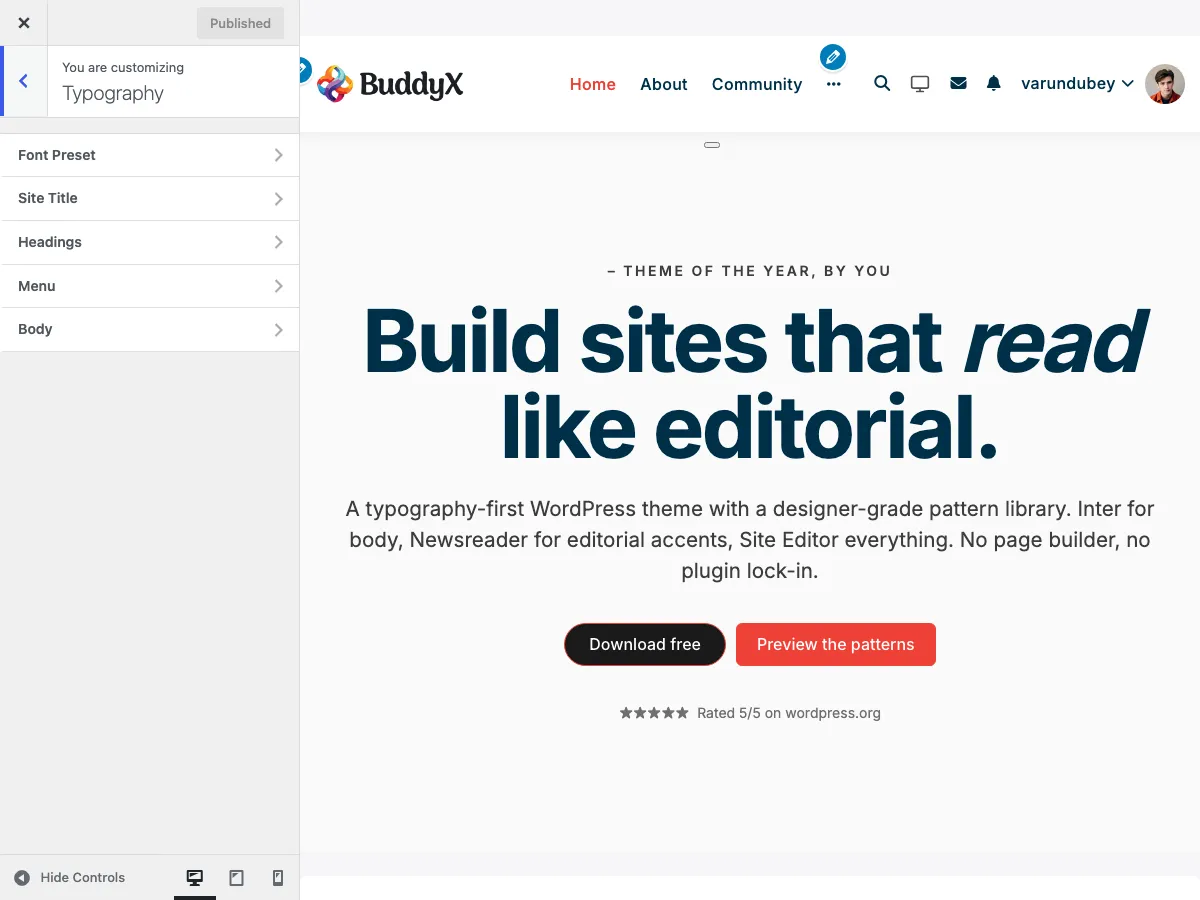 Google Fonts selection in typography settings
What Are Google Fonts?
Google Fonts is a free library of open-source fonts optimized for the web. BuddyX Pro automatically handles:
- Font file downloading and serving
- Browser compatibility
- Performance optimization
- Automatic fallback fonts
- Character subset selection
You simply choose fonts in the Customizer - the theme handles the technical details.
Accessing Google Fonts
Google Fonts are available in any typography setting:
- Go to Appearance > Customize
- Navigate to Typography section
- Open any typography panel (Body, Headings, Menu, etc.)
- Click the Font Family dropdown
- Search or browse hundreds of Google Fonts
The font picker shows:
- Font name
- Real-time preview
- Available font weights
- Search functionality
Using Your Own Fonts Instead (Font Library)
You are not limited to Google Fonts. WordPress ships a Font Library, and BuddyX Pro reads from it - so any font you upload becomes selectable in the same Family dropdown:
- Go to Appearance > Fonts and upload your font files (
.woff2,.ttf, etc.). - Go to Appearance > Customize > Typography and open any typography panel.
- Pick your uploaded font from the Family dropdown.
- Click Publish.
BuddyX Pro prints the @font-face rules for the families you actually use, and skips requesting that family from Google - so a self-hosted font stays self-hosted, with no call to Google's CDN.
Notes:
- Uploading and managing fonts is WordPress's own Font Library UI. The theme only reads it; it never adds, edits, or deletes your uploaded fonts.
- Requires WordPress 6.5+ (when the Font Library shipped).
- Self-hosting is the usual answer for GDPR-sensitive sites - see Local Font Hosting below.
- For fonts hosted somewhere else entirely (Adobe Fonts, a private CDN) there are no files to upload; declare those in child theme CSS.
How BuddyX Pro Loads Fonts
Automatic Loading System
When you select a Google Font, BuddyX Pro automatically:
- Detects fonts used - Scans all typography settings
- Builds font URL - Creates optimized Google Fonts API request
- Adds preconnect hints - Speeds up DNS resolution
- Loads font CSS - Includes only needed character sets
- Applies fonts - Uses CSS to apply to correct elements
All of this happens automatically - you don't write any code.
Font Loading in Action
When you choose "Roboto" for body text:
Theme detects: Roboto font is selected
Generates URL: https://fonts.googleapis.com/css?family=Roboto:400,700&display=swap
Adds to page: <link rel="stylesheet" href="[Google Fonts URL]">
Browser loads: Font files from Google's CDN
Text renders: Using Roboto instead of fallback font
Performance Optimization
BuddyX Pro includes several automatic optimizations for fast font loading:
1. Preconnect Resource Hints
The theme adds DNS preconnect headers:
<link rel="preconnect" href="https://fonts.googleapis.com">
<link rel="preconnect" href="https://fonts.gstatic.com" crossorigin>
Benefit: Reduces font loading time by 100-300ms by establishing connections before fonts are needed.
2. Font Display Swap
All Google Fonts use font-display: swap strategy:
font-display: swap;
What it does:
- Shows fallback font immediately (prevents invisible text)
- Swaps to Google Font when loaded
- Prevents FOIT (Flash of Invisible Text)
- Improves Core Web Vitals scores
User experience: Text appears instantly, then swaps to your chosen font once it loads.
3. Subset Optimization
BuddyX Pro requests only Latin character subsets by default:
family=Roboto:400,700&subset=latin
Why: A full font includes thousands of characters. Most English sites only need 256 Latin characters. This reduces file size by 50-80%.
Available subsets:
latin- English, basic European (default)latin-ext- Extended European characters (ā, ē, ī, etc.)cyrillic- Russian, Ukrainian, Bulgariangreek- Greek alphabetvietnamese- Vietnamese characters
If your site uses multiple languages, you may need additional subsets (requires custom code).
4. Font Weight Limiting
Only selected font weights are loaded:
Regular (400) body text + Bold (700) headings = 2 font files
vs.
Loading all weights (100, 200, 300, 400, 500, 600, 700, 800, 900) = 9 font files
Recommendation: Choose 2-3 weights maximum per font family for optimal performance.
5. CSS Preloading
BuddyX Pro preloads the Google Fonts CSS file:
<link rel="preload" as="style" href="[Google Fonts URL]" />
Benefit: Prioritizes font loading, improving Largest Contentful Paint (LCP) metric.
Font Performance Impact
Understanding the performance cost of web fonts:
Loading Times
| Setup | File Size | Load Time* | Recommendation |
|---|---|---|---|
| System fonts only | 0 KB | 0ms | Fastest possible |
| 1 Google Font, 2 weights | ~40-60 KB | 100-200ms | Excellent |
| 2 Google Fonts, 4 weights total | ~100-150 KB | 200-400ms | Good |
| 3+ fonts, 6+ weights | ~200-300 KB | 400-600ms+ | Avoid |
*Approximate on 3G connection
Core Web Vitals Impact
Google's page speed metrics affected by fonts:
- Largest Contentful Paint (LCP) - Text using web fonts may delay this metric
- Cumulative Layout Shift (CLS) - Font swapping can cause layout shifts
- First Contentful Paint (FCP) - Delayed by font downloads
BuddyX Pro's optimizations minimize these impacts, but fewer fonts = better scores.
Font Selection Best Practices
Choose Wisely
- One font family - Fastest and most cohesive
- Two font families - Good balance (headings + body)
- Three+ families - Usually unnecessary, impacts performance
Weight Management
Select only the weights you'll actually use:
Good setup:
Body: Roboto - Regular (400), Bold (700)
Headings: Roboto - Semi Bold (600), Bold (700)
Total: 3 weights (shared font family)
Excessive setup:
Body: Open Sans - Light (300), Regular (400), Medium (500), Bold (700)
Headings: Montserrat - Regular (400), Semi Bold (600), Bold (700), Extra Bold (800)
Menu: Lato - Medium (500), Bold (700)
Total: 9 weights across 3 families
Fallback Font Considerations
Every Google Font includes fallback fonts in case the primary font doesn't load:
font-family: 'Roboto', -apple-system, BlinkMacSystemFont, sans-serif;
Fallback stack:
- Roboto - Your chosen Google Font
- -apple-system - macOS/iOS system font
- BlinkMacSystemFont - Chrome on macOS
- sans-serif - Generic sans-serif font
The fallback font displays first, then swaps to Google Font. Choose Google Fonts that match common fallback fonts to minimize layout shift.
Popular Google Fonts by Category
Sans-Serif Fonts (Modern, Clean)
| Font Name | Character | Best For |
|---|---|---|
| Roboto | Neutral, friendly | Corporate sites, apps |
| Open Sans | Readable, versatile | Blogs, general sites |
| Lato | Warm, professional | Business, services |
| Montserrat | Geometric, bold | Headlines, modern sites |
| Nunito Sans | Rounded, approachable | Communities, social sites |
| Inter | Technical, precise | SaaS, tech platforms |
| Poppins | Geometric, contemporary | Creative, marketing |
| Source Sans Pro | Readable, neutral | Documentation, content |
Serif Fonts (Traditional, Elegant)
| Font Name | Character | Best For |
|---|---|---|
| Merriweather | Readable, traditional | Blogs, editorial |
| Playfair Display | Elegant, high-contrast | Luxury, fashion |
| Lora | Balanced, calligraphic | Long-form content |
| PT Serif | Traditional, neutral | Professional content |
| Crimson Text | Book-like, classic | Literature, reading |
Display Fonts (Decorative, Impact)
| Font Name | Character | Best For |
|---|---|---|
| Bebas Neue | Tall, condensed | Headers only |
| Righteous | Bold, retro | Creative projects |
| Archivo Black | Heavy, impactful | Marketing, landing pages |
Warning: Display fonts should only be used for large headings, never body text. They're designed for impact, not extended reading.
Font Pairing Strategies
Combine fonts effectively for professional results:
Strategy 1: Same Family (Safest)
Use one font for everything:
All text: Nunito Sans (varying weights)
- Body: Regular (400)
- Subheadings: Medium (500)
- Headings: Semi Bold (600)
- Strong headings: Bold (700)
Pros: Fastest loading, most cohesive, easiest to manage Cons: Less visual variety
Strategy 2: Serif + Sans-Serif (Classic)
Pair a serif with a sans-serif:
Option A: Serif headings, sans-serif body
Headings: Merriweather (serif)
Body: Open Sans (sans-serif)
Effect: Traditional, authoritative, editorial
Option B: Sans-serif headings, serif body
Headings: Montserrat (sans-serif)
Body: Lora (serif)
Effect: Modern headings, comfortable reading
Strategy 3: Geometric + Humanist
Combine structured and organic sans-serifs:
Headings: Montserrat (geometric, structured)
Body: Open Sans (humanist, friendly)
Effect: Modern but approachable
Strategy 4: Display + Neutral
Bold headings with safe body text:
H1-H2: Bebas Neue (display font)
H3-H6 & Body: Roboto (neutral sans-serif)
Effect: Attention-grabbing titles, readable content
Pairing Guidelines
When combining two fonts:
✅ Do:
- Choose fonts with similar proportions (x-height)
- Pair fonts from different classifications (serif + sans-serif)
- Use one font for 80% of text, accent font for 20%
- Test readability at actual site sizes
- Consider historical period (don't mix Renaissance serif with Futuristic sans)
❌ Don't:
- Pair two decorative/display fonts
- Use fonts that are too similar (creates confusion, not contrast)
- Mix more than 2-3 font families site-wide
- Pair fonts from same classification unless intentional
Advanced Font Techniques
Using Variable Fonts
Some Google Fonts support variable font technology:
Benefits:
- One file contains all weights
- Smoother weight transitions
- Better performance than loading multiple weight files
Supported variable fonts:
- Inter
- Roboto Flex
- Crimson Pro
- Recursive
BuddyX Pro will automatically use variable font versions when available.
Font Subset Customization
To load additional character subsets (advanced users):
// Add to child theme functions.php
add_filter( 'buddyxpro_google_fonts', function( $fonts ) {
    // Add subset parameter to font array
    return $fonts;
});
Contact support for implementation help.
Local Font Hosting
For maximum control and privacy compliance (GDPR):
The simplest route is WordPress's Font Library: download the font family you want, upload it at Appearance > Fonts, then pick it in Customize > Typography > Family. BuddyX Pro prints the @font-face rules and stops requesting that family from Google - no external request, no code, no support ticket. See Using Your Own Fonts Instead above.
BuddyX Pro also includes functionality to download and self-host Google Fonts. This:
- Eliminates external requests (privacy-friendly)
- Slightly faster in some regions
- Works offline/behind firewalls
- Requires technical implementation
Contact support for local font hosting setup.
System Fonts Alternative
For the absolute fastest loading, use system fonts instead of Google Fonts:
What Are System Fonts?
Fonts already installed on users' devices:
- macOS/iOS: San Francisco
- Windows: Segoe UI
- Android: Roboto
- Linux: Ubuntu, Oxygen, Cantarell
System Font Stack
BuddyX Pro uses this optimized stack when you select system fonts:
font-family: -apple-system, BlinkMacSystemFont, "Segoe UI", Roboto,
             "Helvetica Neue", Arial, sans-serif;
Benefits of System Fonts
- Zero network requests - Instantly available
- Native look - Matches user's OS
- Perfect rendering - Optimized by OS makers
- Privacy-friendly - No external connections
- Best Core Web Vitals - No font loading delays
When to Use System Fonts
Choose system fonts when:
- Performance is critical priority
- Building a web app or dashboard (native feel)
- GDPR privacy is a concern (no Google requests)
- Your brand doesn't require specific typography
Choose Google Fonts when:
- Brand identity requires specific typeface
- Design needs more personality
- Willing to accept small performance cost for visual impact
Font Loading Strategies Compared
BuddyX Pro uses the swap strategy by default. Understanding all options:
| Strategy | Behavior | User Experience | Use Case |
|---|---|---|---|
| swap | Show fallback immediately, swap when loaded | Brief style change when font loads | Best for most sites (default) |
| block | Hide text up to 3 seconds until font loads | Invisible text briefly | Avoid (poor UX) |
| fallback | Brief block (100ms), then fallback if slow | Compromise | Slow networks |
| optional | Use font if cached, otherwise fallback | Consistent render, font may not load | Extreme performance priority |
BuddyX Pro recommendation: Stick with swap (the default). It provides the best balance of brand consistency and user experience.
Measuring Font Performance
Test Your Font Loading
Use these tools to measure impact:
Google PageSpeed Insights - pagespeed.web.dev
- Check LCP score
- Review font loading recommendations
- Test mobile and desktop
WebPageTest - webpagetest.org
- Detailed font loading waterfall
- Shows preconnect effectiveness
- Tests from multiple locations
Chrome DevTools
- Open DevTools (F12)
- Network tab > Filter: Font
- See when fonts load
- Check file sizes
Target Metrics
Aim for these benchmarks:
- Font file total: Under 100 KB
- Number of font requests: 1-3 requests
- Font load time: Under 500ms on 3G
- LCP impact: Fonts loaded before LCP element
Troubleshooting Font Issues
Issue: Fonts not loading at all
Symptoms: Text shows in fallback font only
Causes:
- Browser ad blocker blocking Google Fonts
- Corporate firewall blocking Google domains
- Privacy extensions (Privacy Badger, etc.)
- DNS issues
Solutions:
- Test in incognito mode without extensions
- Check browser console for errors (F12)
- Whitelist
fonts.googleapis.comandfonts.gstatic.com - Try a different network
- Consider local font hosting
Issue: Fonts load slowly
Symptoms: Long delay before custom font appears
Causes:
- Too many font weights loaded
- Multiple font families
- Slow internet connection
- No preconnect optimization
Solutions:
- Reduce to 2-3 font weights maximum
- Use only 1-2 font families
- Verify preconnect hints are present (view page source)
- Consider system fonts for body text
- Test on real devices, not just desktop
Issue: Flash of unstyled text (FOUT)
Symptoms: Brief moment of fallback font before Google Font appears
Explanation: This is intentional behavior with font-display: swap. Text appears immediately (good for users), then upgrades to custom font.
Solutions if problematic:
- Choose Google Fonts similar to fallback fonts (reduces visual shift)
- Accept it - better than invisible text
- Use system fonts if consistency critical
Not a bug - it's a performance feature protecting user experience.
Issue: Font looks different than Google Fonts preview
Causes:
- Font rendering varies by OS and browser
- Antialiasing differences
- Screen resolution affects appearance
- Color and background affect perception
Solutions:
- Test on target audience's primary devices
- Adjust font weight if too light/heavy
- Check contrast against background color
- Some fonts look better on certain OS (Mac vs. Windows)
Issue: Some font weights don't work
Cause: Not all Google Fonts include all weights (100-900).
Check available weights:
- Visit fonts.google.com
- Search for your font
- Check "Styles" tab for available weights
Solution: Only select weights that font actually supports, or choose a different font with needed weights.
Issue: Fonts making site slow
Symptoms: Poor PageSpeed scores, high LCP time
Solutions:
- Audit font usage: How many families? How many weights?
- Reduce fonts: Aim for 1 family with 2-3 weights
- Critical fonts only: Use system fonts for less important text
- Preload critical fonts: Add preload link for above-fold fonts
- Measure impact: Use PageSpeed Insights before and after changes
Font Loading Performance Checklist
Use this checklist to optimize font performance:
- Using 2 or fewer Google Font families
- Loading 3 or fewer font weights total
- Preconnect hints present in page source
-
font-display: swapactive (BuddyX Pro default) - Latin subset only (unless multilingual site)
- PageSpeed Insights LCP under 2.5 seconds
- No console errors related to fonts
- Fonts load within 500ms on 3G throttling
- CLS (layout shift) score under 0.1
- Tested on target audience devices
Common Questions
Q: Are Google Fonts really free?
A: Yes, completely free for personal and commercial use. Google Fonts are open-source and licensed freely. No attribution required, no usage limits.
Q: Do Google Fonts work offline?
A: Once loaded and cached, yes. The browser caches font files, so repeat visits load fonts instantly from cache. But initial load requires internet connection. For true offline support, you'd need local font hosting.
Q: Can I use premium fonts with BuddyX Pro?
A: Yes, but requires custom implementation:
- Upload font files to theme
- Add
@font-faceCSS declarations - Reference custom fonts in Additional CSS
This is an advanced technique. Contact support for guidance.
Q: Will fonts slow down my site?
A: Potentially, but BuddyX Pro's optimizations minimize impact:
- 1 font family, 2 weights: Minimal impact (~40KB, 100-200ms)
- 2 families, 4 weights: Moderate impact (~100KB, 200-400ms)
- 3+ families, 6+ weights: Significant impact (>200KB, 400ms+)
The key is moderation. System fonts are faster, but Google Fonts' branding value often justifies the small cost.
Q: Are Google Fonts GDPR compliant?
A: Contested. Some EU courts ruled that loading fonts from Google servers can violate GDPR by sharing user IP addresses without consent. Solutions:
- Self-host fonts (local hosting) - Fully compliant
- Cookie consent - Show fonts only after user consent
- Legal assessment - Consult your legal advisor
The quickest path to option 1: upload the font at Appearance > Fonts and select it in Customize > Typography > Family. Once a family is self-hosted this way, BuddyX Pro no longer requests it from Google. See Using Your Own Fonts Instead.
Q: Why does my font look bold/light on Windows vs. Mac?
A: Operating systems render fonts differently:
- Mac/iOS: Slightly heavier rendering, more antialiasing
- Windows: Lighter rendering, less smoothing (ClearType)
- Linux: Varies by distribution
Choose a middle-ground weight (500-600 for headings, 400 for body) that works across systems. Test on target platforms.
Q: Can I use custom fonts from other sources (Adobe Fonts, Font Squirrel)?
A: Yes, with custom setup:
Adobe Fonts (Typekit):
- Get embed code from Adobe
- Add to theme header
- Reference fonts in Additional CSS
Self-hosted fonts (Font Squirrel, a purchased font, any font you have the files for):
- Upload the files at Appearance > Fonts (WordPress's Font Library)
- Pick the family in Customize > Typography > Family
No CSS required - the theme prints the @font-face rules for you. See Using Your Own Fonts Instead above.
Q: How often does BuddyX Pro update its Google Fonts list?
A: Google Fonts integration is dynamic - you have access to all fonts Google provides through their API. As Google adds new fonts, they become automatically available in BuddyX Pro's font picker. No theme update required.
Q: Do font settings apply to WordPress block editor?
A: Yes, BuddyX Pro synchronizes font settings with the block editor so what you see while editing matches the live site. Some editor features (font size picker) may show additional options beyond theme defaults.
Related Documentation
- Body Typography - Body text font configuration
- Heading Typography - H1-H6 font settings
- Site Title Typography - Logo font styling
- Menu Typography - Navigation fonts
- Performance Optimization - General speed tips
Additional Resources
- Google Fonts Catalog - Browse all available fonts
- FontPair - Google Fonts pairing suggestions
- TypeScale - Font size calculator
- Google Fonts Knowledge - Typography fundamentals
- Web Font Loading Best Practices - Google's official guide
Got a question? We're a friendly team - happy to help.
- Visit BuddyX Documentation
- Email us at support@wbcomdesigns.com
- Community Forum: Wbcom Designs Forum