
Site Performance
Free themeServe your fonts from your own server for a faster, more private site - no extra plugins needed.
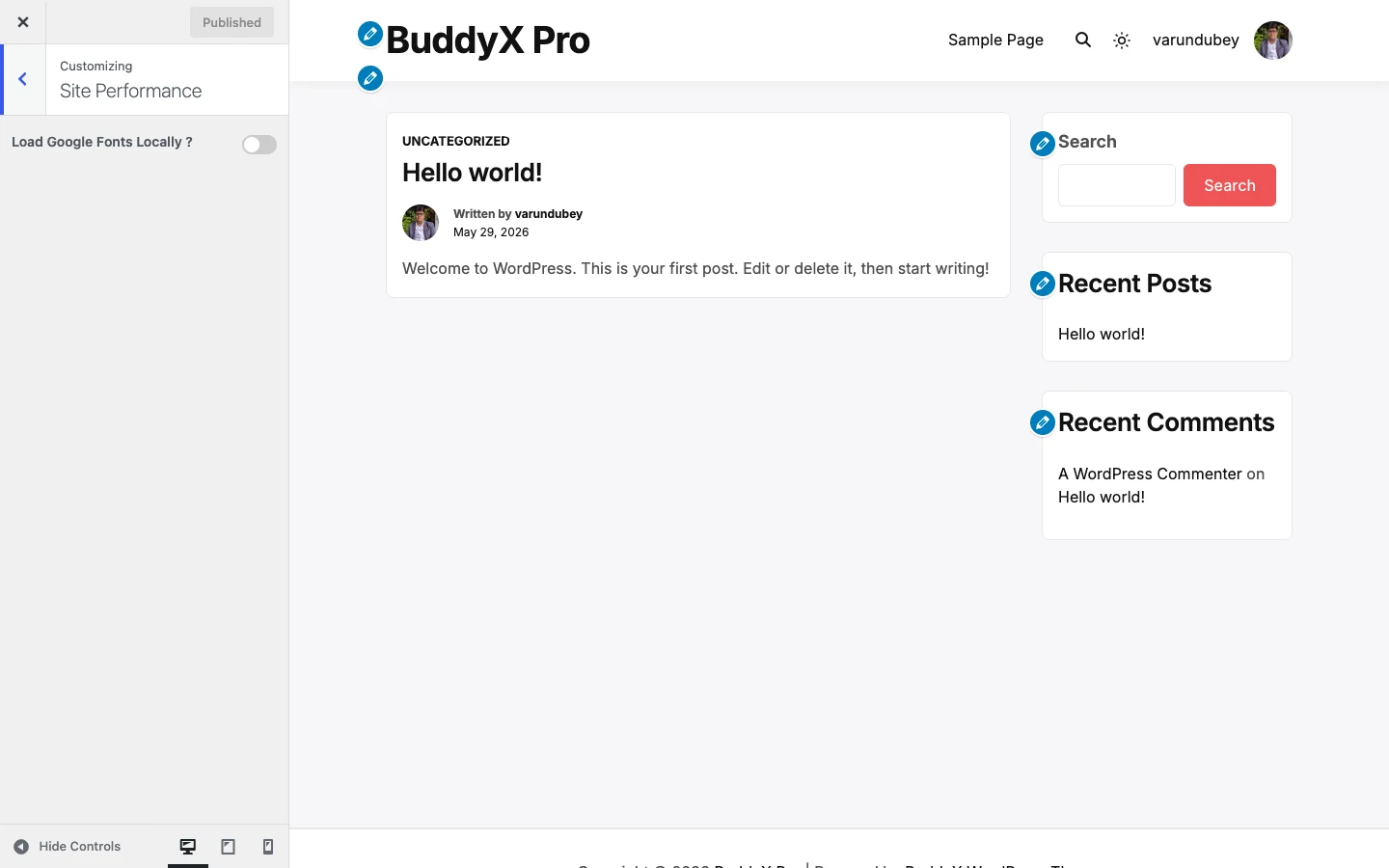
Out of the box, BuddyX already ships its interface fonts (Inter and Newsreader) self-hosted, so nothing is loaded from Google. The Site Performance section is for the case where your content, a child theme, or another plugin still pulls in Google Fonts. Turn one switch on and BuddyX downloads copies of those fonts to your own server, then serves them from there.
Find these controls at Appearance -> Customize -> Site Performance.
Why load fonts locally
When a font loads from Google's servers, every visitor's browser has to reach out to fonts.googleapis.com before your text can render. That does two things you may not want:
- It sends each visitor's IP address to a third party, which many privacy and GDPR reviews flag.
- It adds an extra network round-trip that can slow down how fast your text appears.
Loading fonts locally solves both. The font files sit on your own server, so nothing about your visitors is shared with Google, and the browser fetches everything from one place. For most sites this is a small but real speed and privacy win, and it is safe to leave on.
First-time tip: If you are not sure whether your site even uses Google Fonts, you can leave this whole section on Default (off) and move on. BuddyX's own fonts are already local. Come back and switch it on only if a privacy scan or speed test tells you Google Fonts are being requested.
Settings
| Setting | Default | What it does |
|---|---|---|
| Load Google Fonts Locally ? | Disable (off) | Downloads any Google Fonts your site requests and serves them from your own server instead of Google. Turning this on reveals the two controls below. |
| Preload Local Fonts ? | Disable (off) | Adds a preload hint so the browser starts fetching your local font files earlier in page load, so text renders sooner. Only appears once "Load Google Fonts Locally" is enabled. |
| Flush Local Fonts Cache | - (button) | The "Flush Local Font Files" button clears the stored local font copies so BuddyX re-downloads fresh files. Use it if fonts change or look stale. Only appears once "Load Google Fonts Locally" is enabled. |
Both switches are off by default, which keeps the default behavior unchanged until you opt in.
How to turn it on
- Go to Appearance -> Customize -> Site Performance.
- Set Load Google Fonts Locally ? to Enable.
- Set Preload Local Fonts ? to Enable for the extra speed hint (recommended once local loading is on).
- Click Publish.
- If you ever swap fonts and the old ones linger, come back and click Flush Local Font Files to force a fresh download.
Note: Every control on this page is included in BuddyX free - local Google Fonts, font preloading, and the cache flush all work without BuddyX Pro. BuddyX Pro adds different things (header layouts, sign-in popup, per-page settings, WooCommerce shop styling, and full BuddyPress control), not extra performance switches. So there is nothing to unlock here.
Related
- Back to BuddyX docs
- Colors and skin
- Dark mode
- First-time setup
Next: First-time setup