
Sign-in Popup
Pro featureThe Sign-in Popup is a Pro-only feature that opens login and registration inside an in-page modal instead of sending visitors to a full /wp-login.php page. Members stay on the content they were reading, sign in or register in the modal, and land back where they started. This page documents the real customizer controls, their options, and their defaults, plus when to use the popup and when to stick with a full login page.
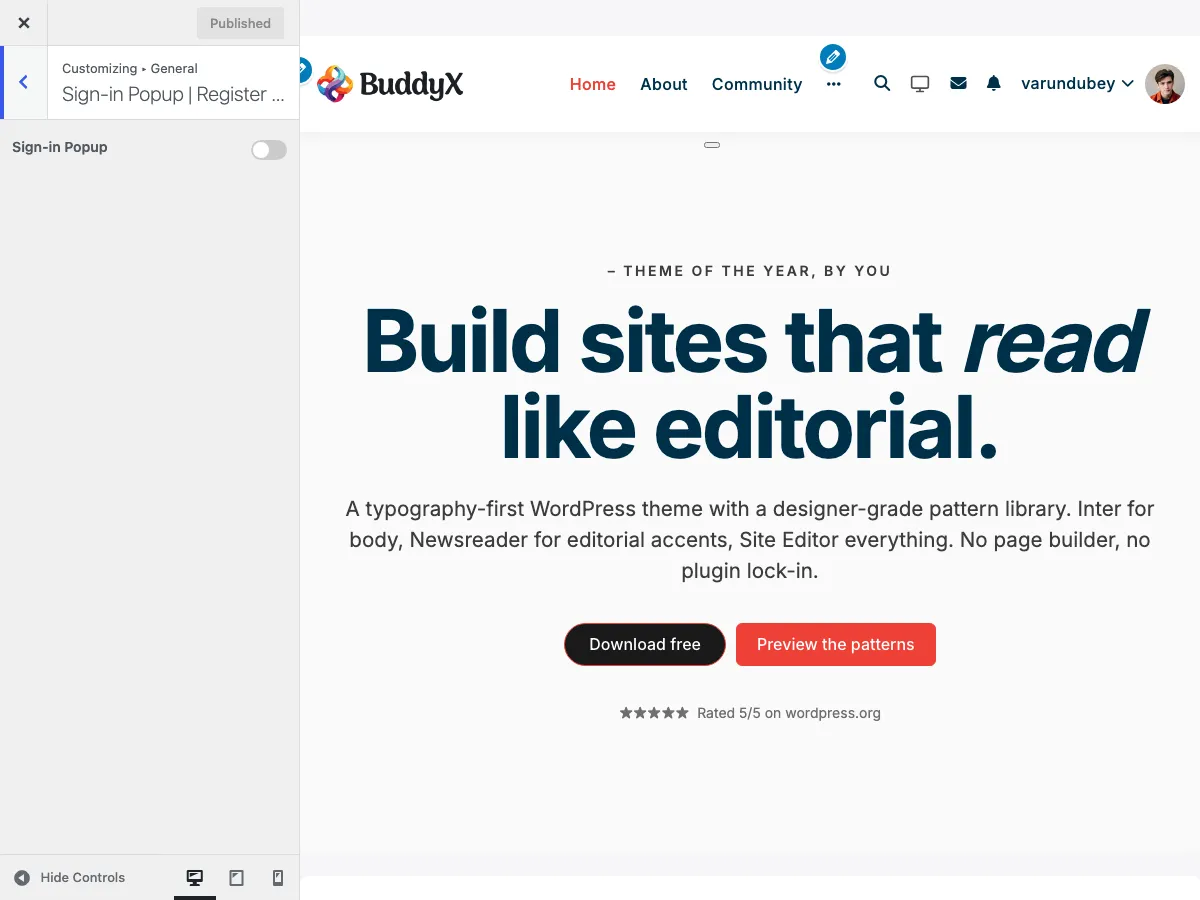 The Sign-in Popup | Register Form Fields section under Appearance > Customize > General, with the master toggle at the top.
Where it lives
- Go to Appearance > Customize.
- Open the General panel.
- Select Sign-in Popup | Register Form Fields.
- Turn on Sign-in Popup to reveal the rest of the controls.
Every control below the master toggle stays hidden until Sign-in Popup is on, and several are hidden further depending on the Form Popup mode and whether BuddyPress is active.
Master toggle
| Setting | Key | Type | Default |
|---|---|---|---|
| Sign-in Popup | buddyx_signin_popup |
Yes / No switch | No (off) |
When this is No, the theme behaves like standard WordPress - the header Log in and Register buttons point at your real login and registration URLs. When it is Yes, those same header buttons switch to # and open the modal instead, so no full-page redirect happens until a visitor explicitly requests the WordPress login URL.
Popup controls
Once the master toggle is on, these controls appear. The setting keys match the actual customizer keys, so you can target them from a child theme with get_theme_mod().
| Setting | Key | Options | Default | Appears when |
|---|---|---|---|---|
| Form Popup | buddyx_sign_form_popup |
BuddyX Login Form / Custom shortcode | BuddyX Login Form | Sign-in Popup is on |
| Form Display | buddyx_sign_form_display |
Both / Login / Register | Login | Form Popup is not Custom shortcode |
| Login Redirect | buddyx_login_redirect |
See below | Current page | Form Popup is not Custom shortcode |
| Login Custom URL | buddyx_login_redirect_url |
Full URL | empty | Login Redirect = Custom page |
| Register Redirect | buddyx_register_redirect |
Current page / Custom page | Current page | Neither BuddyPress nor PeepSo is active |
| Register Custom URL | buddyx_register_redirect_url |
Full URL | empty | Register Redirect = Custom page (non-BuddyPress) |
| Login Form Description | buddyx_login_description |
Text / HTML / shortcodes | empty | Form Popup = BuddyX Login Form |
| Popup Content | buddyx_sign_form_shortcode |
HTML / shortcode | empty | Form Popup = Custom shortcode |
| Note for registration popup | buddyx_register_note |
Read-only note | see below | Form Display is Both or Register |
Form Popup
Picks what fills the modal body.
- BuddyX Login Form - the theme's own bundled login and register form, styled to match your active BuddyX Pro colors and dark mode.
- Custom shortcode - swaps the body for whatever you paste into Popup Content below. Use this to surface a third-party auth plugin's form inside the BuddyX popup chrome. When this mode is on, Form Display, Login Redirect, and Login Form Description are hidden because the theme no longer controls the form markup.
Form Display
Which pane the modal opens on (BuddyX Login Form mode only).
- Both - opens the login pane with a tab to switch to register.
- Login - login pane only.
- Register - register pane only.
Login Redirect
Where a visitor lands after a successful login. The available choices depend on whether BuddyPress is active:
| BuddyPress active | Choices |
|---|---|
| Yes | Current page, Profile page, Activity page, Custom page |
| No | Current page, Custom page |
Current page keeps the visitor exactly where they were when they opened the modal, which is the friendliest default for community and membership sites. Choosing Custom page reveals Login Custom URL - enter a full URL including the https:// prefix.
Register Redirect
The Register Redirect and Register Custom URL controls only appear when neither BuddyPress nor PeepSo is active - on a plain WordPress install. When BuddyPress is running, registration follows BuddyPress's own signup and activation flow, so these controls are intentionally hidden.
Login Form Description
A free text area (accepts HTML and shortcodes) rendered above the form in the modal. Use it for a one-line value proposition or a short welcome message. It only applies to the BuddyX Login Form - Custom shortcode mode ignores it.
Popup Content
Only shown when Form Popup is Custom shortcode. Paste a login or register shortcode (or any custom HTML) from a third-party auth plugin here; BuddyX renders its popup chrome around whatever you provide.
Note for registration popup
A read-only heads-up that appears when Form Display is Both or Register:
In case of missing required field and wrong entries you will be redirected to the default registration page for further process.
This cannot be edited. It explains the theme's safety net: if a visitor leaves a required field blank or enters invalid data, they are handed off to the full /wp-login.php?action=register page (with their entries pre-filled) so BuddyPress xprofile validation can run end to end.
What the register form collects
In BuddyX Login Form mode, the register pane asks for first name, last name, username, email, password, and password confirmation. When BuddyPress xprofile is active, any required profile fields from your base profile group are added to the form automatically, and a privacy-policy checkbox appears if you have set a Privacy Policy page. Because the theme reads your live required fields, you manage the register form's contents from BuddyPress > Profile Fields, not from a separate list in the customizer.
How the popup is triggered
With the master toggle on, the header user widget's Log in and Register buttons open the modal instead of navigating away:
- Log in opens the modal when Form Display is Login or Both (or when Form Popup is Custom shortcode).
- Register opens the modal on the register pane when Form Display is Register or Both.
The theme also auto-opens the login modal when a visitor arrives on a BuddyPress account-activation resend link, so the flow never dead-ends on a blank page.
When to use the popup
- Social and community sites - keep visitors on the activity stream, group, or member profile they are engaging with instead of breaking flow with a full-page redirect.
- Membership and paywalls - surface the login prompt on the gated content page, then drop the visitor right back onto the content after they authenticate (set Login Redirect to Current page).
- Higher signup conversion - a modal that opens in place is a lower-friction ask than a page that navigates the visitor away from what caught their interest.
When to use a full login page instead
- You rely on the styled
/wp-login.phppage - if you have invested in the branded login background, logo, and split-view treatment covered in Login Page Branding, keep the full page so every visitor sees it. The popup short-circuits that route. - Strict 2FA or SSO setups - some authentication plugins inject their UI only on
/wp-login.php. Test your 2FA or SSO flow inside the modal before switching your whole audience to it. - You build your own auth UI - if a page builder or a custom shortcode already renders your login experience, the popup and that UI can compete for the same trigger. In that case either disable the popup or run your custom form through Custom shortcode mode so there is a single source of truth.
Tip: The popup and the full login page are not mutually exclusive at the code level - the popup only takes over the header buttons. Visitors who reach
/wp-login.phpdirectly still get your branded login page. Choose the popup as the default entry point when in-flow signup matters more than a branded full-screen moment.
Styling
The BuddyX Login Form popup inherits your theme's colors, buttons, and dark-mode treatment, so it matches the rest of the site without extra configuration. If you want the branded background, logo, and split-view layout as well, apply those to the full login page - see Login Page Branding - and keep the popup for quick in-page access.
Common questions
The header buttons still open the old login page. Why?
Confirm Sign-in Popup is set to Yes and that you clicked Publish. The header Log in and Register buttons only switch to the modal when the master toggle is on and the matching Form Display value is selected.
Can I show only the register form?
Yes. Set Form Display to Register. The modal opens straight to the register pane.
My third-party login plugin has its own form. Can I use it in the popup?
Set Form Popup to Custom shortcode and paste the plugin's login or register shortcode into Popup Content. BuddyX renders its popup frame around it.
A member filled the register form but landed on the full registration page. Is that a bug?
No. That is the safety net described in the read-only note - a missing required field or invalid entry hands the visitor to the full /wp-login.php?action=register page (with their input pre-filled) so BuddyPress can validate every required xprofile field.
Related
- Login Page Branding - style the full
/wp-login.phppage with logos, backgrounds, and split-view layouts. - Registration Page Branding - customize the BuddyPress registration page and its fields.
- Password Reset - brand the lost-password flow.
Support
Need a hand wiring up the Sign-in Popup or matching it to a third-party auth plugin? Email support@wbcomdesigns.com with your site URL and a screenshot of your Sign-in Popup | Register Form Fields settings.